
 Updated: September 8, 2026
 3 min read
A LinkedIn Group is a discussion space inside LinkedIn where members with a shared goal trade ideas, solve problems, and expand networks. Think of it as a news feed with the noise filtered out, where only posts about the chosen topic appear.
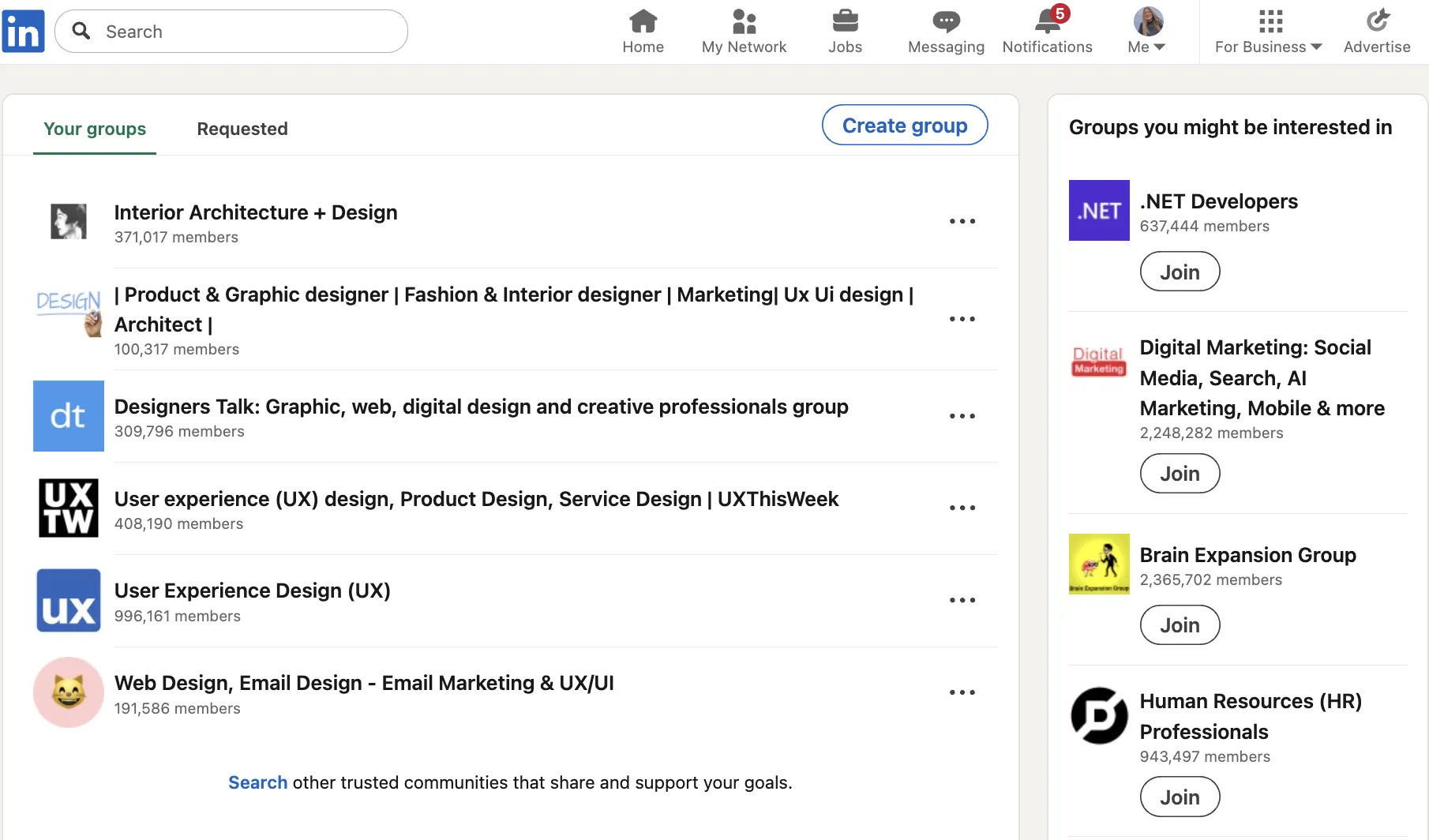
For recruiters, marketers, and founders, a well-run community can:
- Reach wider audiences organically. Public group posts can appear in feeds beyond members, while private groups keep discussions members-only.
- Build authority faster. Admins can pin one post to the top (no notification) or recommend posts to notify members (one per 7 days).
- Warmup leads: 50% of B2B buyers seek out known peers and 89% rate peer conversations as helpful when making purchase decisions (2024 TrustRadius).
- Cut support tickets by directing clients to LinkedIn Private Groups for peer Q&A.
- Reduce ad spend by nurturing prospects organically.
For more advanced strategies, read How to use LinkedIn groups to generate leads with Linked Helper.
How Do LinkedIn Groups Work?
Below is a two-part workflow that takes under 15 minutes.
1. Join a Relevant Group
- Enter a keyword in the top search bar (e.g., "B2B SaaS").
- Click the “Groups” filter → review member count and recent posts.
- Press Request to join, then drop a quick hello in the welcome thread for extra LinkedIn member visibility.
2. Create Your Own Group
Need your own niche hub? Follow these steps to create a LinkedIn Group:
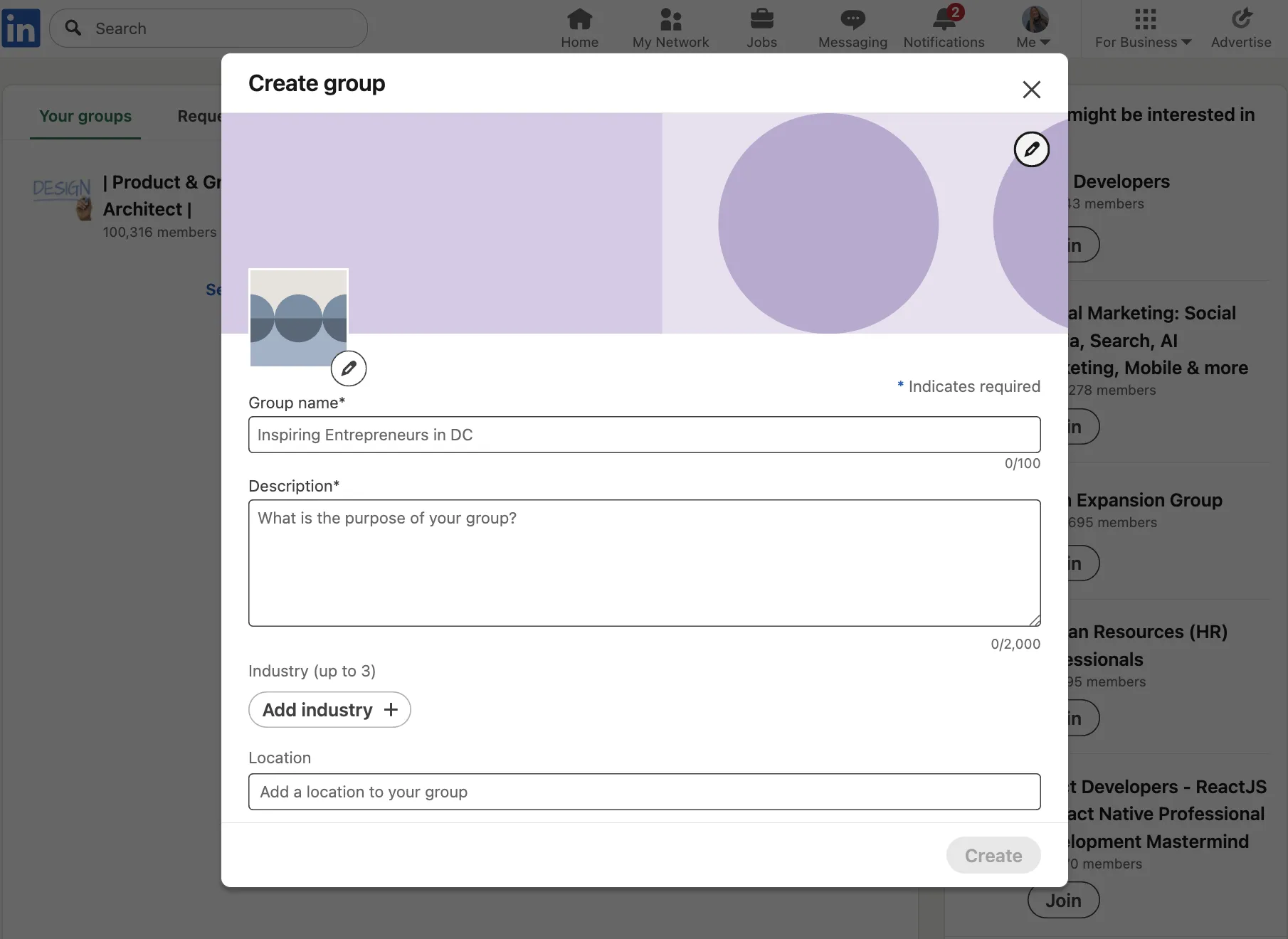
- Go to Groups → Create Group.
- Fill in:
- Name (add a keyword)
- Description (benefits + rules)
- Up to three industries + location
- Pick Privacy: Public or Private.
- If Private, choose Discoverability: Listed or Unlisted.
- Upload logo + banner → click Create. Your group is live.
3. Post and Moderate
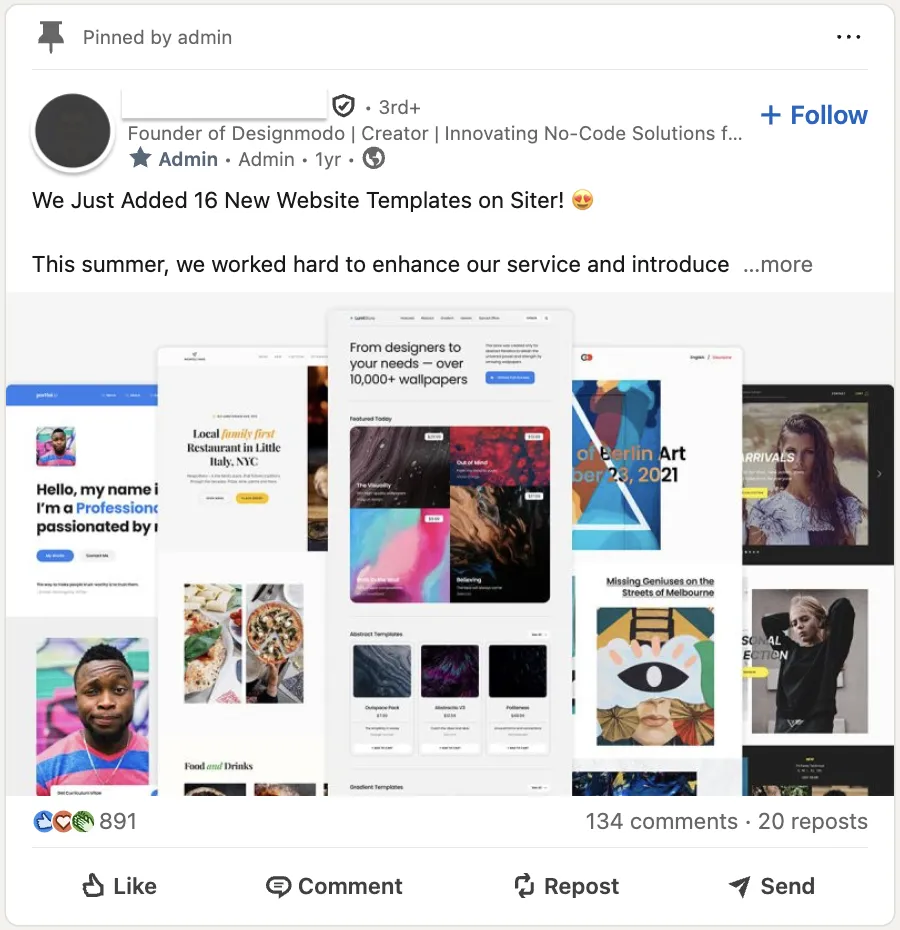
- Share original insights and avoid link-dumping.
- Toggle “Require review” to stop spam.
- Run polls or AMA threads every week.
Best Practices
- 4-1-1 rule: four helpful posts, one discussion starter, one soft promo.
- Tag experts with @ to trigger quality comments.
- Schedule theme days (#MarketingMonday) so members know when to return.
- Invite selectively; 500 active beats 5,000 silent.
- Cross-post highlights as Articles on LinkedIn for extra traffic.
- If you want a comprehensive guide on managing and benefitting from groups, see The Complete Guide to Using LinkedIn Groups: Create, Join, Manage.
Bonus Tips
- Use LinkedIn's Automatic welcome note for new members; optionally use Linked Helper to invite or message group members at scale.
- Groups with consistent monthly conversational activity earn better discovery. Watch the "Active Group" badge.
- Pin a gated checklist at the top of the group and follow up via message request. You can message group members individually via Message Request if not connected (no bulk send-to-all).
Running a LinkedIn Group takes roughly 20 minutes a week once it's set up.