A LinkedIn Newsletter is a series of articles you publish on LinkedIn. Subscribers get each edition in their feed and inbox, subject to their notification settings. You can run up to five newsletters per profile or Page, with unlimited editions each.
Why Use a LinkedIn Newsletter?
Newsletters can reach more of your audience because subscribers receive push, in-app, and email notifications, depending on their notification settings.
Recruiters use them to share company culture and job openings. Marketers turn case studies into recurring content. If you want to build an audience around a niche topic, newsletters work well for that too.
How to Set Up a LinkedIn Newsletter
Setup takes about 5 minutes:
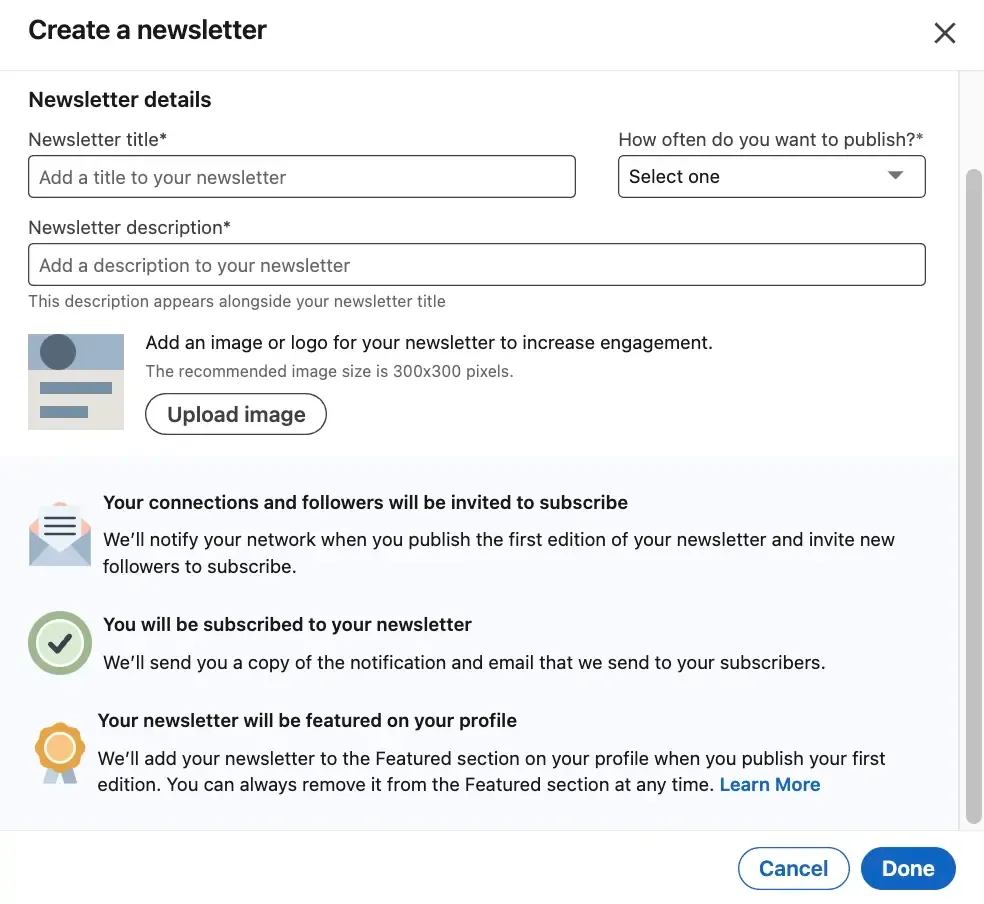
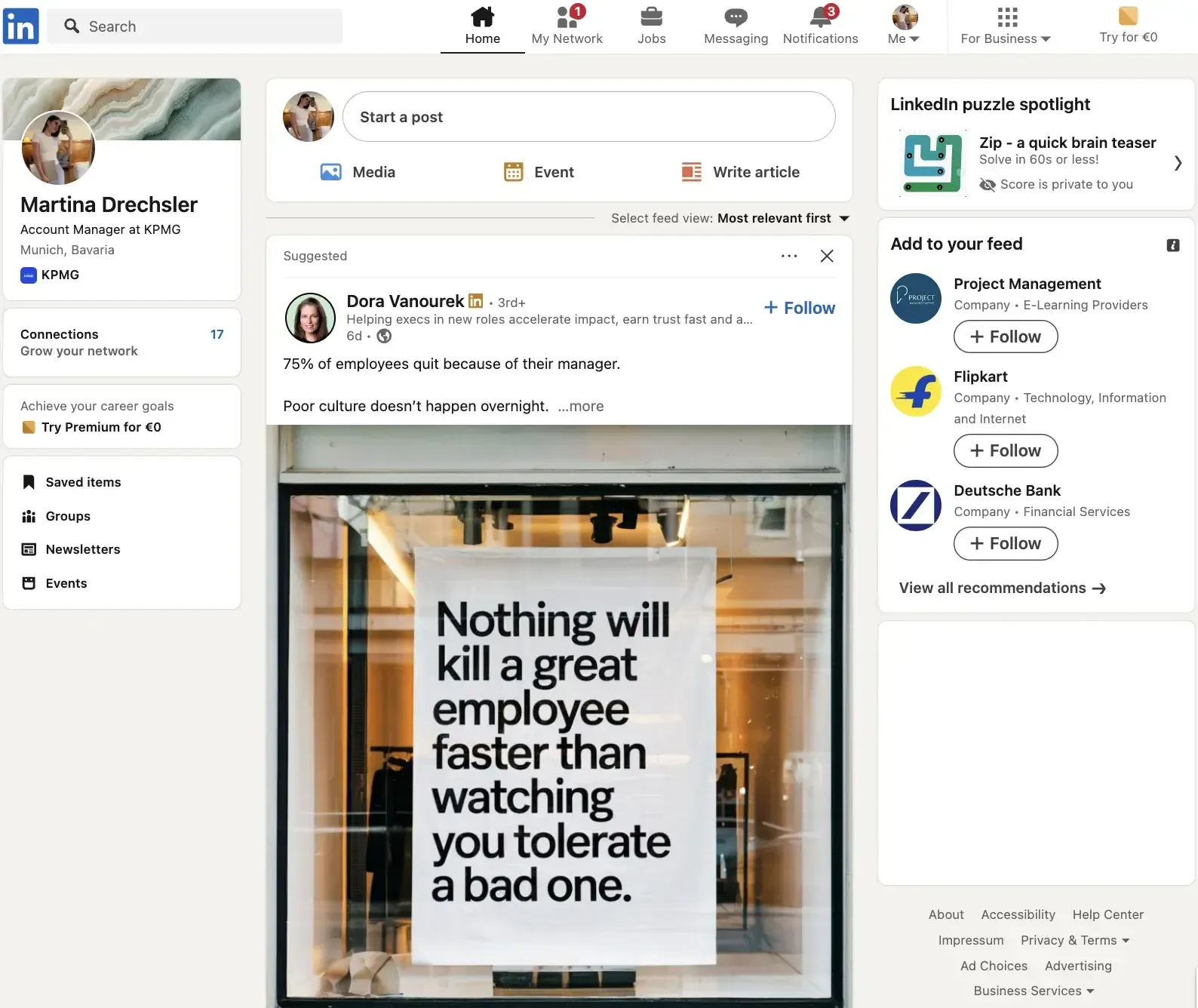
- On the LinkedIn Home page click Write Article.
- In the editor choose Create a Newsletter.
- Add title, choose a frequency (e.g., daily, weekly, biweekly, or monthly), and a one-sentence description.
- Upload square logo (300×300px recommended) and cover 1920×1080px.
- Hit Done, draft your first edition, then click Publish.
When you publish, subscribers get notified across push, in-app, and email. LinkedIn creates a dedicated URL for your newsletter where all editions are stored. You also get basic analytics: views, subscriber growth, and reader demographics for up to 365 days.
Best Practices
- Pick a clear name and theme. "AI Hiring Weekly" tells readers what to expect; "Random Thoughts" does not. Stick to your publishing schedule so subscribers know when new editions arrive. Fill in the SEO fields in the editor to help your newsletter show up in search.
- Write two editions ahead of schedule. That buffer helps when life gets busy. You can also expand high-performing posts into newsletter articles. Block time on your calendar for writing, the same way you would for a meeting.
- Images with people often increase engagement and impressions; click-through impact varies—test with your audience. End each edition with a question to encourage comments. Share the newsletter link in Slack, email signatures, or ads to grow your subscriber list.
For more on getting the best visibility for your posts on LinkedIn, check out How Does the LinkedIn Algorithm Work? [+2025 Changes & Updates].
Additional Tips
Set your profile's primary button to Follow if you want to grow your audience. But remind readers to subscribe to the newsletter itself—that's what triggers the email notifications. Add UTM tags to links if you want to track traffic in your web analytics (e.g., GA4). Company Pages can create newsletters too, so you can test whether personal or company-branded content works better for your audience.
Unlike regular posts, newsletters notify subscribers directly by email. Pick a schedule and stick to it.