
 Updated: September 8, 2026
 4 min read
LinkedIn profile visibility is a set of controls that define who can view every section of your page, on and off the platform. You can toggle your public profile off to hide it from non-members and search engines, while signed-in LinkedIn members (including 1st-degree connections) generally still see your full profile. You can also use "Who can see your last name" to show only your first name and last initial to non-connections. These choices are known inside LinkedIn as your LinkedIn visibility options.
Why LinkedIn Profile Visibility Matters
- Talent attraction – Public profile settings affect what non-members and search engines see. LinkedIn Recruiter uses the platform's internal index, so hiding public sections doesn't remove fields from on-LinkedIn search.
- Stealth prospecting – Private mode lets you view prospects without revealing your identity; your visit still appears as 'LinkedIn Member' to the profile owner.
- Data hygiene – Limiting off-LinkedIn sharing keeps CRM add-ins like Outlook from auto-pulling details.
- Signal availability – Profiles with a photo receive up to 21× more profile views and 9× more connection requests, according to LinkedIn.
- Competitive research – Marketers can watch rivals in private while keeping their own profile public.
How Does LinkedIn Profile Visibility Work?
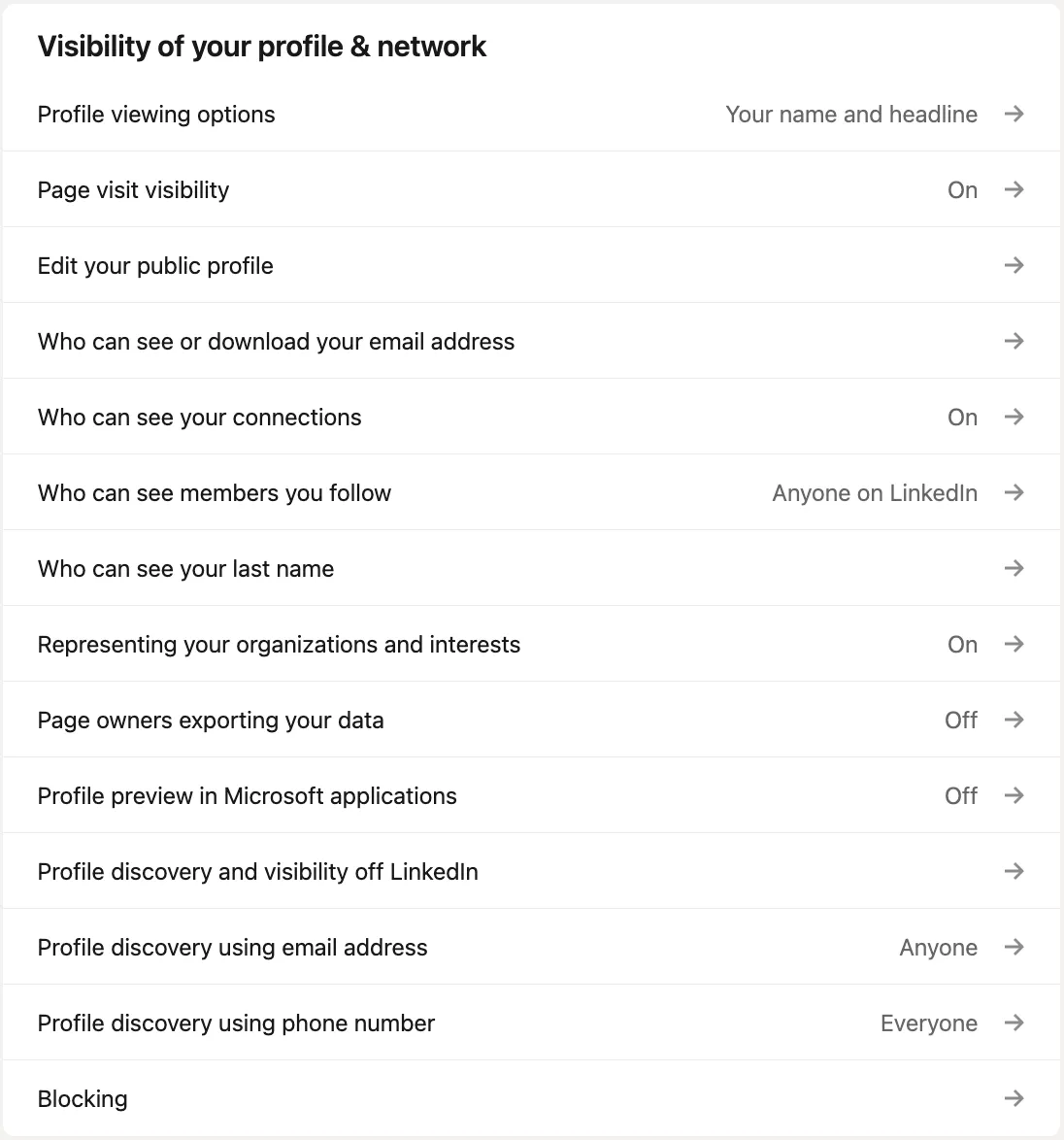
- Open Me → Settings & Privacy → Visibility.
- Under Visibility of your profile & network choose one of three core settings:
- Your Name and Headline (Visible): Shows your name, headline, location, and industry.
- Private Profile Characteristics (Semi-Private): Shows limited information, such as your industry (e.g., "Someone in the Marketing industry") or job title.
- Private Mode (Anonymous): Hides all your information; the user will only see that an "Anonymous LinkedIn Member" visited their profile.
Fine-tune extras:
- Profile photo – show to 1st-degree, your network, all members, or anyone on the web. Note: if your public profile is disabled, you cannot set photo visibility to Public on the web.
- Profile discovery by email/phone – choose who can discover your profile (Anyone, 1st-degree, 2nd-degree, 1st+2nd, or Nobody).
- Share profile updates – control whether LinkedIn shares key updates (job changes, education changes, work anniversaries) with your network.
Need granular search-engine control? Click Edit public profile & URL, then turn each block (About, Experience, Articles & Activity) on or off. Note: the Articles & Activity toggle appears only if you've posted content. Search engines may cache old data for several weeks or months.
For more hands-on advice, see How to View Your LinkedIn Profile as Someone Else (Full Guide + Leadgen Tips) to understand exactly how other people see your information.
Best Practices
- Align setting with goal – Actively hiring or selling? Keep headline, skills, and photo public. Doing reconnaissance? Switch to private mode first.
- Quarterly audit – LinkedIn adds or renames controls often; schedule a five-minute review every three months.
- Separate photo rule – Photo visibility is independent; you can set it to 1st-degree, your network, all members, or Public. However, if your public profile is turned off, you cannot set photo visibility to Public on the web.
- Verify in an incognito window – Log out, search your name and see what a stranger sees. Or view your LinkedIn profile as someone else for a fast check.
- Pair with company policy – Ensure your personal choices respect any corporate social-media guidelines.
Bonus Tips
- Premium subscribers can browse in private mode yet still see the Who's Viewed Your Profile list (Premium Business and Premium Career subscribers get up to 365 days of history). Viewers who also used private mode remain anonymous.
- Create a custom public URL (e.g., linkedin.com/in/yourname) before you hide sections; it simplifies account recovery. For tips on customization, check What Is a LinkedIn URL: Guide to Customization and Branding.
- Sprinkle natural keywords in your headline to boost LinkedIn profile visibility without ads.