The LinkedIn featured section is a visual gallery near the top of your profile where you can pin posts, articles, links, or media so visitors see your selected work first.
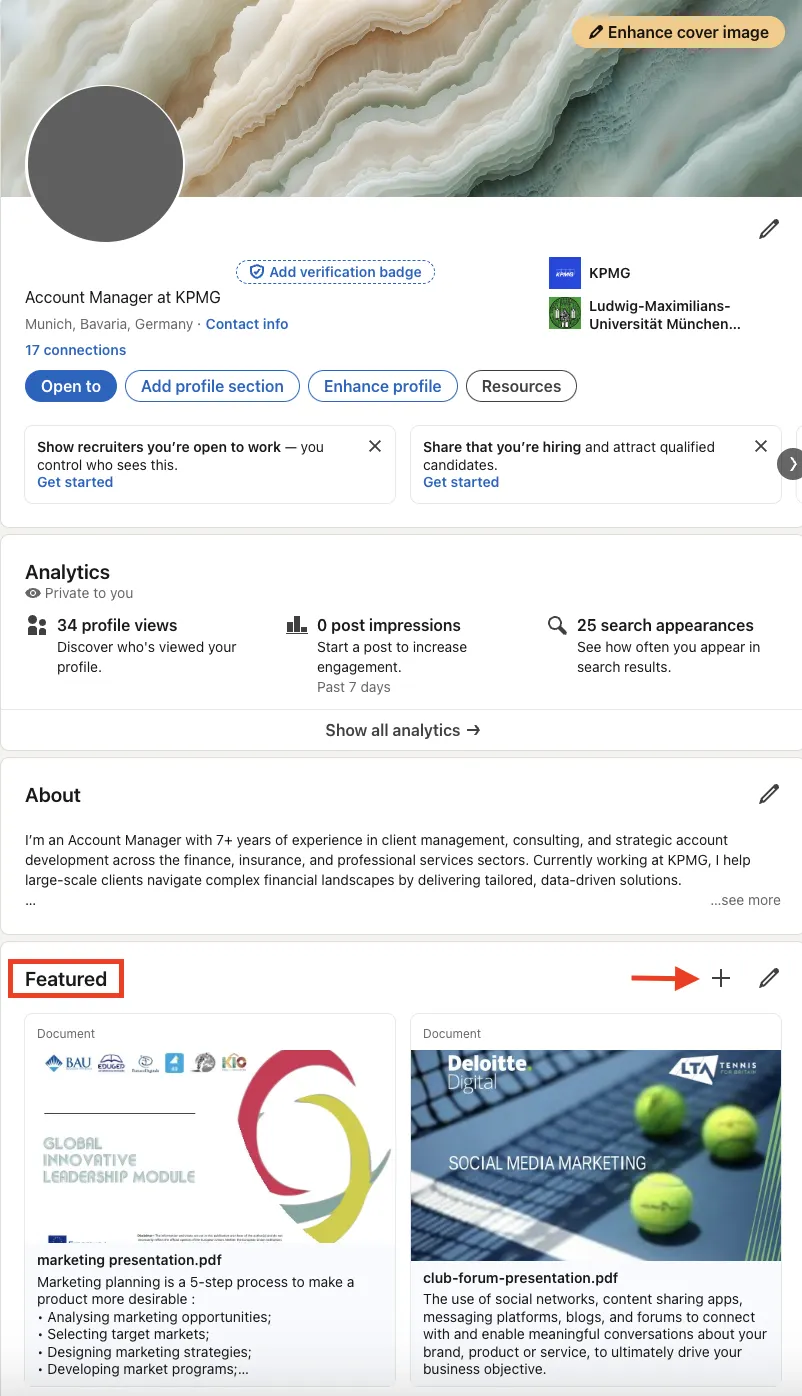
The featured section lets you:
- Show proof of expertise (a keynote talk, whitepaper, or patent).
- Drive traffic to external pages like landing pages, sign-up forms, or podcasts.
- Reinforce your personal brand with viral posts or press mentions.
- Give recruiters, prospects, and partners a quick summary of what you do.
- Display case studies or testimonial videos.
Check out what to post on LinkedIn: 25+ content ideas for inspiration.
How Does the LinkedIn Featured Section Work?
Where to Find It
- Open your LinkedIn profile while logged in.
- Scroll below the About section.
- You'll see the "Featured" block, or a prompt to "Add featured" if it's empty.
Want to see how others view your profile? Learn tips in How to View Your LinkedIn Profile as Someone Else.
Accepted Content Types
LinkedIn allows four item types:
- Posts - anything you've already posted on LinkedIn.
- Articles - long-form content published with LinkedIn's editor.
- Links - any public URL (blog, YouTube, event page).
- Media - images and documents (PDF/PPT, etc.) up to 100MB; for video, feature a post or add an external link.
Tip: Mix formats so the gallery feels varied.
Step-by-Step: Add Content
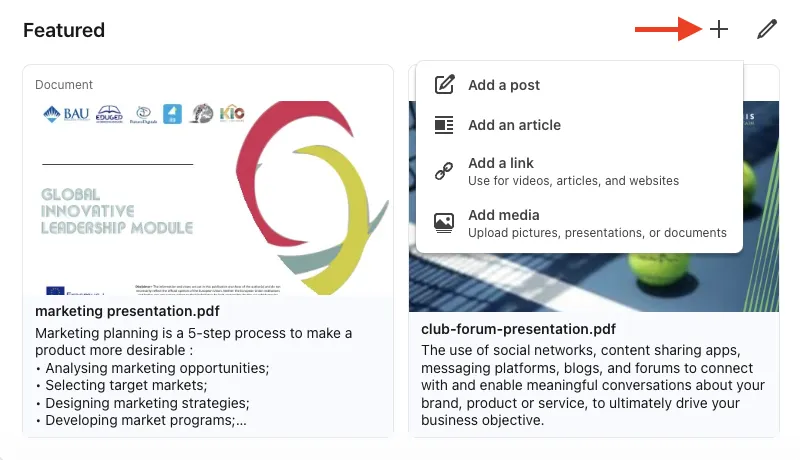
- Click + in the Featured block.
- Choose Add a post, Add an article, Add a link, or Add media.
- For links: paste the URL and edit the thumbnail/title if needed.
- For media: upload the file and write a clear headline.
- Press Save.
- Click Edit → Reorder, then drag items to arrange. On desktop, the first items get the most prominent display; on mobile, items stack vertically.
Best Practices
- Lead with your strongest piece - On desktop, the first item is typically visible without scrolling. A designer might pin a carousel PDF portfolio first, then a testimonial video.
- Keep it fresh - Audit monthly and archive outdated webinars or expired offers. Set a recurring calendar reminder.
- Align with goals - Job hunting? Feature a portfolio PDF and a post about your skills. Selling? Pin a case study and demo link.
- Use descriptive titles - "ABC Corp Case Study - 37% Lead Growth" works better than "Case Study."
- Check mobile view - Over half of global web browsing is on mobile. Make sure thumbnails look crisp on smaller screens.
- Track clicks - Use UTM tags or Bitly to measure traffic from your featured items.
- Group related items - Place similar assets side by side, like a series of articles on the same topic.
- Test different thumbnails - Swap images for two weeks each and compare click-throughs using post analytics and UTM tracking.
- Combine formats - Pair a short video with a downloadable PDF to appeal to different browsing styles.
- Don't overload - Stick to 3-6 items. More than that spreads attention too thin.
Examples
- Freelance designer: Adding a motion-graphics reel and PDF portfolio can increase profile views and lead to more inbound project requests.
- SaaS founder: Featuring a product demo and a press article may improve reply rates from investors.
- Recruiter: Pinning a culture video and success-story slides can help attract qualified applicants. Candidates often report that these assets answer questions before the interview.
For more profile optimization tips, see 12 tips to increase your LinkedIn profile visibility with keywords.
Bonus Tips
- Seasonal rotation - Pin a conference talk before the event, then swap in a recap afterwards.
- Personal intro video - A 30-second clip can make your profile feel more personal than text alone.
- Build social proof first - Post something, wait 24 hours for engagement, then add it to Featured. The likes and comments will be visible.
- Use carousel PDFs - LinkedIn renders multi-page PDFs as swipeable carousels, which work well for mini-portfolios.
- Mini A/B test - Week 1: feature a blog link with a bright thumbnail. Week 2: try a muted color version. Track which gets more clicks and keep the winner.
- Lead-gen funnel - Feature a "Free checklist" post, then place a case study below it. Prospects can move from awareness to consideration without leaving your profile.
Five-Step A/B Test Playbook
- Goal: Increase clicks on a case-study PDF.
- Hypothesis: A headline with a specific number ("+89% ROI") gets more interest than a generic one.
- Variant A: Original title; Variant B: Number-focused title.
- Metric: Click-through rate from LinkedIn analytics after 14 days.
- Result: If Variant B wins (e.g., 4.6% vs. 2.9%), update the live item and note the insight for future content.
Run this cycle quarterly to make decisions based on data rather than guesses.