LinkedIn services let you package and sell professional expertise without ever leaving the platform. When the feature is activated, LinkedIn automatically adds a dedicated LinkedIn service page under your personal profile—think of it as a mini-landing page where prospects can scan offers and request a proposal by completing a brief form.
Why LinkedIn Services Matter
- Capture warm leads who prefer staying inside LinkedIn.
- Showcase niche expertise—marketing strategy, payroll consulting, UX writing, etc.
- Allow recruiters and buyers to message you even if you’re not connected.
- Collect social proof: ratings and reviews live right on your personal-profile Service Page (Company Pages don't support reviews).
- Skip third-party marketplaces (and their fees) while keeping all conversations in one inbox.
If you're considering ways to attract more clients or highlight your expertise, building a strong presence can help. Check out these 15 effective LinkedIn strategies to stand out in your industry.
How Do LinkedIn Services Work?
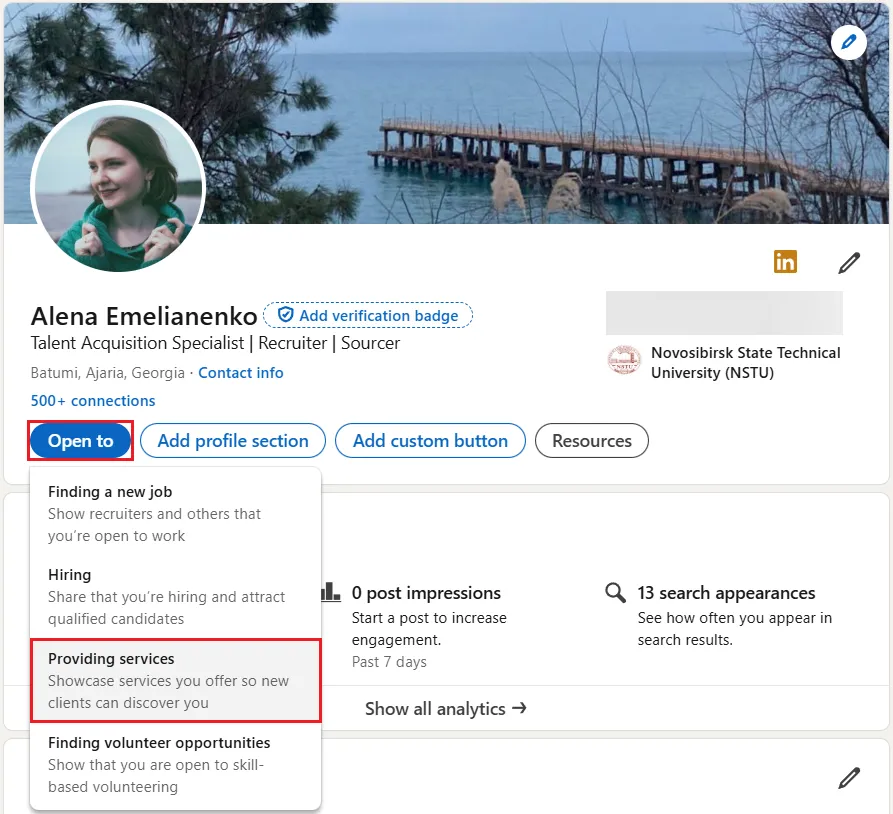
Activate the feature
- Go to Me → View profile.
- Click Add profile section → Add services (desktop) or Add section → Add services (mobile).
- Review "How it works" and click Continue to launch setup.
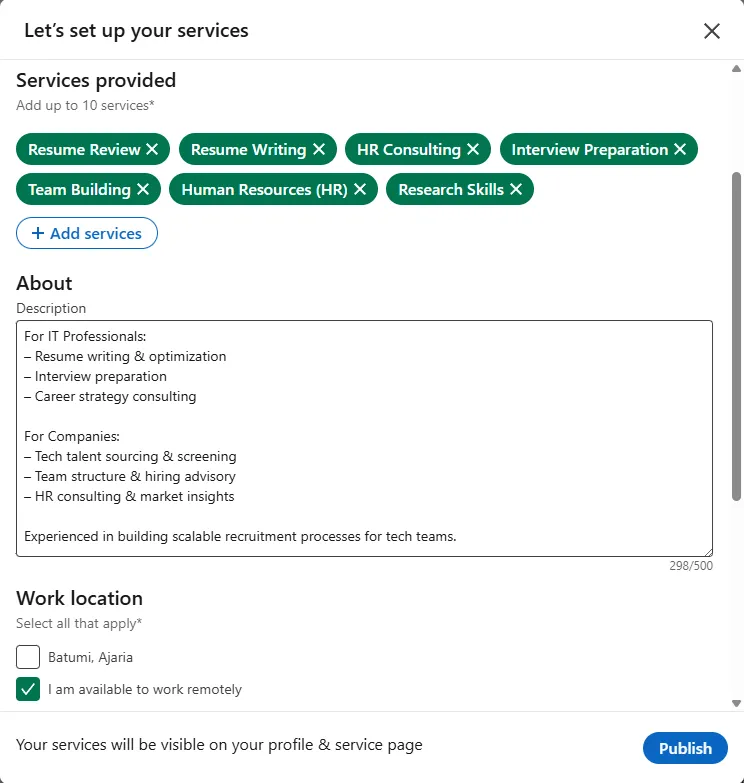
Set Up Your LinkedIn Service Page
- Pick up to 10 service categories (see list below).
- Add a concise "About" description—lead with client benefits.
- Set location and tick “Remote” if you work online.
- Show a starting hourly rate or select "Contact for pricing".
- Toggle "Allow LinkedIn members that you're not connected with to message you for free" so prospects can contact you directly.
- Click Save/Publish.
Manage Inquiries
All requests land in the admin view where you can Submit proposal or No thanks (decline). After you submit a proposal, a private chat thread opens:
- Send a scoped proposal. Outline deliverables, timeline, and fee in your message.
- Finalize terms off-platform. LinkedIn facilitates the initial connection, but scope, pricing, and payment are agreed upon outside the platform.
- Respond fast. A "Usually responds within 24 hours" note appears on your Service Page when you reply within a day and to at least 80% of inquiries.
- What clients see. They receive your proposal in their Projects view and can click Respond to continue the conversation—no email swapping required.
Service Category Examples
- Marketing & PR → Content marketing, PPC setup
- Consulting → Business turnaround, change management
- Writing → SEO blogs, technical docs
- Design → Logo kits, UX/UI audits
- IT → Web dev, cybersecurity checks
- Coaching → Executive coaching, interview prep
To learn how to make your LinkedIn profile more attractive to potential clients, try these tips for optimizing and viewing your profile as someone else. See below.
Best Practices
- Mirror client keywords. Use phrases buyers type—"SEO audit", "lead-gen ads"—but write for humans.
- Craft a magnetic blurb. Template: “I help [ideal client] achieve [primary goal] through [service]. Recent wins: [result].”
- Price the first tier smartly. Show a starting hourly rate that removes sticker shock (e.g., "from $300/hour") and upsell custom packages in chat.
- Request reviews early. After a successful project, click Invite to review, personalize the note, and remind the client it takes under a minute. You can invite up to 20 past clients.
- Refresh rates quarterly so pricing never looks stale; changes go live after you click Save.
- Share a post about your Service Page the week you launch; add it to your Featured section to highlight it on your profile; resurface it monthly with an update post.
Bonus Tips
- Cross-link the page inside your newsletter, email signature, and webinar slides.
- Offer a free checklist or audit in exchange for the first call.
- Combine the page with a limited-time promo code visible only on LinkedIn.