
 Updated: September 8, 2026
 4 min read
A LinkedIn Business Login happens when you enter LinkedIn with your personal credentials and then switch to an organization-level asset—Company Page, Campaign Manager, or Business Manager—so you can act on behalf of that organization. No second password is needed; the platform simply elevates your permissions once you choose the asset. Think of it this way: personal login = you, LinkedIn Business Login = your company voice. One account, two modes—private networking or public brand activity.
- Recruiters post jobs from the company profile without exposing their own timeline.
- Marketers launch ads inside Campaign Manager and sync lead-gen forms.
- Owners handle daily Company Page login tasks to grow followers.
- Agencies juggle many clients; one Business Manager dashboard keeps access tidy.
- Finance teams verify spend in each ad account before monthly close.
How Does LinkedIn Business Login Work?
Follow these steps for a smooth LinkedIn Business account login:
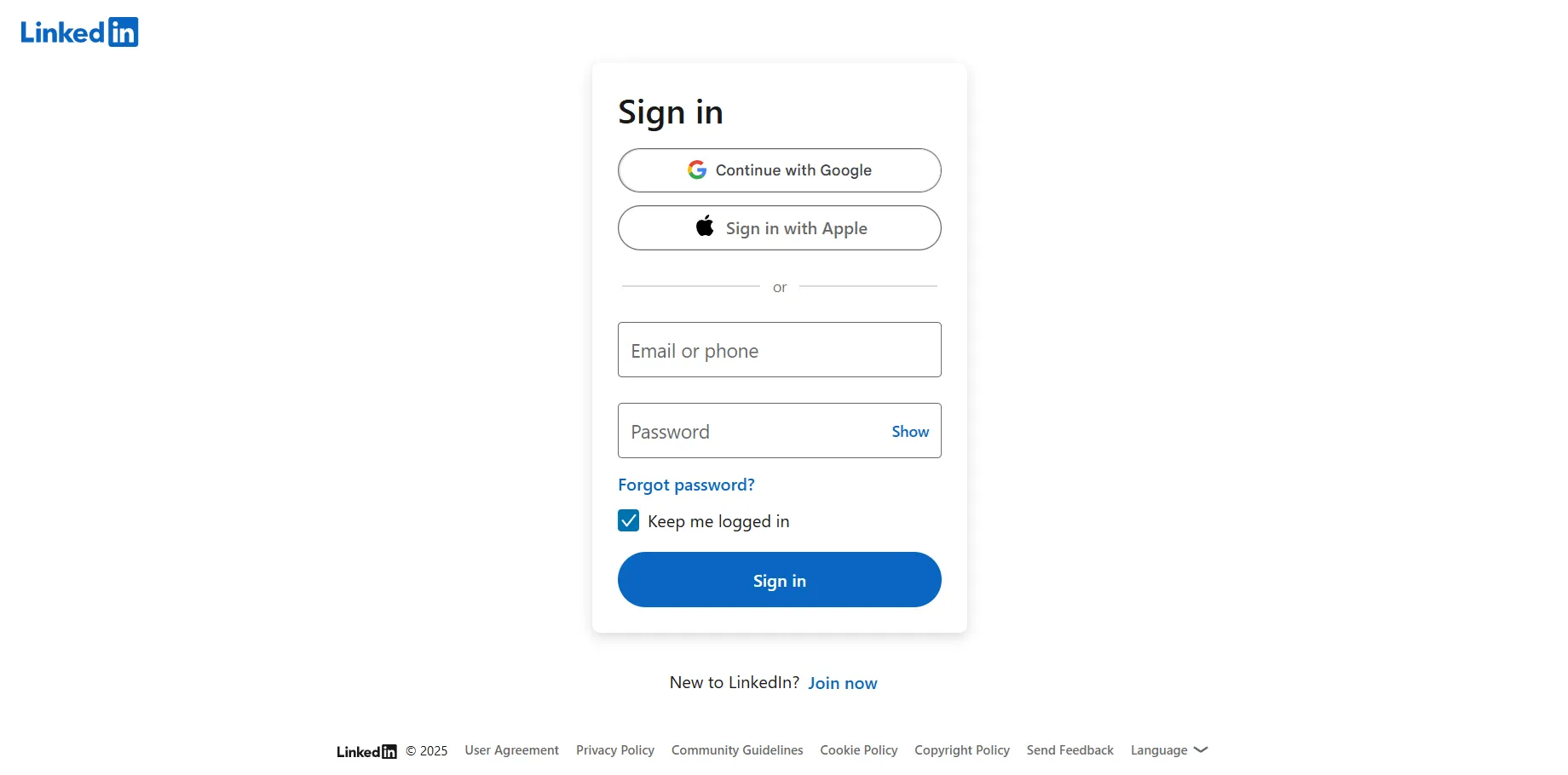
- Sign in to LinkedIn. Enter email/phone + password and click "Sign In".
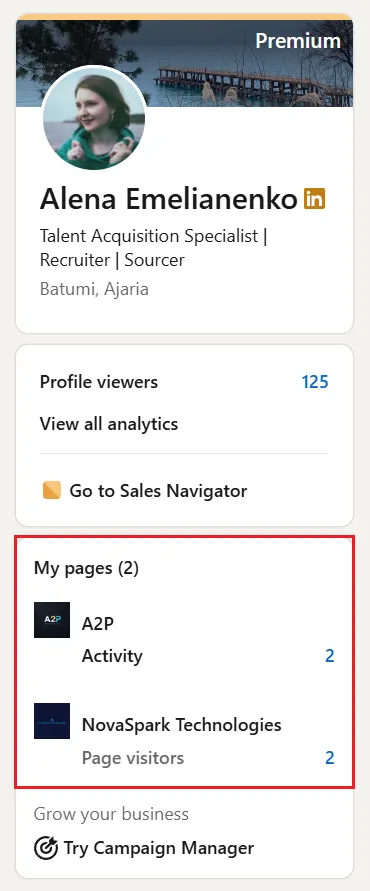
- Access business tools. On desktop, click the "For Business" dropdown (upper-right) to reach Advertise/Campaign Manager, or select your page from the "My Pages" module (left rail).
- Switch to Company Page. Pick the page you manage.
- Need advertising tools? Click For Business → Advertise → Campaign Manager → choose an ad account.
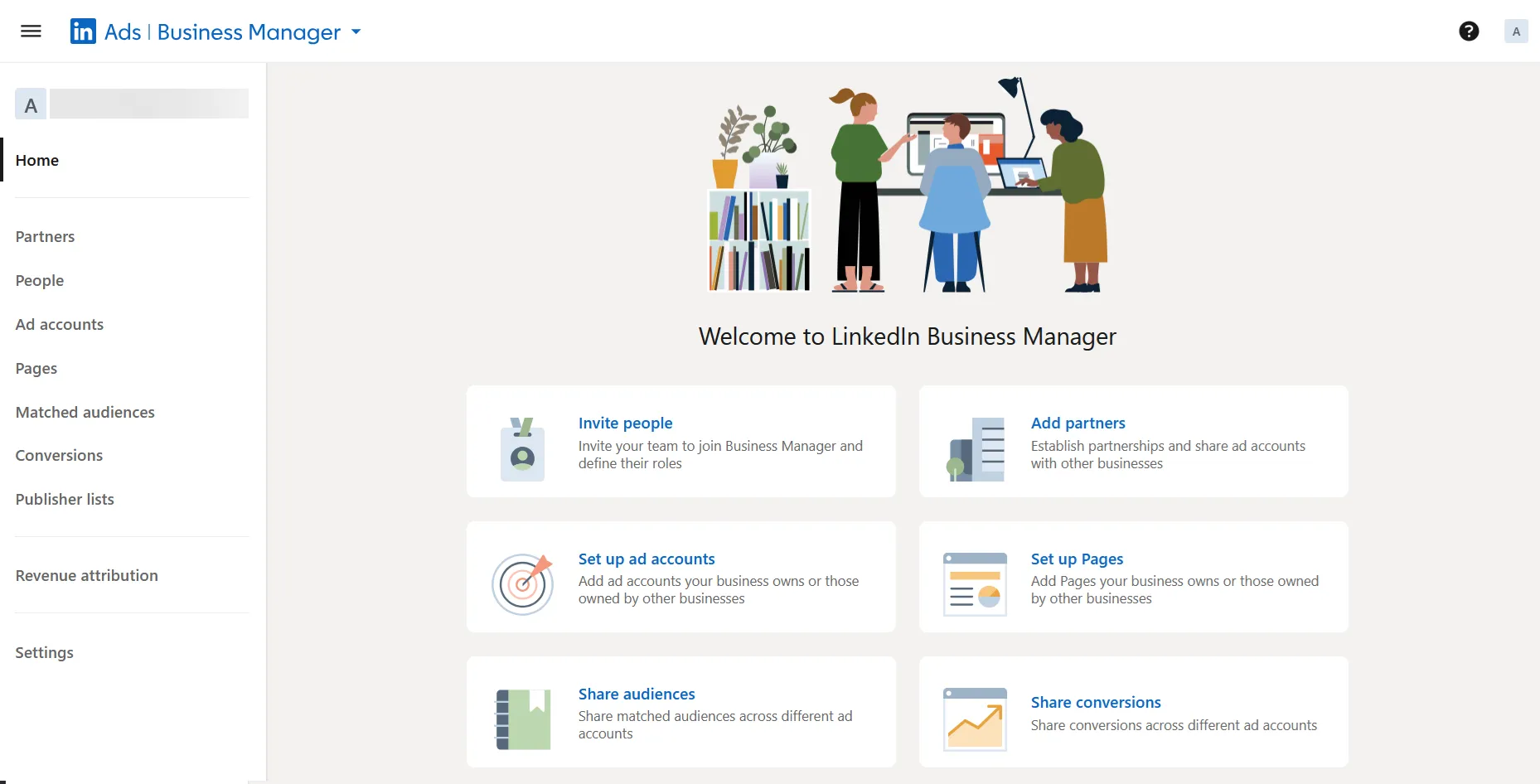
- Multiple assets? In Campaign Manager, click "Ads | Campaign Manager" (upper-left) and select Business Manager. Switch between Business Manager accounts using the logo picker (upper-right).
- Two-factor authentication required? Enter the code from your authenticator or SMS. Note: 2FA is required to access Campaign Manager, Recruiter, and Sales Navigator.
- Begin work. Post updates, invite connections, run ads, or edit roles.
Common access issues and fixes:
- Page not listed → Ask a current super admin for access or click the "More" button on the Page and select "Request admin access" from the dropdown.
- Forgot password → Use LinkedIn’s reset link; 2FA may be required.
- Endless loading → Clear browser cache or try Incognito per LinkedIn Help.
- Role revoked → If another admin removed you by mistake, ask a current super admin to reassign your role via "Manage admins." If no super admin is available, contact LinkedIn Support.
- SSO error (LinkedIn Learning, Recruiter, or Talent Insights only) → Confirm your identity provider (Okta, Azure AD) is properly configured, or contact your IT admin.
If you’re experiencing persistent access problems, check out LinkedIn Account Restricted: Here’s What to Do for solutions on regaining entry to your account.
Best Practices
- Enable two-factor authentication for every business-level login on LinkedIn.
- Keep at least two super admins per Page to prevent lockouts.
- Use your work email in profile; approvals arrive faster.
- Create separate ad accounts in Business Manager for each product line.
- Review “Active sessions” monthly and log out of shared machines.
- Document which department owns which asset—HR for careers page, Marketing for ads, and Finance for billing—to avoid accidental permission changes and maintain clear accountability across teams.
Need help with creating effective Company Pages? See LinkedIn Business Page: How to Create and Grow Effectively for step-by-step guidance.
Bonus Tips
- Bookmark your Page URL for one-click access.
- In Business Manager, share Matched Audiences across ad accounts to save budget.
- Toggle "Notify employees" when you post to encourage sharing; employee posts can reach over 3× more people than organic company posts.
- Add a browser profile dedicated to LinkedIn business tasks to keep cookies and extensions separate from personal browsing.