
 Updated: September 8, 2026
 3 min read
LinkedIn contacts are the people whose details live inside your LinkedIn account. Every 1st-degree connection is saved automatically and can be exported. Others may appear as contacts when you message them or do a one-time address book import via mobile, but only connections can be exported. Think of these entries as a private Rolodex attached to your profile.
Why LinkedIn Contacts Matter
Recruiters store candidate info in one place, then push the list into an ATS for faster follow-up. Marketers segment prospects and run targeted campaigns without leaving the platform. Sales teams and founders sync contacts with HubSpot, Salesforce, or Pipedrive to launch nurture sequences. A clean list means better response rates. Ops teams export records quarterly to meet GDPR or other data-retention rules.
To automate workflows, see our guide on LinkedIn integration with your CRM via Linked Helper.
How the Contact List Works
Open the List
- Desktop: My Network → Connections.
- Mobile: My Network tab → Connections.
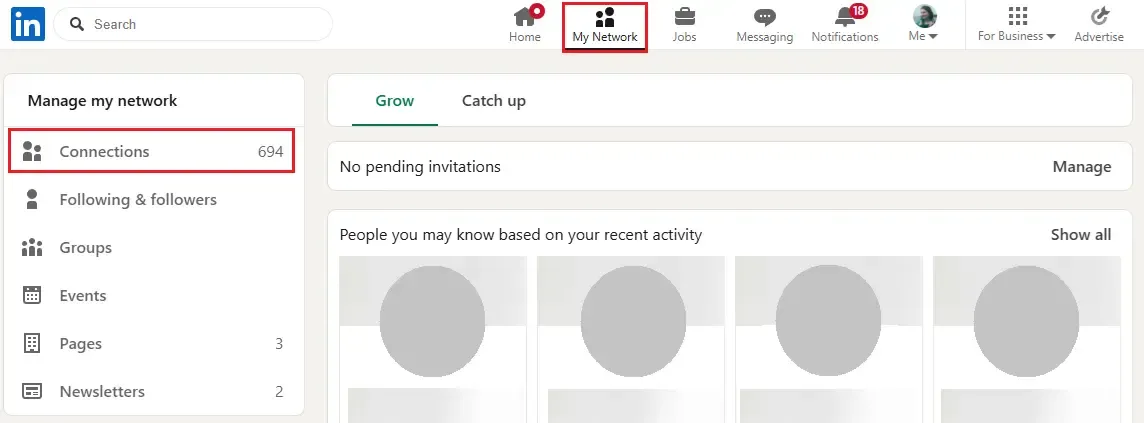
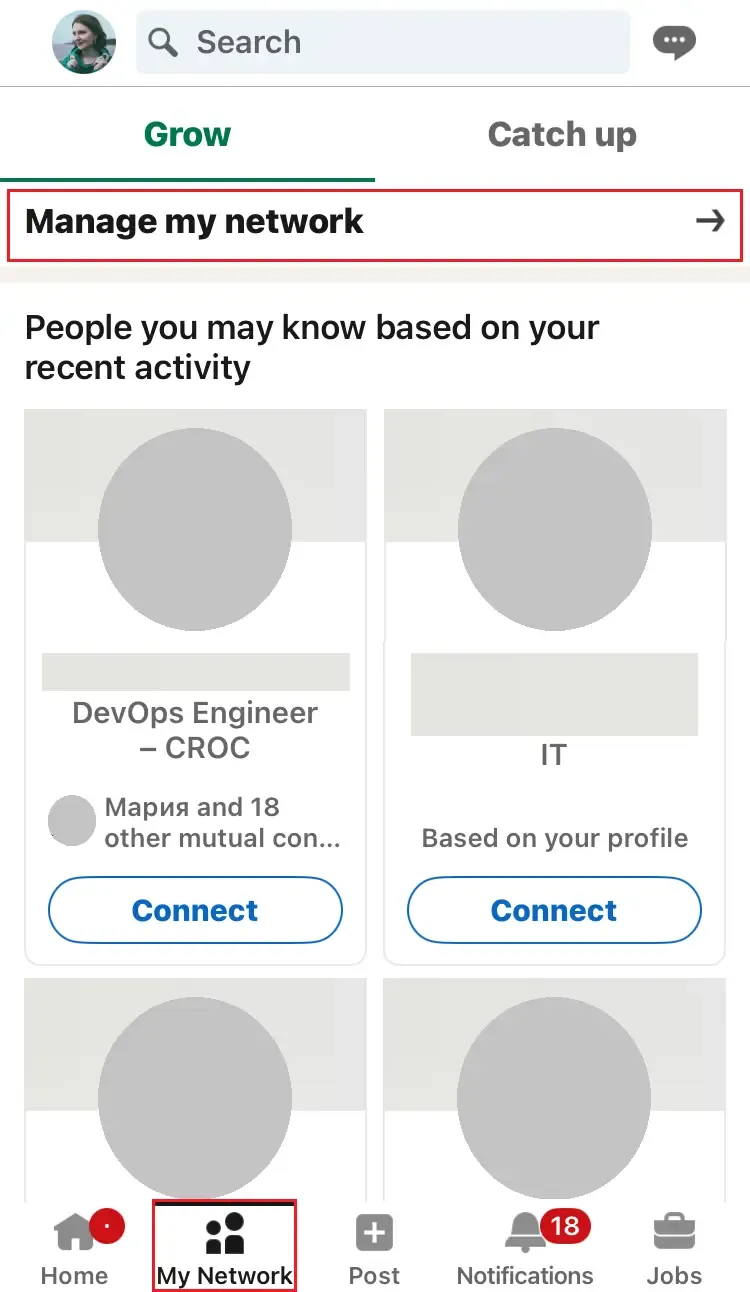
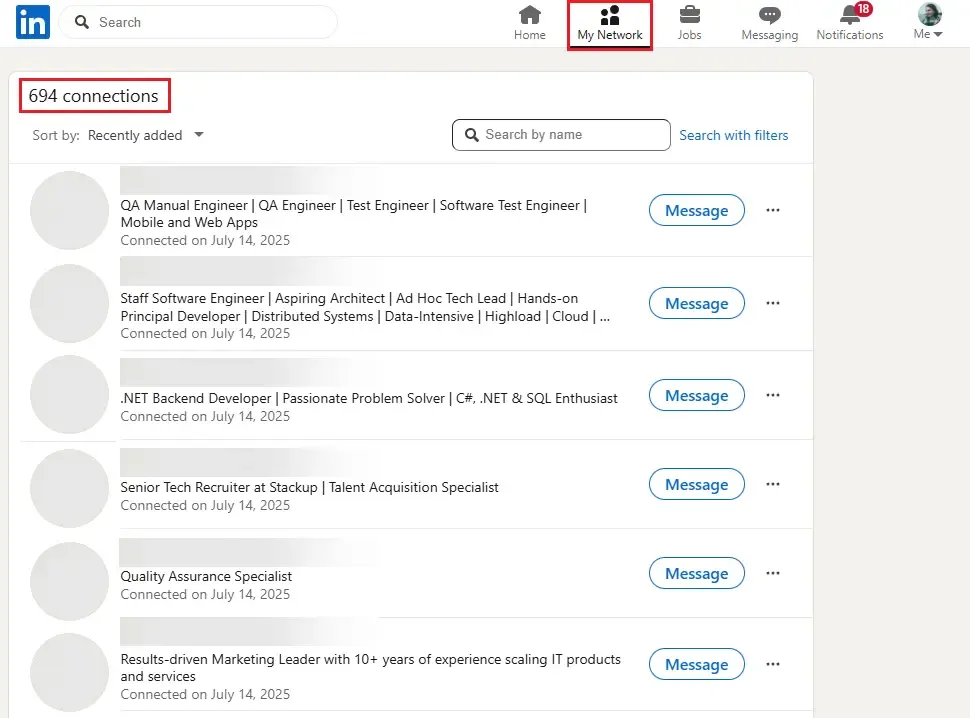
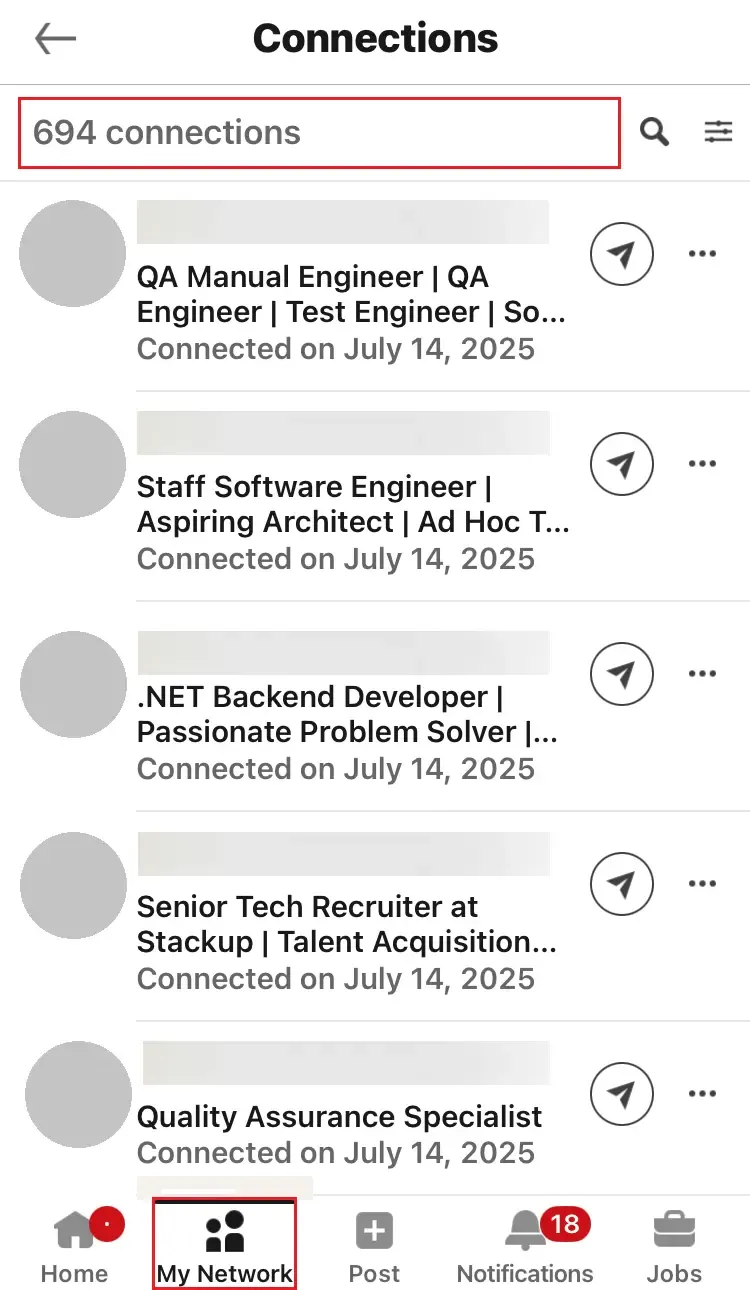
Export to CSV
- Me → Settings & Privacy → Data Privacy → Get a Copy of Your Data → Download Larger Data Archive → Request Archive.
- Your download will typically be ready in about 24 hours.
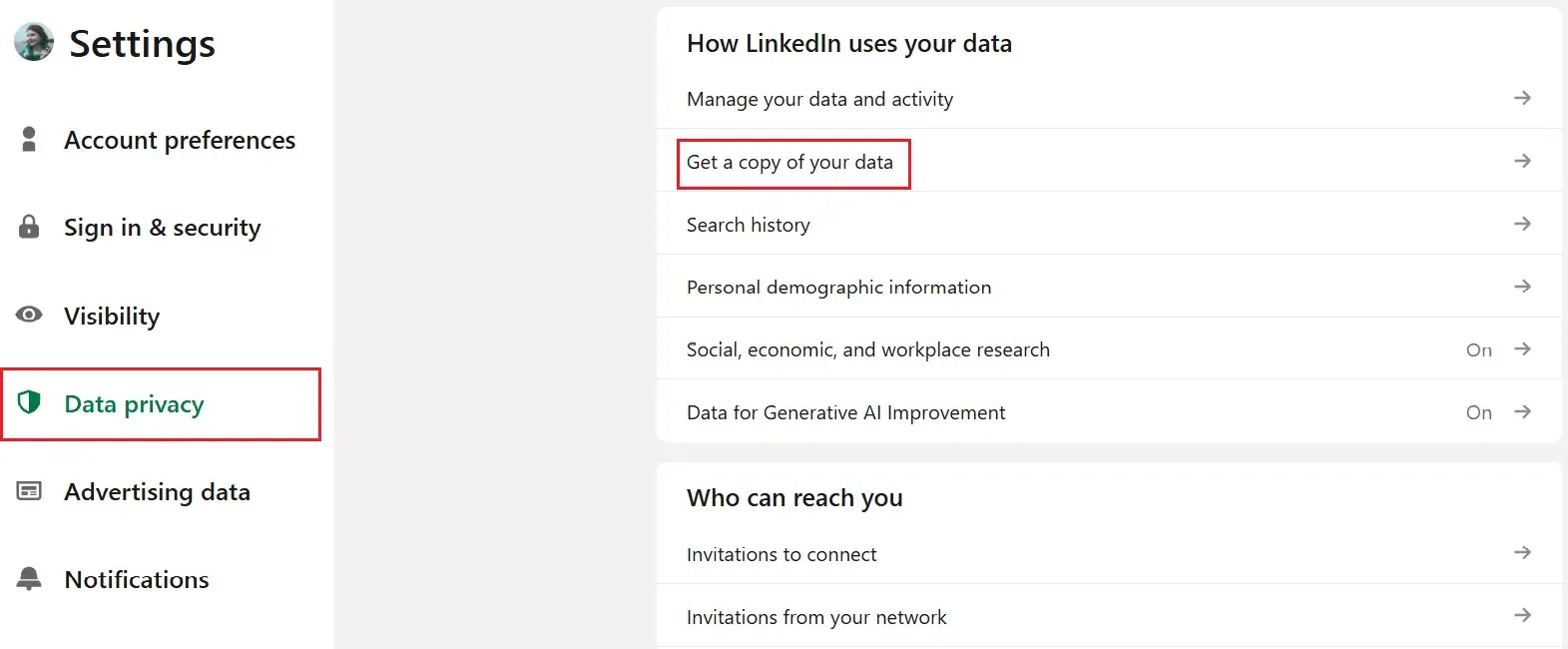
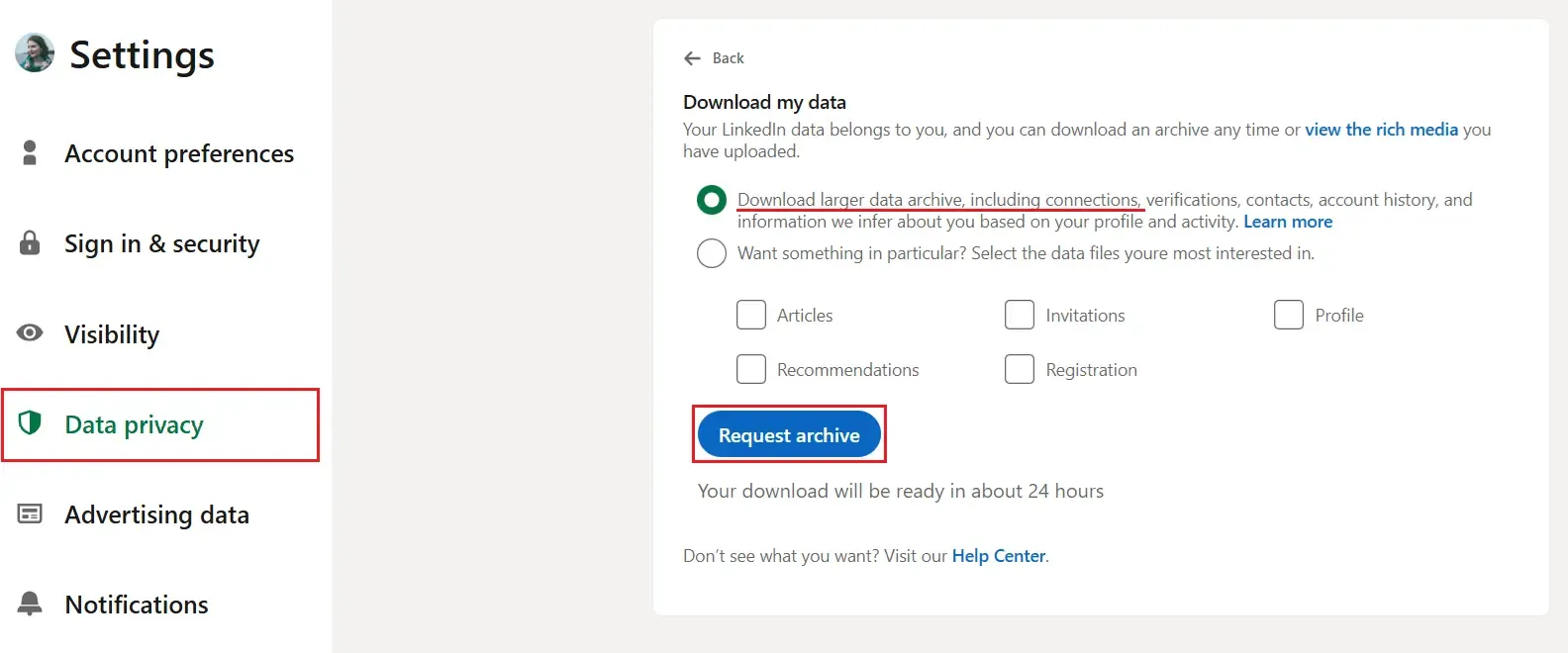
For more details, read the step-by-step guide to downloading your LinkedIn contacts to Excel with emails.
Load the CSV into a CRM
- HubSpot: drag-and-drop the file or let the HubLead Chrome add-on auto-sync.
- Zapier: create a "New file in Dropbox ➜ Create contact" zap for hands-off maintenance.
- Salesforce and Pipedrive: import the CSV and confirm field mappings; most fields work as-is.
Add New Names
- Use Search → All Filters → send a Connect request.
- Need phone numbers? View each profile's Contact info or use an enrichment tool. The connections CSV does not include phone numbers.
- On mobile, open My Network tab → Connections.
Platform Limits
- LinkedIn caps invitations (the exact number is undisclosed, but commonly observed at around 100–200 per week).
- Withdrawing an invitation triggers a 3-week cooldown before you can re-invite the same person.
- Emails appear only if members allow visibility.
Best Practices
- Clean monthly: merge duplicates, update job titles, and remove bounces.
- Use Sales Navigator Custom Lists or add tags in your CRM after import to stay organized.
- Respect invite limits: spread requests across the week.
- Secure data: delete old archives, enable two-step verification.
- Personalize invites: a brief note (up to 200 characters) improves acceptance rates. Free accounts can personalize up to three invites per month; Premium removes this monthly cap.
Bonus Tips
- Sales Navigator's Relationship Explorer shows up to eight relevant leads and warm paths based on your personas. Save them as leads or connect directly.
- Hit the invite cap? Tap "Follow" on high-value leads; their posts still land in your feed.
- Ask colleagues to do a one-time contact import (if available), then filter by industry to find dormant deals.
- To find contacts outside your network, join niche Groups. Members can view your profile and you can often message them without connecting, depending on group settings.