The term LinkedIn desktop describes the full-width interface you normally see on a laptop: three-column feed, granular search filters, and a toolbar packed with creation tools. Unlike the compact mobile app, the LinkedIn desktop version keeps every menu visible, so nothing is tucked behind extra taps.
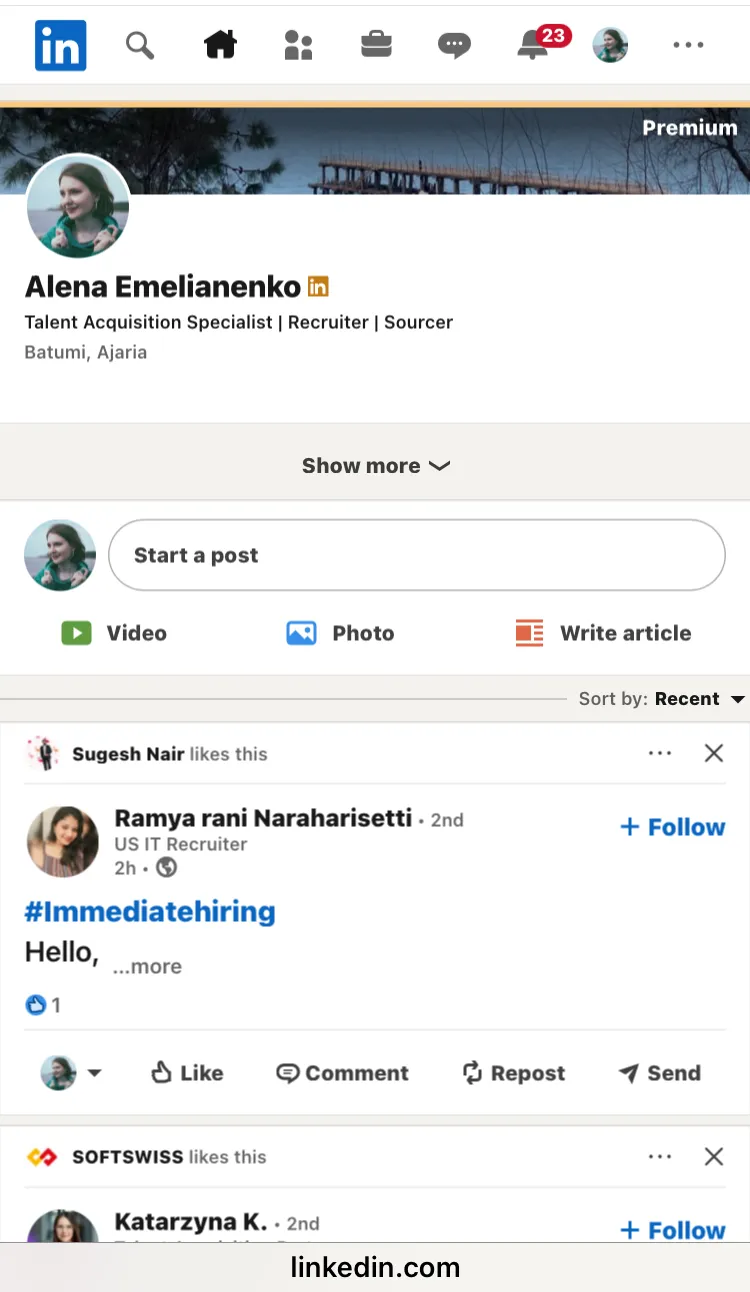
For those focused on branding and content, building a strong LinkedIn presence often starts with features only found in the desktop layout.
Why LinkedIn Desktop Matters
Recruiters, marketers, and founders often switch to the LinkedIn full website because some features are only available there:
- Advanced Boolean filters (job title, seniority, years in role—note that seniority and experience filters require Recruiter or Sales Navigator)
- "Who viewed your profile" history (basic accounts see the five most recent viewers over 90 days; Premium extends this to 365 days with additional filters)
- Company Page analytics (also available in a mobile module) and Group analytics (desktop-only for admins)
- Long-form article editor with formatting toolbar (not available in the mobile app)
- Withdraw invitations (one by one), export connections via Data Export, and manage events
When you need those power tools on the go, forcing the desktop layout saves time until you’re back at a computer.
For more on optimizing your profile and reach, see SEO tips for a LinkedIn profile or business page to get searchable.
How to Load LinkedIn Desktop on iPhone
Follow the steps below to load the LinkedIn desktop site inside Safari or Chrome on an iPhone:
- Open Safari and sign in to LinkedIn.
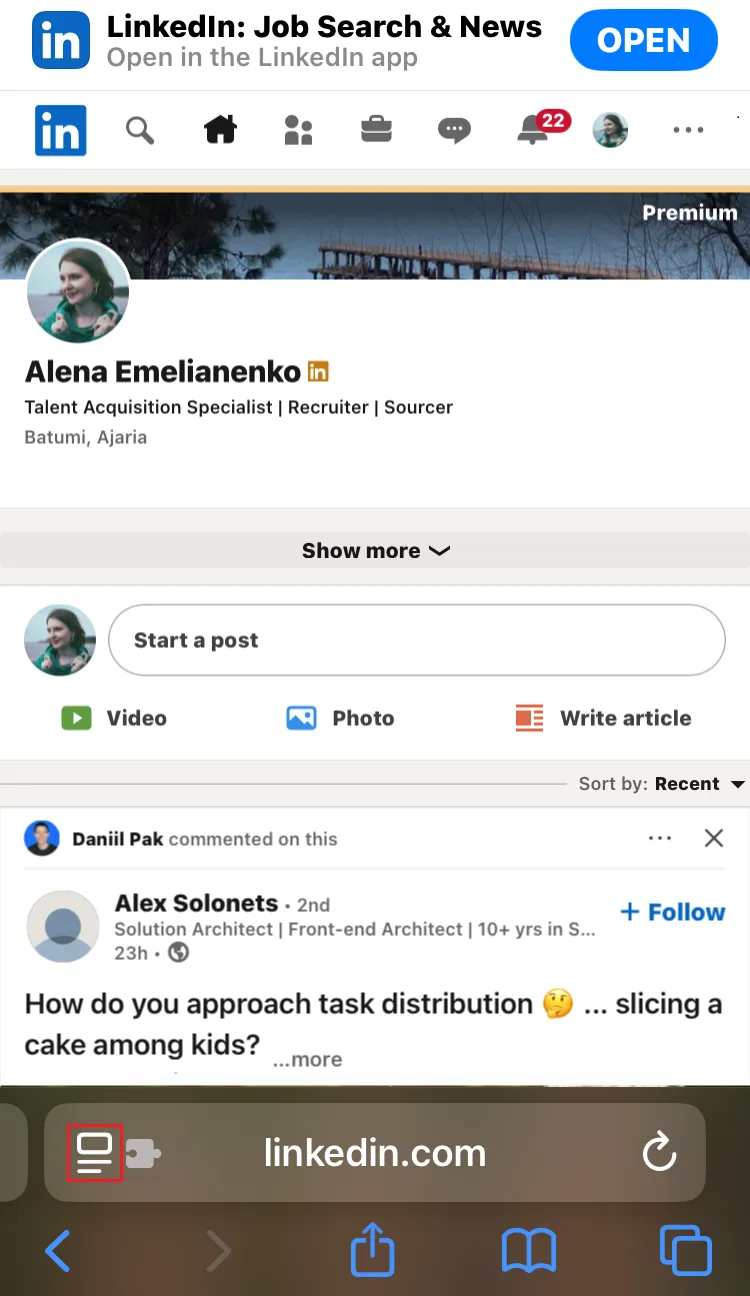
- Tap the “aA” icon in the address bar.
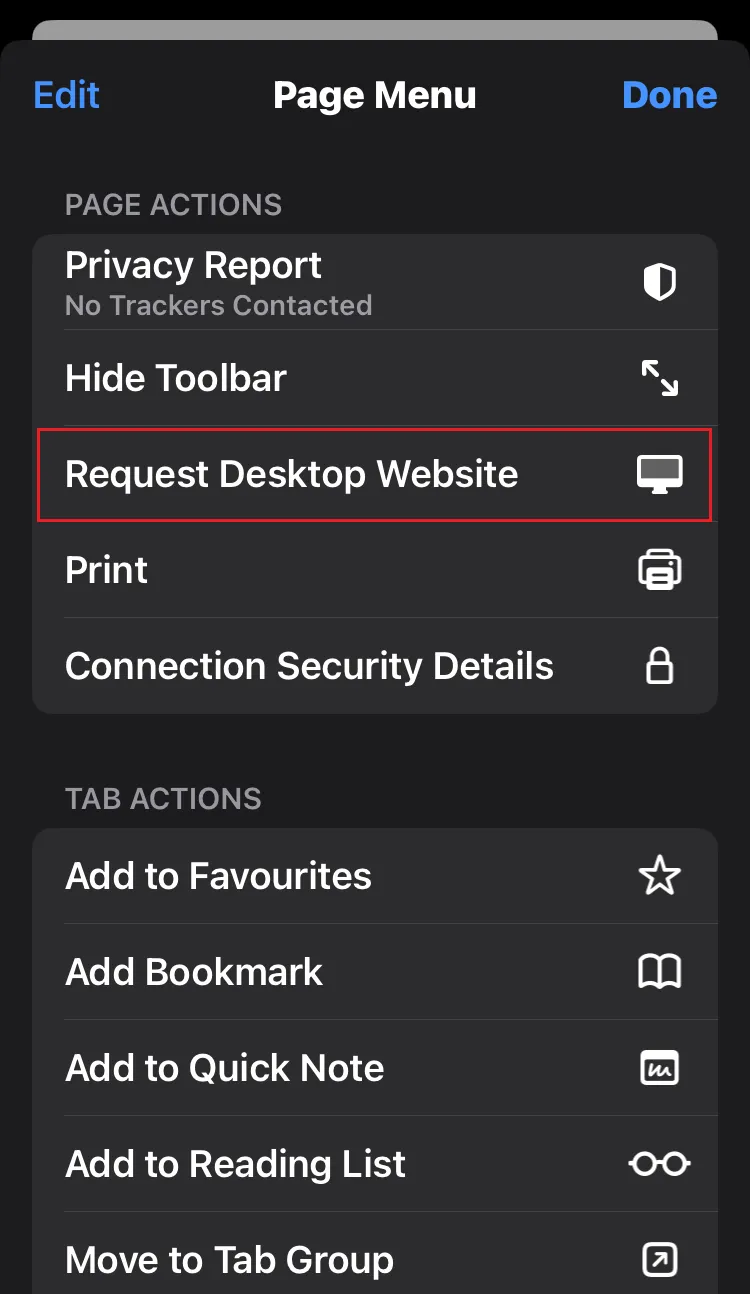
- Choose "Request Desktop Website." The page reloads with the familiar desktop toolbar and side panels.
- Rotate the phone to landscape or pinch-zoom for easier reading.
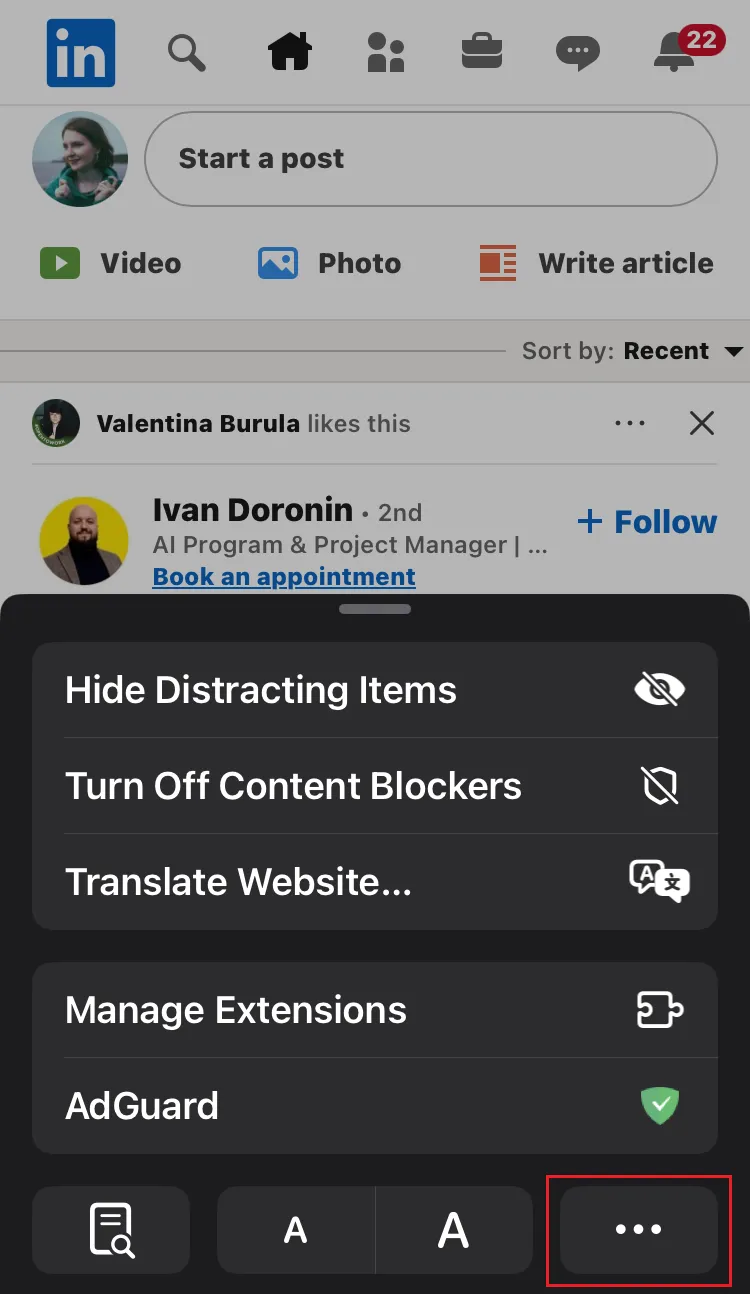
Chrome: tap ⋮ → Request Desktop Site. On iPad, Safari loads desktop websites by default; you can still toggle Request Mobile Website if needed.

Best Practices
- Zoom slowly—tiny buttons sit close together.
- Draft articles or InMails in landscape for a wider keyboard.
- Minimize the Messaging panel if it overlaps the UI; use landscape mode or zoom out for more space.
- Log out when finished—especially on shared devices—since desktop mode may leave you signed in like any browser session.
- Revert to mobile view (aA → Request Mobile Website) to conserve data.
Bonus Tips
- Add a home-screen shortcut: Share → Add to Home Screen for one-tap access to LinkedIn desktop.
- Pair a Bluetooth keyboard if you routinely edit long posts.
- Screenshot key analytics that are easier to access on desktop (e.g., Group analytics are desktop-only for admins).
- Turn on Low-Power Mode because the desktop UI loads extra scripts and images.