The LinkedIn Pixel, officially named the LinkedIn Insight Tag, is a lightweight JavaScript snippet that lives on your website. After you install it, the tag collects data using pseudonymous identifiers and aggregated reporting, attributes sign-ups or purchases to the exact LinkedIn ad that drove them, and lets you build targeted retargeting audiences. The snippet turns raw traffic data into actionable reports inside Campaign Manager.
- Conversion tracking See how many demos, trials, or deals each campaign produces and calculate cost per result.
- Retargeting warm visitors Serve follow-up ads to people who read pricing, started checkout, or downloaded a white paper but didn’t convert.
- Funnel optimization Compare industries, seniorities, and company sizes of converters versus non-converters to improve creative and landing pages. Learn more about advanced strategies for building an effective sales funnel using LinkedIn automation.
How It Works
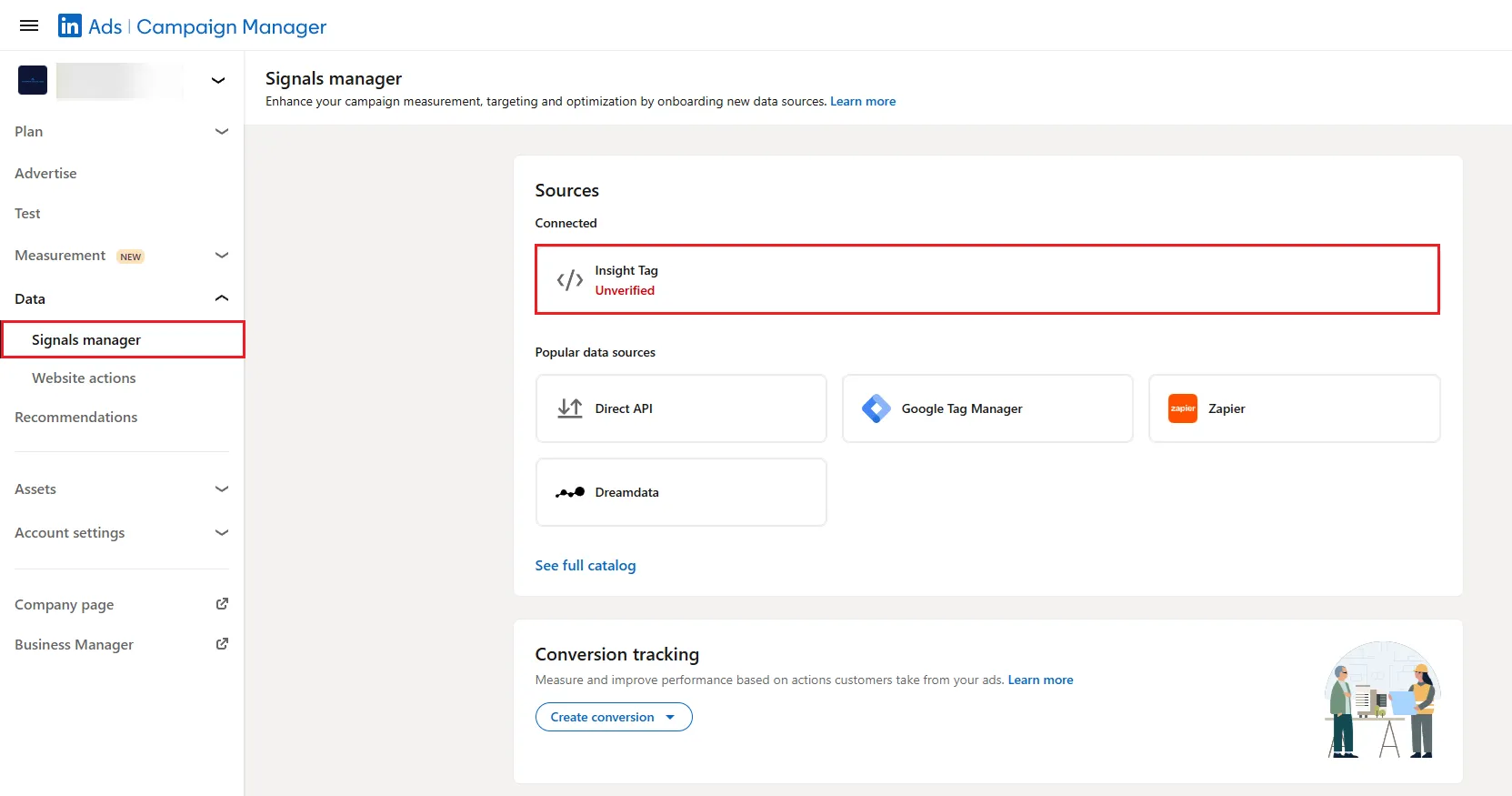
- Generate the tag In Campaign Manager go to Data → Signals Manager → click Insight Tag. If you haven’t created an Insight Tag, review the LinkedIn Ads Agreement and click "Agree & Create". Then add the Insight Tag to your website.
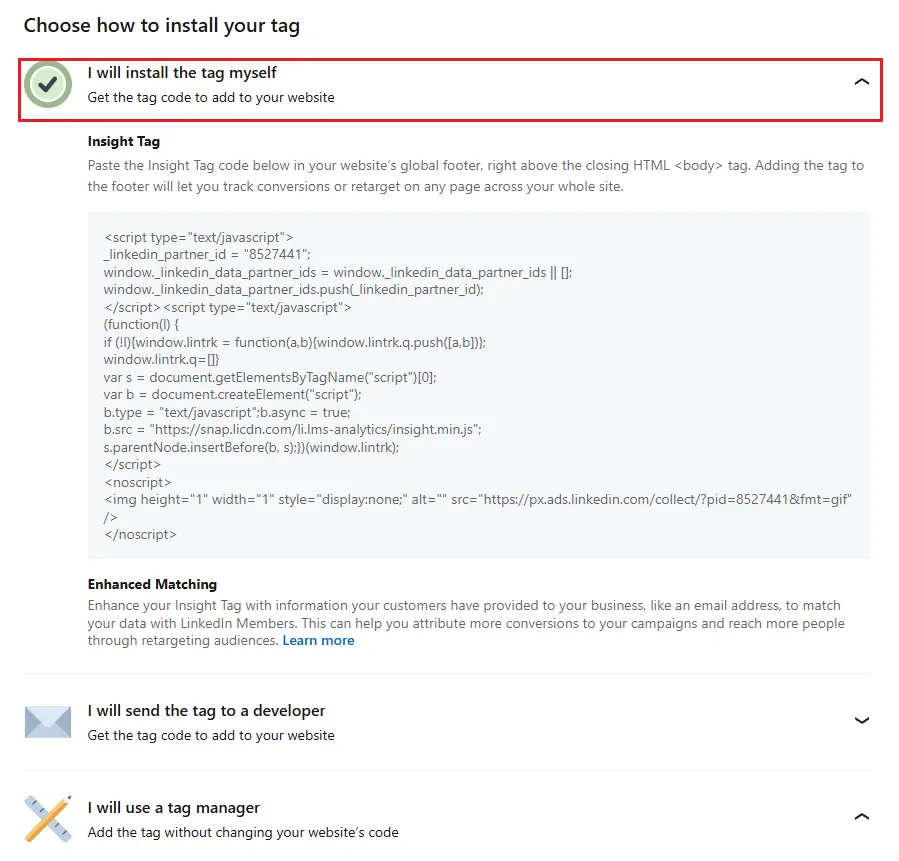
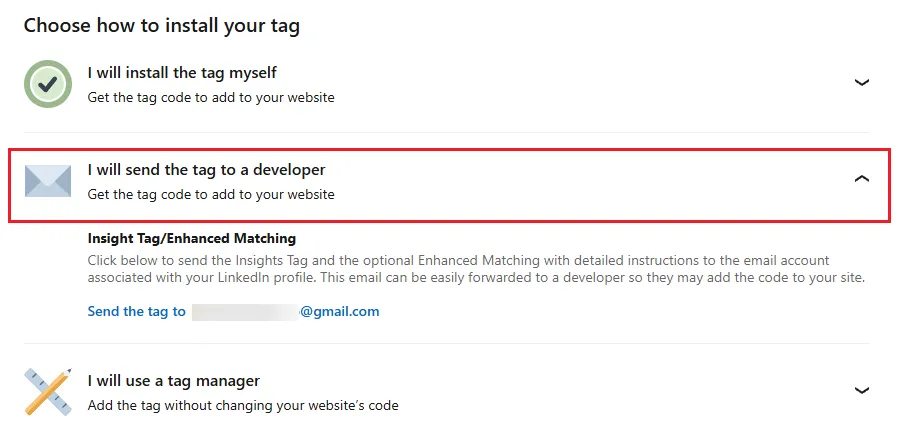
- Add it to every page
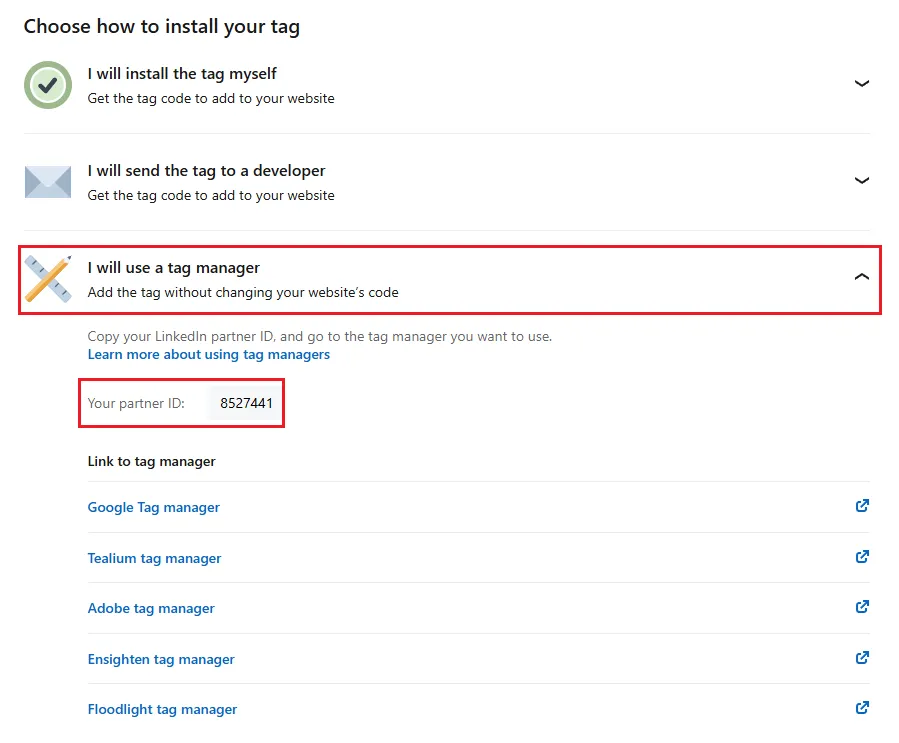
Paste the code in your site-wide template (header or footer) or publish through Google Tag Manager. For enhanced conversion tracking on single-page applications, place the tag high in the header to ensure
li_fat_idparameters are captured before URL cleaning.
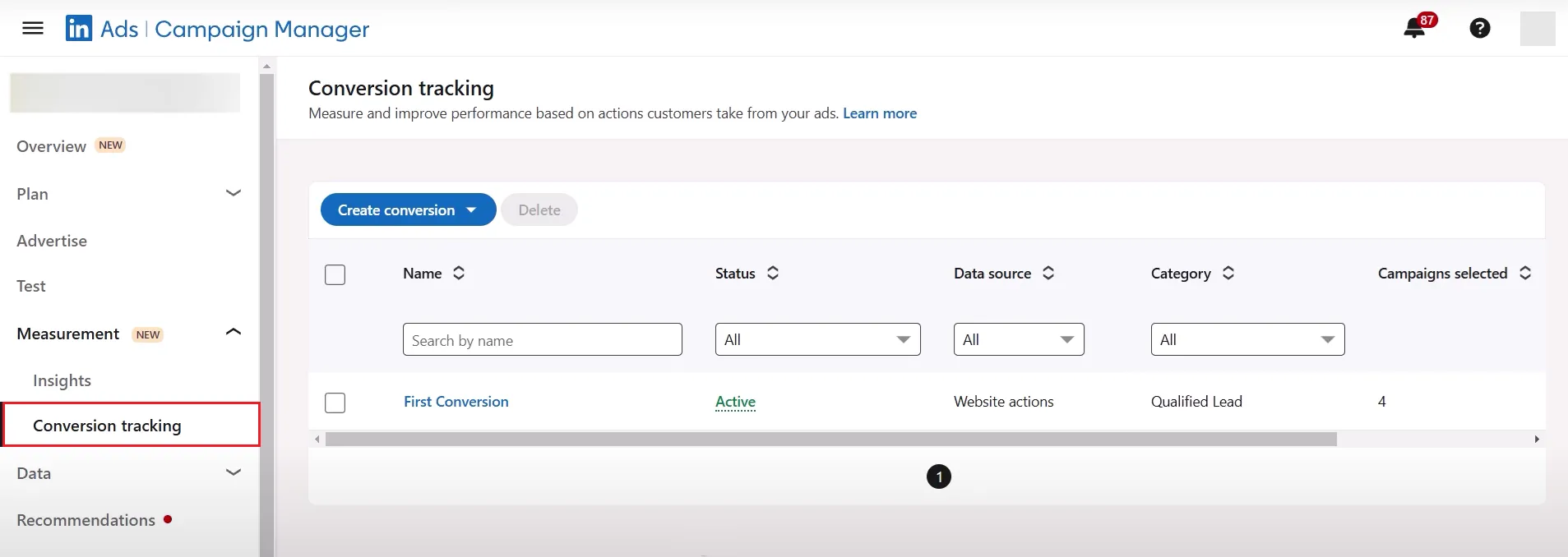
- Define conversions Under Measurement → Conversion Tracking → Create Conversion choose a page-load or event-specific conversion, assign value, and select click and view attribution windows independently (1, 7, 30, or 90 days; some conversion categories support 365 days via Conversions API or CSV upload).
- Verify installation Visit a tagged page yourself. Status switches from Unverified to Active within 24 hours once the tag receives signals (Active means signals received in the past 7 days).
- Attach to campaigns Associate the conversion with your campaigns so LinkedIn can optimize delivery toward your selected objective based on your bidding strategy.
Best Practices
- Blend browser and server data Combine the tag with LinkedIn's server-side Conversions API to capture offline deals and improve attribution accuracy.
- Stay compliant Show consent banners, respect member ad settings, and review LinkedIn's GDPR guidelines.
- Segment your audiences Create audiences for All visitors, Product page, Pricing page, and Thank-you page to show relevant ads at each funnel stage.
- Exclude internal traffic Use URL filters in audiences and conversions, exclude your own company by Company Name in targeting (or upload an employee exclusion list via Matched Audiences), or filter internal traffic in your analytics platform to keep reports accurate.
- Tune attribution windows Ninety-day conversion windows suit long B2B cycles; switch to 30 days for short promos to keep data relevant.
- Run monthly health checks If the tag shows "No recent activity" (no signals for more than 7 days) for several days, inspect placement, traffic volume, or ad spend before performance slips.
- Document version control Note who edited the code, when, and why. A simple changelog prevents accidental removal of the LinkedIn Pixel and speeds troubleshooting. Find out how to monitor and optimize your LinkedIn analytics for better campaign insights.
Bonus Tips
- Enable enhanced conversion tracking to append
li_fat_idclick IDs to landing URLs and use first-party cookies for stronger matching;li_fat_idpersists for 30 days from the last ad click. - Fire event tags on single-page apps where the URL doesn’t change after a click.
- Set up cross-domain tracking by installing the Insight Tag on all relevant domains and subdomains and enabling enhanced conversion tracking so
li_fat_idclick IDs are appended and captured across domains.