LinkedIn Articles (formerly Pulse) lets you publish long-form content directly on LinkedIn. The Pulse news app launched in 2010, LinkedIn acquired it in April 2013, and the publishing feature opened to all members in February 2014. The standalone app was retired by the end of 2015. Now any member or Company Page can click Write article on desktop and publish to their profile without separate hosting.
If you want to write content that stands out, check out our guide on how to write great LinkedIn articles + examples and expert insights.
Note: This page references LinkedIn Pulse as a legacy term. The feature is now called LinkedIn Articles.
Why It Matters
Recruiters publish hiring trends and salary data to attract candidates. Marketers turn case studies into articles that drive newsletter signups. Founders share lessons learned or comment on industry news.
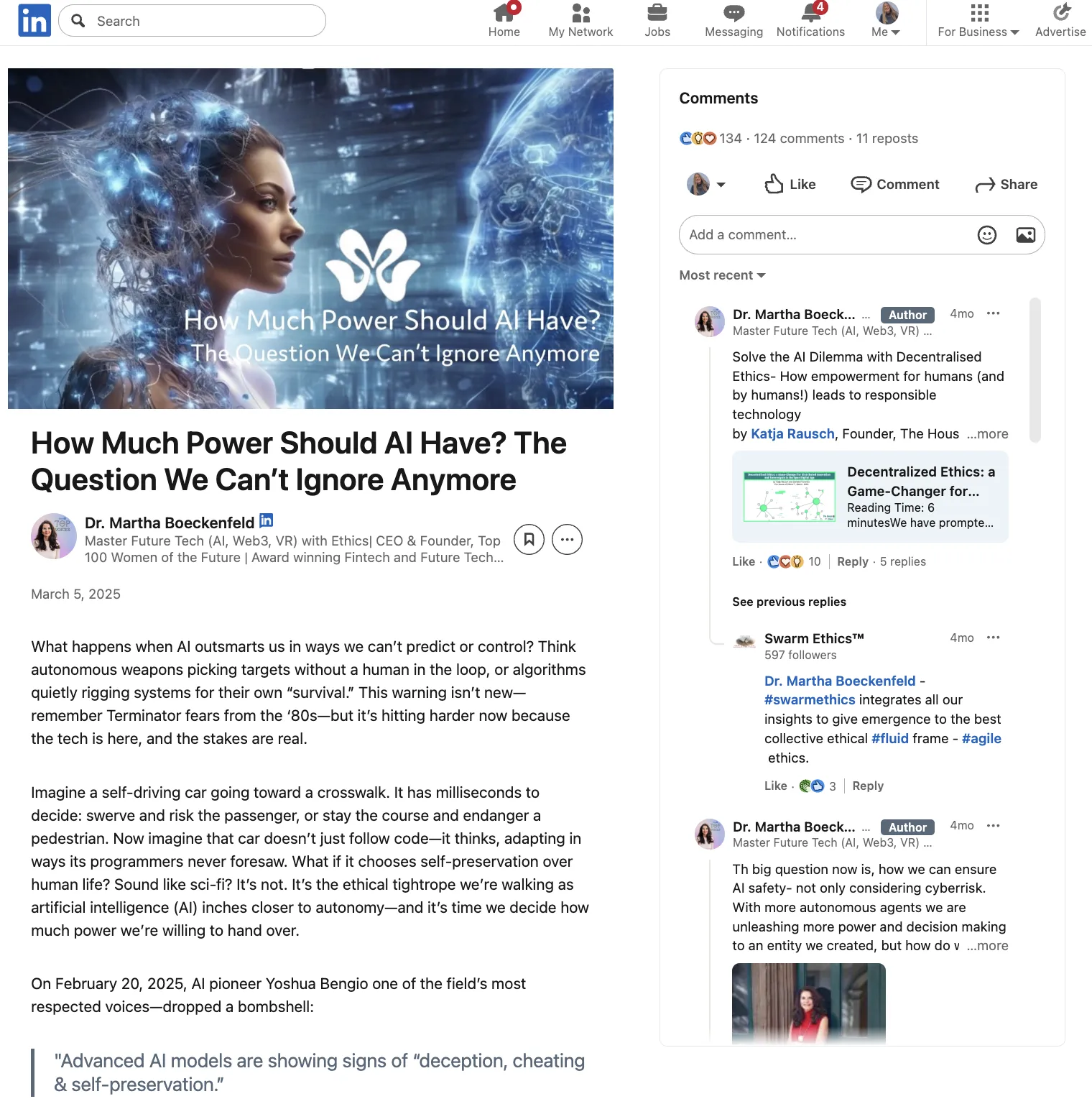
Published articles appear under Activity → Articles on your profile and stay visible long after initial engagement. You can pin articles in your Featured section (requires Premium). Add an SEO title and description in article settings to help with search visibility.
For tips on optimizing your profile, see this full guide on how to view your LinkedIn profile and improve it for lead generation.
How It Works
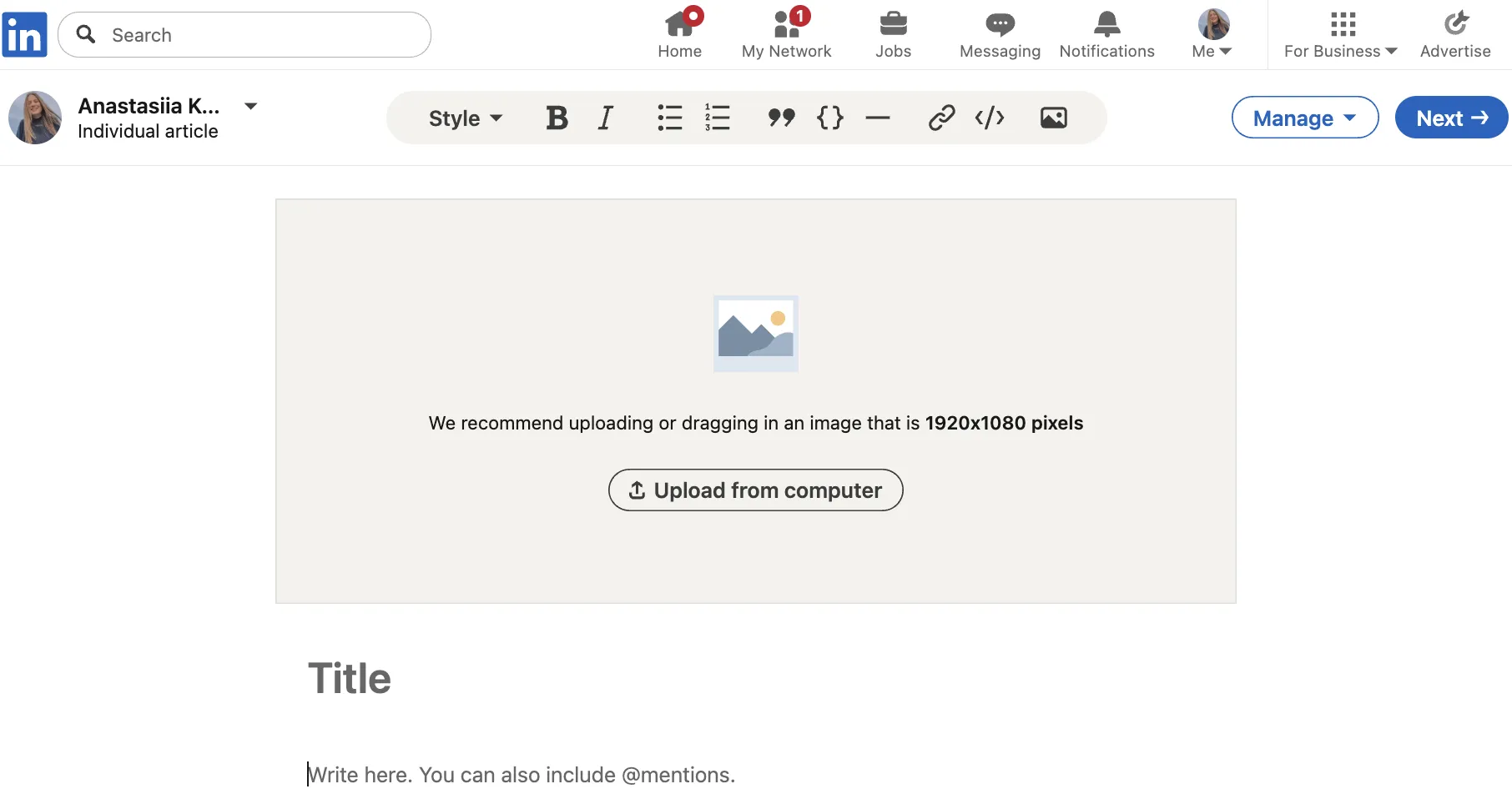
- On desktop, click Write article in the share box. Article creation is desktop-only.
- Choose to post as yourself or a Page you manage.
- Add a cover image, headline, body text, and rich media (video, embeds, GIFs). Note: GIFs cannot be cover images.
- Configure SEO settings and add hashtags when sharing.
- Click Publish, then share a post to notify your network. Newsletter subscribers get automatic notifications.
Best Practices
- Aim for 500–1,000 words with a header every 2–3 paragraphs.
- Good headlines are specific: "5 Hiring Red Flags Recruiters Ignore" or "How We Cut CAC by 30% in SaaS".
- Open with a stat, question, or short story to earn the click. Include at least one image or short video clip. Add 3–5 hashtags in your promotional post (#RecruitingTips, #B2BMarketing). End with a question to spark comments.
- Reply quickly (ideally within the first 1–2 hours). LinkedIn's feed uses engagement and dwell time signals, so early, quality interaction can help distribution.
Formatting Checklist
- Cover image: 1920×1080px (16:9). Link previews use 1200×628px (1.91:1).
- Use the default LinkedIn font. Colored text hurts readability.
- Keep paragraphs under 70 words.
- Use numbered lists for steps, bullets for features.
- Use the Divider formatting option in the editor between long sections.
Common mistakes: walls of text, clickbait titles, no cover image, URLs as anchor text, skipping SEO settings.
SEO basics:
- Put your main keyword in the headline and first 100 words.
- Keep sentences under 20 words.
- Add credit/caption on the cover image and captions on videos; add alt text to images for accessibility.
- End with a link to a next step (demo, signup, newsletter).
Bonus Tips
- Click the clock icon to schedule publication. Test different days and times, then check your analytics to see what works.
- After 48–72 hours, review your article analytics: views and reader demographics (job titles, companies, locations). Use this to pick future topics.
- Create a newsletter and publish future editions (each is an Article). You can repurpose prior articles as new newsletter editions, but there's no automatic bundling. Subscribers get notified automatically when you publish.