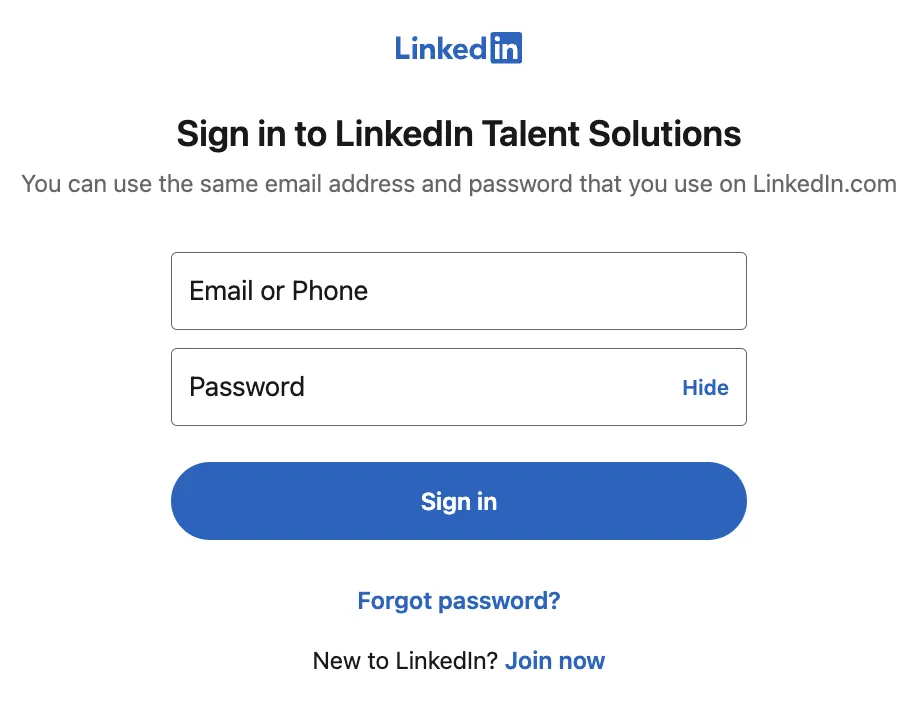
The LinkedIn Recruiter login gives you access to InMail, advanced search filters, projects, and any ATS integrations you've set up. Without signing in, your recruiter account and candidate data remain inaccessible.
Why the Login Matters
- Only seat holders can search and spend InMail credits. Collaborators can view profiles shared within projects but cannot run searches.
- 2FA is mandatory for all Recruiter users. SSO is optional but supported (SAML 2.0 with Entra ID, Okta, ADFS, or Google Sign-In).
- Signing in correctly keeps reports, saved searches, and ATS connections active.
- One login works for Recruiter Corporate, Professional Services, and Recruiter Lite. The features differ, but the access path is the same.
How to Sign In
Standard (Corporate)
- Open linkedin.com/talent/home or your company's Recruiter portal.
- Enter the same email and password you use on linkedin.com.
- Complete the MFA code or your firm’s SSO pop-up.
- First-time users: click the activation link in the seat-assignment email before step 2.
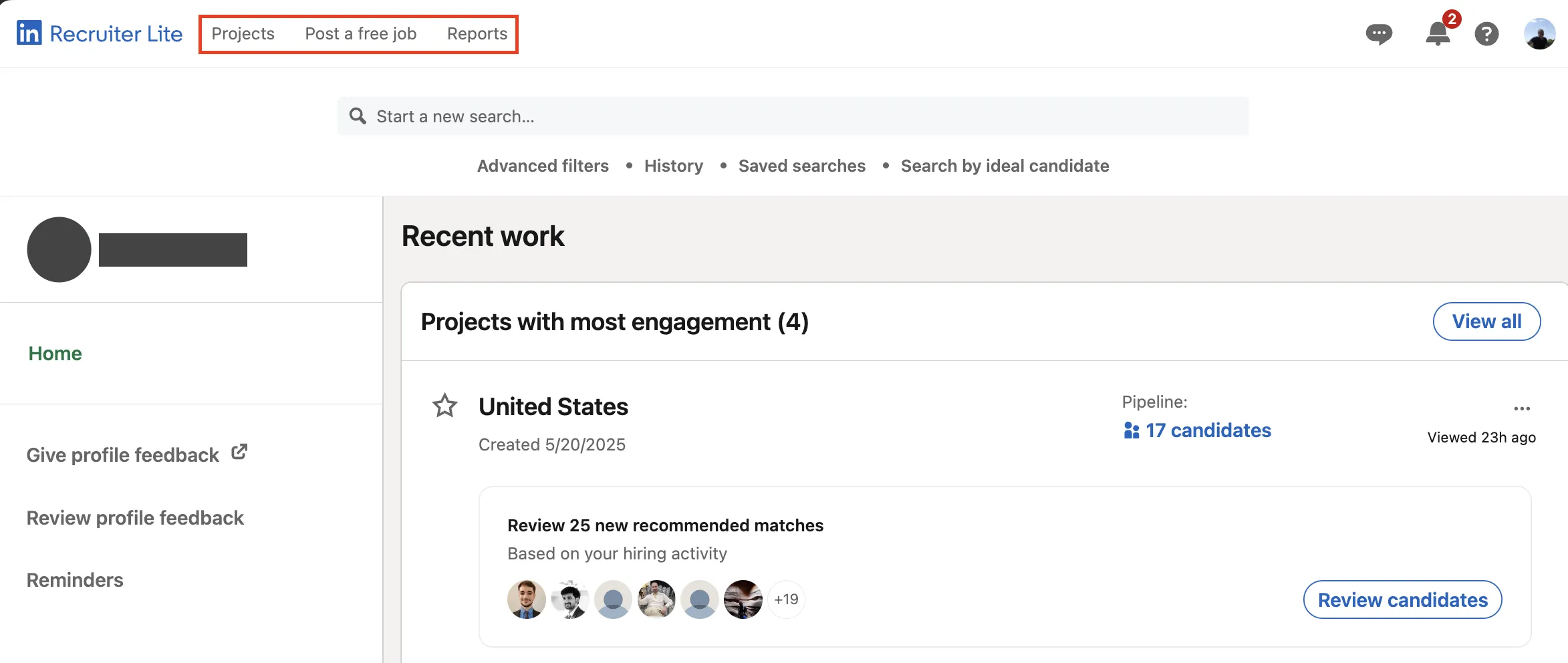
Recruiter Lite
- Sign into your personal profile.
- Access Recruiter Lite from your LinkedIn homepage (click the Recruiter icon or For Business → Recruiter Lite).
- Alternative: Me → Settings & Privacy → Subscriptions & Payments → Recruiter Lite → Go to Recruiter Lite.
- You can bookmark https://www.linkedin.com/talent/home for direct access.
- You now have more than 20 search filters and 30 InMails per month. If you're evaluating which Recruiter plan offers the best tools and savings, you might be interested in how to reduce LinkedIn Recruiter cost with automation.
Mobile App
- Install the LinkedIn Recruiter app (iOS 16.0+ for iPhone/iPad; Android 9.0 (Pie) or higher).
- Use identical credentials; enable Face ID/fingerprint for faster access.
- “Unexpected problem” error? Sign out, clear cache, reopen in an incognito tab, then retry.
Lost Access or Seat Transfer
- Admins: Admin Center → Users & Licenses → Reassign or Park a seat.
- If you see a duplicate-account warning, follow LinkedIn's merge/close duplicate accounts process to resolve sign-in conflicts.
Best Practices
- Bookmark the talent URL (linkedin.com/talent/home), not the consumer site, to avoid redirect loops.
- 2FA is required for every seat; SSO is optional. Review audit logs weekly.
- LinkedIn prohibits license sharing and recommends using Recruiter on one device at a time; unusual activity may trigger restrictions.
- Run a quarterly audit, park unused seats, reallocate during hiring spikes.
- Keep a backup admin so seat management continues if the primary admin leaves.
- If you lose access to your 2FA device, use LinkedIn's identity verification process to regain access.
- If you ever run into restricted access or account problems, see solutions in LinkedIn Account Restricted: Here's What to Do.
Troubleshooting Tips
- Most sign-in errors can be resolved by clearing cookies or switching browsers.
- Traveling? Prefer an authenticator app for 2FA and ensure recovery options are updated before your trip.
- Use the 'Go to linkedin.com' link to jump between LinkedIn Recruiter search and your personal feed without signing out.