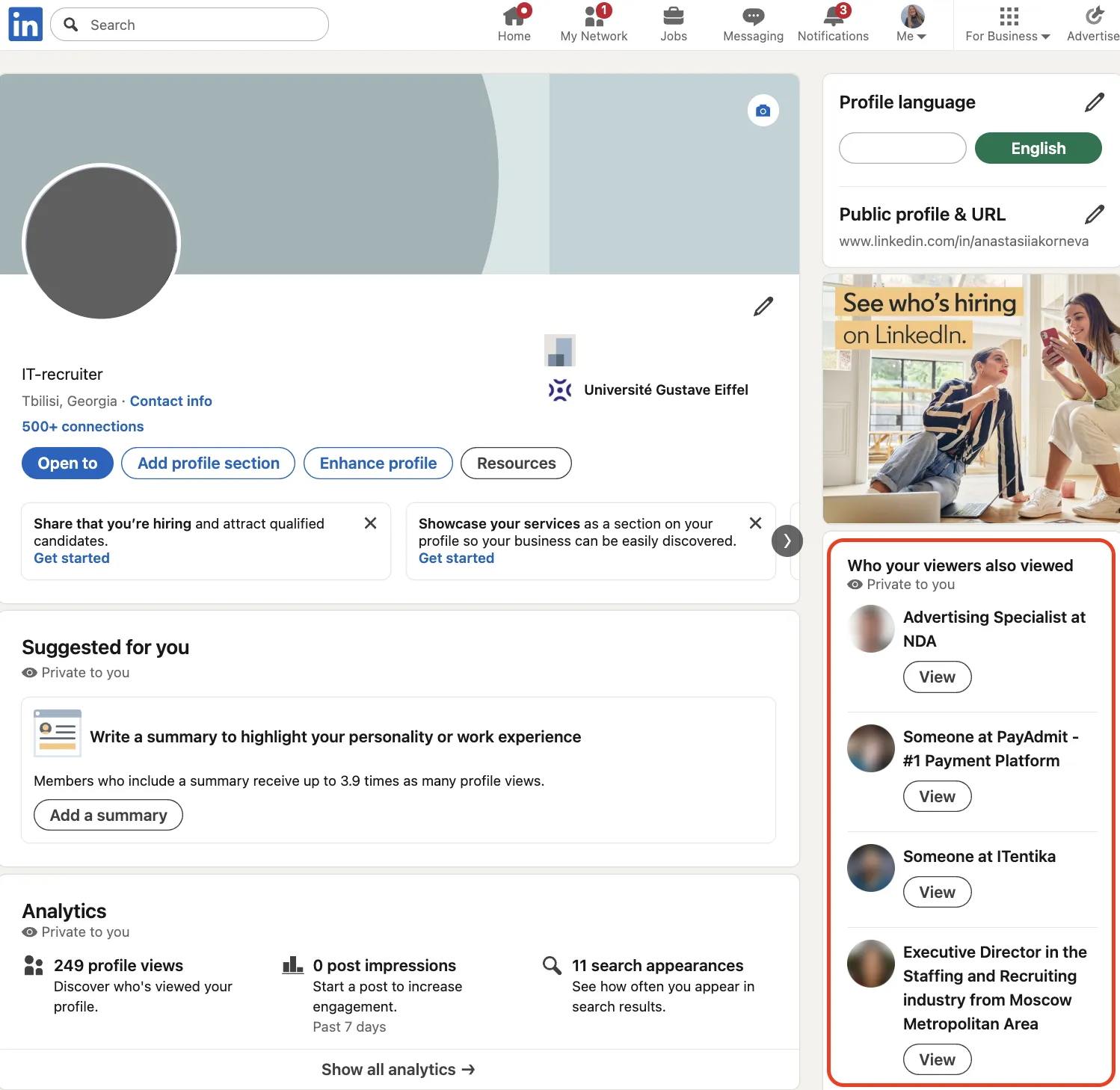
Quick answer: The "Other Similar Profiles" sidebar (formerly "People Also Viewed") is automatically generated by LinkedIn. It displays profiles based on similarities such as company, industry, and function, and may also include profiles that previous visitors viewed. It can surface similar talent for recruiters but may pull attention away from your own LinkedIn profile.
"Other Similar Profiles" appears on the right of desktop profiles (bottom on mobile). LinkedIn doesn't offer controls to edit, reorder, or turn off this module. Starting February 29, 2024, LinkedIn removed People Also Viewed and its setting, replacing it with Other Similar Profiles which cannot be hidden. The list is a discovery tool based on algorithmic matching, not a public history of anyone's clicks.
Why "Other Similar Profiles" Matters
- Recruiter research – hop between comparable candidates in seconds.
- Competitive intel – sales teams benchmark prospects or rivals.
- Network expansion – discover names for a future LinkedIn connection.
- Personal branding – see who LinkedIn groups you with and whether that matches your goals.
Since the panel is visible to every visitor, understanding this section helps you keep attention on your profile instead of losing clicks to competitors.
How Does "Other Similar Profiles" Work?
According to LinkedIn, the section shows profiles based on:
- Similarities in company, industry, and job function.
- Profiles that previous visitors have also viewed.
- Other undisclosed factors.
You cannot edit the list directly, but you can influence it:
- Write a clear headline so the right people find you first.
- Update your About section and Skills to match how you want to be categorized.
- Switch to LinkedIn Private mode (Settings & Privacy → Visibility → Profile viewing options → Private mode) when researching competitors so your name does not appear in their "Who's Viewed Your Profile" list.
For a deeper understanding of how LinkedIn recommendations work, see how the LinkedIn algorithm works.
Best Practices
- Check your sidebar regularly. Open your profile as a regular member and look at who appears. If you see unrelated roles—say, product designers next to a B2B copywriter—update your About section and pin relevant Skills. The algorithm should adjust over time.
- Protect your privacy. Switch to LinkedIn Private mode (Settings & Privacy → Visibility → Profile viewing options → Private mode) when researching others so your name stays out of their "Who's Viewed Your Profile" list. Manage ad-related data sharing under Settings & Privacy → Advertising Data.
- Use repeated pairings. If the same person keeps appearing next to you, that is a natural conversation starter. Mention the overlap when you reach out.
To see how your profile appears to other users, check out how to view your LinkedIn profile as someone else.
If the right people appear next to you, this section becomes social proof. If competitors dominate it, you may lose clicks.
Bonus Tips
- Keep your headline, banner, and Featured links focused on one topic. This helps the algorithm group you with the right people.
- Neither free nor Premium accounts can control this section. It is fully algorithmic.
- Update your Skills and job titles periodically so LinkedIn's matching stays accurate.