
 Updated: October 3, 2026
 17 min read
Quick Takeaway
- Your LinkedIn URL is the public web address of your profile – the default looks like linkedin.com/in/firstname-lastname-1a2b3c, and you can customize the part after /in/ for free.
- Desktop: click Me, View Profile, then the Edit (pencil) icon next to ‘Public profile & URL’ to copy or change it. Mobile app: open your profile, tap the More (three-dot) menu and Contact info to find the link.
- A custom slug must be 3-100 characters, with no spaces or special characters, and you can change it up to 5 times in 6 months (180 days); the old URL keeps working for 180 days unless you manually unlink it.
- A clean, branded URL is more memorable on resumes, email signatures and business cards, and helps your profile rank for your name in Google.
- Need many URLs at once (for outreach or a CRM)? Linked Helper collects profile URLs in bulk and auto-converts Sales Navigator and hashed links into clean public URLs on export.
By customizing and shortening your LinkedIn URL, you make your profile more accessible, polished, and professional—whether you’re sharing it online or printing it on a business card.
Let’s find out how to get a LinkedIn profile link from a PC and the app! Looking up one profile URL is easy by hand; pulling hundreds for outreach or a CRM is not. If you need many at once, Linked Helper can collect and clean LinkedIn URLs in bulk and auto-convert Sales Navigator and hashed links into the public /in/ format.
Related reading:
1. What Is a LinkedIn URL?
You’ve probably heard the saying that your LinkedIn profile is like your professional business card. With more than 1 billion members in over 200 countries and territories (LinkedIn, official About page), it’s also the first place people look you up — so a clean, findable profile URL directly shapes the professional impression you make. On LinkedIn, every user has a personal URL, and unlike other social networks, LinkedIn lets you customize it.
Customizing your URL makes your profile easier to share and is particularly useful for displaying on printed materials like business cards.
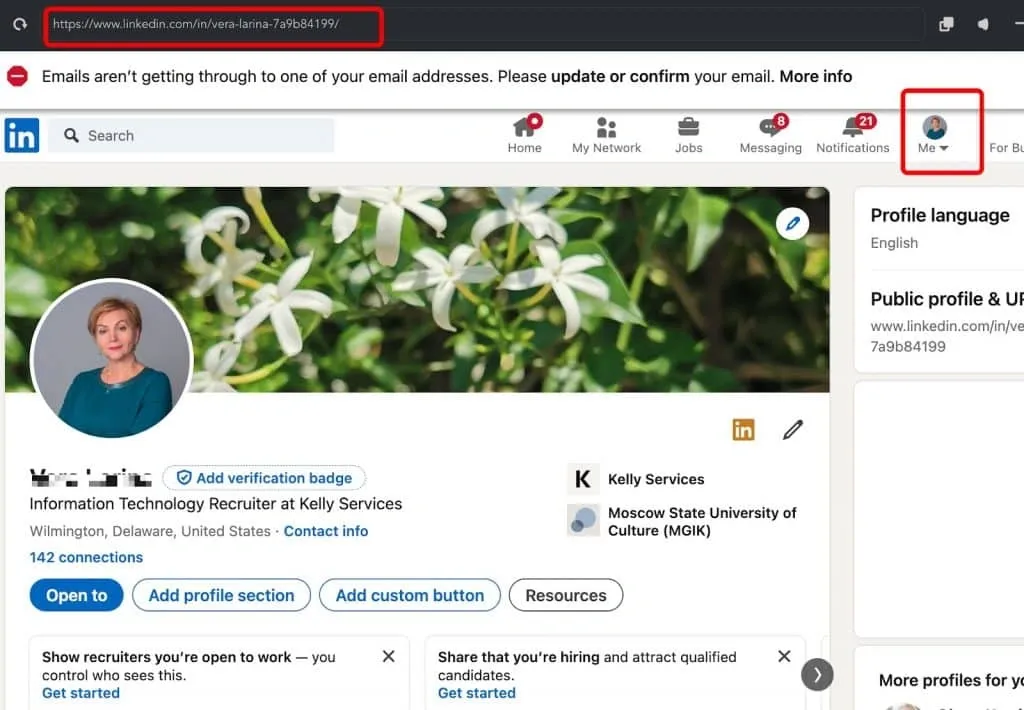
On the main page of your LinkedIn account, you can copy the profile URL from the browser’s address bar.
- Default URL Format: The standard LinkedIn profile URL starts with https://www.linkedin.com/in/ followed by your name and random characters.
For example:
- Basic format: https://www.linkedin.com/in/firstname-lastname-uniqueID/
- Customized: Go to Edit public profile & URL, then choose a clean and personalized link such as https://www.linkedin.com/in/yourname/.
You can further shorten it using tools like Bitly, especially if you’re sharing it frequently or need a more polished appearance.
It’s important to understand that LinkedIn URL formats can differ based on account types and regions:
- For example, in Canada, the public profile URL may look like this: http://ca.linkedin.com/in/linkedinyourname.
There are two types of LinkedIn profile URLs:
- Public LinkedIn URLs – These are clean and human-readable, such as: https://www.linkedin.com/in/williamhgates/. They are typically customized by the user for better accessibility and branding.
- Hashed LinkedIn URLs – These are system-generated and include a unique hash, such as: https://www.linkedin.com/in/ACwAAA8BYqEBlKc364xhzvygIeuJJ3rATiwe2NE.
Despite their different formats, both types of URLs lead to the same LinkedIn profile, provided they reference the same user account.
LinkedIn URL Formats by Account Type:
- Basic LinkedIn Profile
- Standard format: https://www.linkedin.com/in/firstname-lastname-uniqueID/.
- Customize it using LinkedIn’s settings for a more user-friendly link.
- Recruiter Profiles
- These often have longer URLs. Example: https://www.linkedin.com/recruiter/profile/1234567890.
- To simplify sharing, consider shortening the link with a tool like TinyURL or Bitly.
- Sales Navigator Profiles
- URLs for Sales Navigator accounts typically look like this:
https://www.linkedin.com/sales/people/ACwAAB…,NAME_SEARCH,xxxx(older accounts may still show the /sales/profile/ form, and lead views use /sales/lead/). Because these /sales/ links are not interchangeable with standard /in/ URLs and break many CRMs and automation tools, you’ll usually want to convert them to a clean public URL before using them — more on that below. - You can use link-shortening services to make them more concise and professional.
2. How to Find Your LinkedIn URL
Where To Find LinkedIn URL On Desktop
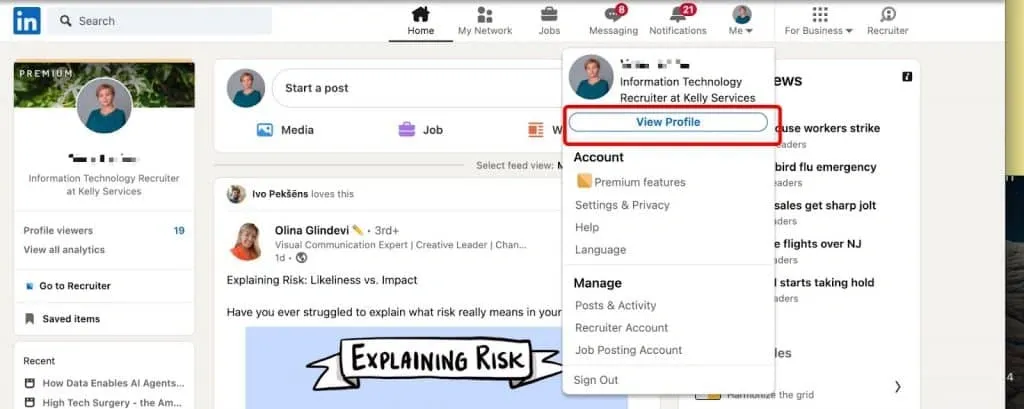
- Click the Me icon at the top of your LinkedIn homepage.
- Click View Profile.
- In the section Public profile & URL you can edit and copy your link.
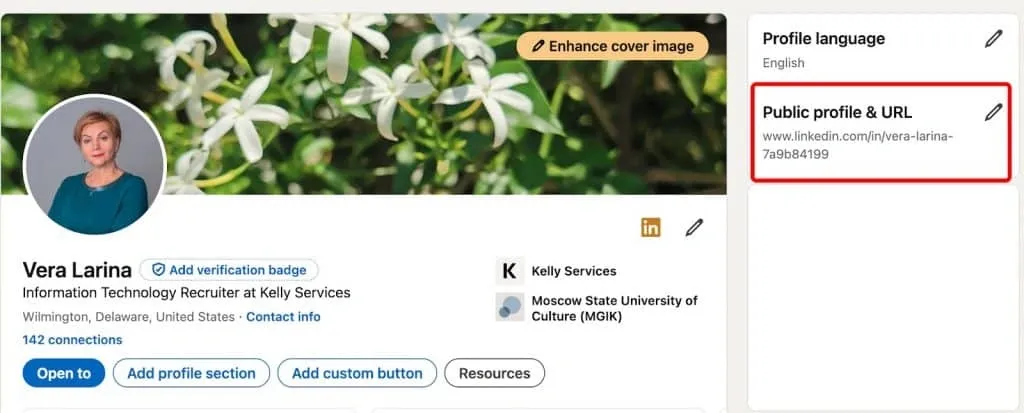
Usually, this menu is convenient for editing the URL to quickly copy it. You can find the address bar in your browser and copy the URL from there.
Here’s a tip:
You can also click on Resources and select Send profile in a message to share your profile URL via LinkedIn messages.
Notes:
If your region specifies a modified URL, such as a prefix with the country abbreviation, you can change the region in your profile, and the prefix will disappear. However, if you’ve already shared the link with the prefix, it will still work.
For example, for Canada, you will see ca in the link.
Find LinkedIn URL on Mobile App
Finding your URL in the mobile app takes a couple more taps than on desktop. Here are the current steps for both iPhone and Android:
- Tap your profile photo, then View Profile to open your profile.
- Tap the More icon (the button next to Add section).
- Select Contact info.
- Under Your Profile, you’ll see your link starting with www.linkedin.com/in/…. Tap and hold it to Copy or Share it.
Here’s a tip: from that same More menu you can also choose Send profile in a message to share your URL via LinkedIn messages.
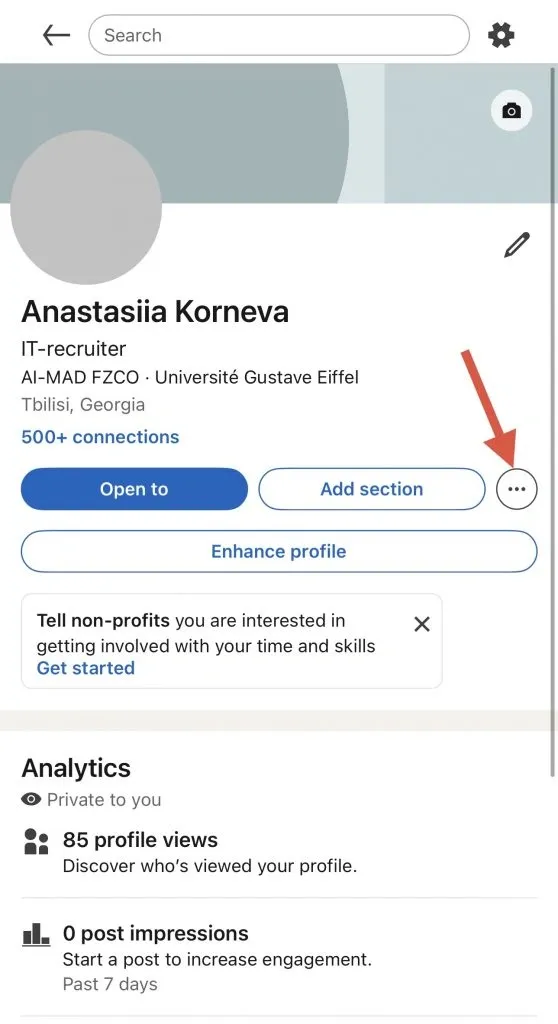
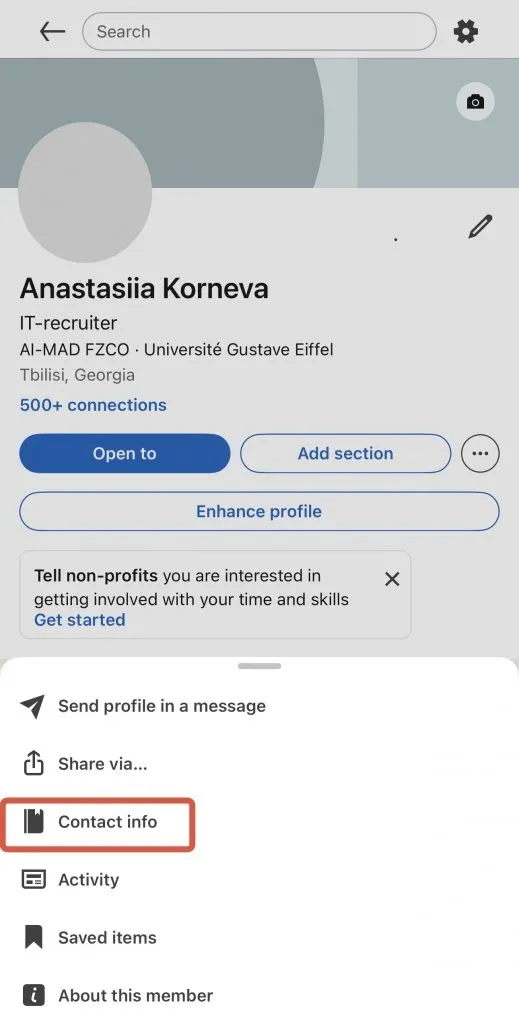
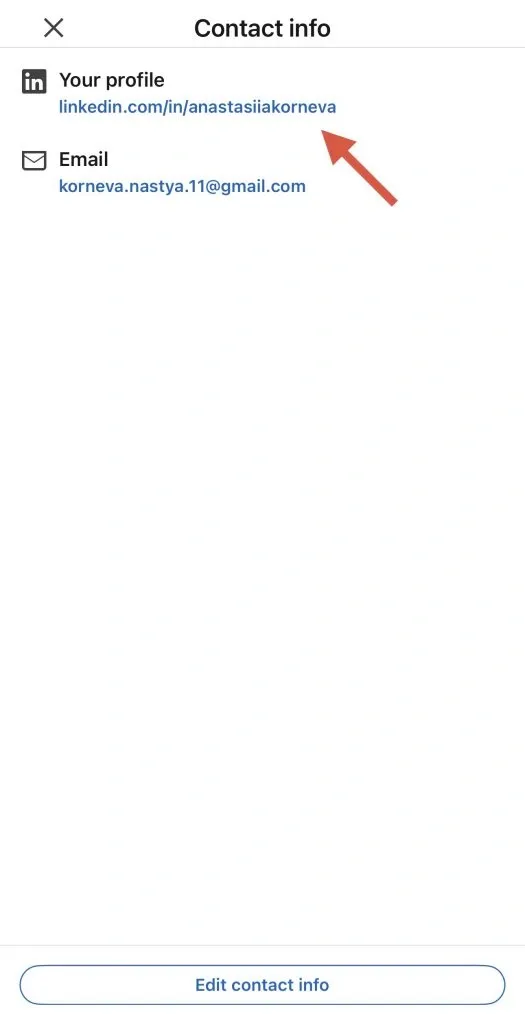
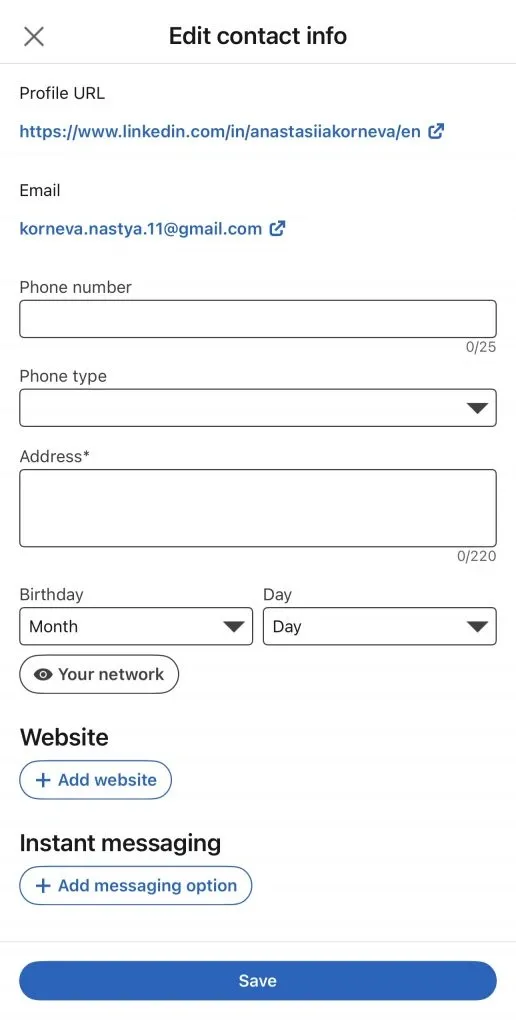
If you tap the link in the Contact info section labeled “Your profile,” you’ll be taken to the Edit contact info page.
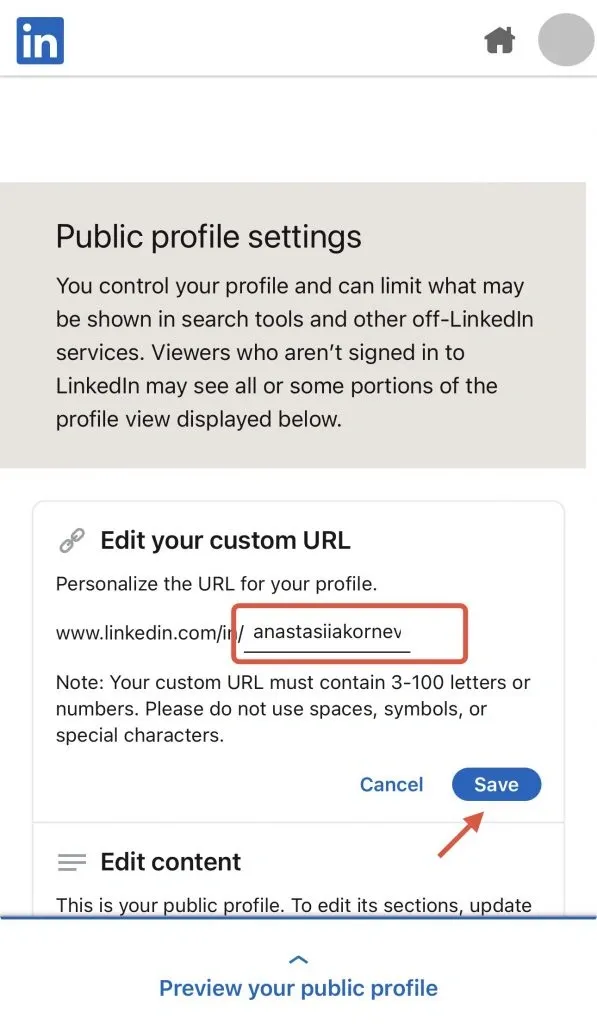
From there, you’ll be redirected to the Public profile settings, where you can edit your profile link.
3. How to Copy Your LinkedIn URL
In the section above, we described where you can find your profile link on both desktop and mobile devices. On desktop, you can copy it directly from the browser, while in the mobile app, it can be found in the Contact info settings.
From there, you can quickly copy the link and share your profile via a message or on an external platform.
4. How to Customize Your LinkedIn URL
You can customize your profile link in the same menu where your profile link is located. To do this:
- Click on Me and select View Profile.
- Click the Edit icon (a pencil) next to Public profile & URL in the right-hand pane.
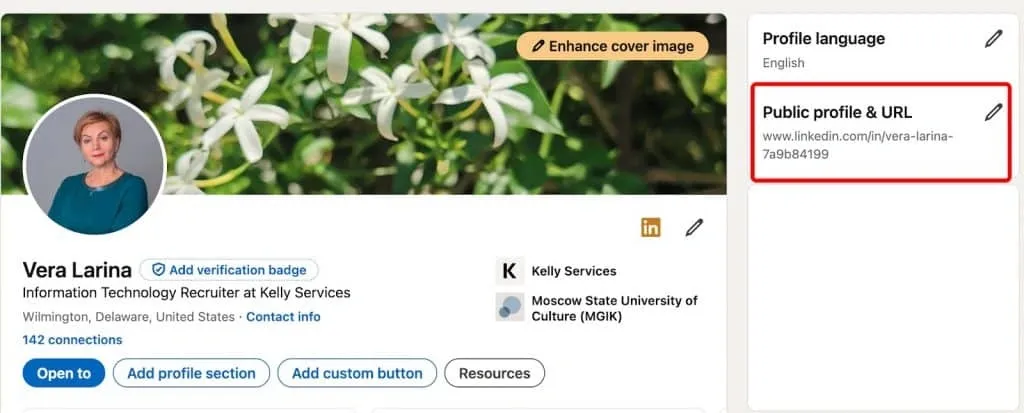
In the window below, you’ll see a field where you can edit your profile link. Enter your name or brand name and click Save.
Click Save.
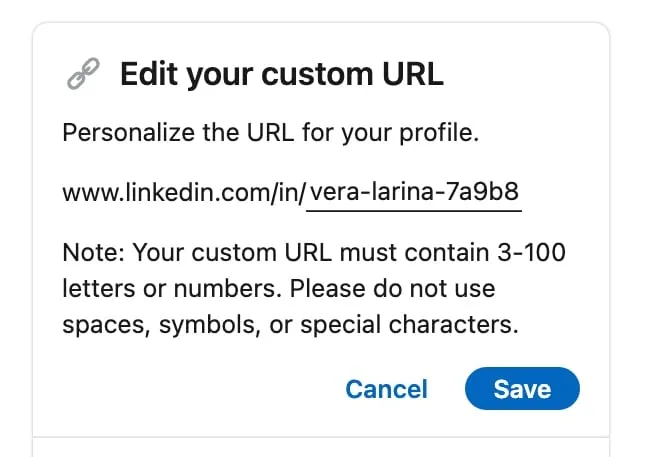
To View and Unlink Prior Custom URLs
In this menu, you can also view and unlink any previous custom URLs associated with your profile. To do this:
- Navigate to the menu section labeled See prior custom URLs that might be linked to you.
- If you’ve created custom URLs before, you can remove them by clicking the Unlink button.
Important: Each custom URL is tied to your account for 6 months. During this time, users can still access your profile using the old link. The old link will only stop working if you manually unlink it.
Best Practices and Rules for Custom URLs
- Length Requirements: Your custom link must be between 3 and 100 characters. Consider creating a custom slug. Examples include:
- The name of your industry or business.
- Your job title or specialization.
- A combination of your name and company name.
- Your full name or abbreviated name with initials.
- A good practice is to use a combination of your name and brand or company name, as this link can be shared with potential clients.
- Formatting Tips:
- Avoid using spaces or special characters.
- The custom part of the URL is case-insensitive, meaning it will always direct to your profile regardless of whether you use uppercase or lowercase letters. However, you can use uppercase letters for readability (e.g., “JohnDoe” instead of “johndoe”).
- Name Availability: LinkedIn does not allow renting or reserving custom names. The ability to use a specific name depends on its availability. If there are others with the same name as you, you may need to create a unique combination.
- Rules for Changing Custom Links:
- You can change your custom URL up to 5 times within 6 months. After the fifth change, you won’t be able to edit it again until the 6-month window resets, so pick a slug you’re happy to keep. Note too that when you unlink an old custom URL, it’s hidden from others for 7 days before it becomes available for anyone else to claim.
- While it’s unlikely you’ll need to change your link frequently, keep this limit in mind if necessary.
- Language-Specific Profiles: If you create language-specific versions of your profile, the language code will be visible in the URL. For example, a French profile will include “fr” at the end of the link.
5. Why Customize Your LinkedIn URL?
Now that you know how to manage your custom LinkedIn URL and create a branded link, let’s discuss why having a recognizable profile link is important. If you’re still not motivated to update it, here are a few compelling reasons:
- Improved Personal Branding: A custom URL is an excellent tool for professionals building their personal brand. Whether you’re positioning yourself as a top specialist in a specific industry, generating leads, or managing an influencer profile, a branded link is far more memorable than a generic URL with random numbers.
- Better Search Engine Optimization (SEO): Custom URLs tend to perform better in search engines like Google, and discoverability matters more than ever in hiring: 87% of recruiters say LinkedIn is the most effective channel for vetting candidates (Jobvite, Recruiter Nation Report). By including relevant keywords in your URL — your name, business, or industry — you increase the chances of your profile ranking higher when someone searches for you.
- Versatility for Marketing Materials: A branded link is easy to use in printed materials like brochures or business cards. It’s also perfect for including in email signatures, online profiles, or social media posts, ensuring a professional and consistent representation of your profile.
Take advantage of these benefits to make your LinkedIn profile more professional, discoverable, and memorable!
6. How to Shorten a LinkedIn URL
As an alternative, you can create a shortened version of your LinkedIn URL. The simplest “shortening” is something you’ve already done above: changing your custom slug in-platform is the real free shortener — it turns linkedin.com/in/firstname-lastname-1a2b3c into a clean linkedin.com/in/janesmith that still clearly reads as a LinkedIn link. Third-party services like Bitly, TinyURL, or Rebrandly make the link even shorter, but the result is unbranded and no longer recognizable as LinkedIn at a glance — so reach for them only when raw length is the priority over branding.
LinkedIn Short URL – Key Points to Consider:
- Shortened but Unbranded Links: These services generate shorter URLs, which can be more concise and visually appealing. However, they won’t retain LinkedIn branding, making them less recognizable as LinkedIn links at first glance.
- Customization Options: Most of LinkedIn URL shorteners allow you to customize the last part of the shortened URL. For example, you can include your name, business name, or other relevant identifiers to keep it personalized and professional (e.g., bit.ly/JohnDoeProfile or rebrand.ly/YourCompany).
- Use Cases: Shortened links are particularly useful in content where space is limited, such as:
- Social media posts
- Printed materials
- Email newsletters
- Presentations
This approach provides additional flexibility and ensures your profile link remains professional and easy to share across various platforms.
7. Common Issues and Solutions
Problem: Custom URL Already Taken
If your desired custom URL is unavailable, LinkedIn will notify you of the conflict. Since each custom URL must be unique, you’ll need to find a different combination. Here are some strategies to create a unique URL:
- Add Numbers: Incorporate numbers, such as a significant year (e.g., the year your company was founded).
- Use Abbreviations: Include your company’s abbreviation or a shortened form of your name.
- Add a Location: Combine your name with your city or region (e.g., “JohnDoeNYC”).
- Professional Keywords: Use relevant keywords related to your profession or industry to make the URL distinctive (e.g., “JaneDoeMarketing”).
These tweaks can help ensure your custom URL is unique and professional.
Problem: Forgotten How to Access Your Custom URL
If you’ve forgotten where to find your LinkedIn URL, here are two simple ways to retrieve it:
- From a Browser: Open your LinkedIn profile in a web browser. Your URL will be displayed in the address bar.
- From the Mobile App: Navigate to your profile, tap on the Contact info section under your name, and you’ll see your profile link there.
Problem: Changing Country or Profile Settings
If you create a profile in a different language or change your country, your custom URL might also change. To avoid issues:
- Language-Specific URLs: Language-specific profiles will include a language code (e.g., “fr” for French). Make sure to share the correct version.
- Country Updates: When changing your location settings, double-check your custom URL to ensure it’s still accurate and functional. Update any shared links accordingly to prevent confusion.
These steps will help maintain consistency and ensure your profile link remains relevant and accessible.
Bonus Tip: Convert Sales Navigator URLs automatically
A clean public URL matters most when you’re working at scale: Sales Navigator (/sales/people/) and hashed (/in/ACwAAA…) links break many CRMs and automation tools. Linked Helper collects profiles from a search or list and exports clean public /in/ URLs to CSV, with Sales Navigator and hashed links converted for you.
8. 5 Examples of Effective LinkedIn URLs
- Full Last Name + First Initial: In this example, you can see that users often use variations of their name. For instance, you might use your full last name and the first initial of your first name, or the reverse. For example:
- smithj (Smith, John)
- johns (John Smith)
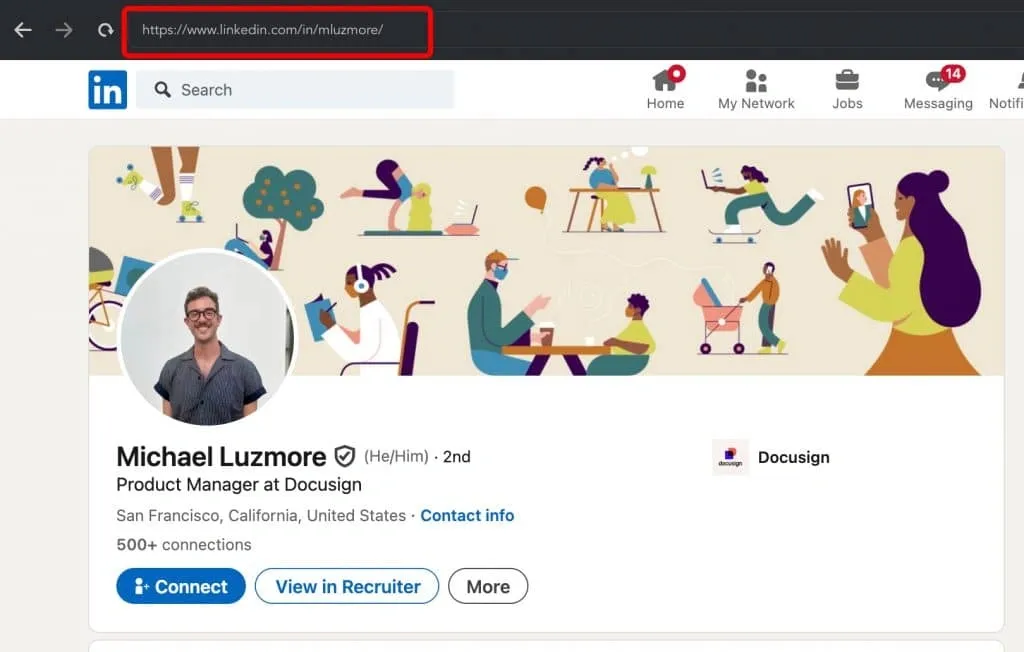
Example of using name and abbreviation in the URL
- Full Name + Simple Word: The second idea, inspired by a LinkedIn user, is to use your full name. However, if that is already taken, you can add a simple and easy-to-remember word. For example, one user added the word “hello” to their URL:
- johnsmithhello
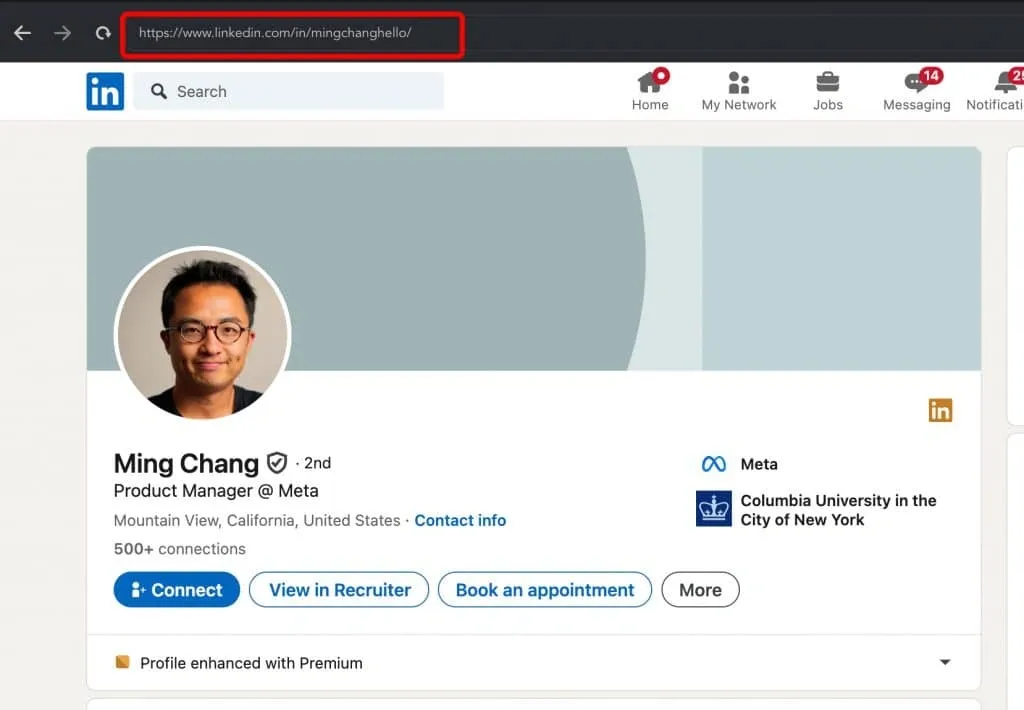
Example of using a name and a word in the URL
- Abbreviation for Job Title: Another option we noticed among successful users is to use your name, but if you have a complicated or hard-to-remember surname, you can simplify it by including an abbreviation of your job title. For example:
- JDoeCMO (John Doe, Chief Marketing Officer)
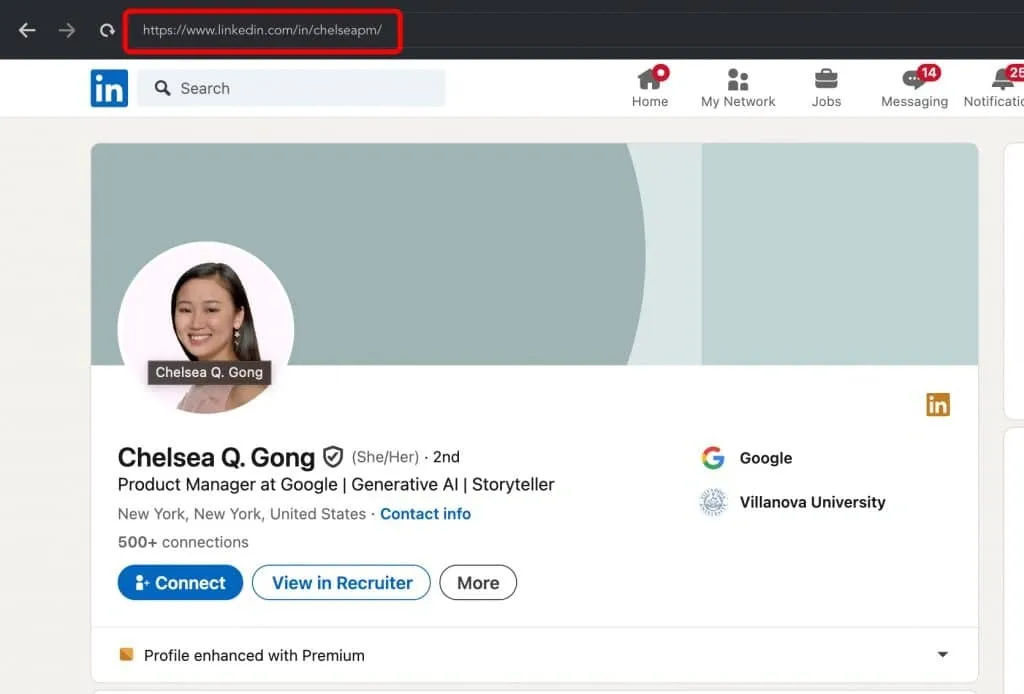
Example of using name and job title abbreviation in the URL
- Hyphen Between First and Last Name: In this example, a user added a hyphen between their first and last name. This method is allowed on LinkedIn, so feel free to consider it as an option:
- john-smith
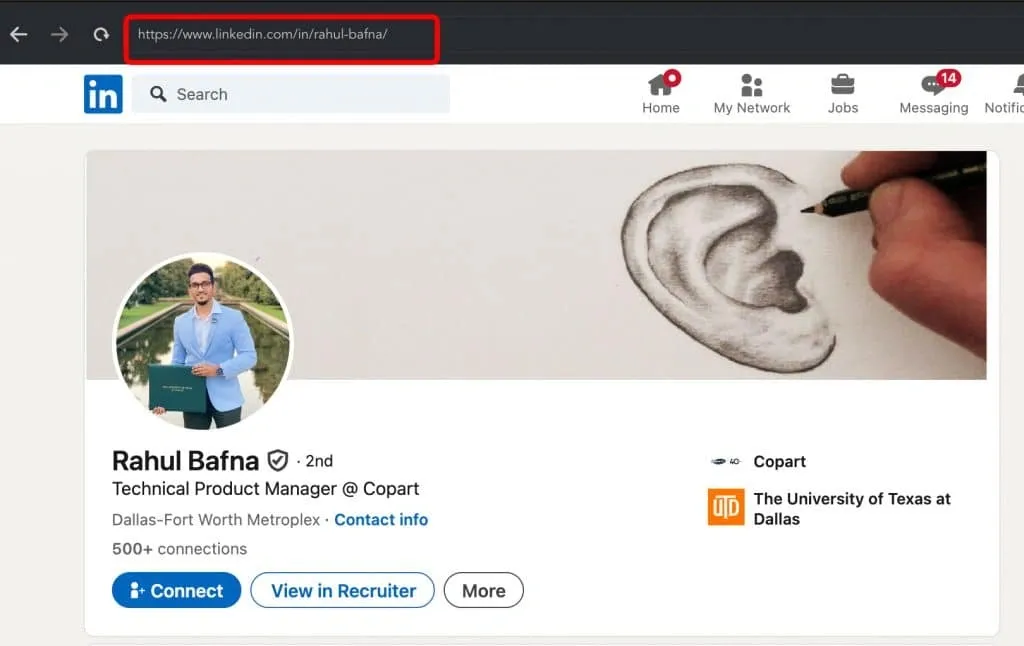
Example of using first and last name with a hyphen in the URL
- Simple Combination of Numbers: One of the easiest ways to make your link unique without overloading it with a long surname or multiple words is to add a simple number combination. For instance, in the example, the user added “34,” but you could also use “123” or any memorable combination:
- johnsmith34
- janedoe2023
These strategies ensure your LinkedIn URL is easy to remember, professional, and distinctive.
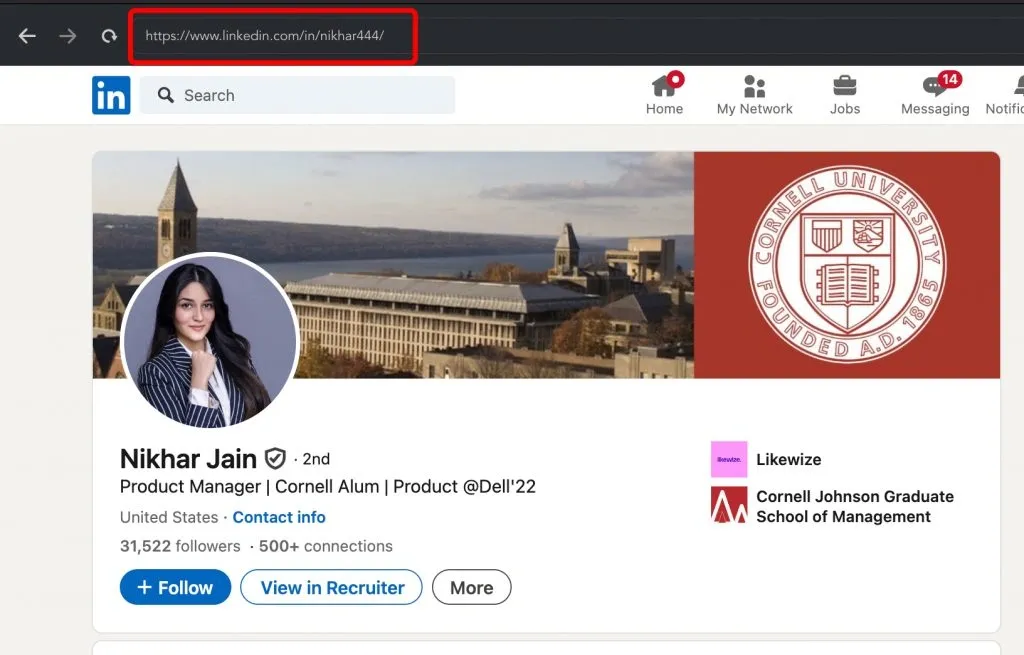
Example of using name and numbers in the URL
Bonus Tip: How and Why to Collect LinkedIn URLs in Bulk with Linked Helper
Why Collect LinkedIn URLs in Bulk?
- Streamlined outreach + enrichment: beyond the URL, Linked Helper’s Data Enrichment action pulls emails, phones and social links from its own database — without even visiting each profile — so a raw URL list becomes a contactable lead list.
- Personalization at scale: target profiles precisely while keeping messages personal.
- Data organization & CRM export: push leads straight to your stack with the Send person to external CRM action — direct integrations include HubSpot, Pipedrive and Close — or send them onward via webhook.
How to Collect LinkedIn URLs Using Linked Helper:
- Set up Linked Helper and connect it to your LinkedIn or Sales Navigator account.
- Create a campaign with the Visit & Extract profiles template to bulk-collect profiles and export their URLs to CSV.
- Start collecting. URLs appear in the Queue immediately; full profile data fills in as profiles are processed, then exports to CSV — ready for outreach or analysis.
- Make it hands-free with Auto-collect. The Auto-collect action re-collects new profiles from a saved search or page automatically on a recurring schedule, so your list keeps growing without manual restarts.
Converting Sales Navigator URLs to Basic LinkedIn URLs:
- Why Convert? URLs from Sales Navigator often have a different structure, which may not work seamlessly for some automation tools or tracking systems. Converting them ensures compatibility and usability.
- How to Convert:
- Use URL Converters: Online tools or scripts can batch-process Sales Navigator URLs into standard LinkedIn URLs.
It’s important to note that online converters or formulas in Google Sheets typically generate hashed LinkedIn URLs instead of public LinkedIn URLs. For example, instead of a readable custom profile URL like /williamhgates/, they produce a hashed version such as /ACwAAA8BYqEBlKc364xhzvygIeuJJ3rATiwe2NE/.
If you visit the hashed URL (e.g., https://www.linkedin.com/in/ACwAAA8BYqEBlKc364xhzvygIeuJJ3rATiwe2NE), it will redirect to the public LinkedIn URL (https://www.linkedin.com/in/williamhgates/).
However, many tools and CRMs may not recognize that both URLs point to the same profile. To avoid discrepancies, it’s recommended to convert links using tools like Linked Helper.
- Linked Helper’s Auto-Conversion: Linked Helper automatically converts Sales Navigator URLs to basic LinkedIn URLs during the data export process, saving time and effort.
Where to Find and Copy my LinkedIn URL – Conclusion
Ultimately, it’s important to carefully manage your LinkedIn profile’s URL because it directly impacts your branding and helps people find your account more quickly. A custom link can also boost your search engine rankings.
This can be easily done through the settings on LinkedIn, both on mobile devices and the desktop version. You can change your custom URL several times, but the previous URL will remain active for 180 days unless you unlink it from your account.
Therefore, don’t hesitate to find the perfect URL and use it confidently in print materials and your email signature!
Now that you can find, copy and customize a single URL, the next step is doing it for an entire list. Linked Helper collects profile URLs in bulk, can auto-collect them on a schedule, enriches them with emails, and pushes them straight to HubSpot, Pipedrive or Close — start free, no card required.