
 Updated: September 8, 2026
 3 min read
A LinkedIn Button is a Share or Follow Company plugin, or the official [in] logo linked to your profile, that sends visitors to your LinkedIn presence with one click. You can place it on a website or in an email footer to turn casual readers into connections. For more on how others see your profile, read: How to View Your LinkedIn Profile as Someone Else (Full Guide + Leadgen Tips).
Why Add a LinkedIn Button?
- Get more profile views and connection requests.
- Let readers share your blog post, white paper, or job ad with their network.
- Grow company-page followers from a sidebar or landing page.
- Give recruiters quick access to your profile from your email signature.
- Direct prospects to your LinkedIn profile before demos or sales calls.
Want more tips? See these 15 Effective Strategies to build your LinkedIn presence.
How to Add a LinkedIn Button
Add the Button to a Website (HTML)
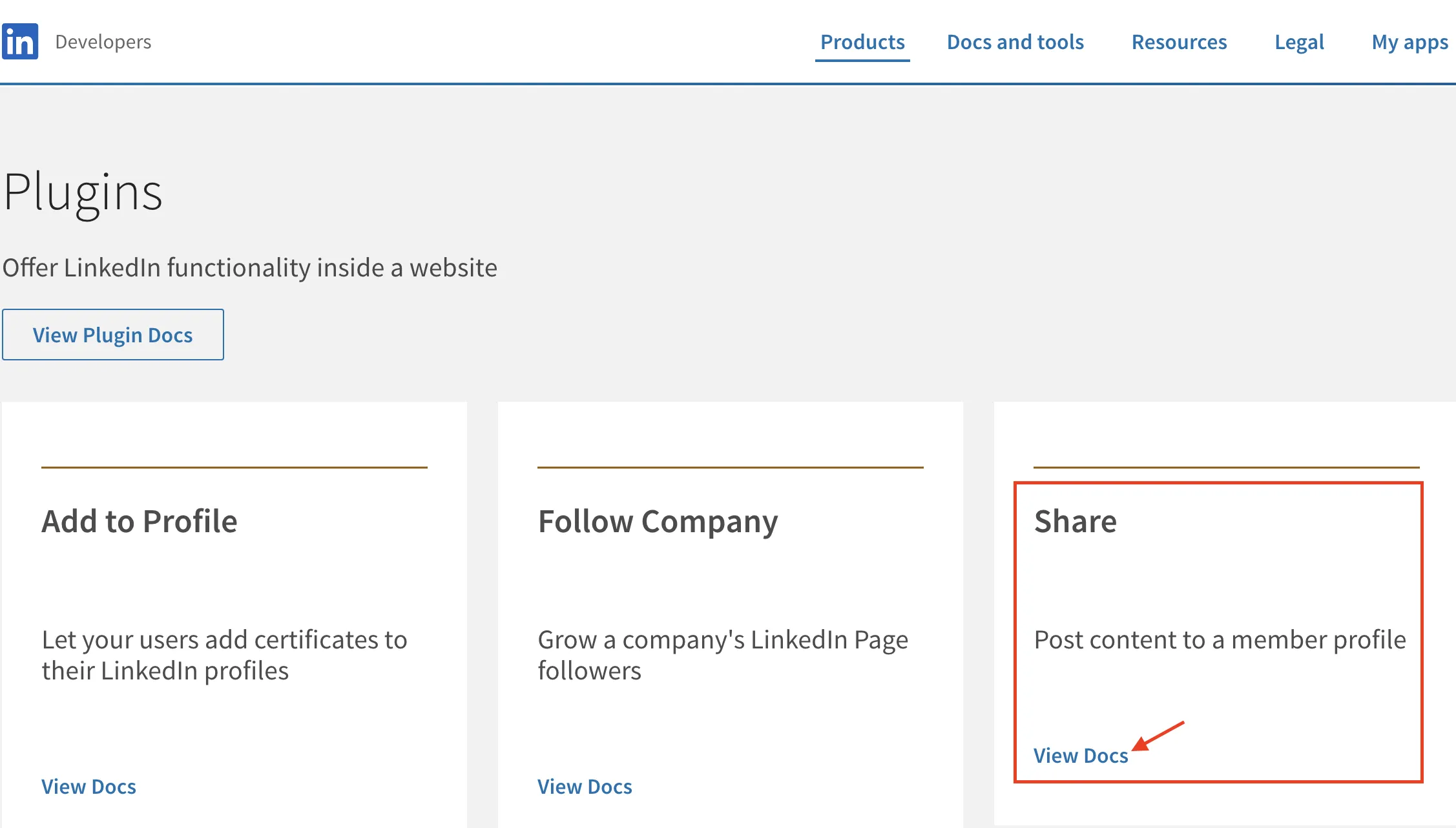
- Open LinkedIn Plugins
- Pick Share (enter the page URL you want shared) or Follow Company (enter your LinkedIn Company ID from your admin URL).
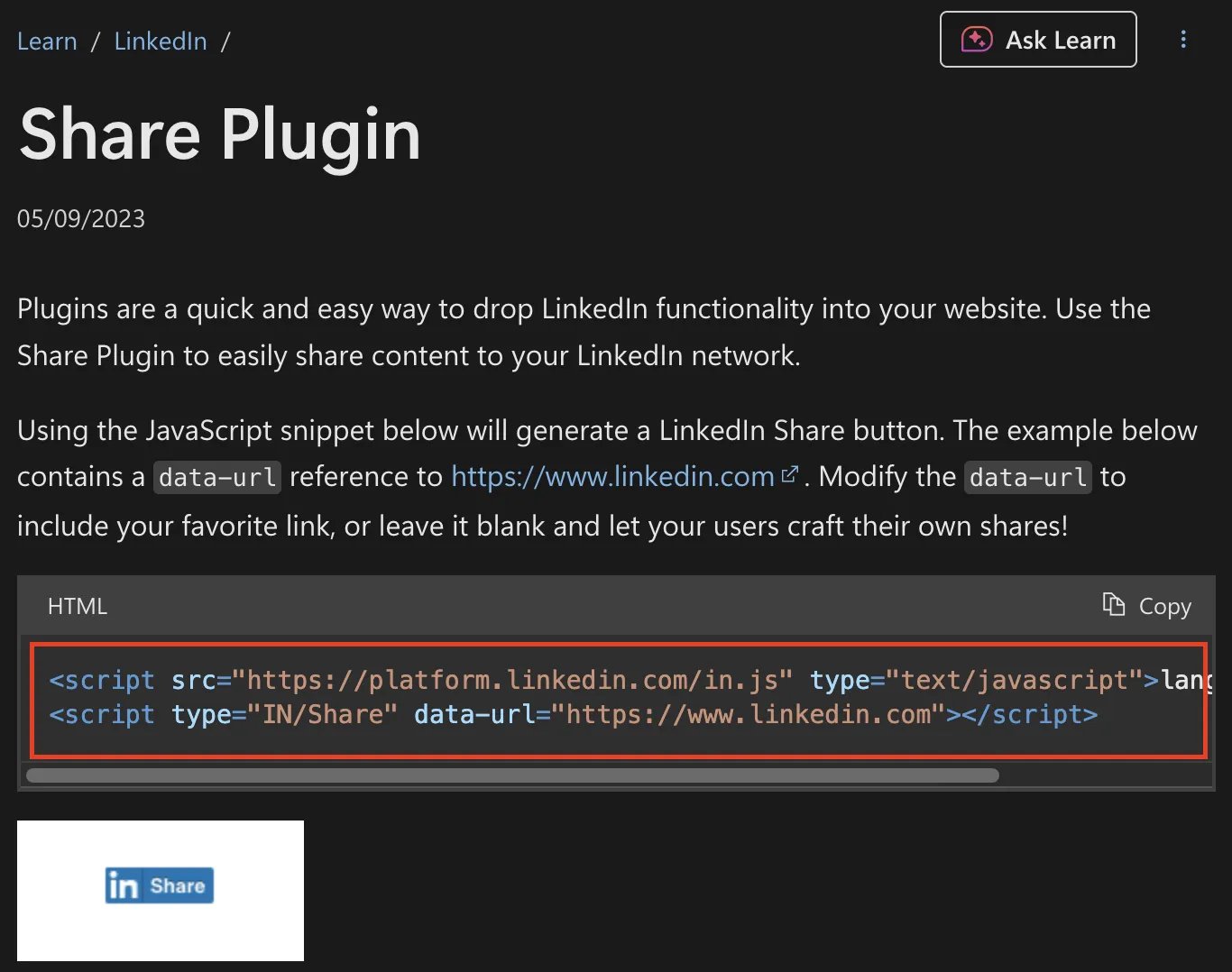
- Copy the auto-created snippet.
- Paste the code into your site's HTML where you want the button.
- Save and publish. The button appears immediately.
<script src="https://platform.linkedin.com/in.js" type="text/javascript">lang: en_US</script>
<script type="IN/FollowCompany" data-id="1337"></script>
Add the Button to an Email Signature
- Download the official [in] logo from LinkedIn Brand Downloads (minimum 21px tall per brand guidelines).
- In Gmail, Outlook, or Apple Mail, open Signature settings.
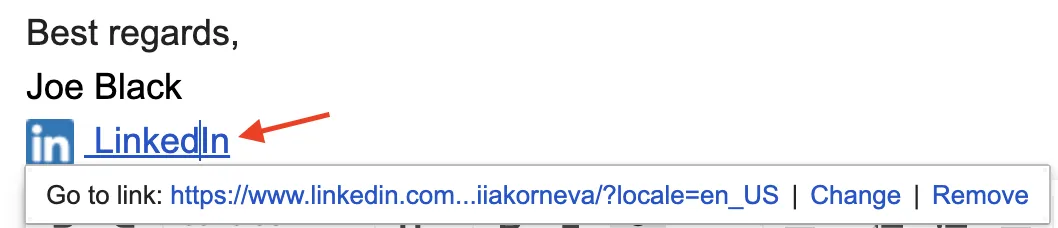
- Insert the image, highlight it, and click "Add link."
- Paste your full LinkedIn URL and save.
- Send a test message to check the display on desktop and mobile.

Best Practices
- Place widgets above the fold or near author bios.
- Keep at least 8–12px padding so the button doesn't look like an ad.
- Use LinkedIn blue (#0A66C2) or a monochrome theme.
- Limit email graphics to under 40kB to avoid spam filters.
- Test at 100%, 75%, and 50% zoom. The button should stay readable at 16–24px.
- Never stretch or recolor the [in] logo. Follow LinkedIn brand rules.
- Use one button per page. Too many options confuse visitors.
Bonus Tips
- Selected Premium Business, Sales Navigator, and Recruiter Lite subscribers can add a "Visit my website" button in their profile header without any code.
- Pair your LinkedIn button with testimonial screenshots for social proof.
- Obtain consent in the EU/EEA before loading LinkedIn plugin cookies, as the embed script sets third-party cookies.
For more on LinkedIn visibility, read: How Does the LinkedIn Algorithm Work? Boost Visibility in 2026.