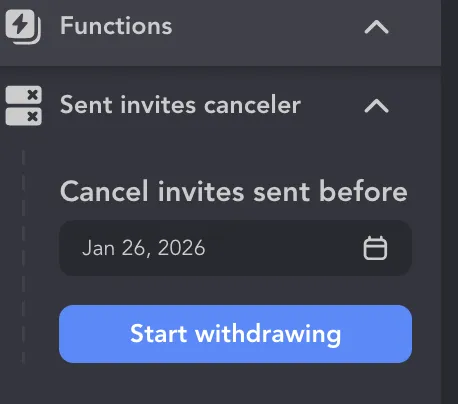
Over 200 pending invites? You’re risking LinkedIn restrictions.
Most people don’t realize this until it’s too late — their connection requests silently pile up, their reach drops, and suddenly LinkedIn stops letting them send new invites.
Here’s the reality: the average active LinkedIn professional sends 100+ connection requests per month. At that pace, it’s shockingly easy to hit LinkedIn’s 1,500 pending connection limit — especially if you’re doing outreach, sales, recruiting, or personal branding at scale. Once you hit that cap, LinkedIn doesn’t warn you politely. It simply slows you down, blocks new invites, or flags your account for “unusual activity.”
That’s why LinkedIn pending connections aren’t just a cosmetic issue in your My Network tab — they’re a growth bottleneck.
Pending invites are connection requests you’ve sent that haven’t been accepted yet. Left unmanaged, they quietly sabotage your outreach capacity, lower your Social Selling Index (SSI), and reduce the effectiveness of every campaign you run — whether manual, semi-automated, or powered by tools like Phantombuster.
In this guide, you’ll learn:
- What LinkedIn pending connections really are (and how LinkedIn counts them)
- Why managing them is critical for account safety and scale
- How to view, withdraw, and clean up pending invites the right way
- How smart cleanup unlocks more daily sends, higher acceptance rates, and better SSI
What Are LinkedIn Pending Connections?
LinkedIn pending connections (also called pending LinkedIn requests) are connection invitations that haven’t been resolved yet — meaning no one has clicked Accept. They sit quietly in your network queue, but make no mistake: they directly affect how much you can grow on LinkedIn.
There are two types of pending connections, and LinkedIn treats them very differently.
1. Sent Pending Connections (Outbound)

These are connection requests you sent that are still waiting for a response. You can:
- Wait for acceptance
- Manually withdraw them
- Let them sit indefinitely
Important: LinkedIn does NOT auto-expire sent requests.
A request you sent 2 years ago still counts today unless you remove it — a fact often overlooked in outreach workflows (and widely flagged by tools like Evaboot).
This is where most people get into trouble.
2. Received Pending Connections (Inbound)

These are requests sent to you by other users. You can:
- Accept them
- Ignore them (they remain pending, but don’t hurt you)
Inbound pending requests do not count toward your sending limits and don’t put your account at risk. You can safely leave them untouched.
How LinkedIn Pending Connections Work
LinkedIn applies both weekly sending limits and informal safety thresholds based on account health. Pending outbound requests also affect your ability to keep sending.
- Warmed-up accounts with a strong acceptance rate: typically 150–200 connection requests per week, regardless of subscription type.
- New accounts, inactive accounts, or accounts that suddenly increase outreach with a low acceptance rate: usually limited to 20–30 connection requests per week before restrictions or warnings may appear.
- It’s important not to confuse the weekly sending limit with the maximum number of pending invitations.
These are two different things. The weekly limit controls how many invites you can send within 7 days, while the pending limit refers to how many unanswered connection requests you can have at once before LinkedIn starts restricting your activity.
While there’s no officially published number, issues typically start appearing when pending invitations grow too high without being accepted.
Once you approach or exceed that 1,500 threshold, LinkedIn may:
- Temporarily restrict outreach
- Flag your account for spam-like behavior
Tools like Findymail often warn users about this because hitting the cap can silently kill lead generation.
What Pending Connections Really Mean
Think of it this way:
- Cluttered pending requests = spam signal
- Clean pending requests = growth signal
A high number of unanswered sent invites tells LinkedIn:
“People don’t engage with this account.”
A clean, regularly managed pending list tells LinkedIn:
“This account sends relevant, accepted requests.”
That difference impacts:
- Your ability to send more invites
- Your acceptance rate
- Your Social Selling Index (SSI)
- Your account safety long-term
Automation platforms like Phantombuster and Dripify often fail not because of bad targeting — but because users ignore pending cleanup.
Sent vs Received Pending Connections
| Aspect | Sent | Received |
| Direction | You → Them | Them → You |
| Your Action | Withdraw | Accept or Ignore |
| Auto-Expire | No | No |
| Limit Impact | Yes (counts toward 1,500 cap) | No |
| Risk Factor | High if unmanaged | None |
How to See Pending Connections on LinkedIn
If you’re actively networking, selling, or recruiting, knowing LinkedIn how to see pending connections is non-negotiable. LinkedIn hides this feature just enough that many users never check it — until they hit sending limits or restrictions. Let’s fix that.
Below is a clear, step-by-step breakdown for desktop and mobile, plus pro-level tips to audit sent requests properly.
This is the most complete view and where you should always manage sent requests.
Steps:
- Log in to LinkedIn on desktop
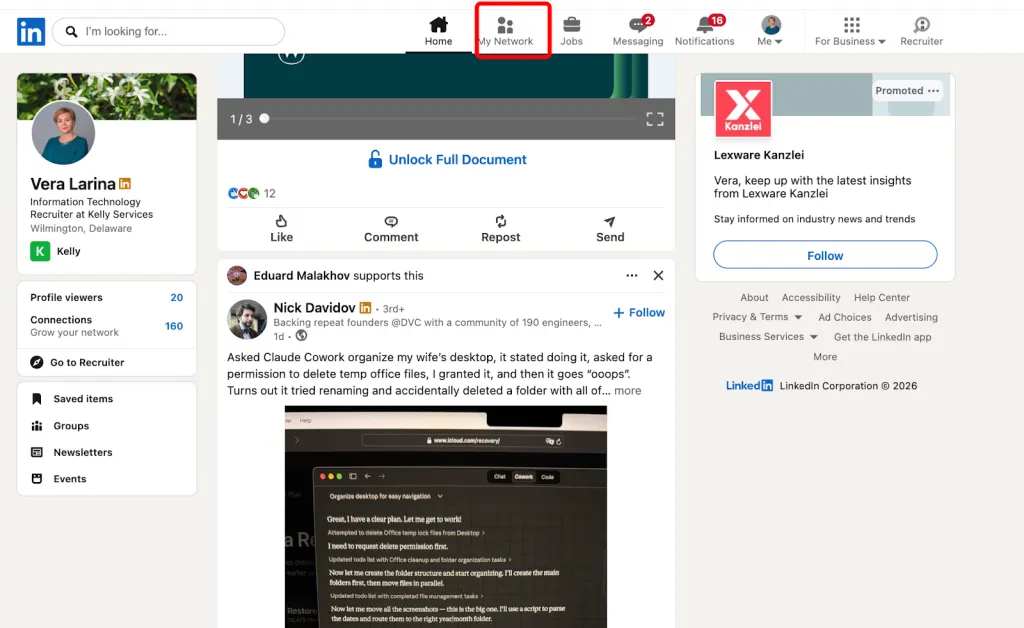
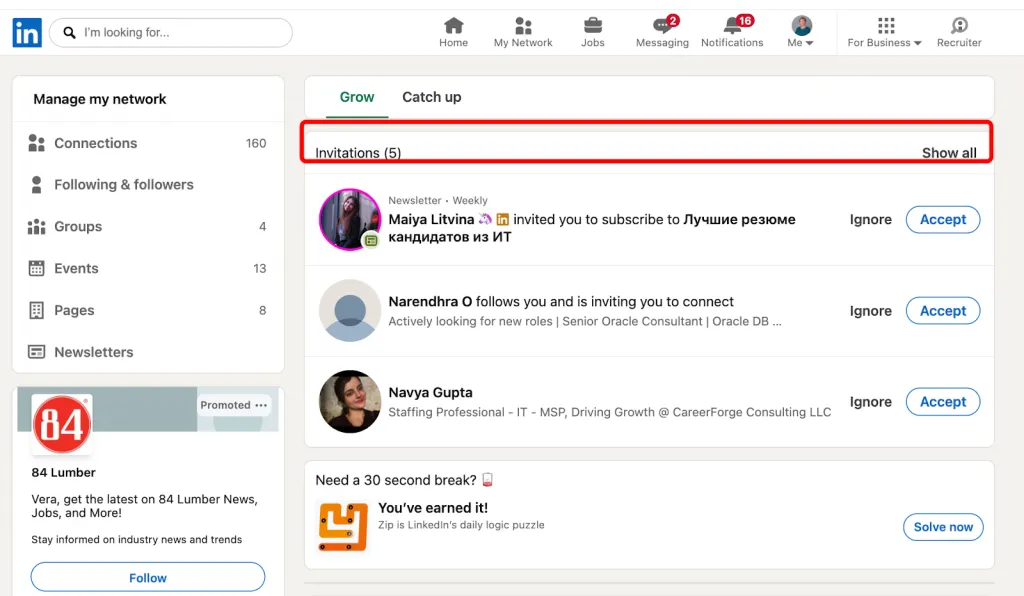
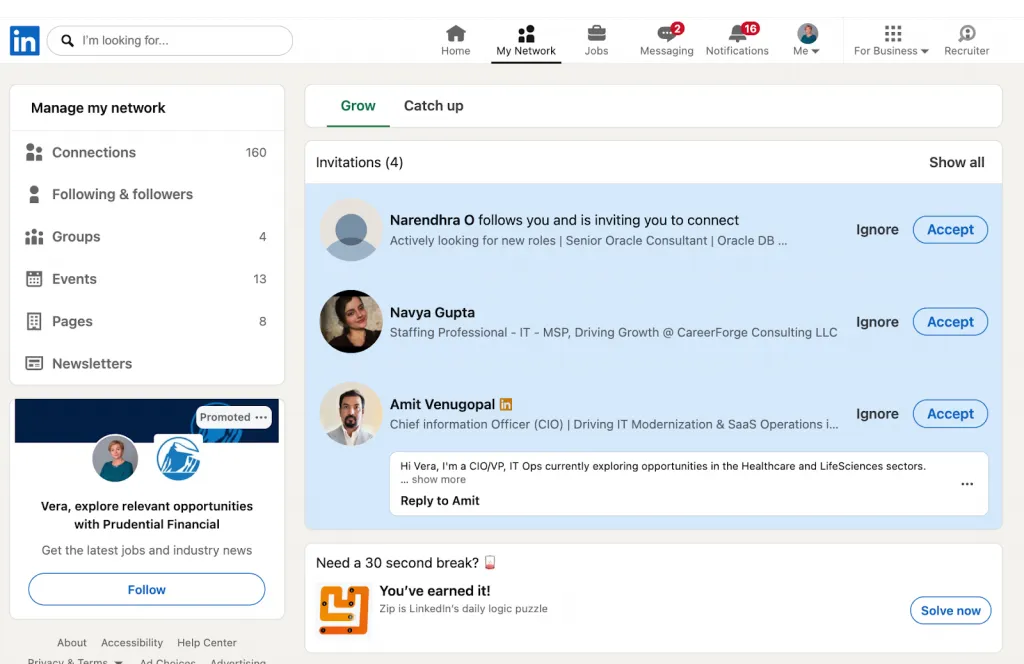
- Click My Network (top navigation)

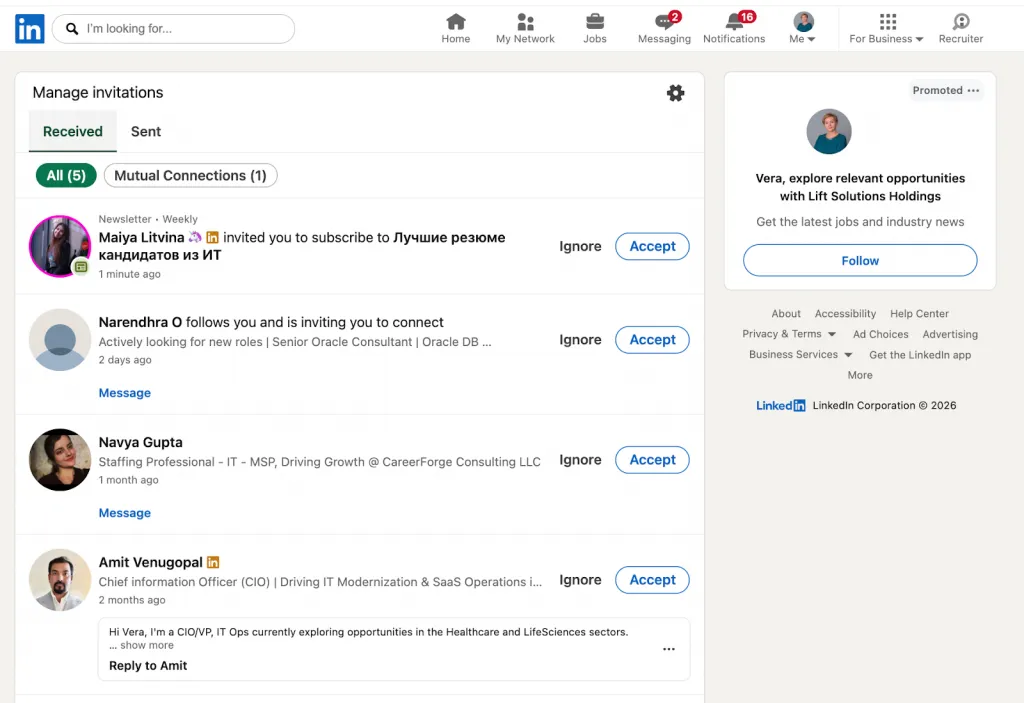
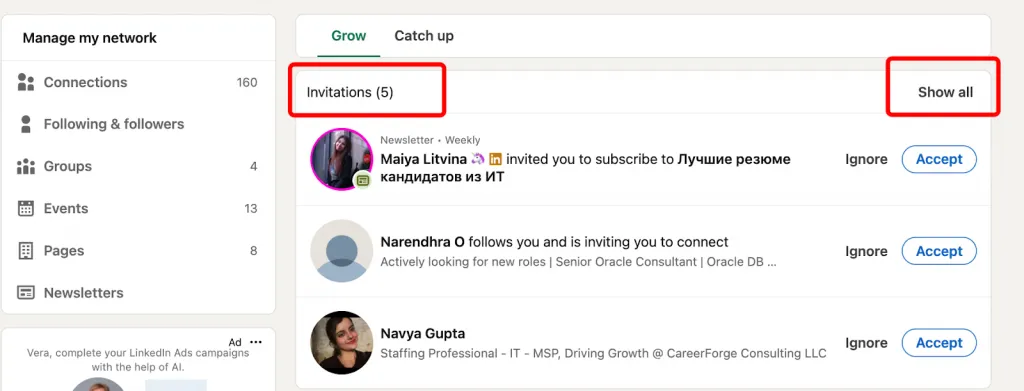
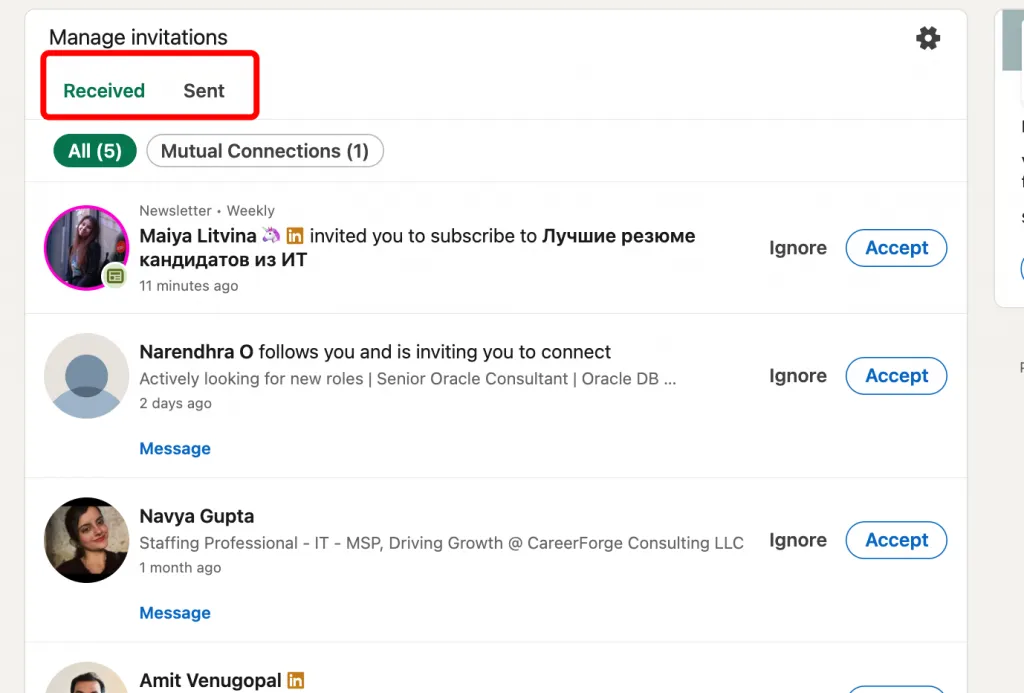
- Click Invitations → Show all (top right)

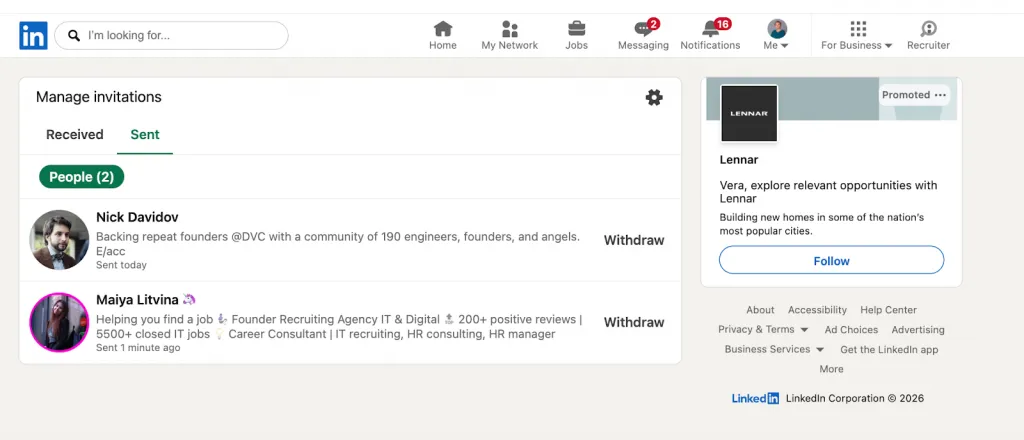
- You’ll see two tabs:

- Received (inbound requests)
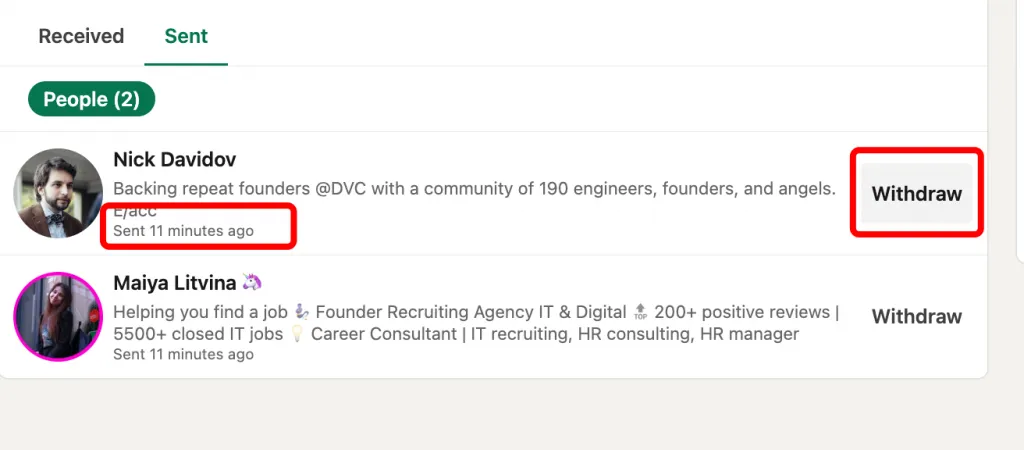
- Sent (your pending outbound requests)
This Sent tab is what most people never open — and where the risk lives.
Filter by Date (Critical)

Once inside Sent:
- Use the Sort by: Recent / Oldest option
- Scroll to find invites sent weeks, months, or even years ago
Old unanswered invites are prime candidates for withdrawal. Many users discover hundreds here on their first check.
This workflow is frequently shown in YouTube outreach audits because it’s the fastest way to diagnose invite bottlenecks.
How to See Pending Connections on LinkedIn (Mobile App)
The mobile app shows less data but is useful for quick checks.
Steps:
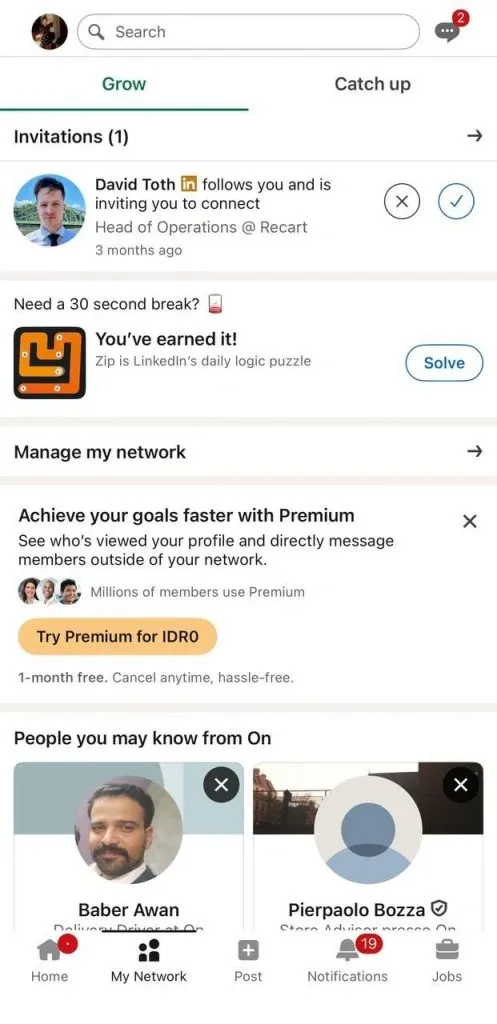
- Open the LinkedIn app
- Tap the Network icon

- Tap Invites
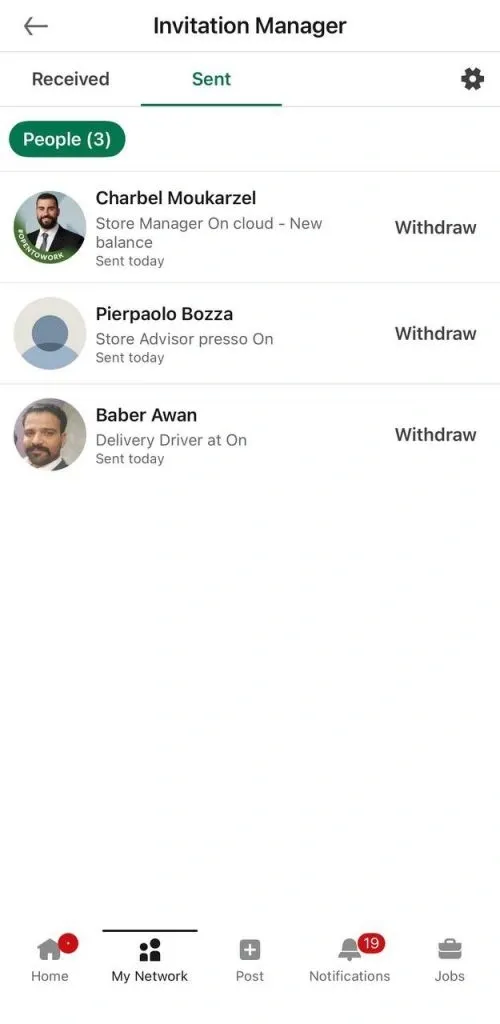
- Switch between:

- Received
- Sent (small text link at the top)
Limitations on mobile:
- No advanced sorting
- Harder to scan old requests
- Not ideal for bulk cleanup
Verdict: Mobile is fine for monitoring, but desktop is mandatory for real management.
How to Check Sent Connection Requests Specifically
If your goal is linkedin see connection requests sent, focus on:
- Total number of sent pending invites
- Age of each invite
- Acceptance patterns (new vs old)
Best practice:
- Sort by Oldest
- Withdraw requests older than 14–30 days
- Keep total sent pendings well below 1,500
This alone can instantly unlock your ability to send new requests again.
Pro Tip: Export Pending Connections (Advanced)
LinkedIn does not offer a native CSV export of pending connections.
However, advanced users:
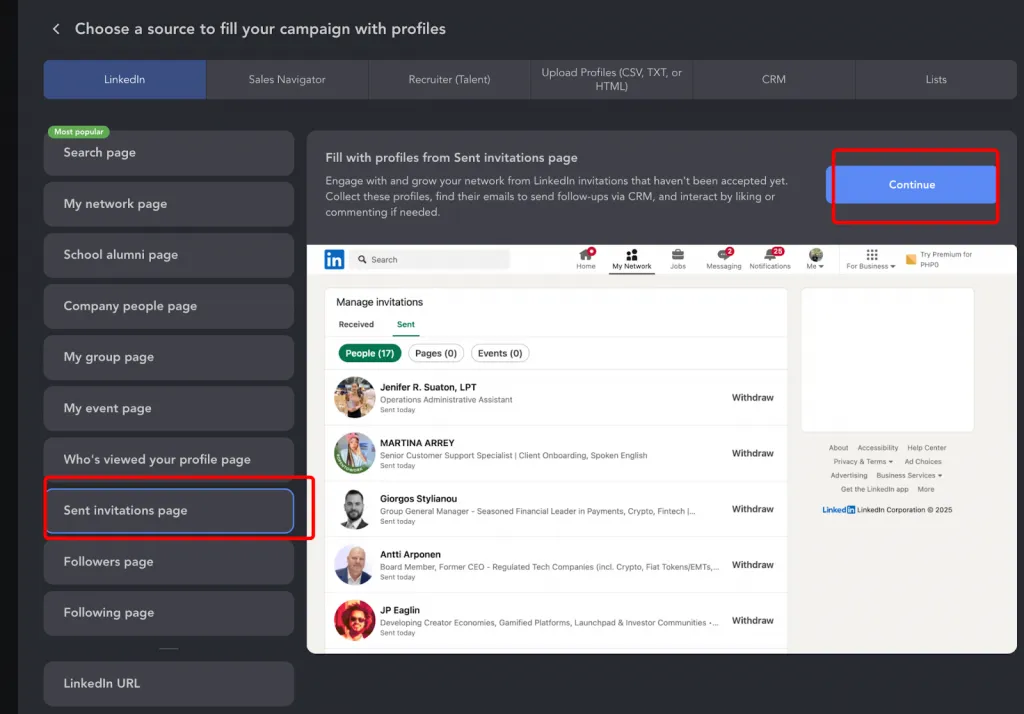
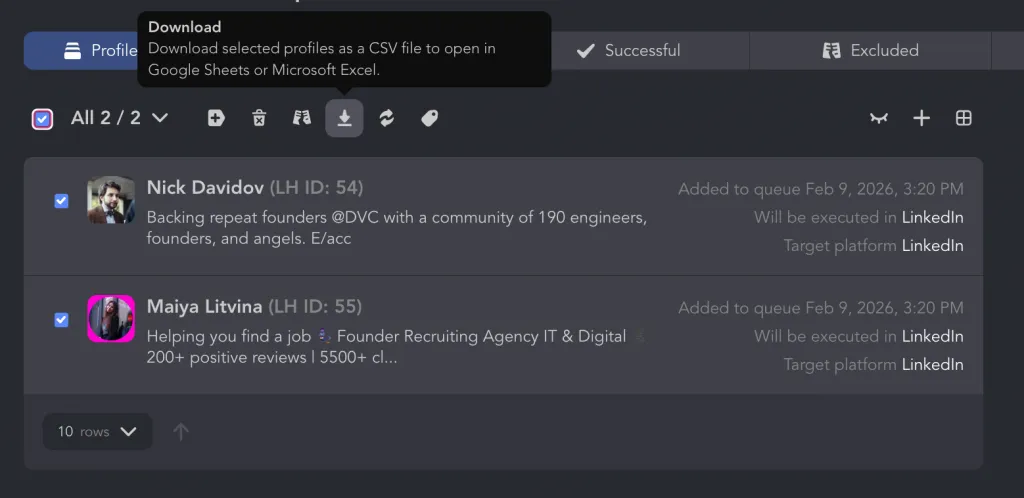
- Export sent invites using automation tools like Linked Helper

- Audit data in CSV (name, title, date sent)

- Identify bad targeting or low-acceptance segments
This is especially useful if you’re running campaigns via outreach tools or scraping leads beforehand.
⚠️ Important: Exporting ≠ spamming. Data is used for cleanup, optimization, and safety — not resending invites.
Why This Matters
Regularly checking pending connections:
- Prevents silent account throttling
- Improves acceptance rates
- Keeps your outreach scalable
- Protects your LinkedIn SSI score
Ignoring this tab is one of the most common (and costly) LinkedIn mistakes.
Why Manage Pending Connections? Why Important/Not Working?
If your outreach suddenly stalls, invites stop sending, or LinkedIn flashes the dreaded “You’ve reached the weekly invitation limit” — chances are the problem isn’t your targeting. It’s your LinkedIn invitations sent that were never managed.
Pending connections are not passive. They actively shape how LinkedIn treats your account.
Why Managing Pending Connections Is Critical
1. It Frees Up Sending Slots
Cleaning old pendings:
- Instantly unlocks new send capacity
- Prevents forced “cool-down” periods
- Keeps your outreach predictable and scalable
This is the fastest, safest way to get unstuck when invites stop sending.
2. It Protects You From Restrictions and Bans
LinkedIn tracks acceptance behavior, not just volume.
A high number of unanswered invites signals:
“This account sends low-relevance or spam-like invitations.”
That’s when LinkedIn starts:
- Throttling invites
- Blocking new sends
- Temporarily restricting accounts
Most bans don’t come from automation — they come from ignored invitations piling up.
3. It Improves Response & Acceptance Rates
Accounts that regularly clean pending invites typically see 20–30% higher acceptance rates after cleanup.
Why?
- LinkedIn rewards accounts with good response ratios
- Fresh sends perform better than stale ones
- You stop “wasting” slots on people who will never reply
Think of it like email deliverability: list hygiene = performance.
Why LinkedIn Outreach “Stops Working”
If your LinkedIn outreach feels broken, here’s what’s usually happening:
❌ Old Pending Invitations (14+ Days)
Requests older than 2 weeks are strong negative signals. They tell LinkedIn:
- Your targeting is off
- Your message doesn’t resonate
- People actively ignore you
The algorithm remembers this.
❌ Mass Sending Without Cleanup
Sending at scale without withdrawing old invites looks exactly like spam — even if your message is good.
Common mistake:
“I’ll just send more invites to compensate.”
That backfires fast.
❌ Low-Value or Cold Audiences
If you send invites to:
- Irrelevant roles
- Inactive profiles
- People with no reason to connect
They won’t accept — and your sent invitations pile up quietly, killing future performance.
When Should You Withdraw Pending Invitations?
Best practice:
- 7–14 days with no response → withdraw
- Always withdraw low-value or poorly targeted invites
- Review pending invites weekly
This isn’t aggressive — it’s algorithm-friendly.
How to Manage & Withdraw Pending Invites
If you want LinkedIn outreach to scale safely, you must know how to see connection requests sent on LinkedIn and actively clean them. Managing pending invites isn’t about being aggressive — it’s about staying within LinkedIn’s trust signals while keeping your growth engine running.
Below is a practical, step-by-step system used by sales teams, founders, and recruiters.
Step 1: See Connection Requests Sent on LinkedIn (Manual)
First, you need full visibility.
Desktop (required):
- Go to My Network

- Click Show all
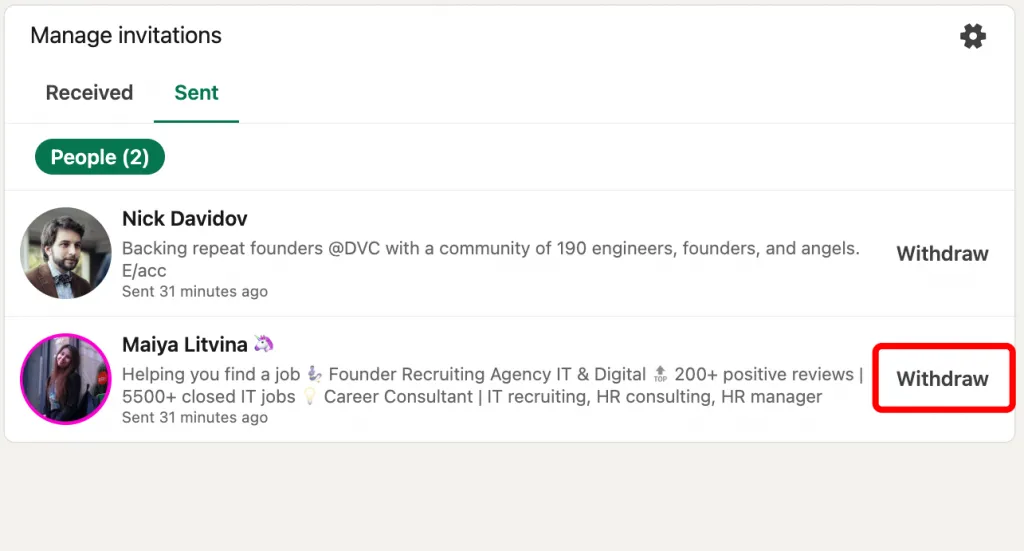
- Open the Sent tab

This is where all your unresolved outbound invites live. If you’ve never checked this before, expect surprises — many users find requests that are months or even years old.
This section is the control panel for LinkedIn manage invitations properly.
Step 2: Sort & Identify What to Withdraw
Inside the Sent tab:
- Find the Oldest
- Scan invites older than 7–14 days
- Identify:
- Inactive profiles
- Irrelevant job titles
- People who never accept cold requests
- Inactive profiles
These are not “future maybes.” They are dead weight that blocks your sending capacity.
Step 3: Withdraw Pending Invites (Manual)
For each outdated invite:
- Click Withdraw
- Confirm
Yes — it’s manual. Yes — it’s tedious. And yes — it works.
LinkedIn does not notify the other person when you withdraw. There’s zero social penalty.
Best practice thresholds:
- 7–14 days → safe to withdraw
- 30+ days → should always be withdrawn
This alone can instantly restore your ability to send new invites.
Step 4: Bulk Withdraw Pending Invites (Advanced)
If you’re sending at scale, manual cleanup doesn’t cut it.
Advanced users manage LinkedIn invitations in bulk using automation tools that support:
- Date-based filters
- Bulk withdrawal of old invites
- Safe daily limits
For example, with tools like Linked Helper, you can:

- Filter sent invites older than X days
- Withdraw them automatically
- Keep your pending count consistently low
Key advantage: you avoid human error and never accidentally hit the 1,500 pending cap.
⚠️ Rule of thumb: automate cleanup, not sending volume.
What to Do If You Have Too Many Pending Invites
If you’re sitting on hundreds or thousands of pending requests, don’t panic — but don’t nuke everything at once either.
Prioritize Withdrawal By:
- Job title (low relevance first)
- Geography (outside target markets)
- Profile activity (inactive accounts)
Safe Withdrawal Pace:
- Withdraw 30–50 invites per week manually
- Or spread bulk withdrawals across several days
Sudden mass withdrawals can look unnatural. Slow, consistent cleanup looks human — and that’s what LinkedIn rewards.
How to Start Clean (and Stay Clean)
Once you’ve reduced your pending invites, the real goal is never letting them pile up again.
Weekly Audit System:
- Once per week:
- Open My Network → Manage invitations → Sent
- Withdraw anything older than 7–14 days
- Open My Network → Manage invitations → Sent
- Keep total sent pendings well below 1,000
This habit takes 5 minutes and saves weeks of restrictions later.
Before vs After: What Changes
Before cleanup:
- Invites blocked or throttled
- Low acceptance rates
- “LinkedIn is not working” feeling
After cleanup:
- New invites send immediately
- Higher acceptance rates
- Better SSI and account trust
The algorithm isn’t mysterious — it rewards relevance and discipline.
LinkedIn Pending Limits: What to Choose & How Avoid
If you’re actively sending LinkedIn connection requests sent, limits are inevitable — unless you understand how LinkedIn actually measures trust. Most users assume limits are fixed. They’re not. They’re dynamic, and your behavior decides where you land.
LinkedIn Pending Limits (What Really Applies)
LinkedIn doesn’t publish official numbers, but consistent testing shows:
- ~1,500 sent pending connection requests → soft stop for most accounts
- Some aged, high-trust accounts can stretch toward 2,000–2,500, but that’s the exception
- ~5,000 total connections → Social Selling (SS) ceiling (after this, you need follow mode)
The key point: it’s not how many you send, it’s how many remain pending.
Once you approach the pending cap, LinkedIn may:
- Block new invitations
- Show “You’ve reached the weekly invitation limit”
- Throttle visibility and acceptance rates
Findymail and other outreach analytics tools consistently flag this as the #1 silent growth killer.
What Determines Your LinkedIn Limits
LinkedIn adjusts limits based on account trust.
Main factors:
- Account age (new accounts are restricted fastest)
- Profile completeness
- Recent activity (posts, comments, logins)
- Acceptance rate of past invitations
- Ratio of sent vs accepted requests
A dormant account that suddenly sends 100 invites/week will hit limits far faster than an active one sending the same volume.
What Limits You Should Choose
More is not better.
Best practice:
- Stay well below 1,000 pending invites
- Focus on quality over quantity
- Personalize connection notes (up to 300 characters) with:
- Role relevance
- Context (post, mutual interest, event)
- Clear reason to connect
- Role relevance
High-acceptance outreach lets you send fewer invites while getting better results — and LinkedIn rewards that behavior.
How to Avoid Hitting LinkedIn Limits
1. Warm Up Your Account
Before scaling:
- Post or comment daily for 1–2 weeks
- Accept inbound requests
- Avoid sudden spikes in sending
Warm accounts get higher tolerance automatically.
2. Clean Pending Invites Weekly
Never let invites sit:
- Withdraw after 7–14 days
- Keep your pending list lean
- Treat cleanup as mandatory, not optional
3. Use Tools Strategically
Automation doesn’t cause limits — bad automation does.
Safe users:
- Automate cleanup before increasing send volume
- Scale gradually
- Monitor acceptance ratios
Used correctly, tools help you stay under limits, not hit them.
LinkedIn Limit Tiers (Practical View)
| Account Type | Weekly Sends | Pending Risk |
| New Account (0–3 mo) | 50–80 | High |
| Established Pro | 100–150 | Medium |
| High-Trust / Social Seller | 150–200 | Low (if cleaned) |
Best Practices: How Use, Improve, Check, Optimize
Managing LinkedIn my connection requests isn’t a one-time cleanup — it’s an ongoing system. The best-performing accounts treat sent invitations in LinkedIn like a living funnel: optimized, tracked, and regularly pruned.
Here’s how advanced users do it.
1. Use Connection Requests Strategically
Every sent invite is a signal to LinkedIn.
Best practices for sending:
- Personalize every request (up to 300 characters)
- Reference:
- Role or industry
- Recent post or activity
- Mutual context (event, group, interest)
- Role or industry
- Avoid generic lines like “Let’s connect”
Personalization increases acceptance and protects your account by improving trust signals.
Rule of thumb:
Fewer, better invites beat mass sending — every time.
2. Track Acceptance Rate (Your Hidden KPI)
Most users track replies. Smart users track acceptance %.
With tighter enforcement and LinkedIn’s 360Brew AI evaluating profile relevance, acceptance rate is now critical:
- 25%+ → minimum safe level
Below this, accounts risk weekly limits (some see caps of 15–35 invites). - 35–50% → strong
Indicates good targeting and stable sending capacity. - 50%+ → excellent
Shows highly relevant outreach and lowest restriction risk.
What Matters Most Now
- Maintain 25%+ acceptance rate
- Engage before sending (profile views, likes, comments)
Higher-Risk Profiles
- New or previously restricted accounts
- Incomplete profiles (weak headline / empty About)
- No content activity
- Sudden scaling with low acceptance rate
These are more likely to face stricter weekly invite limits.
Low acceptance rates mean:
- Targeting is off
- Messaging lacks relevance
- Too many cold or inactive profiles
Acceptance rate directly impacts how many invites LinkedIn lets you send next.
3. Withdraw Pending Invites on a Routine
Pending invites are not harmless.
Withdrawal routine:
- Review My Network → Manage invitations → Sent
- Withdraw invites older than 7–14 days
- Always remove low-value or irrelevant profiles
This keeps LinkedIn my connection requests clean and prevents hitting hidden caps.
Make this a weekly habit — not an emergency fix.
4. Use Tools to Optimize (Not Abuse)
Manual cleanup works — until scale breaks it.
Advanced users rely on tools to:
- Auto-cancel unanswered invites after X days
- Run outreach sequences safely
- Maintain a low pending count consistently
With tools like Linked Helper, you can:
- Automatically withdraw invites after 7–14 days
- Combine invite → follow-up → message flows
- Monitor acceptance behavior over time
Key principle:
Automate hygiene first, volume second.
5. Case Example: What Optimization Looks Like
Agency scenario:
- 500+ pending invitations stuck
- New invites blocked weekly
- Acceptance rate ~18%
Actions taken:
- Cleared 500 old pending invites
- Implemented auto-cancel after 10 days
- Improved targeting + personalization
Results:
- Send capacity doubled
- Acceptance rate jumped to 38%
- Zero restrictions over 90 days
Nothing changed except how sent invitations in LinkedIn were managed.
6. How to Check Performance Weekly
Create a simple weekly audit:
Checklist (5 minutes):
- Open Sent invitations tab
- Count total pending
- Withdraw outdated invites
- Review acceptance trends
- Adjust targeting if acceptance drops
For deeper insights, combine tab reviews with tool analytics to spot patterns by role, region, or message type.
7. Optimize for Long-Term Growth
The goal isn’t “more invites.”
It’s clean, accepted, high-intent connections.
When you:
- Personalize requests
- Track acceptance rates
- Withdraw strategically
- Use tools responsibly
LinkedIn stops resisting your outreach — and starts rewarding it.
Internal Resource
For step-by-step workflows and advanced sequences, see Linked Helper Outreach (support documentation).
Pending connections are either friction — or fuel.
Optimized properly, they become the quiet engine behind consistent LinkedIn growth.
Mistakes to Avoid & How Fix
Most LinkedIn outreach failures aren’t about bad tools or weak offers. They come from mishandling pending invites on LinkedIn — small mistakes that quietly trigger limits, throttling, and low acceptance rates.
Here are the big ones to avoid, plus exactly how to fix them.
Mistake #1: Letting Pending Invites Pile Up
Ignoring sent invites is the fastest way to hit hidden limits.
When too many invitations sit unanswered:
- LinkedIn flags your account as low-engagement
- New connection requests get throttled or blocked
- You see messages like “You’ve reached the invitation limit”
Fix:
Review pending invites weekly. Withdraw anything older than 7–14 days. Treat cleanup as part of sending — not something you do after things break.
Mistake #2: Mass Sending Without Monitoring
Sending large volumes without checking results looks like spam, even if your message is polite.
What LinkedIn sees:
- High volume
- Low acceptance
- Growing pending ratio
Once your pending invites exceed ~20% of your total sent requests, performance drops sharply.
Fix:
Scale gradually. Increase volume only when acceptance rates stay healthy (30%+). Growth without monitoring is what triggers restrictions.
Mistake #3: No Personalization
Generic requests like “Let’s connect” get ignored — and ignored invites are toxic signals.
Low personalization leads to:
- Poor acceptance rates
- Higher pending ratios
- Lower SSI scores
Fix:
Personalize every invite (up to 300 characters). Mention role, context, or a specific reason to connect. Even one custom line makes a measurable difference.
Mistake #4: No Automation for Hygiene
Manual cleanup works — until it doesn’t. Most users fail simply because they forget.
Fix:
Automate safely:
- Auto-withdraw unanswered invites after 7–14 days
- Monitor acceptance rate trends
- Watch your SSI for sudden drops
Automation should protect your account, not push volume.
Why Most LinkedIn Outreach Fails
It’s not the message.
It’s the ratio.
Too many pending invites on LinkedIn tell the algorithm:
“People don’t want these connections.”
Clean that signal, and LinkedIn stops pushing back.
LinkedIn Pending Connections FAQs
How do I LinkedIn see connection requests?
Go to My Network → Manage invitations and switch between Received and Sent. The Sent tab is where you see all pending LinkedIn requests that affect limits.
How do I LinkedIn see connection requests sent?
Use desktop LinkedIn. This is the only reliable way to LinkedIn see connection requests sent and sort them by date.
What happens if pending LinkedIn requests stay forever?
They stay forever — unless you withdraw them. LinkedIn does not auto-expire sent invitations, so old pending LinkedIn requests continue to block new sends.
Is there a limit on pending LinkedIn requests?
Yes. While not officially published, most accounts hit restrictions around 1,500 pending LinkedIn requests, sometimes earlier if acceptance rates are low.
When should I withdraw sent invitations?
Withdraw after 7–14 days with no response. This keeps your pending ratio healthy and ensures you can continue to see connection requests sent on LinkedIn without hitting limits.
What’s the difference between sent and received requests?
- Sent = you invited them → counts toward limits
- Received = they invited you → does not affect limits
Only sent requests matter when managing pending LinkedIn requests.
Clear your pending LinkedIn requests today.
With Linked Helper, you can:
- Bulk withdraw old sent invitations
- Automatically clean pending requests by date
- Safely scale outreach without hitting limits
👉 Free Linked Helper Trial — clean your pendings, restore send capacity, and keep LinkedIn growth working instead of blocking you.