

Quick Takeaway
- LinkedIn Sales Navigator has no native ‘Export to CSV/Excel’ button on Core or Advanced plans; built-in CRM sync exists only on the much pricier Advanced Plus tier, and it covers a short list of CRMs.
- A third-party tool such as Linked Helper visits and extracts the profiles in your SN search or saved list, then exports them to CSV/Excel (or straight to your CRM) with every field LinkedIn shows — name, headline, company, industry, location, and, with Email Finder, verified emails.
- Linked Helper extracts up to 2,500 leads per selection and lets you queue more by combining selections; you can even process Sales Navigator links later on a basic LinkedIn account after your SN subscription lapses, so your data is never trapped.
- Because your leads live in the Linked Helper CRM, you keep them after canceling Sales Navigator and can push them to HubSpot, Pipedrive, Close, Salesforce or an email tool via direct integrations or webhooks.
- Open the CSV in Excel via File -> Import with UTF-8 encoding and a semicolon delimiter so columns and special characters line up correctly.
Imagine losing access to the database that held the key to your business success. 89% of B2B marketers use LinkedIn for lead generation, and 53% use it specifically to identify prospects and source contact details. It’s a nightmare scenario, but one that many face when canceling their LinkedIn Sales Navigator subscription. Don’t let your hard-earned prospects slip through your fingers.
Discover a breakthrough solution that allows you to extract leads from LinkedIn Sales Navigator. It allows you to transfer your updates and prospects to a CRM. Even after bidding farewell to Sales Navigator they will be available.
Rise above the struggle and reclaim your valuable leads with our expert guidance.

Why use a third-party tool for exporting leads from Sales Navigator?
Linked Helper can be your best tool to save leads. When working through the Linkedin Sales Navigator, it’s crucial to have a backup for your business relationships.
LinkedIn Sales Navigator Core and Advanced plans do not include a native CSV or Excel export option for lead lists. CRM synchronization is available only on the Advanced Plus plan, which supports integrations with selected CRM platforms such as Salesforce, HubSpot Smart CRM, and Microsoft Dynamics 365 Sales.
A tool like this is necessary for the following reasons:
- Preservation of data: When you extract data using a tool like Linked Helper, it is stored in the Linked Helper CRM. This means that even if your Sales Navigator membership is discontinued, you can still access and utilize the extracted data.

- Data extracted by Linked Helper can be stored in the built-in CRM and sent to external systems through direct integrations with HubSpot, Pipedrive, Close CRM, Salesforce, Make (formerly Integromat), or custom webhooks.
- Compatibility with different account types: With Linked Helper, you have the flexibility to use either the basic LinkedIn plan or Sales Navigator within the same campaign. This means you can identify and generate prospects using your Sales Navigator membership and manage them through a basic LinkedIn account.
- More data compared to downloaded file from LinkedIn: When visiting contact profiles through a third-party tool, you will see all the filled-in fields in the table. Improved filtering and visits through Sales Navigator enable gathering Industry information. You can also enrich exported leads without visiting every profile. The Data Enrichment action can append available emails, phone numbers, verification badges, and other contact details for 1st-, 2nd-, and 3rd-degree connections. Check our article about LinkedIn industries.
- Enhanced mailing list: By using Linked Helper to search and process connections, you can expand your mailing list. The tool allows you to integrate the Email Finder feature, which helps gather emails from leads who are not currently in your network. For additional contact discovery, Linked Helper can enrich leads with verified work and personal email addresses through Apollo.io integration.
Email Finder credits are assigned upfront based on the selected license period. Standard licenses include 620, 1,860, 3,660, or 7,320 credits for 1, 3, 6, or 12 months respectively. PRO licenses include 3,100, 9,300, 18,300, or 36,600 credits. Additional credit packages can also be purchased separately.
Since your second or third-degree connections may be first-degree contacts of other Linked Helper members, the Email Finder tool can scan the Linked Helper dataset. Consequently, when exploring these profiles, you can obtain their email addresses (even if they’re not visible on LinkedIn) in a spreadsheet with just a few clicks.
Download Linked Helper 2
and get 14-day free trial right now
DOWNLOADIf you are not yet in our list of users, then join.
We give you a trial version to start your experience with our LinkedIn tool.
How can you export leads from LinkedIn Sales Navigator?
This easy solution will help you quickly download contacts from your account, but not only that. By adding leads to the Queue, you can pursue further automated actions with them. Therefore, Linked Helper will be useful not only for data parsing but also for increasing your reach, connecting with new customers, and automatically growing your business.
#1 Download Linked Helper
You can do it for free for 14 days without a subscription to check how the scraper works, download leads, and try other auto-actions.
#2 Start a new campaign

Scraping and downloading in the software works through a campaign that executes page visits. It can parse accounts of people or organizations. You can use our template “Export profile information.” Explore the detailed manual about starting a campaign.
To begin a campaign, you should define the collection path in the Queue.

Two sources may be used to download LinkedIn contacts:

Browsing results
You may practically quickly move your pick of individuals to the CRM and then retrieve it by using explicit filtering on the website.

Lists of potential customers
You may construct your custom lead lists while browsing in Sales Navigator. This is one of the unique elements that distinguishes SN from the regular plan. You can utilize these user groups as a source of data collection. Then, using Linked Helper, you can export the leads you gathered from LinkedIn Sales Navigator as lists.
You can pick up to 2500 users in one round. But you can also choose more users by creating multiple selections of people and adding them one by one to an extract campaign.
3 Insider strategies for lead export
When utilizing Sales Navigator and LinkedIn, users possess the flexibility to dictate how leads are exported.
😔 Core Challenge
Exporting and visiting profiles through the “Visit & Extract Action” is subject to a daily limit of 150 profiles, as set by our internal parameters. Although it’s possible to surpass this threshold, heightened activity might trigger a cautionary alert. To illustrate, if you’ve amassed 6,000 leads from Sales Navigator, exporting them would necessitate a continuous effort of 40 days. With 24,000 leads, the export process would span 4 months, exceeding the cost due to Sales Navigator subscription.
🔥 Viable Solution
Linked Helper can process Sales Navigator links without requiring a subscription. Gradually accumulating tens of thousands of profile links over several days or weeks (such as during a trial month) is feasible. Subsequently, discreetly visiting these profiles using your account(s) without a subscription allows for information scraping, all while disconnected from Sales Navigator.
Strategies (3 options):
- Gradual Collection and Extraction: Deliberately gather leads on an account with an active Sales Navigator subscription, then employ a similar approach to extract them using the same account. These leads can then be imported into other CRM platforms using hooks.
- Multi-Account Extraction: Incrementally accumulate leads on an account with Sales Navigator subscription, and subsequently extract them using multiple Linked Helper accounts without a Sales Navigator subscription. This method involves dedicating one account for collection and others for extraction, potentially boosting the volume of extracted profiles. However, this approach lacks industry information during extraction. For teams, Workspaces allow licenses, LinkedIn accounts, and data credits to be managed centrally while collaborating on lead collection and export projects.
- Rapid Collection and Extraction: Swiftly amass a substantial volume of leads within a brief timeframe (trial duration or a month of Sales Navigator subscription) on a single or multiple Linked Helper accounts (ensuring avoidance of duplicates). Then, unsubscribe these accounts from Sales Navigator and gradually proceed to extract the leads. Alternatively, you can augment extraction efficiency by adding extra Linked Helper accounts without subscriptions, thus increasing the number of accounts in use.
#3 Go to the Lists section
After running the campaign, you will see all targeted leads after visits and processing in the Linked Helper panel. They will be visible in a separate section of the current campaign and in the software’s memory. Downloading LinkedIn contacts is simple when you choose this third-party tool – the CSV will be ready with one click. Also the dataset is extensive and will contain all the available info from visited pages.
Open Profile Lists → Processed→ All→ Download.

Explore our detailed guide on how to export leads from Linked Helper.
Keep the document based on the instructions and work on it further, for example by sorting, adding, or removing columns.
#4 Convert CSV from LinkedIn Sales Navigator to Excel spreadsheet
Linked Helper allows you to download data from different sources. It can be either all profiles that are listed in the CRM or accounts collected from a specific campaign or even one action. This may be super convenient since it gives you more flexibility in choosing the audience to export.
For example, you can download from the CRM all the profiles that you’ve added to the Queue for all campaigns in LH.

On the other hand, you can also download the audience from a specific action, which will be limited only to those who have been processed by the software. They can be everyone to whom you sent an invite or message.
If you have engaged in correspondence through the software, a column with the history of the dialogue will be available in the file, which is useful when analyzing responses and thinking through new pitches.
Read the detailed steps in our manual that will tell you about all the ways to obtain data from Linked Helper.
After clicking on the download button, you will see a window in which you can set the necessary parameters for the file. You will find the option to save the file as Excel or Google sheets.

At this stage, you can choose whether you need a complete chat history or not. A few seconds after choosing the path to save the file, you will see it on your PC.
Since the download is in CSV format, you will need to open the document differently than you do with the regular XLS format.
- You need to open Excel and open the file through a new document, not by clicking on the downloaded file.
- Select File→ Import→ CSV file.
- Click on the document that was downloaded from Linked Helper.

The only settings that will need to be changed at the opening stage:
Select Unicode (UTF-8) in Step #1.

Put a tick on the Semicolon line in Step #2.

Apart from that, you just need to click on next, so the CSV file should not scare you – it is easy to continue working with it in Excel or in Google Docs.
You can read the simple instructions for opening the document in our knowledge base, which describes the settings for Windows and Mac. Follow the steps in this manual to open the file and it will display in the familiar format.
For example, as in the screenshot, in a few seconds, we opened a doc where 475 leads from the action were previously saved. We see a complete database with leads, emails, phone numbers, all the data of their accounts, and the history of our correspondence.


Then you can reuse the data about the desired leads in new campaigns and use the resulting files for automatic actions. You can watch a video on how to work with spreadsheets in campaigns.
#5 How to download a lead list & export leads from LinkedIn Sales Navigator
After parsing the data, you can obtain a familiar spreadsheet with all the scraped info. In addition, you can easily transfer it directly to HubSpot, Pipedrive, Close CRM, Salesforce, Make (formerly Integromat), or any CRM that accepts webhook data.
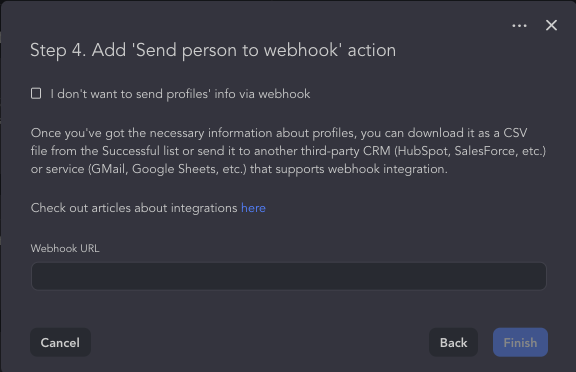
If you choose the “Export profile information” template at the fourth step, you will need to provide the webhook URL. For more detailed instructions on this process, you can refer to the link in the paragraph above.
Ready to pull your own Sales Navigator list into a spreadsheet? Linked Helper visits and extracts every profile in your search or saved list, then exports the data to CSV, Excel or Google Sheets, or pushes it straight to HubSpot, Pipedrive, Close or Salesforce. Your leads live in the built-in CRM, so they stay yours even after your Sales Navigator subscription lapses. Export to Excel automatically
Benefits: export list from Sales Navigator & Linked Helper
Paid solutions like SN allow you to expand the potential of prospect mining. Here is how to export people from search, communities, and LinkedIn contacts via this advanced combo:
- Profiles in any LinkedIn group may be filtered. This can be advantageous since these users can subsequently be contacted directly via the group. According to the community regulations, this is permitted regardless of whether the individuals are your second or third degree contacts.
- Workspace-based lead management. Linked Helper now uses a workspace model where licenses, LinkedIn accounts, and data credits are managed at the workspace level. This makes it easier for teams to collaborate on lead generation projects, share extracted data, and manage Email Finder credits across multiple users.
- Remove persons who have previously been reached or seen from the query. When establishing campaigns with Linked Helper, this might be beneficial. So, even before you begin gathering prospects, you may eliminate those that aren’t essential. In the meantime, you may delete obsolete leads from the CRM (by adding accounts to the Queue and deleting them in the Excel file).
- Sort results by zip code and other refined criteria. For example, a recent post filter can be valuable. It allows you to filter profiles by their activity and display only those who have posted in the last 90 days. Then you can add them to the desired campaign – these will be active accounts in 99% of the cases.
- The Industry category & Open Link criteria will become available for parsing. If you collected profiles in the standard LinkedIn, you may have noticed that the niche name is not displayed in the CRM and the table. However, visits through Sale Navigator allow for industry parsing. In LH, for instance, you may select only those profiles that have Open Link status, allowing you to send them unlimited InMails. This activity can be generated automatically in the Linked Helper Drip Campaign, allowing you to deliver messages to non-contacts even without a paid membership.
- Profiles collected from SN can be processed in basic LinkedIn. Even after your SN subscription expires, you can still work with the profiles if you add them to your base LinkedIn account in Linked Helper. This is convenient, for example, if the limit on search queries has been reached in a regular account. You can extract users from a SN account without even visiting them within the campaign. Once gathered from the page, they will be visible in the toolbar. It may be necessary to transfer profiles to a basic account to put mass likes, which cannot be done in SN. The search results will be more accurate in SN than in the basic account.You can download them as a CSV file and continue working on them.
Discover the distinction between utilizing Linked Helper either with Sales Navigator or with a basic LinkedIn plan. Each bundle has unique characteristics, and they work best when combined.
Is it secure to export LinkedIn Sales Navigator leads to Excel?
All in all, we have explored before how to link extra services to export from LinkedIn Sales Navigator to nurture leads long-term. The fact is, not all of them operate safely for your profile. For example, you can try bots that are based on basic plugin technology. Considering how easy it is to install and use, this type of automation may be the least secure for your profile.
Linked Helper includes Smart daily limits, randomized start times, and configurable action working hours to help automate profile visits and exports more naturally.
LinkedIn automation recognition systems are effective and fast at detecting the use of an extension. Also, since this type of parser is the easiest to create, it makes sense that these solutions are most often technologically imperfect. Therefore, we do not advise you to risk a LinkedIn profile that may contain an array of important business contacts. By connecting Linked Helper you can be sure that the software will open your Sales Navigator profile and perform all actions as you would do them yourself. You can even watch every step of the assistant robot in a separate browser window. It is browser technology and complete imitation of human behavior that ensures that your profile is safe. You can delve deeper into the reasons why Linked Helper has proved secure for customers in our blog post.
How to continue working with data received from SN
B2B contact data decays at roughly 2.1% per month, compounding to about 22.5% per year, meaning nearly a quarter of an exported lead database can become outdated within 12 months.
By downloading the Linked Helper software, you can not only get a document with a list of leads, their contact details, and all descriptions from the pages. In addition, you can continue to campaign from your account. What can your collected contacts be used for?
- A user engagement campaign will help you grow your social index. You can learn more about what this indicator means, what affects it, and how Linked Helper is useful.
- You can find more clients by expanding your network. When you use bulk invites, you can reach hundreds of new potential customers in a day. Previously, LinkedIn allowed you to upload emails and create connections through a file. This upload feature is currently not available (namely, through such a download it was possible to send invites in excess of the norm in many services).
- Keep your export fresh. Since contact data changes over time, Auto-collect can automatically revisit Sales Navigator searches and lists every X days to refresh your database without manual exports.
Once leads are exported, AI-generated messages can help personalize outreach and turn contact data into conversations more quickly.
An export is a snapshot, and B2B contact data decays roughly 2% a month, so the real win is a tool that keeps extracting, enriching and refreshing your lists for you. Start a free 14-day Linked Helper trial to export your Sales Navigator leads to Excel, append verified emails with Email Finder and Data Enrichment, and turn them into outreach without leaving the app. Start your free 14-day trial
FAQ
Q: Can you export leads from LinkedIn Sales Navigator to Excel directly?
No. Sales Navigator has no native CSV or Excel export on the Core or Advanced plans, and the only built-in CRM sync sits on the expensive Advanced Plus tier. To get a spreadsheet you visit and extract the profiles with a third-party tool such as Linked Helper, then download them as CSV and open the file in Excel.
Q: Is it free to export Sales Navigator leads to Excel?
You can export leads for free during Linked Helper’s 14-day trial, and Linked Helper can process Sales Navigator profile links even after your SN subscription ends. There is no truly free native LinkedIn export, so a tool with a free trial is the closest free route.
Q: How many leads can you export from Sales Navigator at once?
In Linked Helper you can pick up to 2,500 profiles in a single selection, and you can stack multiple selections into one extract campaign to gather tens of thousands of leads over time. Spread visits across days and use Smart daily limits to keep activity safe.
Q: Is it safe to export LinkedIn Sales Navigator leads?
Browser-based tools that emulate real human actions inside your own session are the safest option, and you can watch every step in a separate window. Use Smart daily limits, start-time randomization and action working hours to keep your activity human-like; avoid lightweight scraping plugins that LinkedIn detects most easily.
Q: How do I open the exported CSV correctly in Excel?
Open Excel first, then use File -> Import -> CSV file rather than double-clicking the download. Choose Unicode (UTF-8) encoding and set the delimiter to semicolon so columns and special characters display correctly.
Q: Can I get email addresses when I export Sales Navigator leads?
Yes. Linked Helper’s Find Profile Emails action plus the Email Finder database (and the Apollo.io integration) can append verified personal or work emails for 2nd- and 3rd-degree connections, and the Data Enrichment action can return emails without even visiting the profile.
