

Quick takeaway
- LinkedIn generates roughly 80% of B2B leads sourced from social media (Source: Sopro, «62 LinkedIn lead generation statistics for 2025») — nearly 3x the visitor-to-lead conversion of other platforms — so a repeatable automation stack is the highest-leverage place a salesperson can spend setup time.
- The stack that covers the full sales motion: Linked Helper (outreach + scraping + built-in CRM), Snov.io (email finding/verification), SocialPilot (content scheduling), Hyperise (personalized images), and Zapier (push leads into any CRM).
- Linked Helper is the engine. It runs in a real browser window — not a Chrome extension — so activity looks human, and it now layers in AI message generation, AI ICP detection, and Apollo.io / Data Enrichment for finding emails and phones.
- Personalization is the biggest reply-rate lever in 2026. Use variables, IF-THEN-ELSE branching, SPINTAX, message variants and Hyperise images instead of one generic template.
- Grow your network safely with smart daily limits and the dedicated invite plug-in (50–100/day) — not the retired weekly “limit hack” — and route replies straight into HubSpot, Pipedrive or Close via the built-in CRM integrations.
Want to skip the reading? Try Linked Helper free for 14 days and build the whole stack around one tool.
You can sell almost any product or service, find precious talents, and grow brand awareness through LinkedIn. The catch: marketers, recruiters and salespeople can burn nearly a full day just hunting for leads or candidates — and it’s easy to get bogged down when every page also serves up engaging videos and content to distract you. That’s exactly where LinkedIn automation tools come in. In this guide we break down the best of them for a full sales motion, with Linked Helper as the engine that ties the stack together.
Effective auto-software for income growth
LinkedIn automation allows you to create omnichannel campaigns for targeted audience groups. At the same time, you can forget about sending manual invites and messages and never worry that you didn’t send the follow-up on time. The robot can do the work for you, even on a sleeping computer.
Note: Personalized images and creatives in Linked Helper now run through the Hyperise integration. Across 13.2M connection requests analysed in 2026, personalization and relevance — not raw volume — are what drive replies, so this is where your setup time pays off (Source: Expandi LinkedIn Outreach Benchmarks 2026.).
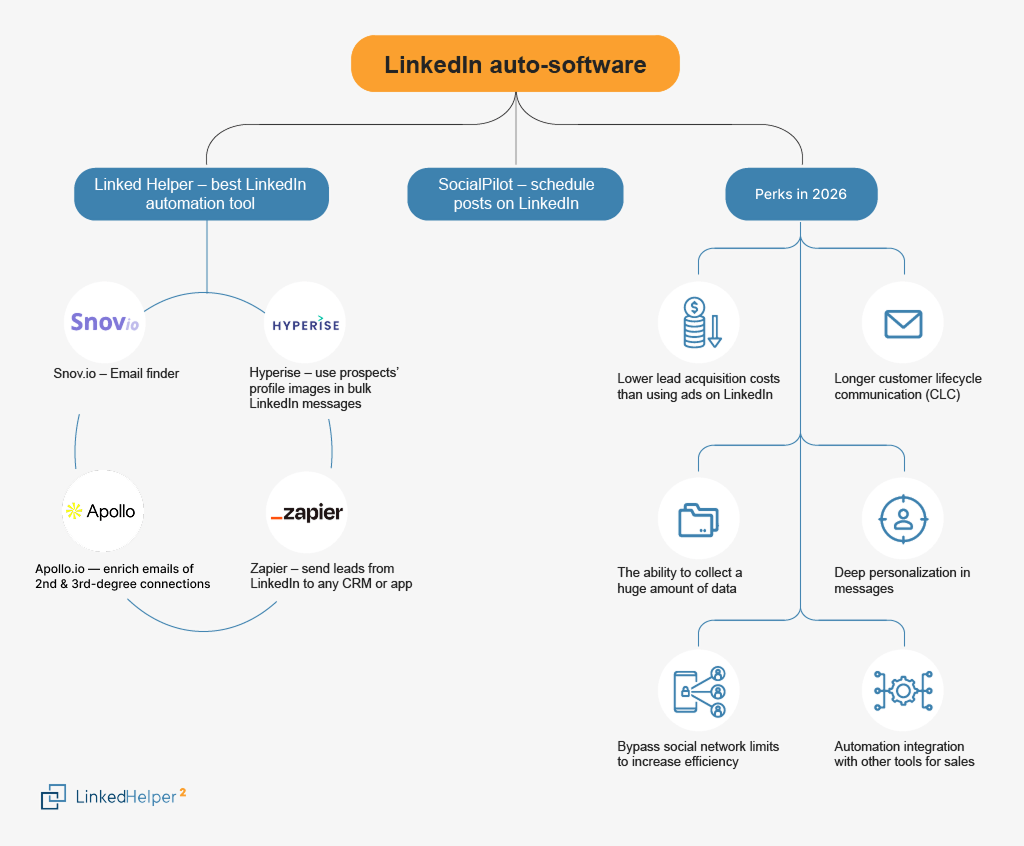
The LinkedIn automation stack at a glance: Linked Helper as the engine, with Snov.io, Hyperise, Apollo.io and Zapier integrating into it, and SocialPilot handling content scheduling on the side.
You can be sure that the most successful salespeople will include automation in their list of working tools. And they have good reasons to do so:
Lower lead acquisition costs than using ads on LinkedIn
We released a LinkedIn Advertising Guide where you can find more details. But on average, you can attract an audience 10 times cheaper compared to paid advertising.
Longer customer lifecycle communication (CLC)
When people see your advertising, a banner, or paid InMail, they immediately understand that you are aiming at sales. Automation helps to build a phased and long-term communication with the target audience from the position of their friend and assistant. It will help deliver likes, connection requests, messages to contacts and InMails. Any action can be automated. Therefore, it is a smart decision to entrust the routine execution of your strategy to a robot.
The ability to collect a huge amount of data
Data scraping is also a good argument in favor of autotools. Imagine how much data about the market (your customers, competitor campaigns, partners, local markets) a business-oriented social site contains. Few people know that all data can be copied from hundreds or thousands of pages without visiting them manually. Also, tools like Linked Helper allow you to collect emails not only from your contacts, but also from users outside your network (we will talk about this in more detail later).
Deep personalization in messages
The rule of talking to a customer by name is one of the most ingrained in sales techniques. But the best LinkedIn automation tools, like Linked Helper, have gone beyond this simple way to build trust. You can use both a built-in set of variables (name, number of mutual connections, position, etc.) or add custom ones by uploading a CSV file. In addition, you can create personalized pictures through a built-in integration with Hyperise (more details below). This means that the person can receive a message from you that includes their main profile photo and personalized variables (like name, company name, and others). And to keep every message unique at scale, Linked Helper now adds an AI message generator that drafts template variants for you, plus SPINTAX and message variants that spin synonyms automatically — so 500 prospects get 500 slightly different, human-looking messages instead of one detectable copy-paste. The service also allows you to make a custom thumbnail for the link with your picture and description in a message that includes personalized CTAs. For example, bulk messages from recruiters might include a line like “John, we’re waiting for you to fill our vacancy for a designer!”
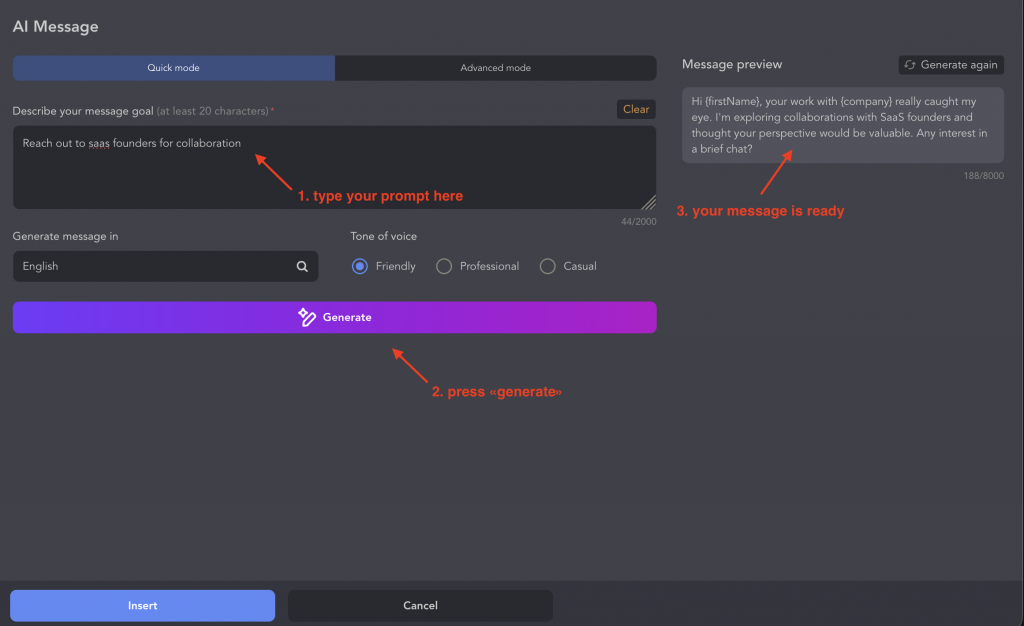
Linked Helper’s AI message generator turns a short prompt into ready-to-use outreach templates — draft up to 30 message variants a day, then refine tone and personalize with variables before sending.
Bypass social network limits to increase efficiency
Social selling is a massive sales opportunity. But often LinkedIn limits prevent you from reaching customers fast. LinkedIn now caps invitations at roughly 100–200 per week for most accounts (the exact figure depends on your account’s age and trust score). Instead of relying on a bygone “limit hack,” Linked Helper uses a dedicated invite plug-in that lets you safely send 50–100 invitations per day through a separate flow, governed by smart daily limits, start-time randomization and action working hours. By developing your network several times faster — while staying inside human-like activity patterns — you can reach targeted leads sooner and scale outreach for events or groups.
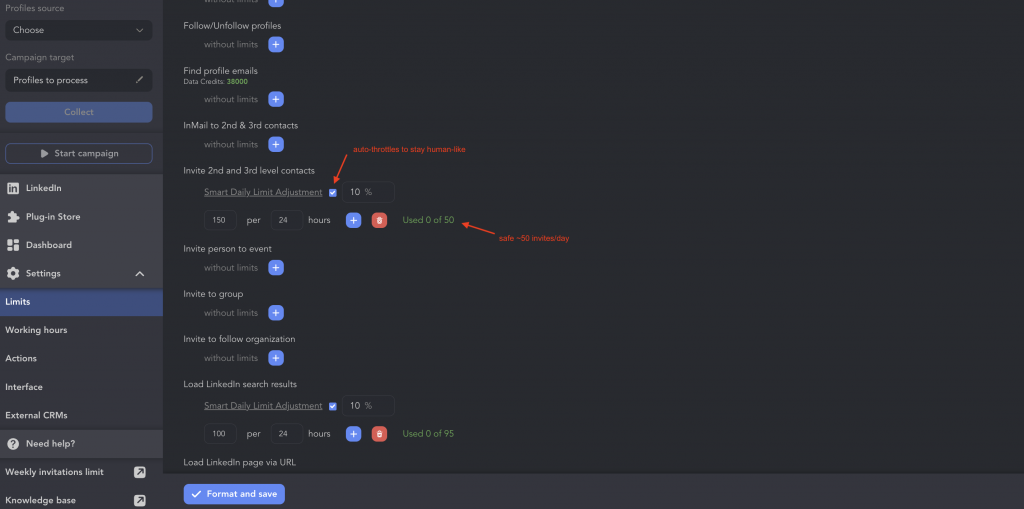
Linked Helper’s Smart Daily Limits keep outreach human-like — here the invite action is auto-throttled to a safe ~50 per day instead of relying on any retired weekly “limit hack”.
Automation integration with other tools for sales
Advanced automating software develops integration with third-party CRMs, mass emailing services, and other must-haves. For example, all the tools listed below help automation and can be combined with the Linked Helper software. As a result, the LinkedIn social network can become a source of leads from which you can transfer data to the sales CRM that you normally use.
Find the list of the most practical automation tools below.
#1 Linked Helper: best LinkedIn automation tool
We have already mentioned this software as one of the most reliable to automate LinkedIn.
Why is it beneficial for you?
- Complete safety. Activities on LinkedIn with Linked Helper are conducted naturally just as a human would behave, so you won’t be banned. You can observe it from your screen – It literally works as if you had hired an assistant. Trying to do this using a Chrome extension could be a dangerous alternative because these tools embed their code to the pages when scraping, which is detectable by the social network.
- Unique feature accelerating network growth. Linked Helper can be the best Dux-Soup, Octopus CRM or other alternative. After LinkedIn removed bulk invites via uploaded email lists back in 2023, most services were stuck inside the standard weekly ceiling. Linked Helper instead offers a dedicated invite plug-in that lets you invite 50–100 leads per day through a separate flow — governed by smart daily limits so activity stays human-like. That’s several times faster network growth than the weekly cap allows, and the mechanism is currently unique to Linked Helper.
- Find emails of everyone outside your network. Thanks to the built-in Email Finder plus integrations with Snov.io and Apollo.io, you can expand your email database far beyond your own contacts. The dedicated Data Enrichment action goes further: it returns verified emails and phone numbers — and badges like Open Link or Premium — for 1st, 2nd, 3rd-degree and even out-of-network profiles, often without visiting the profile at all. That turns a page of LinkedIn results into a ready cold-outreach list in minutes.
- How Email Finder credits work. The built-in Email Finder and the Data Enrichment action run on a Data-Credit balance tied to your workspace. Credits are added when you buy a license and scale with its length — a Standard license comes with 620 credits for 1 month, 1,860 for 3 months, 3,660 for 6 months or 7,320 for a year, while PRO grants 3,100 / 9,300 / 18,300 / 36,600 respectively. Credits are spent only when Linked Helper actually finds data: 1 credit per email or profile info, 2 for social/messaging links or company data, and 10 for a phone number — for 1st, 2nd, 3rd-degree and out-of-network contacts. Extra credit packages can be bought on demand.
- Get a CSV file with all the data from the social network. This is an easy way to sort through a huge array of information about people or companies — enriched with the emails, phone numbers and profile badges that the Data Enrichment action pulls in, then exported straight to CSV for sorting and processing in Excel.
- Use all kinds of bulk messages. You can create messaging for your network, contact the participants of an event, or write to all members of a group at once. There is also a function to automate both free and paid InMails.
- Personalize messages to show interest. You can get right to the heart of the client if you combine variables with IF-THEN-ELSE logical operators, an AI message generator for on-brand copy, and SPINTAX to keep every send unique. Through the built-in Hyperise integration you can also include links and pictures with custom CTAs or creatives that feature each lead’s own avatar.
- Promote events, groups, and business pages. In the software, these features are automated and you can create a campaign for invites to an event, develop a group’s audience, or get more followers on an organization’s page.
- Work through multiple campaigns. You can achieve different goals if you start multiple campaigns in the software. The multi-campaign runner allows you to schedule the outreach processes without thinking about when to activate every campaign. They will run automatically one by one.
- The ability to work on a remote server in the software gives it the functions of cloud-based LinkedIn automation. You can work much faster if you start several LinkedIn accounts going 24/7 at the same time on your computer provided that it’s powerful enough. If it is not, there is an ability to run the software on a remote dedicated server, which provides you with cloud-based LinkedIn automation functionality, i.e. Linked Helper will keep running even when your PC is turned off, and you can share access with colleagues. Team management now happens at the Workspace level: licenses, connected LinkedIn accounts, data-enrichment credits and user roles all live in a shared workspace, so an agency or sales team can run many accounts and hand off campaigns without juggling separate installs.
- Auto-engagement with the target audience. You can regularly auto-like, leave comments, or follow your target audience. This way you will become more visible in their feed and you can gradually build a connection.
- Integration for killer lead generation. You can collect leads on LinkedIn and push them straight into your CRM. Linked Helper now offers direct integrations with HubSpot, Pipedrive and Close via the “Send person to external CRM” action — faster and more reliable than piping everything through a middleman — with webhooks and Zapier/Make kept as a fallback for any other tool. And before you export anything, the AI ICP detection action scores and filters collected profiles against your ideal customer profile, so only the leads worth contacting reach your pipeline.
- Supports all LinkedIn packages. In the software, you can instantly switch between solutions – basic LinkedIn, Sales Navigator, and Recruiter.
- Convenient CRM. You will save all the data from different companies in the built-in CRM. Tagging, quick downloading of users’ lists, and internal search are also possible there.
Download Linked Helper 2
and get 14-day free trial right now
DOWNLOADIf you are not yet in our list of users, then join.
We give you a trial version to start your experience with our LinkedIn tool.
How does it work?
Separate software can be downloaded from the official website to your computer for free. Next, you log into your LinkedIn account through the software. Only now the interface of the social network will be “surrounded” by the Linked Helper dashboard with functions where you can create campaigns and add audiences from almost any page on LinkedIn.
In the software you will find:
- Actions. These are key actions that you can assign to your target audience in order to nudge them through your funnel. For example, auto-invites, auto-likes and comments, auto-InMails, auto-invites to an event or group, and others. All campaigns consist of one or more actions. Therefore, it resembles a marketing funnel that you implement in the social network.
- Queue section. This is the pinnacle of your campaign, where you can add your target audience for the designated actions. Leads can be sorted from search pages or selected from a niche group, or you can select all those who like or comment on your page. You can create a campaign for a narrow segment or for several thousand users.
- Plugin store. This is a built-in store with free features that you can install. For example, you can install the dedicated invite plug-in that unlocks 50–100 invitations per day, a plugin that cancels all outgoing invites in bulk, or one that adds a button for bulk acceptance of all incoming requests.
- Campaign templates. The templates consist of ready-made collections of actions that are grouped by goals. For example, a template for “Invite & follow up” has been added, in which you just have to fill in the steps with your texts and custom settings.

Conclusion
Linked Helper is a multi-tasking independent and secure software – a solution for all sales and marketing activities. Most alternative services are either unsafe (Chrome extensions) or lack advanced features — like the dedicated invite plug-in that unlocks 50–100 invitations per day, AI message generation and native CRM integrations.
Read our article our about security tips Escape LinkedIn jail: security tips & automation risks.
Start automating LinkedIn outreach free
You can find emails, scrape lead lists and run safe, personalized campaigns yourself instead of stacking five subscriptions. Spin up Linked Helper, connect your CRM, and see the replies land — the trial is free for 14 days, no card needed.
#2 Snov.io email finder: boost your email campaign

Snov.io is a web service that will help you in all stages of online marketing, from finding hard-to-access leads to post-sales follow-ups and customer management. Uncover all the features in the Overview section. This service offers a more advanced email finder than any other existing alternative as an extension – because you can dismiss irrelevant emails through the built-in Verifier.
Automating an email drip campaign will help you build long-term relationships with your audience. Also, the service can help in scheduling calls and webinars and organizing multi-channel sales.
Why is it useful for you?
Snov.io is a tool you need to know if you are using email marketing. According to the LinkedIn rules, users cannot view the emails of those who are outside their professional network. But using Snov.io together with Linked Helper you will be able to collect emails from everyone who is not your contact. The service can find a working email by the name and surname of the person and the domain of the organization. Through the integration of Snov.io + Linked Helper, you can send emails to leads directly. To do this, try the action Send person to Snov.io campaign in the software. So drip email marketing can be initiated via LinkedIn, without extra costs for email list building. Snov.io isn’t your only option here: Linked Helper also integrates with Apollo.io for enriching emails of 2nd and 3rd-degree connections, and with Instantly.ai as a second email-outreach engine — so you can pick whichever sending tool your team already runs and still keep the LinkedIn-to-email funnel fully automated.

The service specializes in:
- Email search automation
- Email address validation
- Creation and management of email sequences
Snov.io has many built-in integrations besides Linked Helper. For example, you can combine search and validation of emails via LinkedIn with your CRM (Salesforce, HubSpot, Asana), work with Google tools (Google Forms, Google Docs, Google Sheets, Gmail), marketing automation tools (MailChimp, AutoPilot) and many more. This will help you not only find and generate leads from LinkedIn but immediately process them and transfer them to the marketing or a sales team for email campaigns.
How does it work?
You do not need to additionally install this tool. This is just a web-based service where you need to register. After completing the trial or getting a subscription, you can set up the integration by copying the API to the Linked Helper settings. Read our manual for instructions or watch the tutorial video.

Pricing
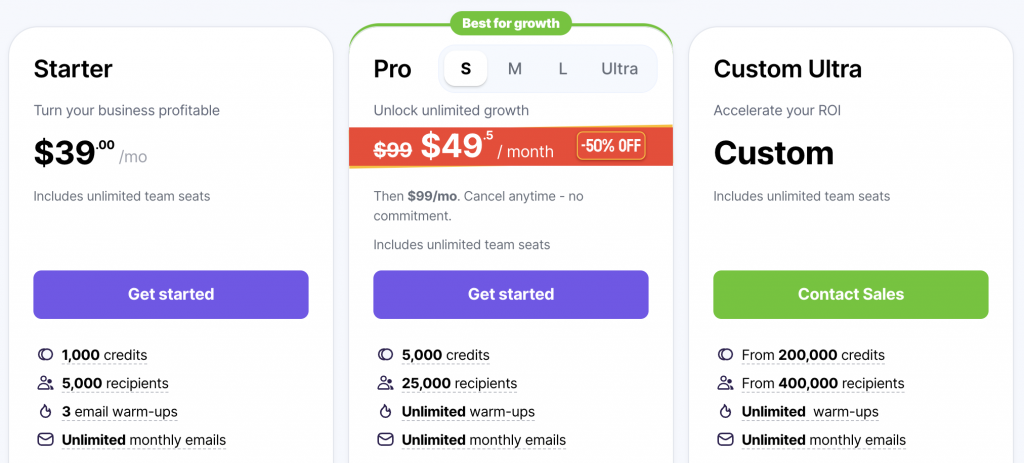
You can start researching target leads and finding contacts by completing a trial and connecting the service to Linked Helper (if you want to automatically collect emails from LinkedIn). Snov.io runs on a credit model: finding one email costs one credit, and verifying one email costs one credit as well. Paid plans start at $39/month (Starter, ~1,000 credits), with a free trial that includes a small renewable credit balance, and extra credit packages available as you scale. You can start researching leads on the trial and connect the service to Linked Helper to collect emails from LinkedIn automatically.
#3 SocialPilot: How to schedule posts on LinkedIn

LinkedIn scheduling by SocialPilot will help you turn routine posting into an automated process. You can set aside a few days to plan and create content for the month ahead. This way you won’t have to rack your brains over what to post every day. And your feed doesn’t run the risk of being left empty because you forgot to post. You can use this service not only to schedule LinkedIn posts but also for multi-channel posting in different social networks from several accounts. For example, if you have an agency, you can maintain content for several client profiles in all their social networks.
What are the advantages of this service?
- Posting to LinkedIn and other social networks in one calendar. You will get a clear example of how your strategy will look like even if you are curating several profiles. With previews and a handy drag-and-drop feature, you can schedule content in the best possible order. You can view the plan for the month, week, or day for each account where you curate content.
- Ability to add posts in bulk. This feature will allow you to create up to 500 LinkedIn posts by adding them through one CSV file. It can even be posted for different accounts. You don’t have to copy visuals and text manually, which saves time.
- Add your colleagues to content management. You can set up calendar access on LinkedIn and include your entire team. Also in the scheduler there is an opportunity to diversify roles and assign different powers to each user. And thanks to the built-in commentary, you can get feedback about the content strategy from clients or other team members.
- Detailed content statistics. After posting, you can see a detailed breakdown of the effectiveness of the strategy. Moreover, you can see data not only on content, but also on other growth indicators. For example, data about the LinkedIn Business page. You can see how a new type of content has affected the growth of followers, engagement rates, and interactions with publications. You can also choose to collect data over a specific period, which can help you measure the effect after a change of course in content. In the tool, you can see how the follower metrics and post reach metrics change to ensure you are using only effective content types. The data can be downloaded in PDF format to discuss with colleagues or show to customers.
Pricing
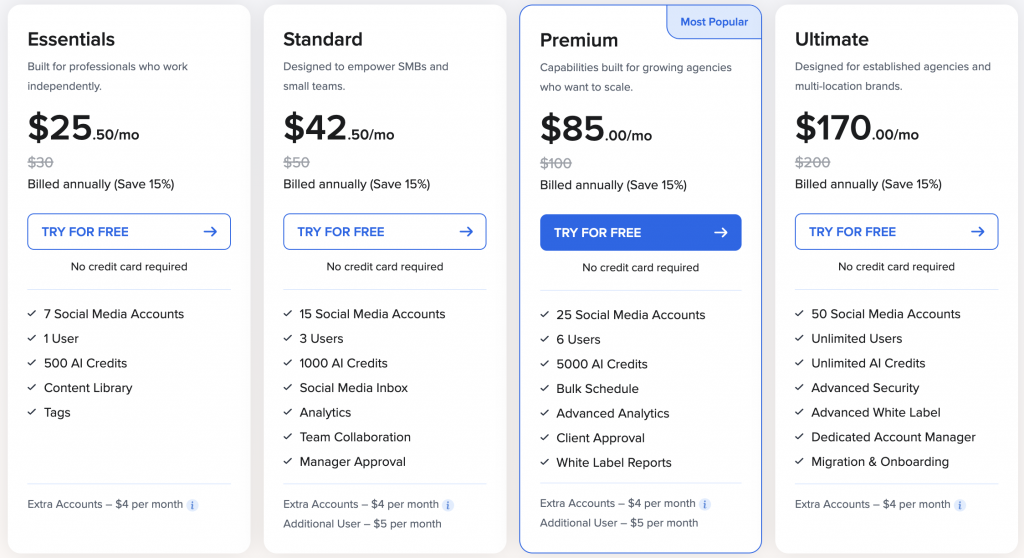
As stated on the main page, you can start your trial instantly without using your payment details. There are monthly and yearly plans covering different numbers of connected accounts — from 7 up to 50. Pricing currently starts at $30/month for the Essentials plan (7 accounts) and scales through Standard ($50 / 15 accounts), Premium ($100 / 25 accounts) and Ultimate ($200 / 50 accounts), with annual billing knocking about 15% off. You can start a trial instantly without entering payment details.
#4 Hyperise: use prospects’ profile images in bulk LinkedIn messages

Hyperise is a web service that allows you to create personalized images for LinkedIn messages, emails, and other activities. In addition, you can create personalized videos (through dynamic layers, buttons with information about viewers, and other features) and embed personalized blocks on your website. The service already has a built-in editor that you can use without having a professional design tool. According to statistics, a personalized CTA has a 2x higher chance of converting.
Why is it useful for you?
You can take LinkedIn messaging to the next level. For example, in a message from you, a lead can see a creative where their profile photo is used. Can you imagine how impactful that is? The lead will think you spent a lot of time making a personalized banner for them. Linked Helper’s mailing strategy using Hyperise integration will create a buzz and an increase in replies to your messages. Here are some of the benefits you get with Hyperise integration:
- Using data from LinkedIn profiles in visuals across mass messages. You can set up a text layer on the picture, where the name, position, and other data from the page can be mentioned. Also, when visiting target LinkedIn profiles, Linked Helper collects links to the main LinkedIn profile photos. Hyperise, having this link, will be able to use the photo (as a variable) in the banner. Here is an example of what a message from you might look like when configured via Linked Helper:
- Ready-made templates are available in the library. In the editor, you can select ready-made images from stocks or templates created in this service. You can choose creatives such as memes, congratulations, thanks, recruiting templates, and more. But you can also design your own unique layout for LinkedIn bulk campaigns.
- Improved technical features. You can create a GIF on-the-go by using your computer’s camera or by uploading the images. You will also find the option to implement personalized QR codes which will help leads see a personal appeal to them when scanning (online or offline visuals).

How it works

To implement personalization, you can set up a direct integration between Linked Helper and Hyperise. You can explore a detailed manual for setting up bulk messages in which each recipient will see their profile photo in the picture in the message.
In short, you will need to download the Attach personalized images plugin from the free Plugin store in Linked Helper. Having created a template in the Hyperise editor, you will receive a link to the template, which will be inserted into the message template builder in Linked Helper. After setting the variables, each recipient will see in the LinkedIn message only the text or picture that belongs to their own account.
Tip: Before composing messages to clients, you should expand your network and warm up the audience. This is easy to do through Linked Helper campaigns. After that, you can set up the Hyperise integration for your first mass message to your network. You will see that the response rate in such a campaign will be higher because the personalized messages will stand out against the myriad of generic automatic messages.
Pricing
Pricing starts at $69 per seat/month for the Images plan (multi-layer personalized images), with higher tiers adding website and video personalization. With platform-wide connection-note reply rates having fallen from 3.5% to 2.2% over the past year, a personalized creative that stands out is one of the few levers still moving replies up — so this can be a worthy investment for reaching customers, partners or valuable hires.

#5 Zapier: from LinkedIn to any Sales CRM

Zapier is an essential service for anyone using LinkedIn as a lead source. Indeed, through integration with Linked Helper, you can send the data collected from LinkedIn to the CRM or service that you actively use for sales and customer management. Zapier is a kind of intermediary that will transfer the data received through the scraper from LinkedIn pages to any third-party application. By setting up the integration, you get management over all stages of your funnel – from lead generation to transferring data to the sales department and bulk emailing.
How it works
You need to create a Zapier account. Then you can use the Linked Helper action “Send person to webhook.” This action allows you to send all successfully processed profiles to Zapier, from which they will be transferred to a third-party application. In the Linked Helper “Send person to webhook” setting, you will find the “Webhook configuration” line, where you will need to insert a link to the webhook from Zapier. You will find a simple setup in our manual using HubSpot as an example.

Why is this important for your marketing?
- You can generate leads and immediately transfer them to the current CRM. For the most popular CRMs — HubSpot, Pipedrive and Close — Linked Helper now offers direct native integrations, which are faster and more reliable than routing data through a middleman, so use those as your primary path. Zapier is the fallback that connects LinkedIn to virtually any other CRM or app (Salesforce, Zoho, ActiveCampaign and thousands more). Zapier keeps a free plan (100 tasks/month, two-step Zaps), with multi-step automations starting from about $19.99/month on the Professional plan. As a result, after visiting profiles through Linked Helper, contact details will appear in the required sections in your CRM. You can also explore ZohoCRM integration and ActiveCampaign tutorials.
- Create dual funnels with LinkedIn and Gmail. Through integration with Zapier, you can build an automatic connection with thousands of people in a single scheme. For example, you can send hundreds of auto-invites to a social network and after adding them, the robot can easily collect their emails. After receiving emails, you can use a campaign via Gmail to share important data with leads. For example, it can be an email with media files, or a presentation. After that, in the Linked Helper funnel, you can add a follow-up to the campaign with a delay of several days to clarify whether the recipients have seen the email. Sending emails to Gmail will be part of the automatic operation, even though LinkedIn and Google don’t have built-in sync. Read our simple guide here.
- Don’t miss anyone who replies to messages on LinkedIn. Once you set up your funnel through Linked Helper, you can send out auto-messages. After that, those leads who answered will be sorted into the Replied section. You don’t have to manually transfer these hot leads to the CMS for processing. Add the “Send replied to webhook” plugin from the Linked Helper Plugin Store, and this option will appear immediately in the action settings for bulk auto-messages.

Note: Alternatively, you can try Make.com. This is a similar service, but cheaper.
LinkedIn Automation tools and how to combine them

You can combine all of the above services into a single LinkedIn marketing scheme. Here’s how it might work for you:
- Use SocialPilot to create relevant posts for your leads. Do some research or schedule a few posts and articles that are helpful.
- Install Linked Helper on the remote Host Zealot server. This will allow you to add multiple LinkedIn accounts if your goal is to reach more leads.
- Filter with AI ICP detection. Before you spend actions on outreach, run the AI ICP detection action so Linked Helper scores your collected profiles against your ideal customer and drops the poor fits — you only invite and message people worth the effort.
- Create a campaign in Linked Helper. Start with warm-up auto-likes. Then add an action to send auto-invites. Then add follow-up messages. Read more campaign examples in our posts How to run e-commerce drip campaigns through LinkedIn to convert 10X more, Social selling drip campaign for SaaS: find clients on LinkedIn via automation.
- In your messages, try integrating with Hyperise to send a personalized picture. For example, you can include a graph showing how your potential customer’s revenue will grow after your services. You may include variables from your clients’ pages.
- Send an email to anyone who hasn’t responded in LinkedIn via the integration with Snov.io or Instantly.ai. If they didn’t respond to your two follow-ups, try duplicating the offer via email. Sometimes email outreach gets more impact than LinkedIn messages. Here integration will help like nothing else!
- Push replies straight to your CRM. For HubSpot, Pipedrive or Close, use Linked Helper’s direct native integration to send everyone who responded into your pipeline automatically. For any other CRM (Salesforce, Zoho and others), add the “Send person to webhook” action and route it through Zapier or Make.
As a result, by starting the warm-up and lead generation in LinkedIn you will automatically integrate the process into the next stages of online marketing.
Is automation even safe?
This is the question of many newcomers to automation. Yes, LinkedIn automation can be safe if you choose a trusted service like Linked Helper and the tools in this article. With this arsenal of services, you can turn your LinkedIn profile into a risk-free lead generation machine. While extensions for Chrome might be tempting for a quick setup, they will definitely let you down when it comes to security.
The fact is that scrapers and automators that work on extension technology embed code during their operation. A smart social network algorithm recognizes this, albeit not the first time. But in time, when you least expect it, you can get an alert or a ban. On the other hand, Linked Helper is an independent software and runs in the browser window behaving like a human user. Instead of vague promises, Linked Helper backs safety with concrete controls: smart daily limits, start-time randomization, action working hours, message variants and SPINTAX. You can set the number of actions and the pauses between them manually for a new or inactive account, so activity in a fresh profile grows gradually — without the sudden spikes that look non-human to LinkedIn’s algorithm.Basically, the activity through the software will not differ from your own – the difference being that you don’t have to sit in front of the monitor all day and can deal with other work issues.
We have covered all the security issues of different types of automation software in our blog post.
Summary
In this article, you have learned about some of the most useful LinkedIn automation services. Some of them have a free trial for you to explore their combined benefits. With these LinkedIn automation tools, your marketing strategy will become user-tailored. Your bulk messages will become personalized down to images and links. And searching and validating emails and sending leads to the CRM can become automatic for you.
In addition to the above tools, Linked Helper now has cloud automation capabilities through integration with Host Zealot. It’s not an automation tool, so we didn’t include it in the list. But through the use of a remote server, you can connect automation to several LinkedIn profiles at once or not even be online while your campaigns are running. Read more benefits of integration in our blog post.
Also remember that you can buy or try a 30-day trial of LinkedIn Sales Navigator, which will give you more options in Linked Helper. Read in our article the automation functions comparison with the LinkedIn regular plan and Sales Navigator. In particular, you will be able to better sort leads from search and add them to auto-funnels. After that, it is easy to switch to the regular package in the software to perform other actions. For example, to like your filtered leads, which cannot be done through Sales Navigator.
FAQ
What are the best LinkedIn automation tools for salespeople in 2026?
A complete sales stack combines Linked Helper for outreach, scraping and a built-in CRM, Snov.io for email finding and verification, SocialPilot for scheduling content, Hyperise for personalized images, and Zapier for pushing leads into any CRM. Linked Helper is the core because it automates connection requests, follow-ups, InMails and data collection while behaving like a human in a real browser window.
Are LinkedIn automation tools safe to use?
They can be, if you choose a tool that mimics human behavior and respects activity limits. Linked Helper runs inside a standalone browser window rather than as a Chrome extension, so it does not inject detectable code into LinkedIn pages, and it uses smart daily limits, start-time randomization, action working hours and message variants to keep activity human-like.
Are there free LinkedIn automation tools?
Most reputable tools, including Linked Helper, offer a free trial (Linked Helper gives a 14-day trial) rather than a permanently free plan, because safe automation requires ongoing development. Free or “freemium” Chrome extensions tend to be the riskiest option for account safety, so a trial of a dedicated desktop tool is the safer way to test for free.
Can LinkedIn automation tools find email addresses of prospects?
Yes. Linked Helper includes a built-in Email Finder plus integrations with Snov.io and Apollo.io, and a Data Enrichment action that can return emails and phone numbers for 1st, 2nd, 3rd-degree and out-of-network contacts — often without even visiting the profile.
How many connection requests can I send with a LinkedIn automation tool?
LinkedIn caps invitations at roughly 100–200 per week for most accounts. Linked Helper’s dedicated invite plug-in lets you safely send 50–100 invitations per day through a separate flow, which substantially accelerates network growth versus the standard weekly limit.
Can I connect a LinkedIn automation tool to my CRM?
Yes. Linked Helper offers direct integrations with HubSpot, Pipedrive and Close, plus webhook and Zapier/Make connections to virtually any other CRM, so qualified leads and replies flow straight from LinkedIn into your pipeline.
