

Quick takeaway
- LinkedIn Recruiter gives 150 InMail credits per month; Recruiter Lite starts at 30 (expandable by buying extra credits, up to 120 per seat). Credits are refunded when an InMail is accepted, declined, or answered within 90 days, so precise targeting effectively raises your real send volume.
- InMails to Open Profiles (Open Link) are free and unlimited — they don’t spend credits. Filtering for these profiles is how you send at scale without burning your monthly allowance.
- Subject line: up to 200 characters. Body: up to 1,900 characters. Shorter, personalized messages get materially higher reply rates — LinkedIn InMails average an 18–25% response rate vs. ~3% for cold email.
- Linked Helper automates the whole flow with the Auto InMail action: collect targets, filter Open Profiles, set a subject, personalize with variables, send in bulk — and now detect Recruiter replies with Check for replies.
- Free 14-day trial connects to a regular LinkedIn profile or any premium plan (Recruiter, Recruiter Lite, Sales Navigator), so you can test bulk InMail automation before committing a single credit.
InMails are an extended LinkedIn feature for messaging people who aren’t in your network yet. Sometimes it’s the only way to reach someone crucial to your business without waiting for them to accept your invite — and it works: LinkedIn InMails average an 18–25% response rate, compared with roughly 3% for cold email, with recruiting among the highest-performing functions for InMail engagement.
If you’re wondering how to InMail a recruiter, you don’t have to send invites to every recruiter on LinkedIn. You can write a LinkedIn InMail to a recruiter in two ways. First, if you have one of the paid plans connected, they all include monthly InMail credits. The second way is to message everyone with an Open Profile (still often called “Open Link”) — a setting that lets even people outside their network message them for free.
Linked Helper automates and simplifies sending bulk InMail on LinkedIn Recruiter. You can aggregate your entire target audience — say, every recruiter in one industry — sort them in the built-in CRM into the Open Profile category, and send them all an automatic InMail without a hitch. Below, we’ll walk through how to write and send an InMail to a recruiter on LinkedIn through automation, so the task takes minimal time and effort.
How to send mass InMails in LinkedIn Recruiter
Technical features you need to know before sending
As we’ve established, InMails are paid: they come with your subscription through a system of InMail credits, but there’s also a way to send them for free. Credits reset once a month. A credit is returned whenever the recipient accepts, declines, or answers your InMail within 90 days of sending it — the reply doesn’t have to be positive. So in a Recruiter Lite plan with 30 credits per month, you can actually send more than 30 paid InMails, as long as they’re well-targeted enough to earn a response. This is exactly why personalization pays off: LinkedIn’s own data shows InMails are 3× more likely to be accepted than a cold call and 6× more likely than email. You’ll find all the answers to InMail ambiguities, credits, and limits in our complete guide.
InMail’s distinct features in brief:
- Subject line. The subject field holds no more than 200 characters. In Linked Helper you can set the subject for automatic InMails.
- Body length. The text limit for an InMail is longer than an invite note but shorter than a regular message — up to 1,900 characters. (Best-responding InMails stay well under 400 body characters, so shorter usually wins.)
- First-degree messages. In regular LinkedIn and Sales Navigator, InMails and messages to your 1st-degree connections are separate entities and named differently. In Recruiter they’re also separate, but 1st-circle messages are also called InMails — though they’re free, like regular messages.
- Subject line for 1st circle. In Recruiter, InMail messages to the 1st circle also require a subject line. Messages in Basic and Sales Navigator don’t.
- Image attachments (new). Linked Helper can now attach personalized or generic images to InMails sent to your 2nd- and 3rd-degree connections — useful for standing out with a branded visual or a personalized graphic that native LinkedIn sending can’t automate.
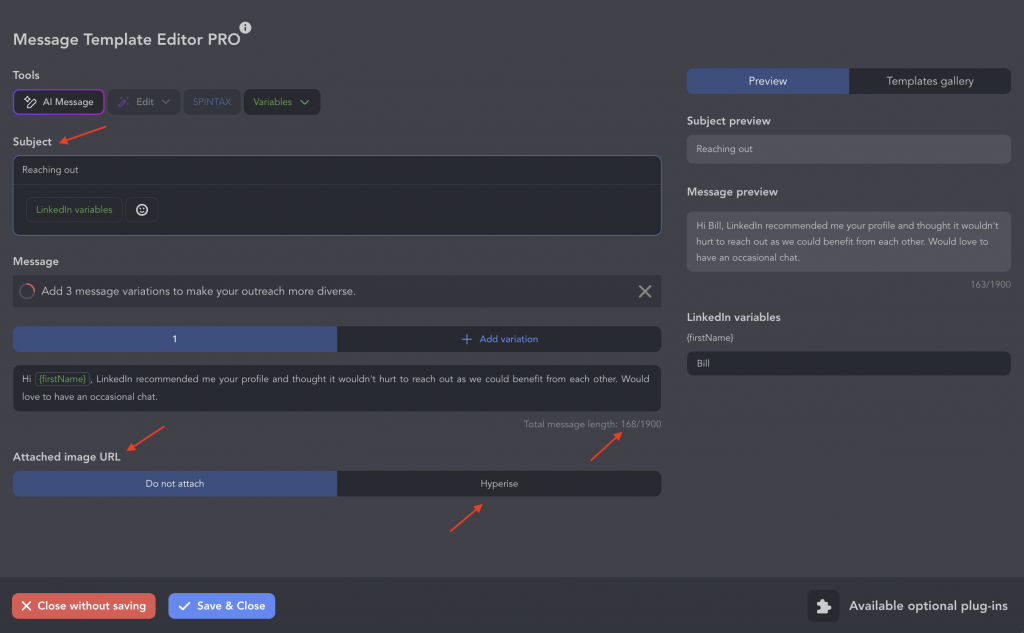
Linked Helper’s message template editor: set the subject and body, rotate message variants, apply Spintax or AI copy, and attach a personalized image — all for your bulk InMail campaign.
How to automate messages via Linked Helper
If you want to send free InMails to your 2nd- and 3rd-degree contacts, manually checking whether each profile has Open Profile (Open Link) status can eat up a lot of time. Linked Helper filters these accounts for you — for profiles collected from a Sales Navigator search there’s a built-in filter, and in a regular LinkedIn search you can apply the Services category filter (people offering services have Open Profile enabled by default). Linked Helper’s Data Enrichment can even search for the Open Profile / Premium badge directly inside its own database, so you can build a free-InMail audience without visiting every profile one by one.
Read the manual on how to find Open Profile (Open Link) profiles. You can also send paid InMails using Recruiter credits via Linked Helper — you just need active credits on your balance.
How to send automatic and free InMail:
- Download the Linked Helper trial. Test it free for 14 days and connect either a regular LinkedIn profile or any advanced plan.
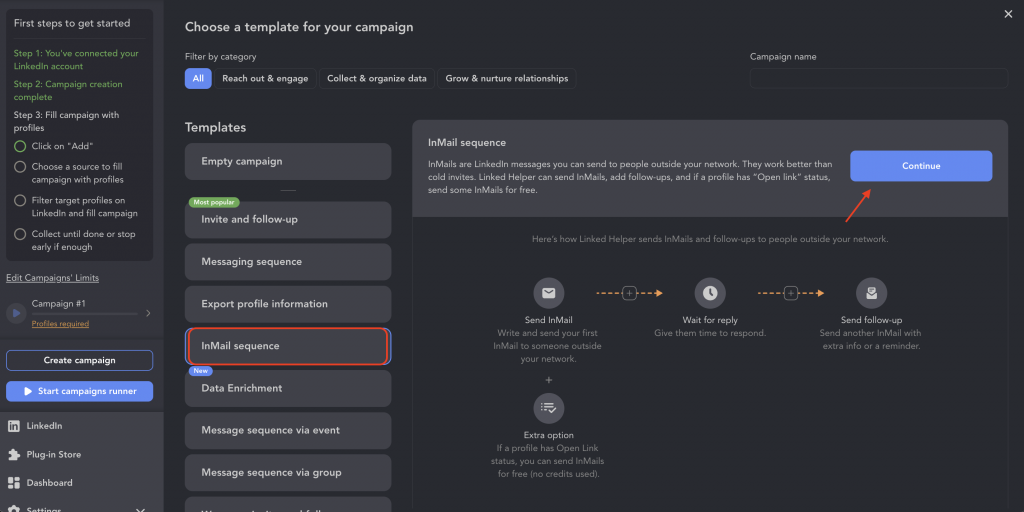
- Create a campaign. Create a people campaign and and choose the InMail sequence template (Linked Helper’s Auto InMail workflow).
- Collect leads in the Queue. This is the start of your funnel: the software visits each profile and sends an InMail, typing the message as you would yourself. Add target users from various pages across the network.
- Filter out non–Open Profile leads (optional). For profiles collected from Sales Navigator, use Linked Helper’s built-in filter. To pre-select free-InMail leads, apply the Services category filter in regular LinkedIn before collecting.
- Add texts to the template and start. Personalize deeply with built-in and custom variables (name, company, role). To keep bulk sends safe and human-looking, rotate several bodies with Message variants, randomize phrasing inside each message with Spintax, and — if you’re short on time — draft up to 30 personalized templates a day with the built-in AI message generator. Turn on Smart daily limits so daily volume is randomized instead of fixed, which keeps your activity within safe, human-like ranges.
Recruiter has no native one-click mass-InMail tool, so doing this by hand means messaging candidates one project at a time. The Auto InMail action does it for you: collect your targets, filter for Open Profiles to send for free, personalize each message with variables, and send in bulk with Smart daily limits and randomized delays so your outreach reads as human. Check for replies for Recruiter then tracks who answered.
Send bulk InMails automatically
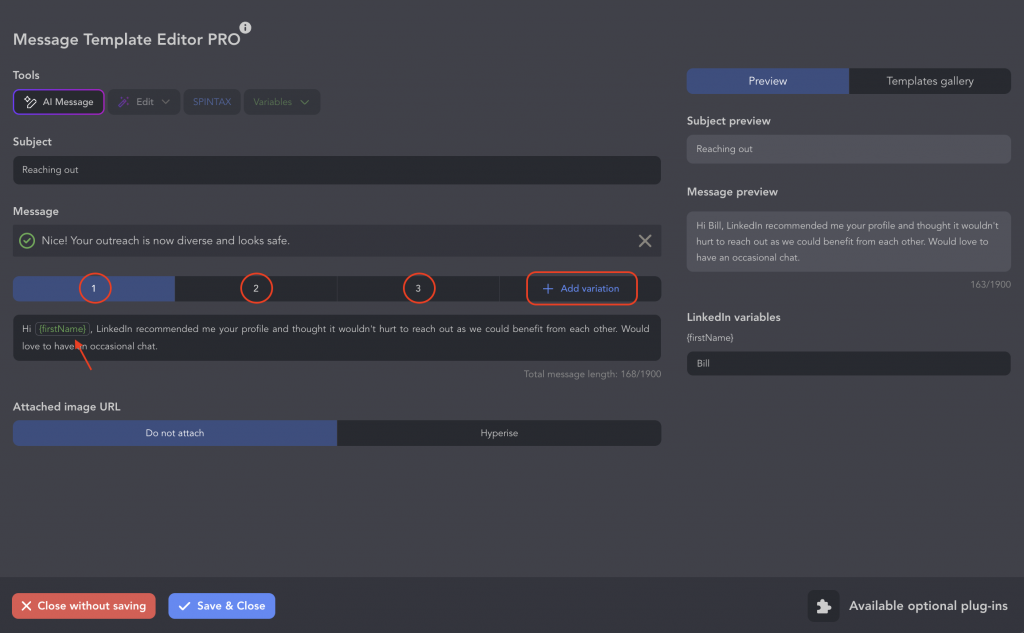
Linked Helper’s message template editor: rotate several message variants, insert personalization variables, and apply Spintax or AI copy so every bulk InMail reads as human.
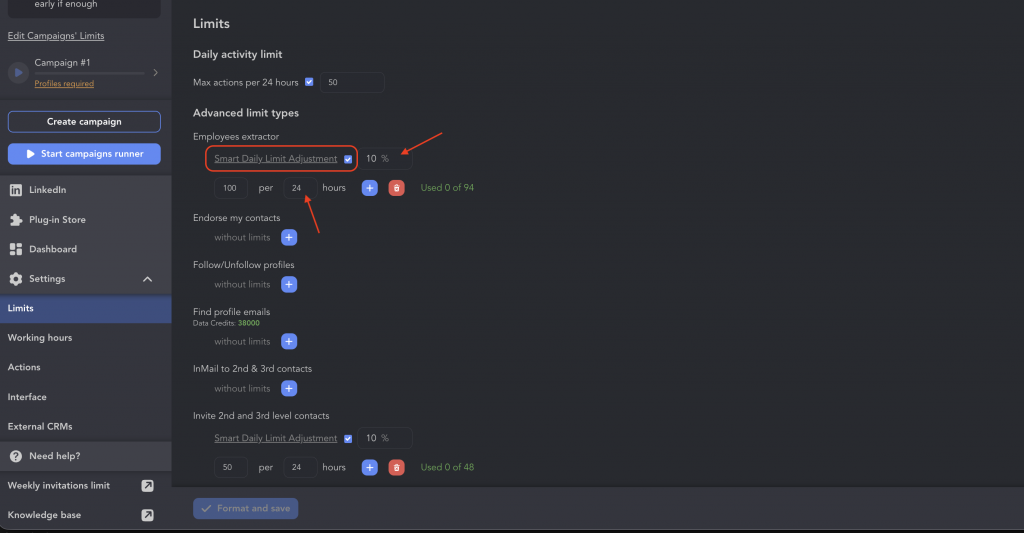
Smart Daily Limit Adjustment in Linked Helper randomizes how many InMails go out each day, so your sending pattern looks human instead of hitting the same round number.
How to reply to InMail on LinkedIn & send next InMails
You can send a response to an InMail in the same way as a response to a regular message.
After sending an InMail to a profile, it appears in the Message Inbox, in the same place where regular messages are visible.
Subsequent InMails to the same client can be sent only after they accept the request for the first message or simply reply something. Therefore, in solidarity with other users who send you InMails, you should at least accept them if you are not ready to answer.
So if you’re thinking, How do I respond to a Recruiter InMail on LinkedIn (even if you’re not interested in the offer), it’s best to politely reply or at least accept an InMail because you will help the person to recover the credit and spend it on a more interested candidate. Try not to ignore their messages.

Reply detection for Recruiter now works. Earlier, Linked Helper couldn’t track responses to InMails sent through Recruiter — that’s no longer the case. The Check for replies for Recruiter feature has shipped: Linked Helper can now detect whether your Recruiter InMail was answered and continue the sequence only for those who replied. A few caveats to keep in mind:
- It works only for threads created within the same campaign.
- Every Recruiter message starts a new thread, so reply detection is scoped to that thread.
- Detection works for messages sent by Linked Helper v2.14.10 or above.
In Sales Navigator, you can send a follow-up InMail while there is no answer to the first one. But in this case, for each such follow-up until there is a response, one credit will be charged. If the message is accepted or answered, you won’t lose credits.
When your InMail to 2nd and 3rd degree contacts is accepted, LinkedIn adds a technical message “Message request accepted.”

Vital automation feature:
When sending auto InMail in Linked Helper via LinkedIn, Sales Navigator, or Recruiter, “Check for replies” can investigate whether the InMail was accepted or answered and send more only if the first InMail got a response. This way the robot won’t waste sends on people who haven’t accepted.
InMail→ Check for replies (check the acceptance status setting)
You need to enable “Keep in queue permanently if request is not accepted.”

How many InMails can you send with LinkedIn Recruiter and other packages?
“How many InMails can I send on LinkedIn Recruiter?” — there’s no single answer, because each LinkedIn plan comes with a different allowance. Paid InMail credits range from 30 to 150 per month depending on your subscription:
- LinkedIn Recruiter (Corporate): 150 credits/month — the maximum.
- Recruiter Professional Services: 100 credits/month.
- Recruiter Lite: 30 credits/month, expandable by purchasing extra credits (in packs of 10, up to a cap of 120 per seat).
- Premium plans (Career, Business, Sales Navigator) include smaller monthly allowances — always check your account for the exact figure.
These numbers apply to paid InMails. InMails to Open Profile (Open Link) members are free and don’t consume credits, so you can message far more people than your monthly allowance suggests. You’ll find the current limits on LinkedIn’s official support page.
Two things to remember about the economics:
- Credits come back. If your InMail is accepted, declined, or answered within 90 days, you don’t lose the credit — so disciplined targeting lets you send well beyond your base allowance.
- Unused credits roll over — with a cap. Instead of expiring on a fixed date, unused credits accumulate month to month up to a plan-based ceiling (for Recruiter Lite, that’s a maximum of 120). Credits can also be lost after long account inactivity or if you downgrade or cancel your plan, so don’t hoard them.
LinkedIn’s rules change from time to time, so always follow the latest information in their updates.
And remember the free route described earlier: by automating free InMails to Open Profiles through Linked Helper, you can reach your target audience in bulk without spending a single credit.
Credits run out fast when you send manually, and Open Profile targeting only pays off if you can filter and send at scale. Start a free 14-day Linked Helper trial and connect it to a regular profile or any premium plan (Recruiter, Recruiter Lite, Sales Navigator) to test bulk InMail automation, Open Profile filtering, and reply detection before you commit a single credit.
FAQ
How do I send bulk InMail on LinkedIn Recruiter?
LinkedIn Recruiter has no native one-click mass-InMail tool, so you send them one project or search at a time — or use an automation tool. With Linked Helper you collect your target recruiters or candidates into a campaign, optionally filter for Open Profiles, set a subject and a personalized template, and the Auto InMail action sends them in bulk while imitating human behavior.
How many InMails can you send on LinkedIn Recruiter?
Full Recruiter includes 150 InMail credits per month and Recruiter Lite starts at 30 (expandable up to 120). There’s no fixed daily cap, and every InMail accepted, declined, or answered within 90 days is credited back — so disciplined targeting lets you send well beyond your base allowance. InMails to Open Profiles are free.
How do I message multiple people on LinkedIn Recruiter at once?
Recruiter lets you select recipients inside a project or search, but it doesn’t personalize at scale. To message many people with individual personalization, automate it: Linked Helper collects the audience, inserts custom variables (name, company, role) into each message, and sends sequential InMails with randomized delays and Smart daily limits to stay safe.
How do I send an InMail to a recruiter on LinkedIn?
Open the recruiter’s profile and click Message. If they have an Open Profile the InMail is free; otherwise it uses one of your InMail credits (or you can request to connect first). With Linked Helper you can also collect a list of recruiters in your industry, filter for Open Profiles, and send them personalized InMails automatically.
Can you send bulk messages on LinkedIn for free?
Yes — InMails to Open Profile members are free and unlimited, and 1st-degree connections can be messaged for free. Linked Helper lets you filter your audience for Open Profiles and message your existing connections in bulk with personalized templates, so you can run mass outreach without spending InMail credits.
Is InMail on LinkedIn considered spam, and how do I avoid the spam filter?
InMail is a legitimate channel, but generic, identical, high-volume messages can be flagged or ignored. Keep messages short, personalized, and relevant; with Linked Helper you can vary copy using Message variants and Spintax, add randomized start times and Smart daily limits, and personalize each message with variables so your outreach reads as human, not bulk.
