
 Updated: September 29, 2026
 6 min read
Quick Answer
You might have seen the abbreviation CFBR and, if you’re new to LinkedIn, you might be wondering what it means. It stands for Commenting for Better Reach.
You might have seen the abbreviation CFBR and, if you’re new to LinkedIn, you might be wondering what it means. It stands for Commenting for Better Reach.
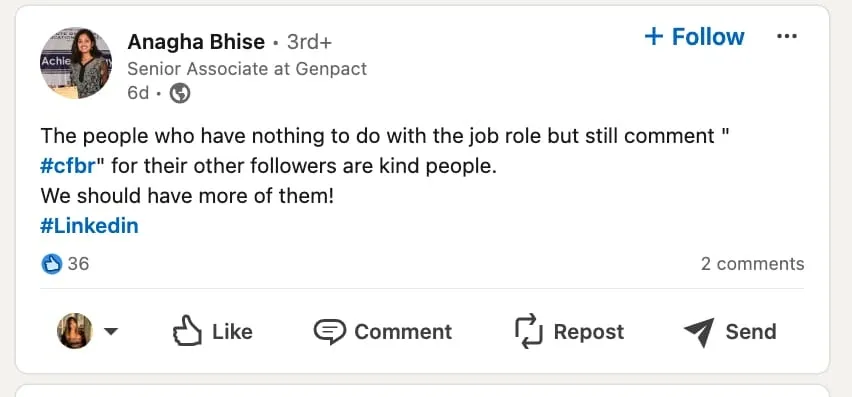
Some LinkedIn users leave a CFBR comment so that important posts are visible to their followers.
You’ve probably already guessed what CFBR means and may have done it yourself several times. It means leaving comments on posts just to make the post spread like wildfire.
Commenting just for reach often doesn’t require wit—the text might only contain these four letters, and that’s already considered a job well done!
We all know that social media algorithms respond to comments made by people outside your network. When a post receives comments from such users, it appears organically interesting, prompting the system to show it in the feeds of the commenters’ connections, thereby ensuring virality.
For example, this strategy is often used to spread important news, such as posts about mass layoffs. One of the well-known best cases on social media was when Amazon began to lay off what would eventually become 18,000 employees.
A recruiter posted about people losing their jobs, and in the comments, people were encouraged to like, share, and… comment for better reach.
Some say that such posts and comments are purely spammy and do not support this practice. Others argue that they help quickly viralize an important topic for many.
Next, we will discuss the pros and cons of this strategy, so you can decide whether it is worth using.
While you always have the option to write a simple comment with the word “reach” or something similar, it’s better to make comments relevant to the topic. This can be time-consuming, but to write an engaging comment, you can:
For automated commenting, you can use tools like Linked Helper. If you’re comfortable writing “commenting for better reach” to everyone, use the “Like and Comment” feature.
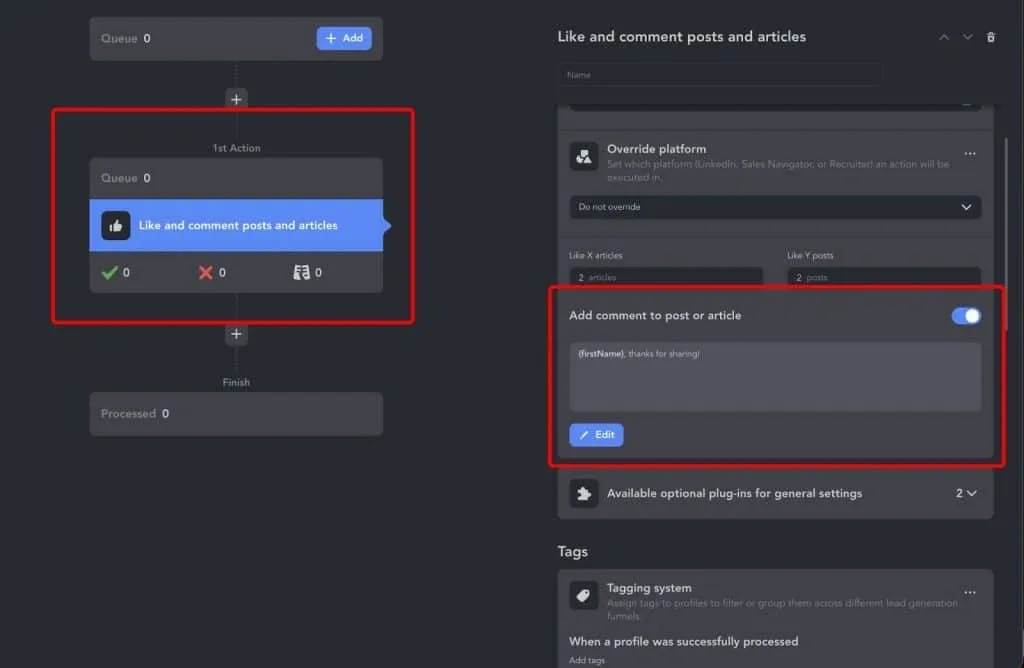
The mass commenting feature in Linked Helper allows using custom variables in the text.
As for auto-commenting and auto-liking, there are certain limitations to be aware of:
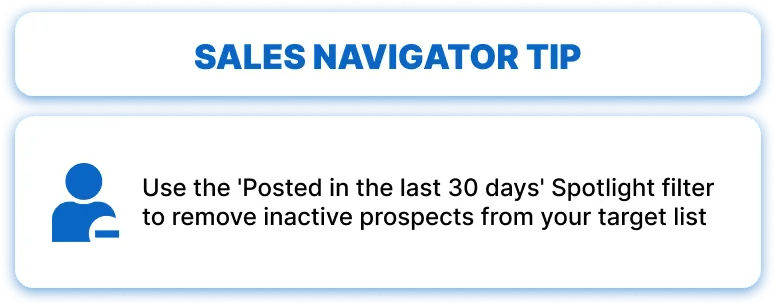
What does this all mean?
Just be prepared for a 30% bounce rate when auto-commenting or auto-liking. Of the 1000 profiles you’ve put in the queue, 20-30% will be skipped or failed either because there’s nothing to comment, comments are restricted. Still, commenting massively can really boost your profile better than not commenting at all.
Unlimited auto-likes and auto-comments are available with Linked Helper PRO license plan, starting from 45 USD monthly / 297 USD annual
Try to dedicate one day a week to commenting. Set aside one or two hours to engage with posts from both your network and outside of it.
Use Linked Helper’s Action working hours feature: If you prefer writing identical comments to maintain regularity, you can set a working schedule for this feature along with Like & Comment action.
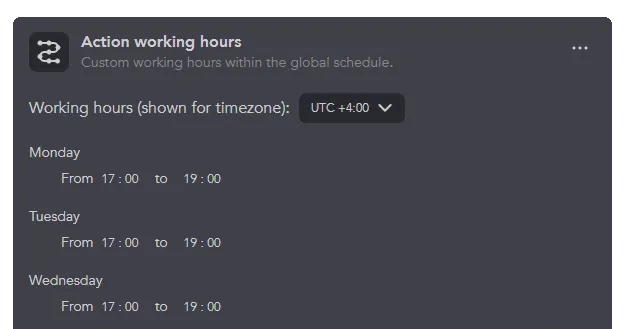
With this feature be sure your comments are posted on time
Action working hours tutorial: Watch
While this strategy is useful for spreading your content and receiving comments on your posts, we also recommend incorporating other engagement methods like mass liking, which is more neutral.
By following these best practices, you can effectively use CFBR to increase your reach and engagement on LinkedIn.
Combine CFBR with other strategies like liking posts and sharing valuable content to create a well-rounded engagement plan. This helps in avoiding the perception of spamming and ensures a more organic growth of your network.
Tools like Linked Helper can save time and ensure consistent engagement. However, automated comments should still be tailored to appear genuine and thoughtful.
To get more comments, there are groups where people comment on each other’s content. If you want to create a post that attracts comments on LinkedIn, here are some tips: Use Popular Hashtags: LinkedIn has a hashtag with over 104,000 followers that you can use in your post. This way, your post will appear in the feed of people following the hashtag. Commenting Etiquette: It’s generally considered acceptable to leave comments just for reach. People understand that this helps spread the content and don’t see it as bad manners. Join Engagement Groups: These groups allow members to share links to their posts and mutually leave comments to boost engagement. End with a Question: Encourage interaction by asking a question at the end of your post. Offer Free Value for Comments: Offering something valuable for free in exchange for a comment can drive organic engagement. When people see they can get something useful just by commenting, they’re more likely to participate. Provide a specific code word for them to use in their comment to make it easy. Indicate You’re Looking for Comments: Make it clear in your post that you are looking for comments and value their opinions.
The most technically advanced platform for LinkedIn automation with a focus on security, a wide range of features, and exceptional customer support. Trusted by over 10,000 businesses worldwide.