










Connect LH
and HubSpot
Overline image

Connect Linked Helper
and HubSpot

Decoration lines
Connect HubSpot
100% Free. No card.

Trusted by over 10,000 businesses worldwide

Why Integrate Linked Helper with HubSpot?

Stop Importing CSVs — Fuel HubSpot Automatically

Stop Importing CSVs — Fuel HubSpot Automatically

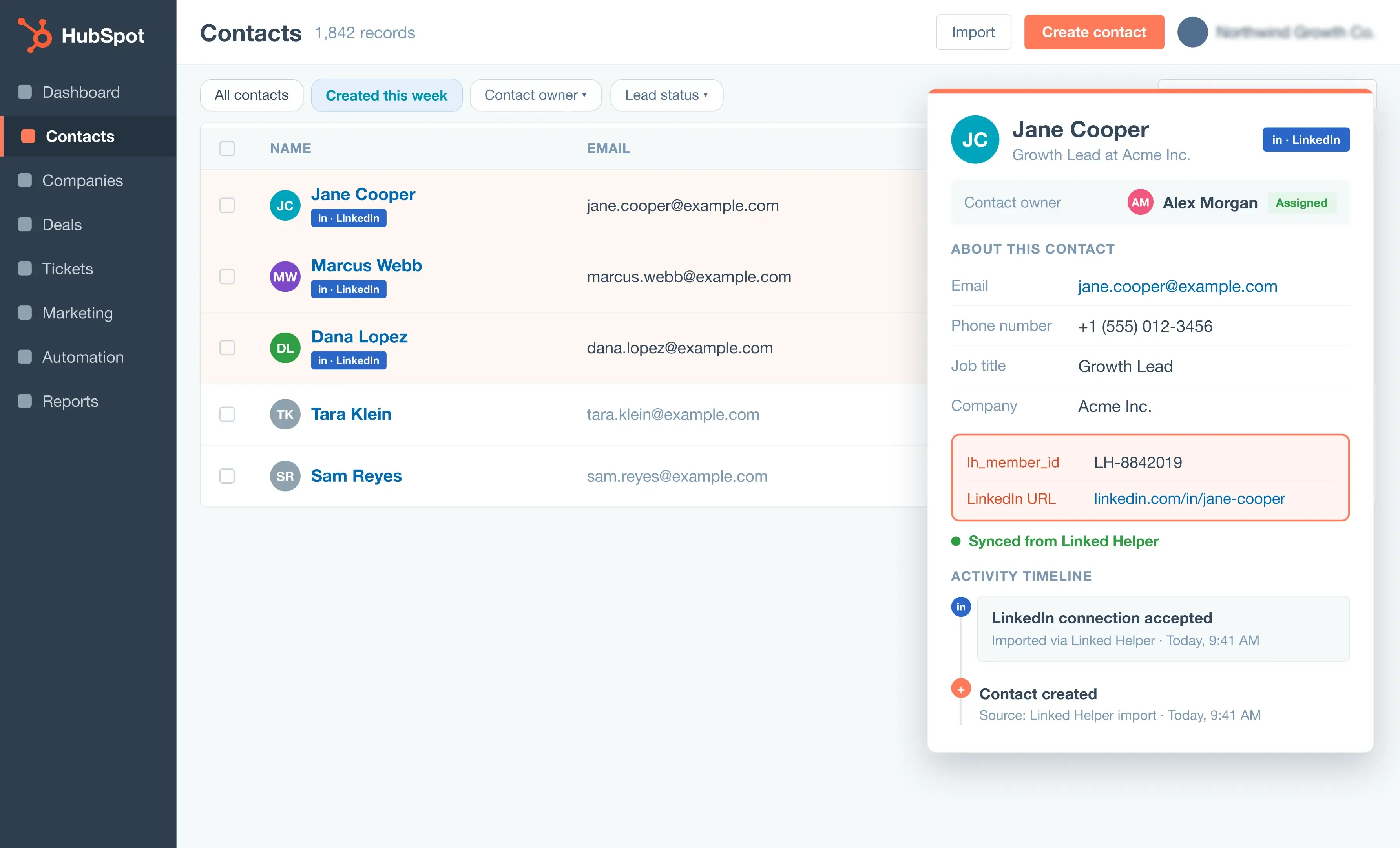
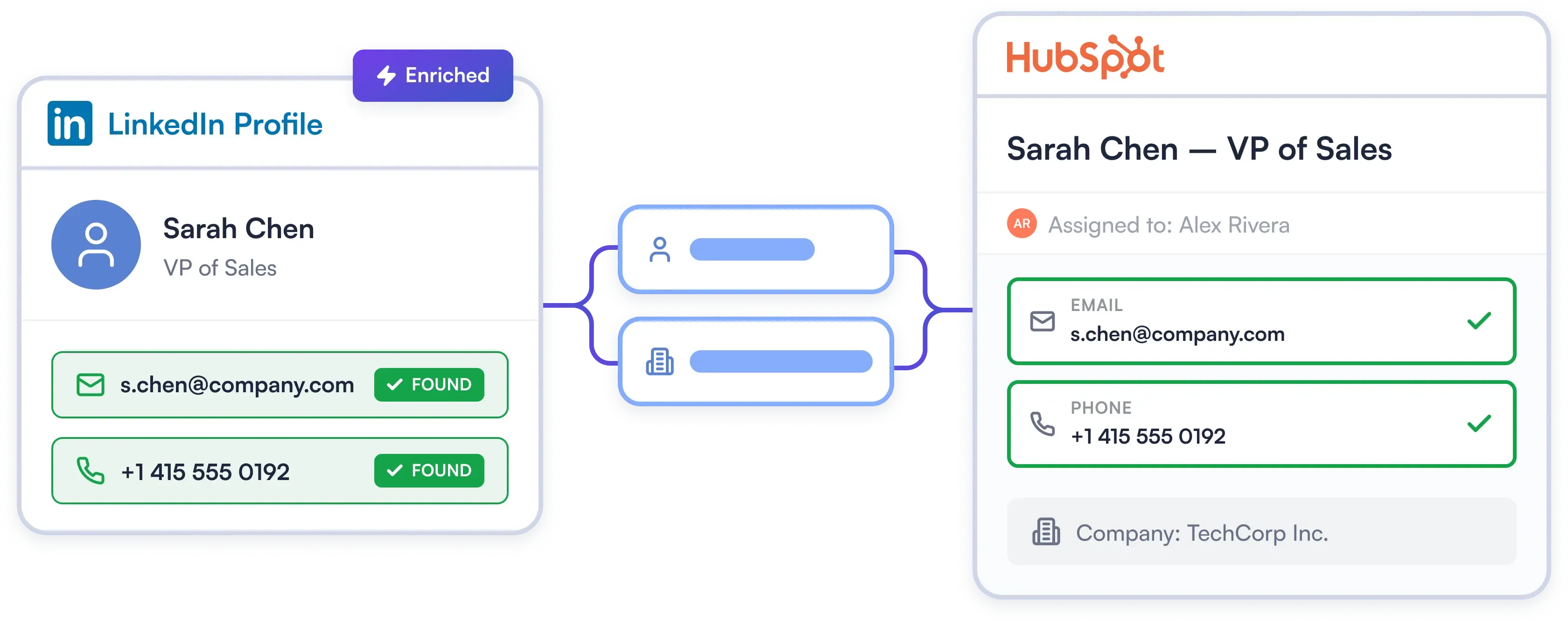
Automatically extract verified emails, phone numbers, job titles and company data of your leads and push them directly into HubSpot as Contacts with linked Company records.

Try Template
LinkedIn Conversations Logged as Native HubSpot Activity

LinkedIn Conversations Logged as Native HubSpot Activity

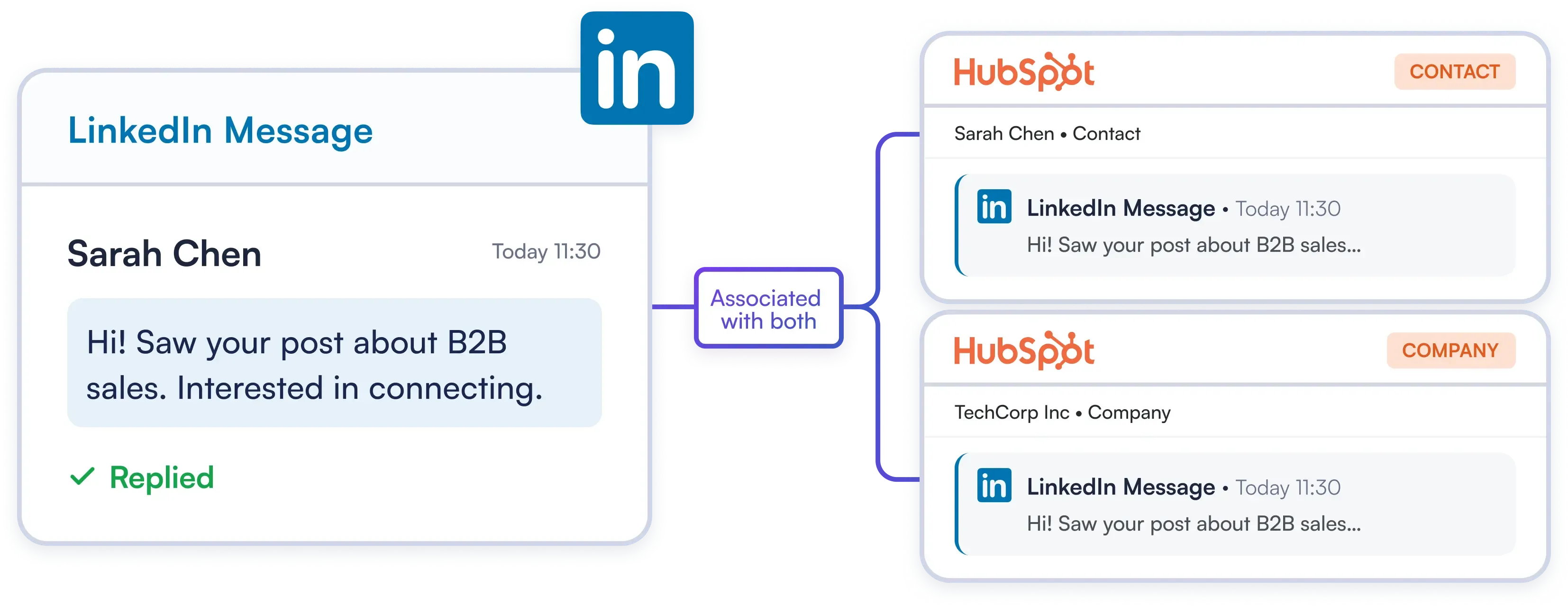
Auto-log LinkedIn conversations as native HubSpot activities across Contact and Company records. Give your GTM team unified, account-level interaction history without switching apps.

Try Template
Assign Owners, Set Lead Statuses, and  Tag Every Contact

Assign Owners, Set Lead Statuses, and
Tag Every Contact

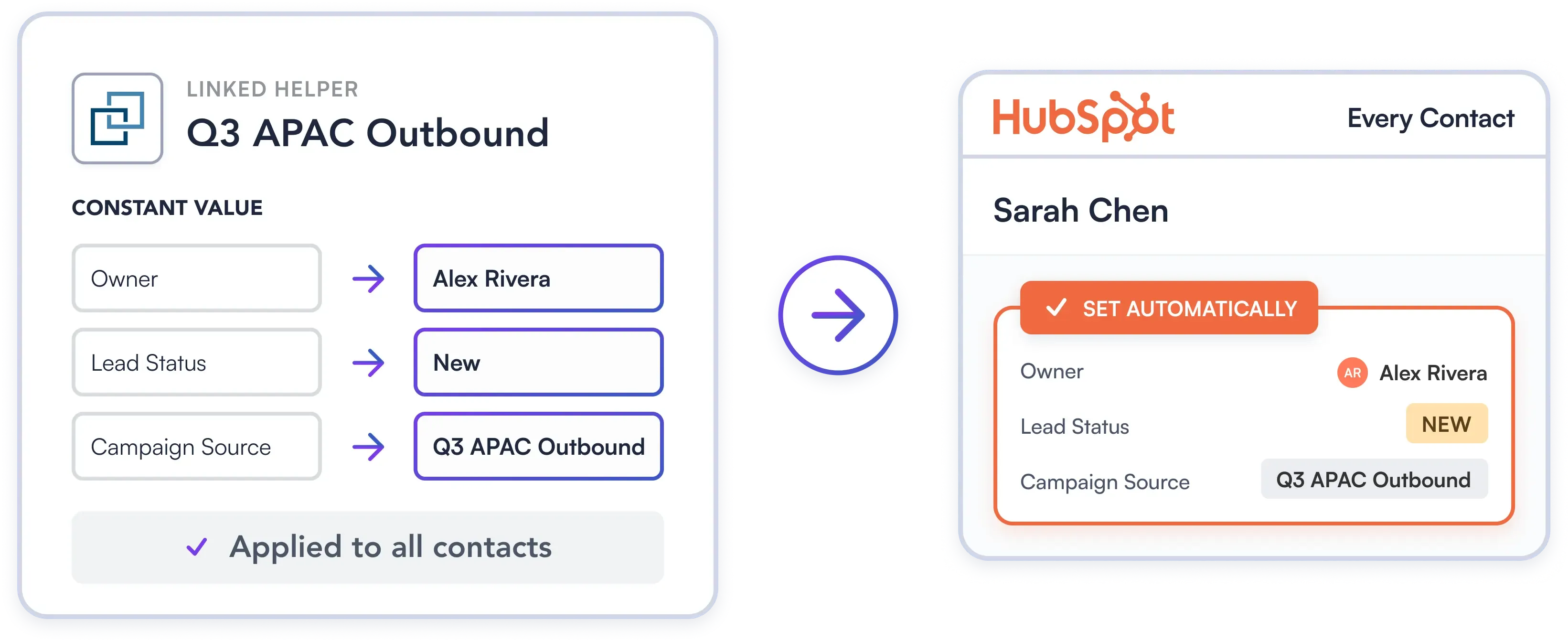
Automatically assign rep owners, set custom Lead Statuses, and tag campaign sources prior to export. Keep your HubSpot database structured, organized, and sales-ready.

Try Template

Set up Your HubSpot Integration in 3 Minutes

Quick Connect

1. Connect via OAuth or API key

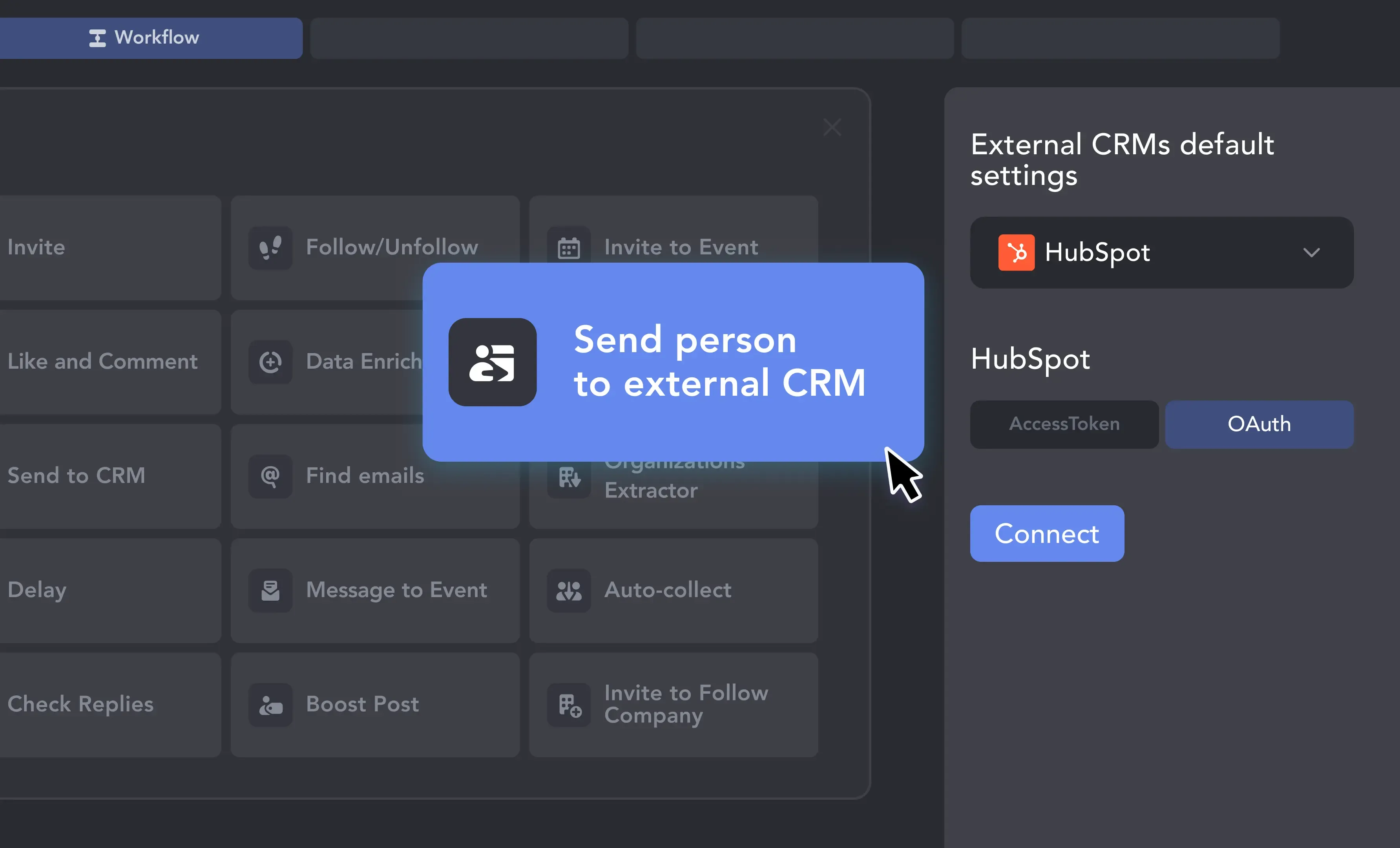
Add "Send person to external CRM" to your workflow, choose HubSpot, click Connect, and log in to your HubSpot account. Select the right HubSpot account, click Connect App, and you're in.

1. Connect via OAuth or API key
Smart Mapping

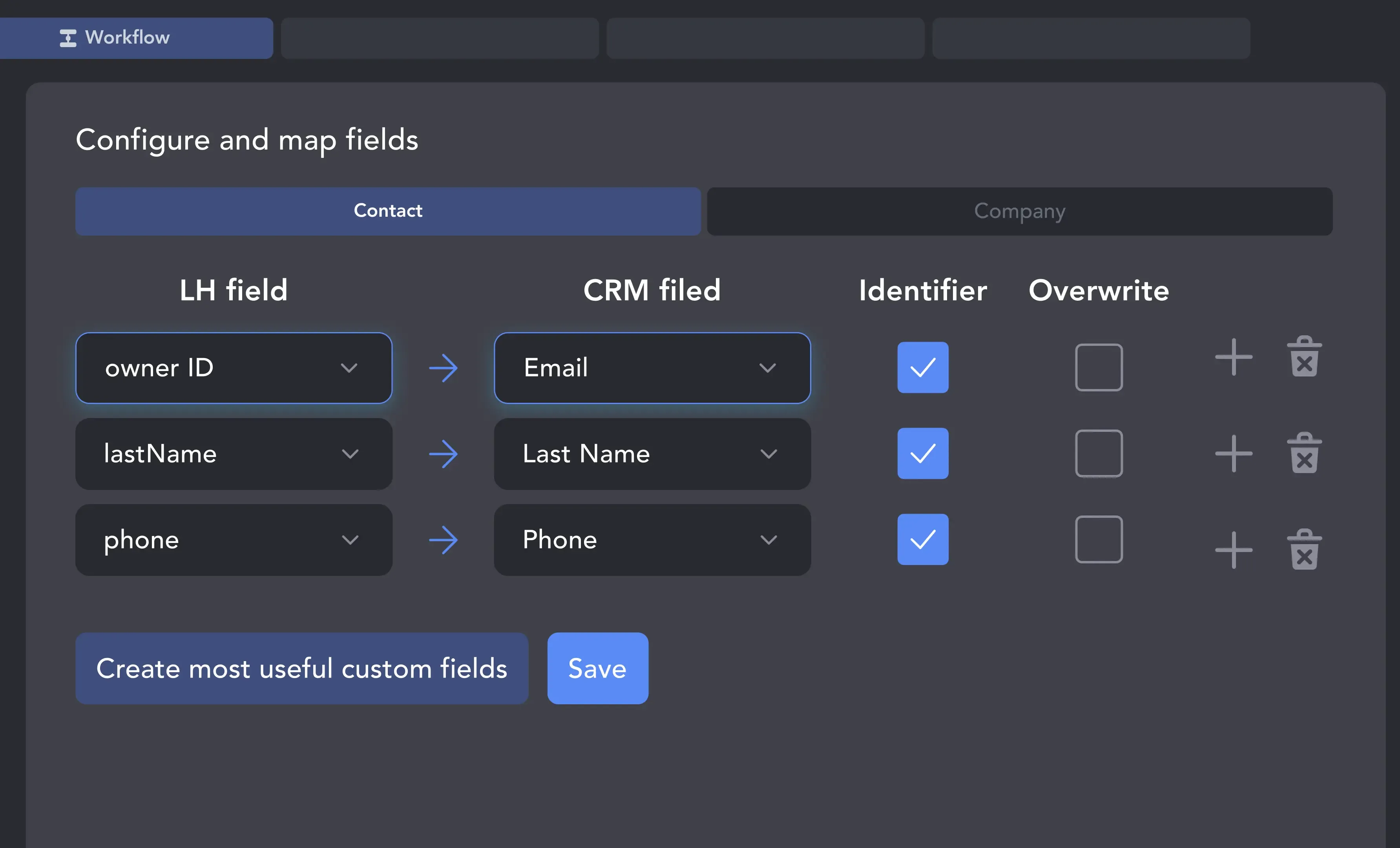
2. Map Fields and Set Identifiers

Map LinkedIn fields to HubSpot Contact and Company fields using the visual builder. Enable "Save messaging history as LinkedIn activity" if you want LinkedIn conversations logged to HubSpot.

2. Map Fields and Set Identifiers
Autopilot

3. Launch Your Campaign

Choose to push every successfully processed profile or only those who reply. We recommend placing a Data Enrichment action before Send to CRM in your workflow.

3. Launch Your Campaign

Your Complete LinkedIn Automation Toolkit

Info card icon

Smart Connection Requests

  • Send Invites on Autopilot, Safely & Undetected
  • Personalize Every Message with Al & Variables
  • Auto-Withdraw Old Pending Requests
Info card icon

Warm-Up & Engage Prospects

  • Auto-Visit Profiles & Follow Key Contacts
  • Like & Comment on Their Recent Posts
  • Automatically Endorse Skills to Get Noticed
Info card icon

Find, Collect & Enrich Leads

  • Scrape from Search, Groups, Events & Post Interactions
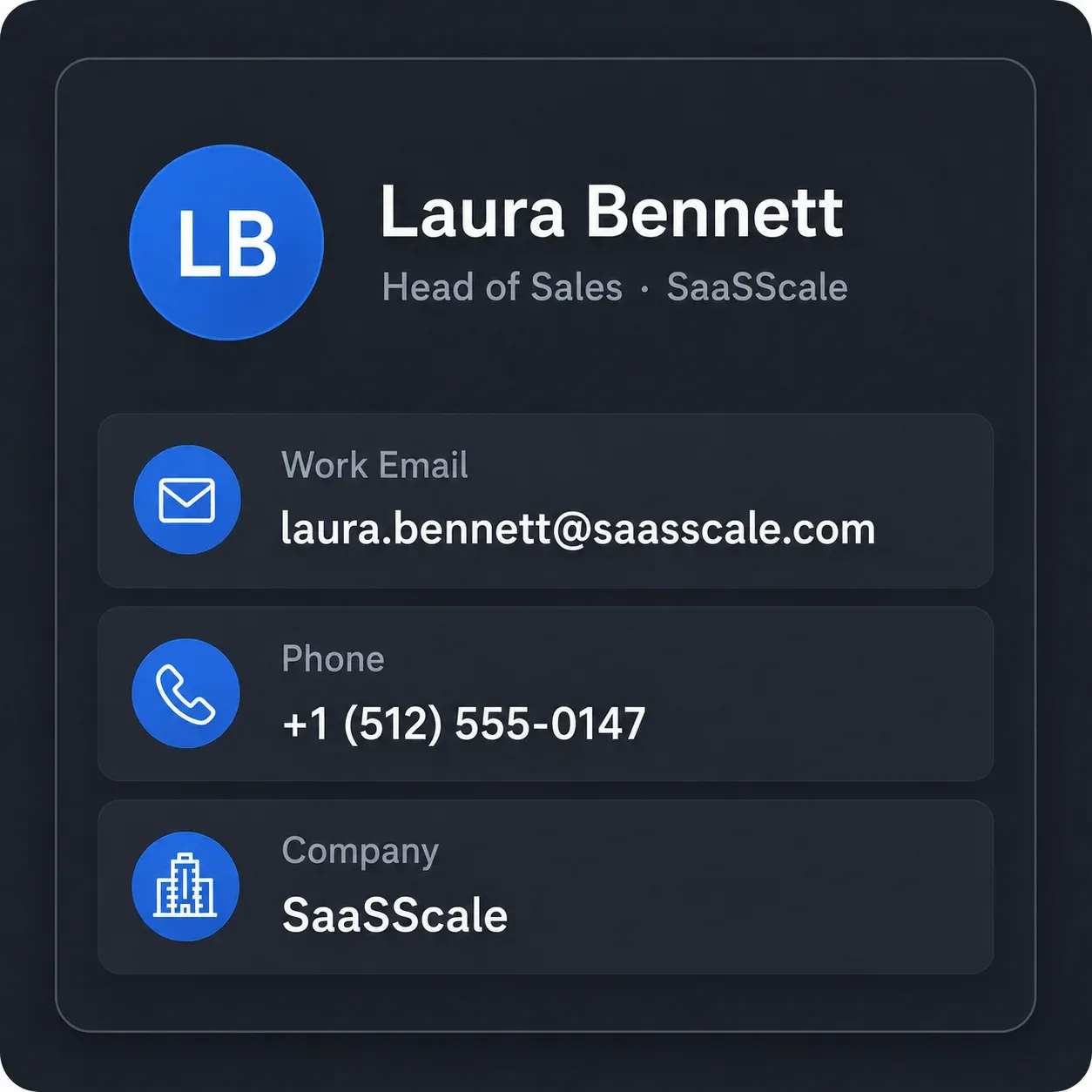
  • Enrich leads with verified emails, phone numbers, company data, and more
  • Auto-qualify prospects on the fly with AI ICP Detection
  • Extract Employee Lists from Company Pages
Info card icon

Grow Your LinkedIn Assets

  • Invite Contacts to Follow Your Company Page
  • Automatically Invite Your Network to Events & Groups
  • Clean Your Network by Removing Old Contacts
Info card icon

Scale Your Operations

  • Run Unlimited Accounts with Unique Proxies
  • Operate 24/7 on a Remote Server (VPS)
  • Remote Web Control: monitor and manage without VPS connection
  • Run Multiple Campaigns
Info card icon

Integrate & Export Your Data

  • Use the Built-in CRM for All Your Contacts
  • Export Full Profile Data & Message History to CSV
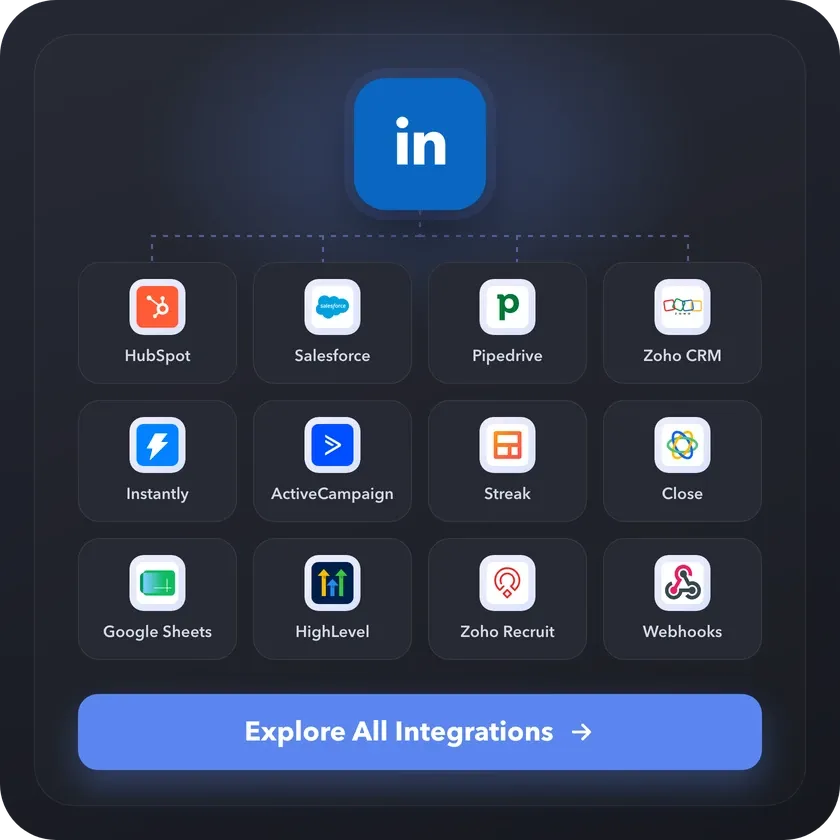
  • Sync Directly with HubSpot, Salesforce, Pipedrive & more

Support That Actually Solves Problems

Isaac R.

CEO, Education Management

If you are looking to optimize your time while generating income or profitability in your objectives, Linked Helper is your app. What I liked most is the simplicity and effectiveness.

Review link iconReview

24/7 LIVE CHAT EMAIL

Get a real human response in minutes, not days.

REMOTE ASSISTANCE

If you're truly stuck, we can connect to your screen and guide you.

IN DEPTH KNOWLEDGE BASE

Step‑by‑step tutorials and articles for every feature.

Read Guidelines

Setting Up Is Easier than You Think

Video preview

HubSpot CRM: Configure Export Settings

Follow this step-by-step walkthrough to start pushing enriched leads
directly to your pipeline.

Video preview

VIDEO TUTORIAL

HubSpot CRM: Get full profile data

Watch Video
Video preview

VIDEO TUTORIAL

HubSpot CRM: Update lead status

Watch Video

Your Questions, Answered

First and last name, job title, current company, location, LinkedIn URL, verified emails, phone numbers, and unique LinkedIn IDs. Company data — name, website, industry, LinkedIn company URL — is sent to the Company record separately.

Ready to Put Your Lead Generation on Autopilot?

Decoration lines
Connect HubSpot
100% Free. No card.