
 Updated: September 29, 2026
 13 min read
Quick takeaway
- LinkedIn’s own data export gives you only a few columns (name, current company, position) and an email for roughly 10–20% of connections, because the “Allow connections to export my email” privacy setting is off by default.
- Linked Helper extracts 200+ data points per profile — emails, phones, full work and education history, location, skills, mutual contacts, message history — into one CSV or Excel file.
- You choose exactly which columns to export, filter and tag leads in the built-in CRM first, then download a clean spreadsheet.
- Beyond your own connections, you can scrape and export search results, group/event members, company employees, followers and 2nd/3rd-degree contacts.
- Free 14-day trial — you can also push the same data straight to HubSpot, Pipedrive, Close, Capsule, Streak, Instantly.ai or Snov.io instead of (or as well as) a CSV.
With the Linked Helper automatic extractor for LinkedIn, you can export a database of contacts as a CSV. The data, including people’s emails, addresses, work history, education, and messaging history on LinkedIn will be viewable in the file. This convenient toolkit for automating lead generation, maintaining a customer base, outreach, and other marketing activities can be tested for two weeks for free.
Export contacts and emails
You can collect user data from your own network as well as 2nd- and 3rd-degree contacts. The smart web scraper visits each profile and copies phone numbers, emails, addresses and web links into the Linked Helper CRM, from where you export the file. To recover emails that aren’t visible on LinkedIn, you have several routes: the built-in Email Finder, the Data Enrichment action (which pulls emails, phones and badges straight from Linked Helper’s database without visiting each profile), and integrations with Apollo.io and Snov.io for verified work and personal emails — including for 2nd- and 3rd-degree connections and out-of-network profiles.
- Get around the weekly invite cap. LinkedIn limits you to roughly 100 connection requests per week (up to about 200 for strong, aged accounts). Once you’ve exported a verified email database, you can reach far more leads over email in parallel — without spending your limited invite quota — and feed those addresses into your outreach or mailing tool.
- Integrate the database into your mailing or CRM tools. Downloaded emails are easy to push into third-party services — from mailing platforms to CRMs — to start outreach right away.
- Use the downloaded data to study the texts from the pages of hundreds of leads at once. With the numbers, positions, and all the data from the social network page at hand, you can compose a compelling pitch and filter the data.
Explore manuals:
Get emails without visiting every profile
The Data Enrichment action is the fastest way to fill the email column in your export. Instead of visiting each page one by one, it pulls emails, phone numbers and badges (Open Link, Premium) for 1st-, 2nd- and 3rd-degree — and even out-of-network — profiles directly from the Linked Helper database. Combined with the Apollo.io integration inside Find Profile Emails or Visit and Extract, it dramatically increases how many rows in your final CSV have a usable email.
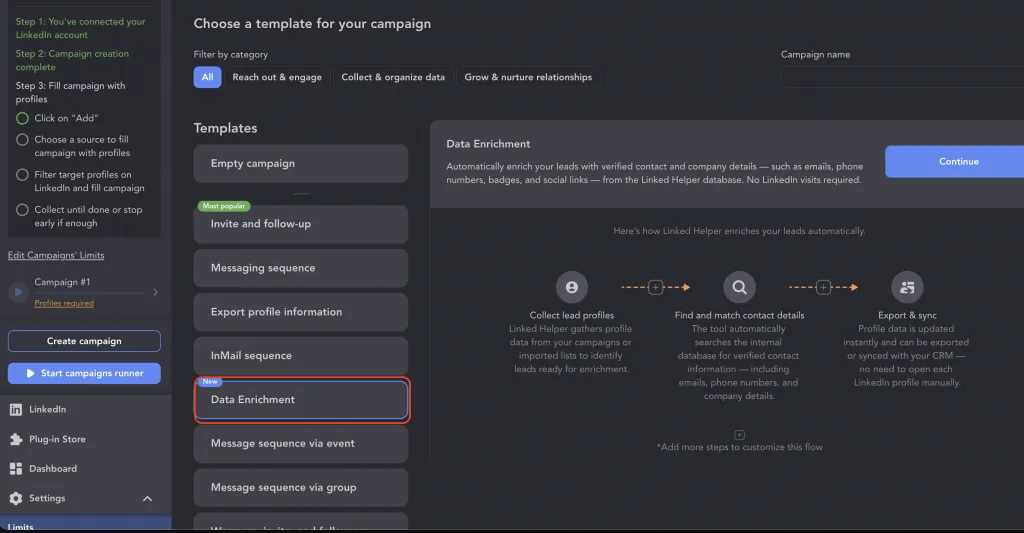
The Data Enrichment action in Linked Helper’s Select action panel — it pulls emails, phones and badges from the LH database without visiting each profile.
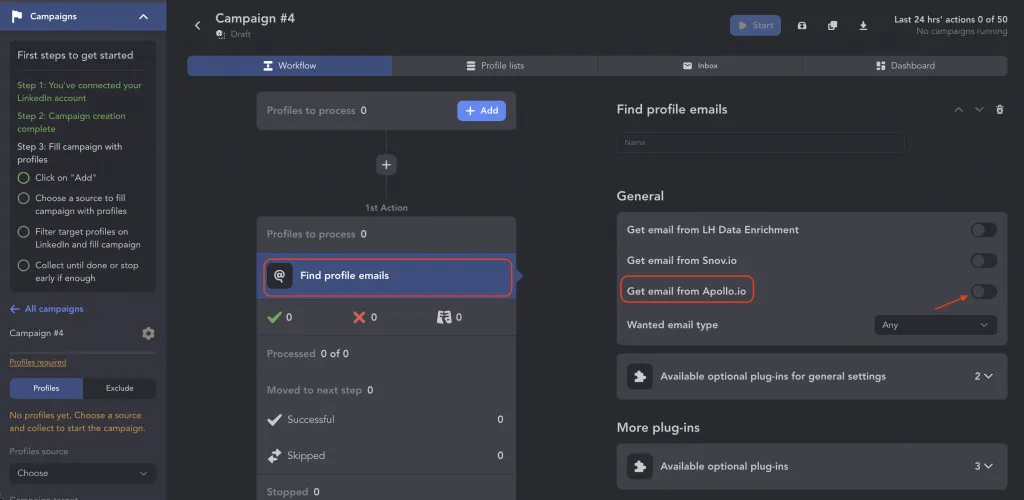
Inside the Find profile emails action you choose the email source (Snov.io, Apollo.io or LH Data Enrichment) to recover work and personal emails for more of your exported list.
Export search result pages
You can customize your LinkedIn search by keywords, niche, location, or job title, and then export the results with this tool. They will be stored in the CRM database and you can scrape them to a file. Managers can collect contacts from numerous search pages in the social network:
- Your network — sort your contacts and move the ones you need into the CRM and a CSV download.
- Search results — copy leads from regular and Sales Navigator searches into the CRM for export.
- Communities — upload lists of members from LinkedIn groups and events.
- Organization pages — export profiles of competitors, partners or educational institutions to build a database.
- Company employees — with the Employees extractor, collect the staff listed on the People tab of hundreds of company pages — a fast way to build a targeted account-based list.
- Followers & following — export the audience of any profile or page to find engaged, warm leads.
Filter before you export
A raw LinkedIn dump is noisy. The AI ICP detection action automatically classifies which extracted profiles match your ideal customer profile, so the spreadsheet you download is already pre-qualified. Instead of exporting thousands of rows and cleaning them by hand, you export a focused, sales-ready list — which is exactly the kind of data that turns into replies.
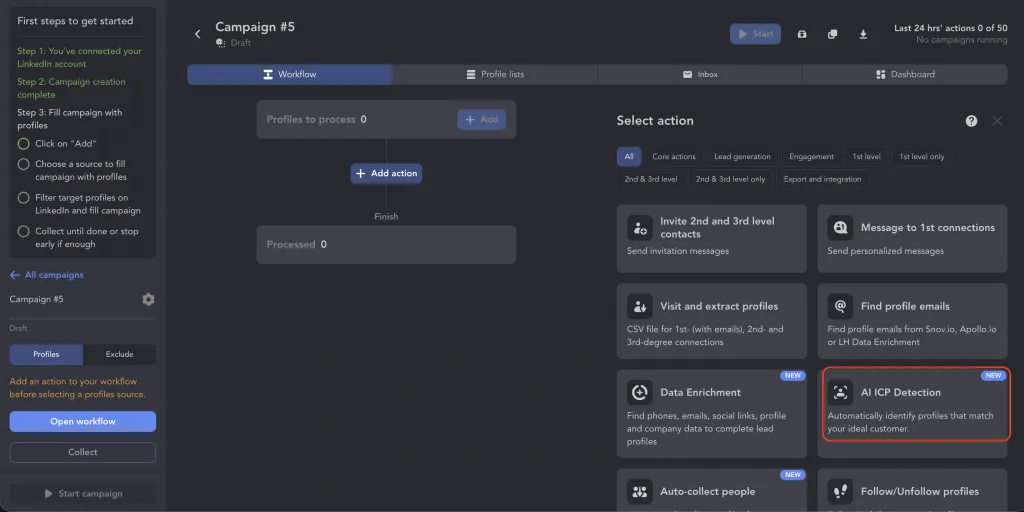
The AI ICP Detection action automatically classifies which extracted profiles match your ideal customer profile — so the list you export is already pre-qualified, not a raw LinkedIn dump.
Related reading:
- 17 Best LinkedIn Email Finder Tools
- LinkedIn Sales Navigator
- How to download your LinkedIn contacts to Excel with emails & advanced account data
LinkedIn CSV export: what kind of data can you mine?
The data is synchronized in the CRM. After visiting profiles via the software, you will be able to see each client, partner, or employee account in a convenient database.
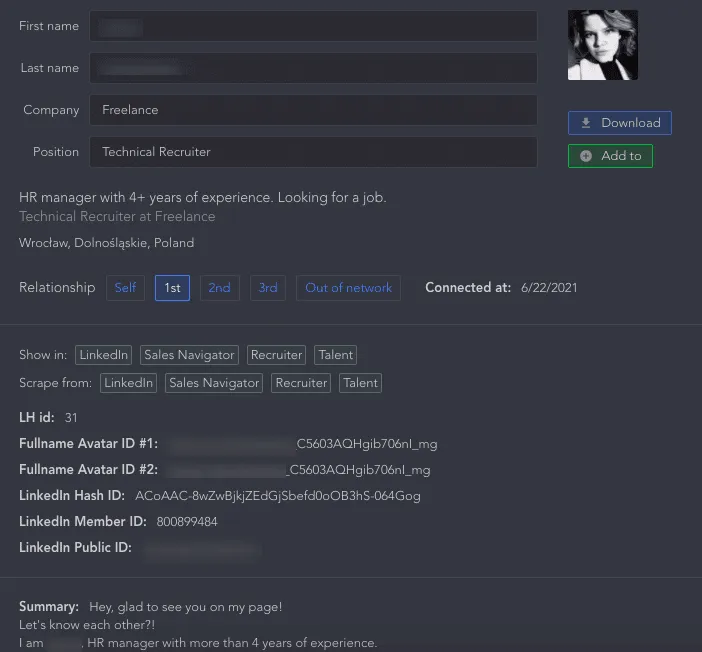
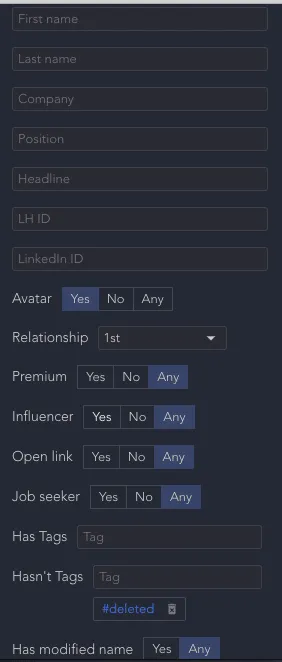
Quick search by sections. You can sort people by various parameters in the CRM, which will allow you to quickly find the right people. For example, there are lines where you can enter text data to search by name, ID, or position. There are also filters for sorting contacts. For example, you can display only 1st-degree contacts. You can create custom tags to sort contacts by campaign or goal.
Manual columns setup. You can download each individual contact or mark several. When exporting CSV, you can specify which columns you want to display in the final file.export Linkedin data.
Shared databases for teams. Licenses, LinkedIn accounts and data credits are now managed at the Workspace level (formerly Organizations). That means an agency or sales team can share one lead database and a single pool of enrichment credits, so everyone exports from — and adds to — the same clean source of truth.
Downloading a spreadsheet. In the final file, you will find important data collected from the LinkedIn page. This information will help you make your outreach personal and targeted, as your pitch will look more compelling based on details about the interviewee.

Export the richest CSV from LinkedIn
Among the columns in the table you will find all possible data from the social network:
- ID, avatar ID — all types of user identifiers, including ID in Sales Navigator and Recruiter. You should be subscribed to these services for parsing this data.
- Profile URL — a clean link to the LinkedIn profile, now stripped of hash and miniProfile parameters, so it’s short, stable and ready to paste anywhere.
- Email — the email specified on the LinkedIn page.
- Third-party email — a work or personal email recovered through the Linked Helper database, the Data Enrichment action, or the Apollo.io / Snov.io integrations, when it isn’t shown on the profile itself.
- First name and last name – original names will also be given.
- Headline — a string that quickly describes the user from the search page.
- Location, industry, summary, birthday — you can use bio details and past experience data to write a more personal message that is more likely to get a response.
- Badges Premium, Influencer, Job seeker — you can sort the contact database by these columns if you need those who are an influencer or looking for a job. Also, you can filter Open link profiles to send bulk InMails.
- The current company, position — the table will contain all the data about the work history of this person
- Organization data: ID, URL, title, start and end work dates, description, location, website, domain — you will get data about people’s places of work, including company details. With this data and the Snov.io service, the software can find users’ work emails. The domain will be found only if the organization in which the lead is listed was visited through the Organization extractor or the profile was visited through the Visit and Extract Profiles action with the “Extract current organizations” option enabled.
- Education data: degree, start and end, description — the database will contain the history of education, including data about the university.
- Language, language proficiency — you can find and sort users in the database by language.
- Skills — these columns will help you sort the right specialists by skills and work experience.
- Phone, address — you will have an address book received from LinkedIn.
- Website – a personal website will help you get to know the user better – their services and work.
- Tags — you can assign custom tags to sort the database.
- Notes — you can leave notes and they will be transferred to the table during export.
- Connected date — see the date when you first got connected on LinkedIn with each user.
- Industry — the profile’s industry, now exported as a dedicated column for cleaner segmentation.
- Connection date (ISO) — connected_at_iso, the exact date you connected, in ISO format for reliable sorting and filtering in Excel or Sheets.
- Created / updated timestamps — timezone-aware created_at and updated_at columns show when each record entered and last changed in your CRM.
- Mutual contacts — common contacts will be displayed in the table.
- Followers — the number of followers will help in collecting a database of influencers.
- Messages, replied messages, last sent message text, last received message — you can export the history of interaction with the user if you sent messages via the CRM or auto-messages. Having these texts at hand, you can analyze answers and improve your pitches.
How much can you export at once? Linked Helper is built to handle large databases — the CSV/export engine is optimized so even big lists download quickly rather than timing out. For very large exports, it’s good practice to split the data into several files so they stay easy to open and work with in Excel or Google Sheets.
Native LinkedIn gives you a handful of columns and an email for maybe 10–20% of your connections. Linked Helper builds a profile in its CRM with 200+ fields per lead — emails, phones, full job and education history, skills, industry, connection date — and lets you pick exactly which columns land in your CSV or Excel file. Run a Visit and Extract or Data Enrichment action, then export to Excel automatically "export to Excel automatically") and download a clean spreadsheet.
Download my LinkedIn data – convincing figures
Why bother with a dedicated LinkedIn data scraper at all? Because LinkedIn’s own file is deliberately thin. Back in 2018 LinkedIn added a privacy setting that controls whether your email can be exported by your connections — and it’s off by default (LinkedIn Help https://www.linkedin.com/help/linkedin/answer/a523134/visibility-of-your-email-address-on-linkedin). Because most people never change it, in practice only around 10–20% of your connections come through with an email attached.
- Reach far more leads than invites allow — LinkedIn caps you at roughly 100 connection requests per week, but an exported email database lets you contact many more prospects over email in parallel.
- 200+ data points per profile in the CSV — versus the handful of fields LinkedIn’s own export returns.
- An email for only ~10–20% of connections in LinkedIn’s native file — “Allow connections to export my email” is off by default, and over 90% of users never change it. Linked Helper’s Email Finder, Data Enrichment and Apollo.io/Snov.io integrations fill in the rest.
- 31 auto-action functions — Linked Helper doesn’t just scrape; it runs visits, invites, follow-ups and messaging too.
Alternatives to the tools mentioned:
4 benefits of using this tool to export data from LinkedIn
Automating your LinkedIn export isn’t just convenient — it buys back selling time. The latest Salesforce State of Sales report (https://www.salesforce.com/en-us/wp-content/uploads/sites/4/documents/reports/sales/salesforce-state-of-sales-report-2026.pdf) finds that reps spend the majority of their week on non-selling work — admin, manual research and data entry — rather than actually selling. Every profile Linked Helper enriches and exports automatically is time your team doesn’t spend copy-pasting.
- Expanded database for downloading – you won’t get close to this much data when you request a download on LinkedIn.
- Convenient CRM for managing leads – all contacts will be available to your team and can be sorted and downloaded in convenient classifications.
- The ability to set up auto-actions with the funnel – likes, visits, and sending invitations.
- Auto-messages – right in the CRM you can schedule private messages to different target groups. The built-in editor will use personal data as if you wrote the pitches yourself – general contacts, name, and position can be used for the template.
Skip the CSV: push straight to your CRM
A spreadsheet isn’t the only destination. If you’d rather work leads inside your sales stack, Linked Helper can push the same enriched profiles directly into HubSpot, Pipedrive, Close, Capsule or Streak through native integrations, or into the Instantly email-outreach tool — instead of, or in addition to, a CSV or Excel file. You can also route data to Google Sheets and thousands of other apps via Zapier or Make. Export when you want a file and sync when you want your CRM populated automatically.
Ready to turn your LinkedIn network into a working spreadsheet? Start a free 14-day Linked Helper trial — scrape and enrich your connections, searches, group members and company employees, then export to CSV or Excel, or push the same data straight into HubSpot, Pipedrive, Close or Instantly. No credit card required.