
 Updated: October 26, 2026
 20 min read
The awkward part of writing an email usually isn't spelling. It's turning “ask for fifteen minutes, keep it friendly, don't sound like a template” into something you'd actually send. An AI email writer can get you past that blank compose window. Choosing one gets harder when a free website, a proofreading assistant, and an entire business inbox all promise the same shortcut.
Start with where you write
I'd start with where you write. If you only need an occasional draft, a separate subscription can be unnecessary. If you're rewriting messages all day, the editing controls and usage allowance matter more than the first generated paragraph. And if the reply depends on an existing conversation, an assistant inside your inbox has a different job from a standalone prompt box.
How I chose these tools and publisher disclosure
I tried accessible writing tools with fictional email briefs, checked the other products' guides and pricing, and calculated three writing workloads. Linked Helper, which publishes this blog, makes a LinkedIn automation tool and isn't one of the picks. Here are the tools I'd choose for five distinct writing jobs.
What is an AI email writer?
An AI email writer turns instructions, notes, or an existing message into an email draft. It can change tone, shorten text, and suggest replies. Standalone tools work with the context you supply; inbox assistants can offer account-dependent conversation context. You still decide whether the wording is accurate and ready to send.
The best AI email writers at a glance
| Tool | Best for | Standout feature | Starting price | Main trade-off |
|---|---|---|---|---|
| Mailmeteor AI Email Writer | Occasional standalone drafts | No-account prompt box | Free standalone writer | Context supplied manually |
| Rytr | Frequent standalone writing | Character-based Create allowance | Free; Lite $7.50/month, annually | Free character cap |
| Grammarly | Rewriting across writing surfaces | Selected-text rewriting | Free; Pro $12/user/month, annually | AI allowances vary by surface |
| Gemini in Gmail | Writing inside Gmail | Help me write | Free for eligible US personal accounts | Account and region eligibility |
| Microsoft Copilot in Outlook | Revising Outlook messages | Drafting and email coaching | Included with eligible subscriptions | Check account entitlement |
What makes the best AI email writers?
The useful writer is the one that keeps your meaning intact while giving you a draft you can comfortably edit. A polished paragraph isn't much help if it quietly changes the meeting day or implies you've already worked with someone.
I focused on five checks that affect everyday writing. For the hands-on checks, the brief asked for a short email to a fictional recipient, a 15-minute workflow review, and two possible meeting days. A second prompt asked for a shorter version with those details preserved. That makes small wording changes visible without pretending a sample draft predicts sales results.
-
Factual restraint: Does the draft stick to the supplied offer, dates, and relationship? I'd remove an invented claim before worrying about whether the greeting sounds elegant.
-
Useful editing: Can you shorten or rewrite a selection, adjust the tone, or edit the result directly? You shouldn't have to generate a whole new message to fix one sentence.
-
Context fit: Do you want to paste a few notes, or work from an existing email thread? Those are different requirements, and buying a full inbox client for the first one can be overkill.
-
A workable allowance: Does the plan count prompts, characters, or something else? A first draft followed by a rewrite can consume two generations for one finished email.
-
A sensible place in your stack: Is the feature already included in your Gmail, Microsoft 365, or writing subscription? I'd check that before adding another monthly bill.
The shortlist concentrates on composing and revising email. Inbox search, meeting scheduling, campaign delivery, and automated follow-ups can be useful, but they aren't the basis for these picks. No real outreach was sent for this comparison.
1. Mailmeteor AI Email Writer: Best for occasional drafts without an account
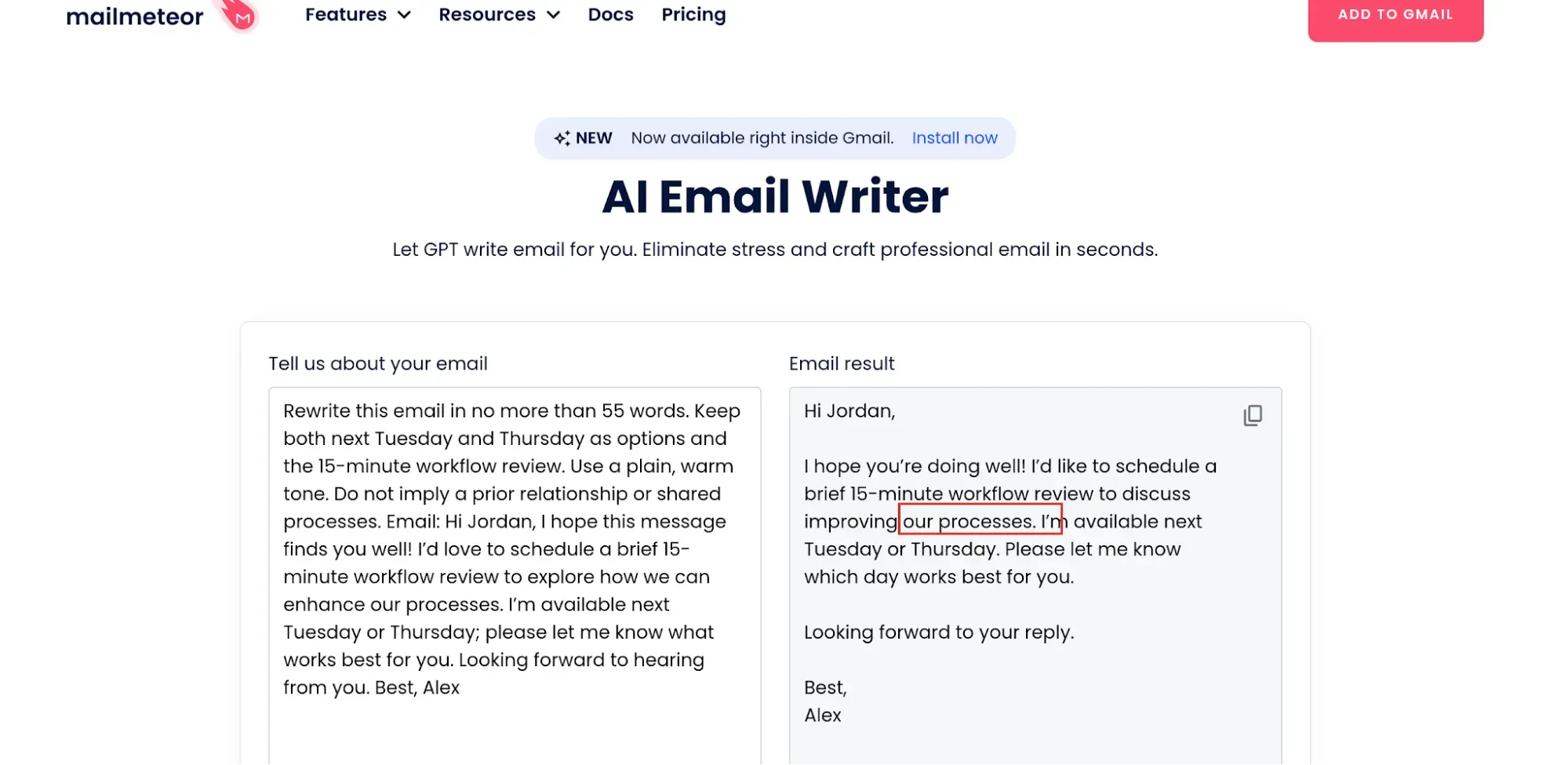
Mailmeteor kept my two meeting options, but I still had to fix “our processes” after asking it to avoid implying a shared relationship.
Mailmeteor pros
-
Free standalone writer needs no account
-
Editable output and a copy control
-
Shorten, Elaborate, and Formalize options
Mailmeteor cons
-
Thread context must go into your prompt
-
My rewrite retained an unwanted “our processes” phrase
I generated a short meeting request in Mailmeteor without creating an account or connecting an inbox. That's the appeal: you bring the notes, get a draft, and copy it into whatever email service you use. I'd pick it for the occasional awkward message when setting up another writing workspace would take more effort than the email itself.
My fictional brief asked for a 15-minute workflow review next Tuesday or Thursday. The first result came to 49 words. I then replaced the prompt with a request for a version under 55 words, and the new result came to 44. Both kept the duration and the two days. The output remained directly editable, and the refinement menu offered Shorten, Elaborate, and Formalize, although I used a new prompt for that rewrite.
The catch was a small phrase with a bigger implication. Both drafts referred to “our processes,” even after I explicitly asked the second draft to avoid implying shared processes or an existing relationship. I'd change that to “your workflow” before sending. This is why my favorite feature here is the editable result, rather than the promise of a finished email in one click.
Skip the standalone writer if you want it to retrieve the history of a conversation for you. You'll need to supply that context yourself. Also keep this free page separate from Mailmeteor's paid Gmail assistant and campaign tools: generating these two drafts didn't involve either product.
Mailmeteor pricing
Mailmeteor pricing: Free for the standalone AI Email Writer.
-
Standalone writer — prompt-based drafting without an account
-
Gmail assistant and campaign subscriptions — separate products
2. Rytr: Best for frequent writing across formats
Rytr pros
-
Free Create allowance of 10,000 characters monthly
-
Lite removes the monthly character limit
-
Rewrite and tone controls across writing formats
Rytr cons
-
Character limits aren't finished-email limits
-
Relationship features sit in higher plans
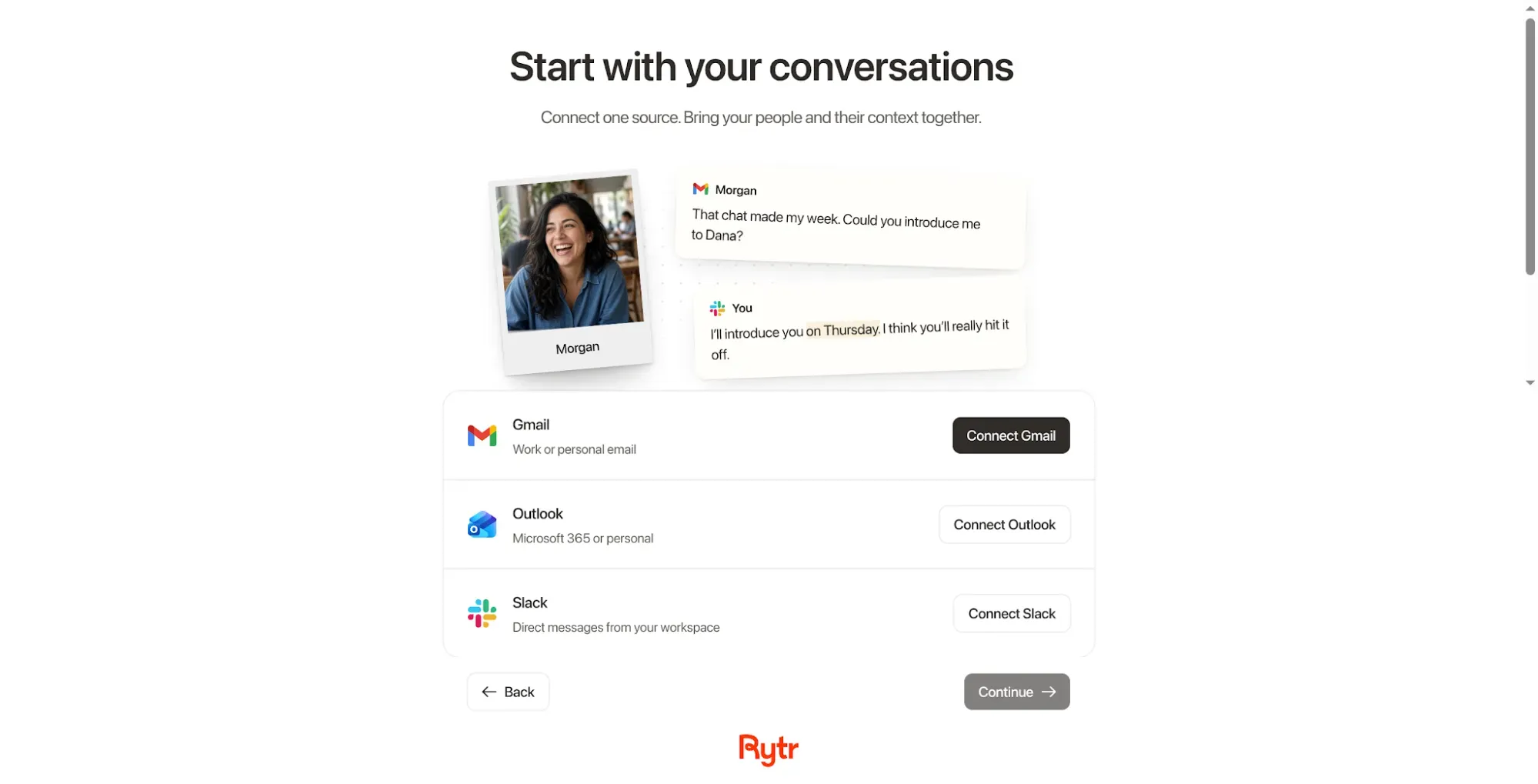
My fresh Rytr account needed a connected source before this setup flow would let me continue.
Rytr's Create product is worth a close look if email is one part of a larger writing day. It handles drafts and revisions across formats, so you can work on a follow-up, a short post, and a product paragraph without buying a separate tool for each. I'd focus on Create for this job; the broader Engage relationship features solve a different problem.
What I like is the distinction between generating from notes and improving text you've already written. Create offers shortening, expansion, and tone adjustments, with an emphasis on keeping your preferred voice. For an email that already contains the right facts, a focused rewrite is a better starting point than asking for another complete message.
The catch is how you budget the free allowance. Rytr counts characters, so “10,000 characters” doesn't tell you how many finished emails you'll get. Longer outputs and additional versions change the answer. In my cost comparison, I use an explicit character assumption so you can replace it with your own writing volume; I wouldn't convert that allowance into an unconditional number of emails.
I'd choose Lite when frequent standalone drafting is the actual requirement. Skip the higher relationship plans if all you need is to turn notes into copy and revise it. And if most of your replies depend on a long Gmail or Outlook conversation, check the native assistant first: a lower writing subscription price doesn't automatically make a separate workspace the easier workflow.
Things I Noted
My fresh-account walkthrough asked me to connect Gmail, Outlook, or Slack before continuing. I couldn't reach Create from that setup flow without a connected source. I'd check that prerequisite before choosing Rytr for a quick standalone draft.
I also clicked the yearly pricing selector rather than calculating from its savings badge. The displayed Lite price gives the annual total used in the comparison; applying a flat 20% discount to the monthly price would give a different answer.
Rytr pricing
Rytr pricing: Free plan available; Lite starts at $7.50/month, billed annually.
-
Free — 10,000 characters per month
-
Lite — unlimited monthly characters
-
Monthly billing — Lite costs $9/month
-
Personal and Pro — additional relationship features beyond basic Create writing
3. Grammarly: Best for rewriting across writing surfaces
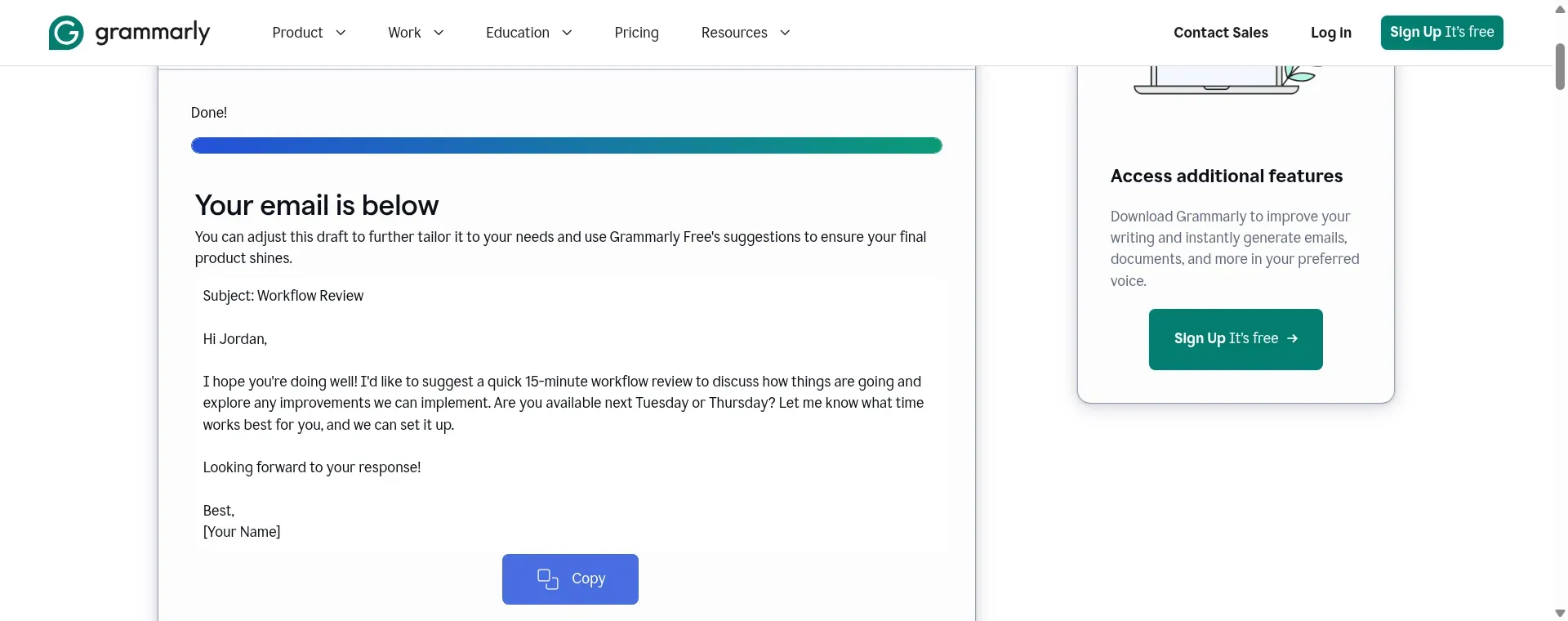
Grammarly added a subject line and kept both meeting days, but its draft still needed a check for implied collaboration.
Grammarly pros
-
Rewrites selected text rather than starting over
-
Free generative assistant includes 100 monthly prompts
-
Pro includes 2,000 monthly generative prompts per member
Grammarly cons
-
Suggested rewrites consume generative-assistant prompts
-
AI Chat has a separate allowance
I tried Grammarly's public email writer with the same fictional meeting brief. It produced a 59-word body, added a subject line, and kept the 15-minute review and both proposed days. I'd still edit “improvements we can implement,” which implied collaboration the brief hadn't supplied. That free-page check covered one generation; the rewriting features here are based on Grammarly's guides.
Grammarly is my pick when you already know what you want to say but keep revising how it sounds. Its selected-text rewriting lets you work on the sentence that's too stiff or too long, while its wider writing tools address the draft around it. That's a more useful fit for daily email editing than treating every message as a blank-page generation task.
I particularly like the distinction between writing help and email management here. You can use Grammarly to improve wording without choosing it as your inbox. If you write across several supported surfaces, that can make the subscription easier to justify than a tool you only open for occasional outreach.
The catch is the allowance: a prompt and a suggested rewrite both count in the generative assistant. The Free plan's 100 monthly prompts therefore cover 50 draft-plus-one-rewrite cycles under that specific workflow, assuming you use none of the allowance elsewhere. They don't mean 100 fully revised emails. Grammarly's AI Chat has a separate allowance, so don't treat that calculation as a universal limit on every Grammarly feature.
I'd upgrade for a sustained editing workload, not because one free draft needs a second attempt. Pro raises the generative allowance to 2,000 prompts per member per month and adds the paid writing features. Skip a paid plan if your needs are occasional and the free tools already cover them. Also remember that improving tone won't tell you whether a promised deadline or customer claim is true; those details still need your judgment.
A Grammarly discussion on Reddit captured the other side of rewriting: u/Smart-Combination-59 wrote, “It tries too hard to alter my sentences, and if I let it, the entire text will lose its nuances.” That comment concerned scientific writing, not email, but I agree with the practical point: compare meaning before accepting a cleaner sentence.
Grammarly pricing
Grammarly pricing: Free plan available; standalone Pro costs $12/user/month, billed annually.
-
Free — 100 monthly prompts in the generative assistant
-
Pro — 2,000 monthly generative prompts and paid rewriting features
-
Monthly billing — standalone Pro costs $30/user/month
4. Gemini in Gmail: Best for writing without leaving Gmail
Gemini in Gmail pros
-
Help me write works in compose and replies
-
Eligible US personal accounts can use it free
-
Workspace Starter includes Gemini in Gmail
Gemini in Gmail cons
-
Free personal access has regional eligibility limits
-
Proofread and broader context features have separate entitlements
Gemini in Gmail is the first option I'd check if your email already lives in Gmail. Help me write drafts from a prompt and refines wording inside the compose workflow. You can stay with the message you're answering instead of moving notes and generated copy between tabs.
The useful pricing detail is that a paid AI subscription isn't required for every US personal Gmail user. Google's current help page includes free personal-account access in the United States, in supported languages. Business users also get Gemini in Gmail with Workspace Starter. I'd check the feature in your existing account before buying a standalone email writer.
I like the way this changes the buying question. You're choosing whether the native drafting controls cover your actual work, rather than assuming an AI label means another subscription. For a short reply or an email from a few bullet points, staying in the compose window can be the whole benefit.
The catch is that Help me write, Proofread, and the broader Gemini features aren't one interchangeable entitlement. Google's help separates free drafting from paid proofreading and eligible-plan access to additional email or Drive context. Don't buy a plan for a feature screenshot without checking the feature's own eligibility.
Skip this as your main writing tool if your work mostly happens outside Gmail. I'd also avoid moving a business mailbox solely to get email generation: the subscription includes a full email service, and that migration decision is much larger than the wording of your next reply.
Gemini in Gmail pricing
Gemini in Gmail pricing: Help me write is free for eligible US personal Gmail accounts; Workspace Starter costs $7/user/month with an annual commitment.
-
Personal Gmail — free Help me write where eligible
-
Workspace Starter — business email and Gemini in Gmail
-
Flexible Starter billing — $8.40/user/month
5. Microsoft Copilot in Outlook: Best for revising Outlook messages
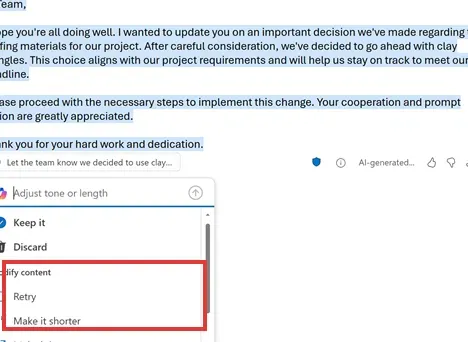
Inside Outlook, Copilot lets you retry a draft or shorten it before choosing Keep it. (Image source: Microsoft)
Microsoft Copilot in Outlook pros
-
Draft with Copilot adjusts tone and length
-
Coaching helps revise your own message
-
Eligible subscriptions include Copilot in Outlook
Microsoft Copilot in Outlook cons
-
Account and mailbox eligibility affect access
-
New Outlook and web drafting require HTML composition
Microsoft Copilot in Outlook is worth checking when you already write business email in Outlook. Draft with Copilot starts from your instructions, while coaching works on a message you've written. I'd use those as two different jobs: get a first draft when the page is blank, then improve a specific passage when the facts are already right.
The editing controls are the part I like. Microsoft's walkthrough lets you regenerate, change tone or length, and keep the version you want. It also shows a route for modifying selected text. That gives you a practical alternative to replacing a whole email just because the opening sentence sounds too formal.
One easily missed setting matters before any of that: in new Outlook and Outlook on the web, Draft with Copilot needs HTML composition. Microsoft's instructions point to Settings, Mail, Compose and reply. If you deliberately compose plain-text messages, this is a meaningful workflow constraint, not a reason to buy a higher plan.
The catch is licensing. Microsoft's current business pricing page includes Copilot in Outlook within the Copilot Chat access available to eligible Microsoft 365 subscriptions. A separate Copilot Business add-on buys broader capabilities; it isn't a universal entry fee for every Outlook writing feature. I'd check the account's actual entitlement before comparing add-on prices.
Skip this as a standalone purchase if you don't otherwise need Outlook or Microsoft 365. If you do, begin with the subscription you already have and the mailbox you use. My recommendation here is about the documented drafting and revision workflow, rather than a claim that every Outlook account exposes the same controls.
Microsoft Copilot in Outlook pricing
Microsoft Copilot in Outlook pricing: Included with eligible Microsoft 365 subscriptions; access depends on the account and feature.
-
Existing eligible subscription — check included Outlook features first
-
Copilot Business add-on — broader paid capabilities; separate from the base subscription
What the same writing workload costs
Your revision habits can change the right plan more than the number of emails you send. These are subscription calculations, using US-dollar prices checked October 23, 2026, with taxes excluded. They aren't measured usage or vendor quotes. I compare basic drafting and rewriting, not identical proofreading features or team administration.
Scenario 1: 40 short emails a month
Assume one generation and one rewrite per email: 80 generations monthly. For Rytr, assume each generation produces 800 characters, giving 64,000 characters monthly. That's a planning assumption you can replace, not a claim about what every draft contains.
| Tool | Suitable plan | Annual subscription | Mandatory extras | Limit that matters |
|---|---|---|---|---|
| Mailmeteor AI Email Writer | Free standalone tool | $0 | None for drafting | No assured monthly capacity verified |
| Grammarly | Free generative assistant | $0 | None for this writing surface | 80 of 100 monthly prompts |
| Rytr | Lite, annual billing | $90 | Connected-source setup prerequisite | 64,000 assumed characters exceeds Free |
I'd try the free options first at this volume. Grammarly's widget budget leaves 20 prompts for extra revisions; a third generation for every email would push the same workload past its free allowance. Rytr's free character allowance doesn't fit this particular assumption, even though the email count looks modest.
Scenario 2: 200 short emails using the widget or Create
At the same two-generation pattern, the workload becomes 400 prompts or 320,000 assumed generated characters monthly. These configurations cover that basic writing volume; Mailmeteor's public tool remains an option to try, but I haven't verified a capacity commitment for it.
| Tool | Suitable plan | Annual subscription | Mandatory extras | Limit that matters |
|---|---|---|---|---|
| Grammarly | Standalone Pro, annual billing | $144 | None for this writing surface | 400 of 2,000 monthly generative prompts |
| Rytr | Lite, annual billing | $90 | Connected-source setup prerequisite | Unlimited monthly characters |
Rytr is $54 less per year in this calculation. I'd choose it on that basis only if its setup and writing workflow fit. Grammarly's value includes its broader editing features, so the cheaper row isn't a declaration that the products are interchangeable. If you're willing to change surfaces, check Grammarly's Windows AI Chat first: its desktop guide offers email generation and rewriting with a separate allowance of up to 1,000 prompts per day. The Pro total here prices the generative-widget workflow; it isn't the minimum cost of writing 200 emails with every Grammarly surface.
Scenario 3: five people already writing inside business inboxes
For five staff already on Workspace Starter's annual commitment, the base subscription totals 5 × $7 × 12 = $420 per year. Gmail AI is included. For an existing Microsoft 365 setup, the useful first number is the incremental cost of the included feature, once account eligibility is confirmed.
| Tool | Plan or entitlement | Annual AI increment | Mandatory existing cost | Limit that matters |
|---|---|---|---|---|
| Gemini in Gmail | Five Workspace Starter users | $0 | $420/year base subscription | Gmail features; broader AI differs |
| Microsoft Copilot in Outlook | Five eligible existing accounts | $0 for included features | Existing plan cost varies | Verify each account's feature access |
I wouldn't price a new Microsoft deployment from that second row: it models an existing eligible subscription, not a free business inbox. For a new Workspace purchase, the $420 base becomes a new expense, and domain registration may add a separate charge. If the native feature covers the writing job, adding five standalone subscriptions needs a clear reason.
Check your existing stack first
Your current subscription may already cover the email-writing problem you're trying to solve. I'd make this a quick account check before comparing annual discounts.
-
Personal Gmail in the US: Look for Help me write and check language eligibility. Paid proofreading and additional context features are separate questions.
-
Google Workspace: Starter already includes Gemini in Gmail. Moving up a tier for other apps is a broader decision than drafting email.
-
Microsoft 365: Check the Outlook features attached to your actual account. A separate Copilot add-on isn't automatically necessary for the included writing workflow.
-
An existing writing assistant: Try rewriting a selected passage before buying another tool to regenerate the entire message.
For outreach, keep the writing decision separate from sending automation. A draft generator doesn't provide a verified contact list, decide who should receive your offer, or demonstrate that a message will land in an inbox.
Related reading:
- LinkedIn Email Finder Built Into Your Outreach Workflow
- Cold email outreach automation and LinkedIn research
Which AI email writer should you choose?
| Your scenario | My pick and what decides it |
|---|---|
| Occasional drafts | I'd choose Mailmeteor AI Email Writer for occasional drafts when you want the smallest setup commitment. Its free page handled my short fictional request, and the editable result made the wording fix straightforward. Give it the facts, then read the draft as carefully as something a colleague wrote for you. |
| Frequent writing or revision | Choose Grammarly when revision is the recurring job: you have the message, but want help with wording across supported writing surfaces. Choose Rytr when you need frequent writing across formats and its connected-source setup fits your workflow. Compare the allowance you will actually use, rather than treating prompts and characters as the same unit. |
| Gmail or Outlook workflow | If you live in Gmail or Outlook, start with Gemini in Gmail or Microsoft Copilot in Outlook. The right subscription may already be in place, and staying with the conversation can be more valuable than another generation button. |
Before committing, give your shortlist one awkward email from your own work, with sensitive details replaced. Ask it to shorten the draft while preserving a date, a condition, and the exact request. I'd judge the result by what it keeps and changes, then choose the tool whose edits you're comfortable reviewing every day.