
 Updated: October 26, 2026
 20 min read
An email signature generator builds a formatted contact block you can add to outgoing messages, usually as HTML. Signature management software adds a second job: distributing and updating that block across employees. The right choice depends on whether you're fixing your own footer or making sure fifty colleagues use the same one.
My quick picks
My first pick for a free personal signature is HubSpot; Mail-signatures.com wins me over when I want more layouts. For a company rollout, Exclaimer and CodeTwo go on my shortlist first. The prettiest design isn't much help if you're still chasing fifty people to install it.
I combined synthetic signature-builder checks with official pricing and setup guidance; mailbox deployment and delivered-message rendering weren't part of these checks.
Quick picks at a glance
| Your situation | My pick | Why I'd choose it | Main limit |
|---|---|---|---|
| One free professional signature | HubSpot | 12 layouts and HTML source copying | Extra contact form before export |
| More free templates and client-specific instructions | Mail-signatures.com | 100+ templates, no signup | You maintain installations and image links |
| A personal signature with tracking options | MySignature | Design and personal email tools together | Account and paid-feature boundaries |
| A growing team's design system | WiseStamp | Studio editor and department-based management | Server-side integration needs Platform |
| A small team's campaign banners | Newoldstamp | Signature management and banner campaigns | Paid subscription after trial |
| Centrally applied signatures across a company | Exclaimer | Server-side option from Starter | Ten-user minimum; Starter has one template |
| A Microsoft 365 company with complex rules | CodeTwo Email Signatures 365 | One feature plan, multiple insertion modes | Microsoft 365 setup; ten-license minimum |
A free generator can be the right answer for a small team. Once a change must reach everyone automatically, deployment rules matter more to me than another page of templates.
How I choose an email signature tool
I use five criteria: usable output, installation method, update control, image maintenance, and total cost. A beautiful preview only answers the first question halfway.
For usable output, I want clear contact text, working link destinations and a practical route into the email client's signature settings. For installation, I separate copying HTML into an editor from letting a service apply the signature centrally. With update control, the question is simple: does changing the template change employees' signatures, or does it create another round of installation instructions?
Image maintenance deserves its own check. A downloaded HTML block can still load its logo and icons from external URLs. I prefer keeping important brand assets at addresses the business can maintain.
Finally, I compare the same billing term, mailbox count and insertion method. Client-side insertion happens in the email application. Server-side insertion happens as mail is processed. If you need centralized coverage across sending devices, a low-priced client-side plan isn't automatically an equivalent purchase.
Where free design stops
A free preview doesn't always include free copying or installation. These are the exact stages I reached with synthetic signatures; they're useful checkpoints before you spend time perfecting a layout.
| Tool | Completed in the builder check | Access or installation boundary |
|---|---|---|
| HubSpot | Created signature and copied HTML source | Extra phone-and-website form before export |
| Mail-signatures.com | Created preview and clicked Copy | Client-specific installation instructions; paste unverified |
| MySignature | Built preview and switched to free layout | Branding added; saving required signup |
| WiseStamp | Created signature and opened trial installation | HTML copying required upgrade |
| Newoldstamp | Created signature and saved to dashboard | Installation remained a separate step |
Check that last step early. I don't want you perfecting a layout for twenty minutes before discovering that the button you need is an upgrade button.
1. HubSpot: Best for a free personal signature with HTML export
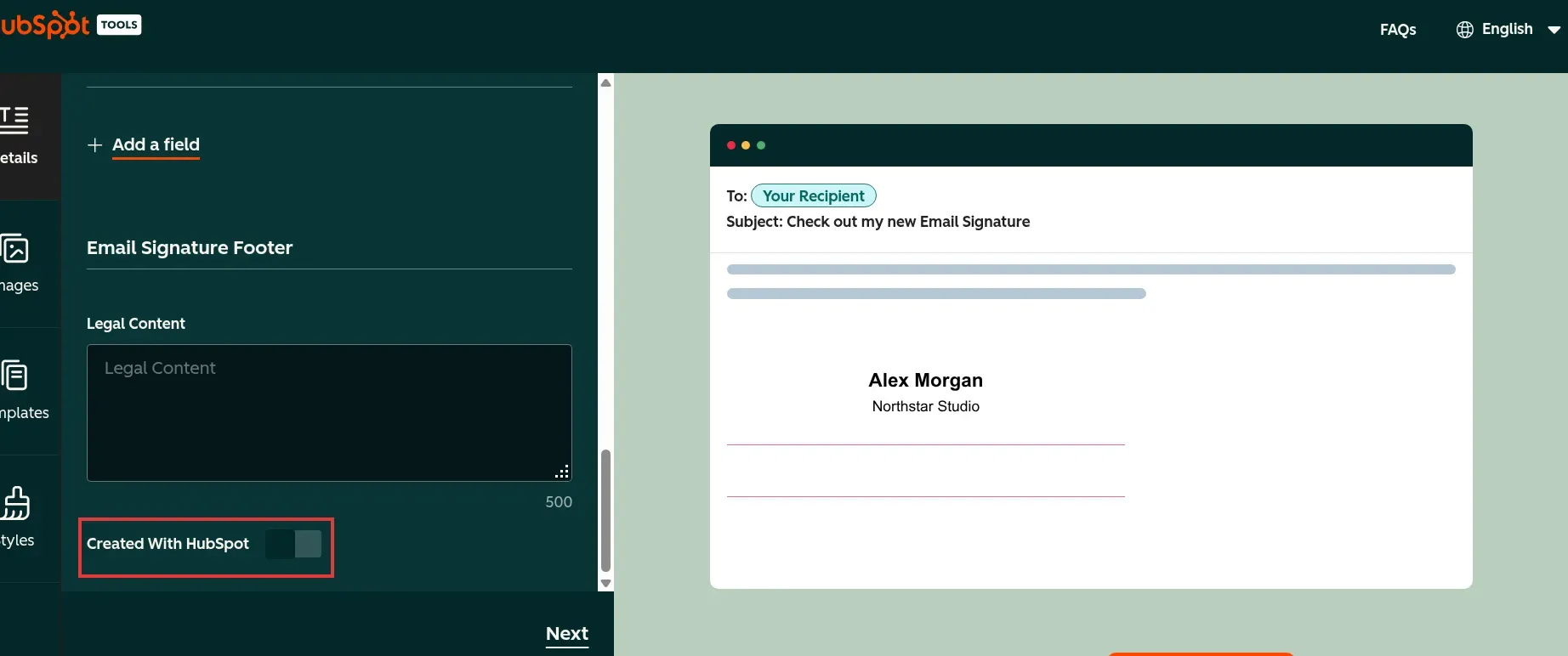
The Details panel lets you remove HubSpot's promotional line before copying your signature.
HubSpot pros:
-
12 free layouts in the template picker
-
Copy signature source code button
-
Created With HubSpot branding toggle
HubSpot cons:
-
Phone and website form before export
-
Individual copying rather than centralized employee rollout
I created a synthetic signature in HubSpot, switched to Template 2 and copied its HTML source. The editor let me enter contact details without opening a CRM account, which is exactly the level of commitment I want from a free footer tool. If you're a consultant or founder who needs a clean signature today, this is my first stop.
The Details, Images, Templates and Styles tabs keep the choices manageable. You can adjust theme, text and link colors, then choose a font and size. My favorite control is the unassuming Created With HubSpot toggle: switching it off removed the promotional link from the generated signature. Free doesn't have to mean advertising space in your footer.
My main gripe came at export. After clicking Create signature, I reached an additional form asking for a phone number, website and employee count. Empty phone and website fields triggered validation; the synthetic details allowed the process to continue. I came for a footer and found a contact form at the finish line. No account or payment was required, but that extra step took some of the shine off an otherwise straightforward editor.
The finished screen offers both a formatted-signature copy button and a source-code copy button. I kept the actual HTML output, which gives you something to archive before making later changes. For one good signature, this is an easy recommendation. For fifty installations that must stay current, you've outgrown the job this standalone generator handles.
HubSpot pricing:
Free generator; no paid CRM subscription required.
2. Mail-signatures.com: Best for free templates with email-client instructions
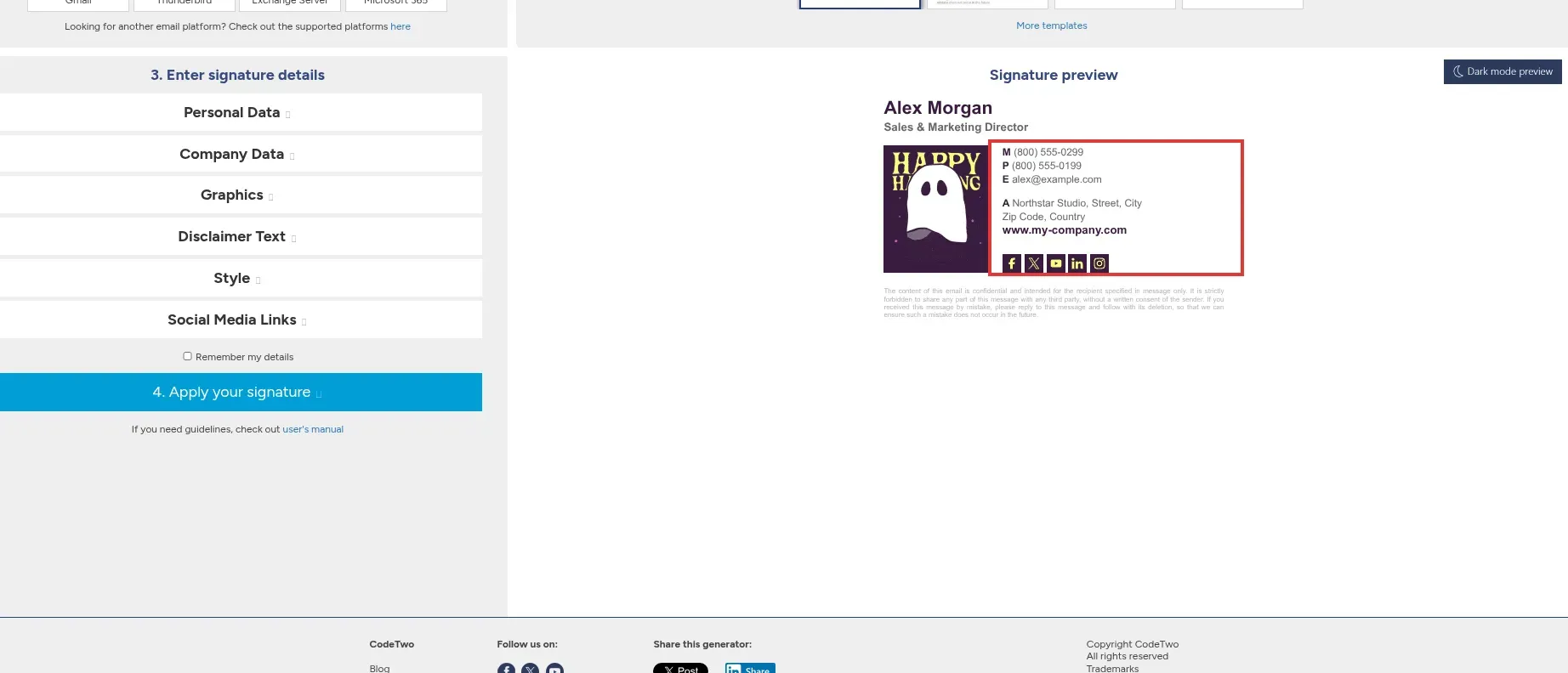
Personal Data and Company Data update the preview separately; check the remaining sample links and text before copying it.
Mail-signatures.com pros:
-
100+ free templates; no sign-in
-
Separate Outlook and new Outlook instructions
-
Editable disclaimer and social-link sections
Mail-signatures.com cons:
-
Sample contact details need manual cleanup
-
Hosted images remain an ongoing dependency
I built a synthetic signature in Mail-signatures.com without registering, changed the name, email and company, then opened its Outlook installation instructions. The free generator comes from CodeTwo, but it's a separate offering from the paid CodeTwo management platform. If HubSpot's twelve layouts feel restrictive, this is my pick for more starting points.
The workflow makes you choose an email platform, a template and your details before applying the signature. Personal Data, Company Data, Graphics, Disclaimer Text, Style and Social Media Links sit in separate expandable sections. The separate sections make a complicated footer manageable. They also made it easy for me to finish the obvious fields and miss the leftovers.
In my preview, replacing the name and company left the sample phone numbers, address, social destinations and disclaimer in place. My name was right; half the footer still belonged to the template. Check those sections before touching Copy, especially the sample website and social destinations.
Things I Noted — Mail-signatures.com
Mail-signatures.com moved its template-image hosting in January 2026 and asked people with older signatures to update image URLs or regenerate them. This affected older signatures, not newly generated ones, but it changed how I look at the word “saved.” The HTML can be yours while its images still live elsewhere. Keep the code, and give your own logo a stable URL.
Apply your signature switches the preview area to instructions for the selected email client. I like that practical ending: the tool doesn't leave you staring at a finished design wondering where to paste it. You still own every installation and future edit, though. A team that ignores setup instructions needs managed deployment, not a more elaborate set of instructions.
Mail-signatures.com pricing:
Free generator; organization-wide CodeTwo management is a separate paid product.
3. MySignature: Best for a personal signature with tracking options
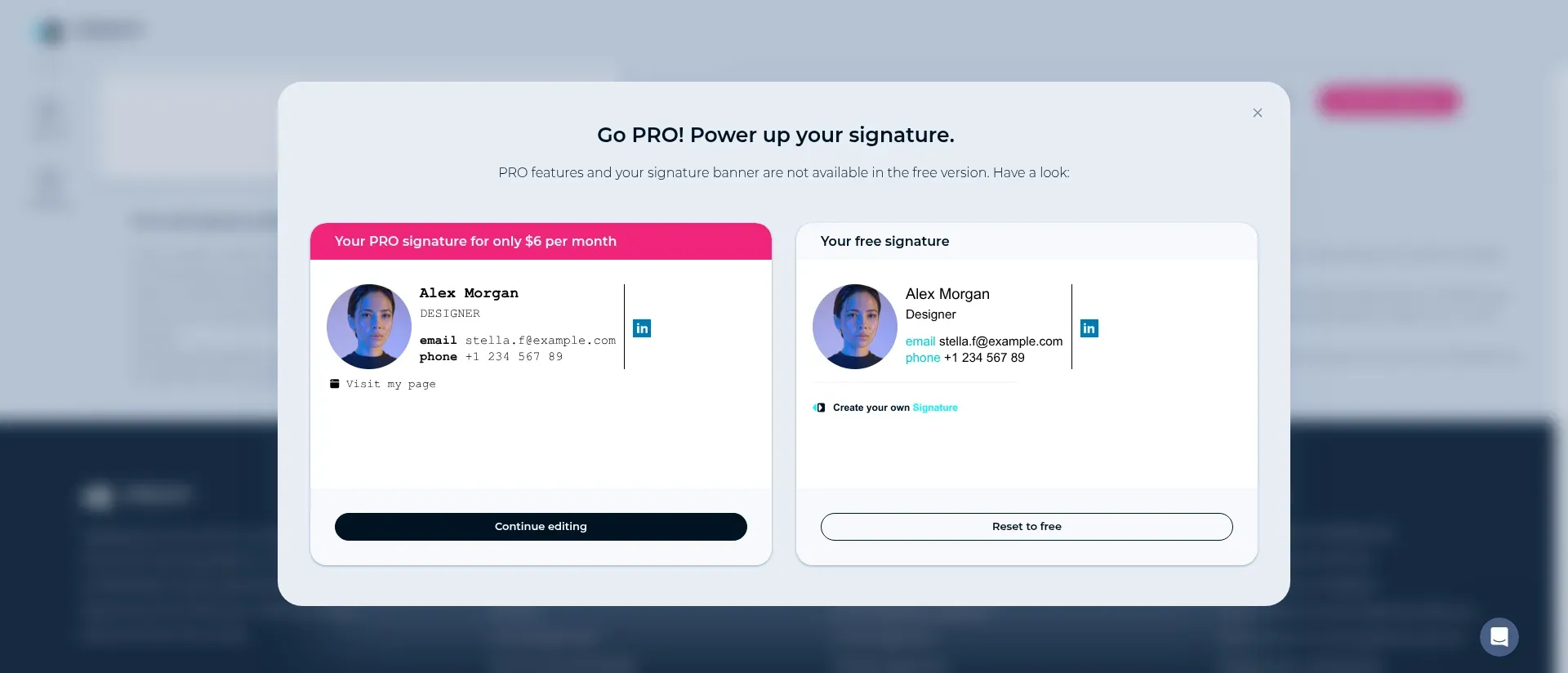
Reset to free shows which design elements disappear and adds MySignature's branding line.
MySignature pros:
-
Free plan allows one signature per email address
-
Core combines signature design and personal email tools
-
Connect adds separate main and reply-forward signatures
MySignature cons:
-
Saving and copying require an account
-
Free output includes branding
-
Paid signatures depend on an active subscription
MySignature makes more sense to me as a personal email toolkit than as a one-off footer purchase. You can start designing before opening an account and decide later which features to keep. That's a welcome way to explore, even though saving, copying and managing the result still require signup.
I built a synthetic preview and compared the PRO and free layouts. Reset to free added branding and changed the next step to Save and Sign up. That side-by-side comparison did more for my buying decision than the polished preview. The free version is visibly a different deal.
For one person, the current pricing choice is Core or Connect. Core gives you one signature; Connect provides two, so you can separate the full opening-message version from a shorter reply or forward. Connect also adds a digital business card. Two formats are a useful upgrade if your first email needs the full introduction and your replies don't. If you'll only use one ordinary footer and don't need the card, Core is enough for that job.
The subscription is the catch. MySignature's pricing FAQ says paid signatures and cards stop working after the paid billing period ends. I want that condition settled before a signature becomes part of a business's identity: you're paying for an ongoing service, not buying every paid feature forever.
MySignature earns its place when design and tracking options belong in the same purchase. For a basic free signature without an account, I prefer HubSpot or Mail-signatures.com. And if you're managing Google Workspace or Microsoft 365 across a company, move to the team offering rather than stretching this personal-tool comparison.
MySignature pricing:
Free plan available; Core $6/user/month ($72/year) or Connect $7/user/month ($84/year), billed annually.
4. WiseStamp: Best for a growing team's signature design system
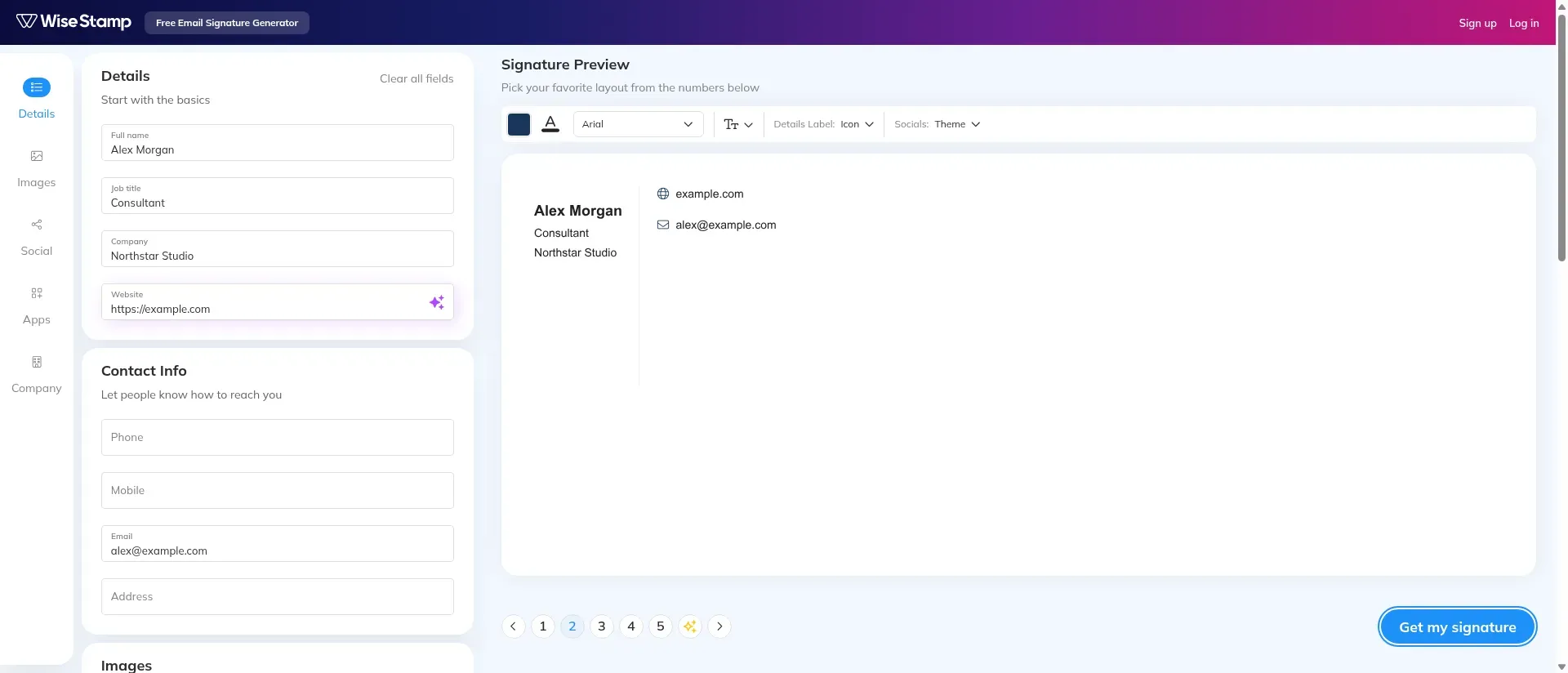
WiseStamp hides unused contact fields while you switch between layouts.
WiseStamp pros:
-
Studio separates content, layouts and design controls
-
Basic includes directory sync and department management
-
Grow adds campaigns and analytics
WiseStamp cons:
-
Platform required for server-side integration
-
Platform fee sits above the per-employee charge
I created a synthetic signature in WiseStamp and switched to layout 2. Empty contact fields disappeared from the preview, a small detail I appreciated after seeing template leftovers elsewhere. Its broader Studio workflow separates content, layouts and design, which suits a brand template that several people need to work on.
Then I hit the catch: after signing up for the trial, I opened HTML installation and found an upgrade gate before copying. That rules it out as my pick for a one-off free export. The team case is more convincing. Basic supports directory sync, installation and departments; Grow adds campaigns, analytics and more templates. If marketing wants to change a banner across a particular group, that's a more useful distinction than how many decorative layouts appear in the gallery.
Administrator access is the upgrade threshold I care about here. Basic has one administrator and five templates; Grow increases that to five administrators and twenty templates. Those limits give a small team a practical upgrade threshold. You don't need the top tier just because your company has more than one department.
Things I Noted — WiseStamp
Server-side integration sits in Platform. For fifty employees, Basic's $19 monthly platform fee plus $1 per employee comes to $828 annually. The server-side Platform configuration is $2,868 annually because its base fee is $189. The higher figure belongs in a server-side comparison. Using Basic would make WiseStamp look cheaper by quietly changing the job.
For one centrally applied layout, Platform is hard for me to justify. WiseStamp's appeal is the design and management workflow; buy it because you'll use that workflow, with the insertion method you need included in the budget. Solo users should start with the separate Pro+ offering.
WiseStamp pricing:
Pro+ from $9/month; Basic $19/month plus $1/employee, Grow $49 plus $1/employee, Platform $189 plus $1/employee, billed annually. A 14-day trial is available.
5. Newoldstamp: Best for a small team's signature-banner campaigns
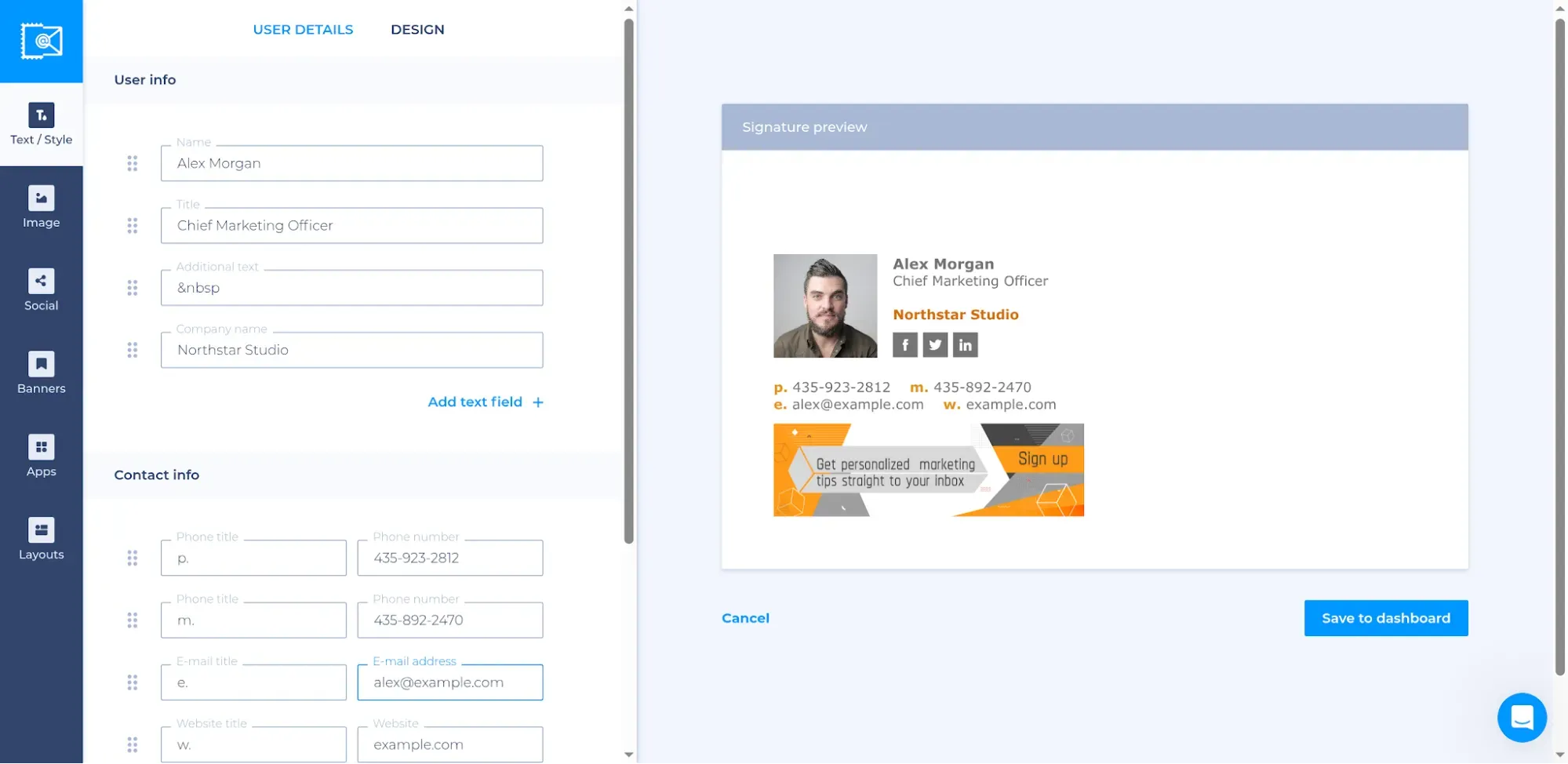
Newoldstamp lets you build the signature inside its management workspace before connecting an email platform.
Newoldstamp pros:
-
Five-signature package at $109/year
-
Banner scheduling and segmentation
-
Central templates and campaign analytics
Newoldstamp cons:
-
Signup asks for phone and company-profile details
-
Rounded monthly display differs from the annual total
I created and saved a synthetic signature in Newoldstamp's dashboard using its Other email service route, without connecting a mailbox. For a small marketing team, this is my campaign-focused pick. It combines signature management with banner scheduling, segmentation and analytics. That gives you a reason to pay beyond saving a few minutes on the initial design.
The banner space is what interests me most. Your colleague's name and phone number can stay recognizable while a banner points toward an event or current resource. When you regularly have something useful to promote, central changes beat another round of “please update your signature” messages. A campaign shouldn't need its own campaign to get colleagues to install it.
Departmental templates and Google Workspace/Microsoft 365 integrations give you ways to organize that rollout. Choose the installation method before scheduling the first banner change; the campaign tools only become useful when the right people consistently use the intended signature.
Things I Noted — Newoldstamp
I moved the pricing selector from five signatures to fifty. The annual total changed from $109 to $799, while the fifty-signature view showed a rounded $1.3 per signature per month. Multiply that rounded figure by 50 and 12 and you get $780, nineteen dollars short. Use $799 in your budget. The annual total is the bill to compare; the rounded unit price is a shortcut.
For five colleagues with a stable footer and no objection to manual installation, a subscription is overkill. Newoldstamp earns its keep when changing the campaign across those five people is recurring work. That's the coordination problem I want it to solve; a banner alone isn't a sales strategy.
Newoldstamp pricing:
Five signatures cost $109/year at the checked quantity; other team sizes use the pricing selector. A seven-day trial is available.
6. Exclaimer: Best for centrally applied company signatures
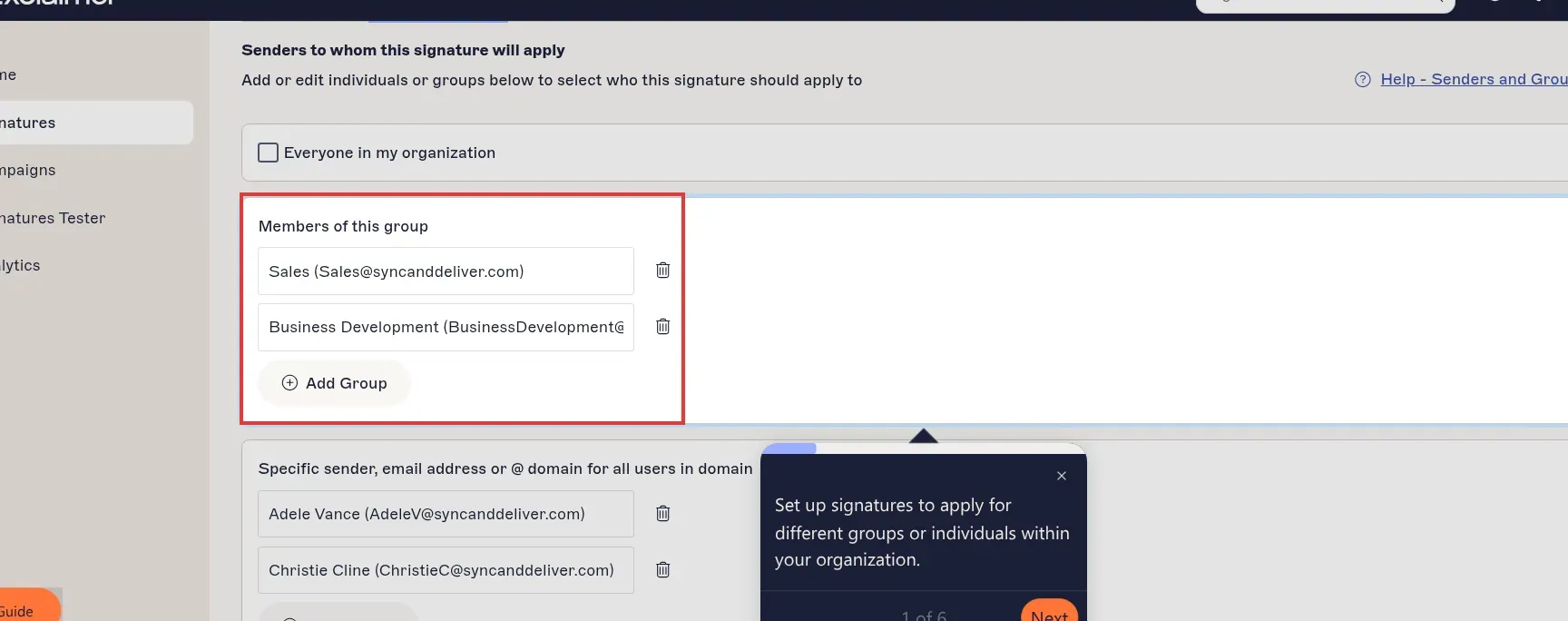
Exclaimer's Senders screen applies a signature to groups rather than every employee. (Image source: Exclaimer)
Exclaimer pros:
-
Starter includes server-side and client-side options
-
Standard adds unlimited signature templates
-
Microsoft 365 and Google Workspace support
Exclaimer cons:
-
Ten-user minimum
-
Starter limits you to one template
Exclaimer is my pick when the problem is getting a consistent signature onto company email, rather than helping each employee design one. Its attraction is the deployment model: even Starter offers client-side, server-side or combined application. You don't have to buy the marketing tier just to move beyond individual copy-and-paste setup.
I walked through Exclaimer's product tour, where the Senders screen lets you target groups rather than list every employee individually. That group control caught my attention. Standard's targeting rules are the relevant comparison here; the tour isn't a promise that every feature comes with Starter. If everyone needs the same layout with their own directory information, Starter's single-template limit may be perfectly workable. A company that needs genuinely different departmental layouts should move to Standard, which adds unlimited templates and three brand kits. Count the layouts first. The cheapest per-user number is no bargain if it buys the wrong template allowance.
Fifty employees don't necessarily need fifty designs. This is where I resist the urge to upgrade automatically. On the other hand, squeezing sales, recruiting and customer support into one layout to save a few dollars can defeat the point of central management. Standard also brings internal/external targeting and basic date scheduling; Pro is where engagement and usage dashboards enter the comparison.
The catch is the ten-user floor. A five-person business pays for at least ten eligible users, so the attractive per-user number needs that minimum beside it. For fifty people with one centrally applied template, my annual Starter calculation is $540 before tax and your existing email subscription. For a company rollout, that makes Starter a strong value. For a solo signature, the ten-user floor settles it: skip it.
Exclaimer pricing:
Starter from $0.90/user/month, Standard $1.45 and Pro $1.75, billed annually; ten-user minimum. A 14-day trial is available.
7. CodeTwo Email Signatures 365: Best for Microsoft 365 signature rules
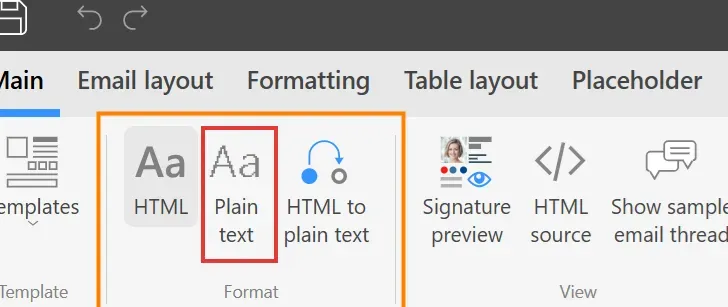
The Format controls let you prepare a plain-text version as well as HTML. (Image source: CodeTwo)
CodeTwo Email Signatures 365 pros:
-
One plan includes all features
-
Cloud, Outlook and combined insertion modes
-
Unlimited templates and scheduled signature rules
CodeTwo Email Signatures 365 cons:
-
Requires a Microsoft 365 organization
-
Ten-license minimum; shared-mailbox rules affect counts
CodeTwo Email Signatures 365 is my closest alternative to Exclaimer for a company running on Microsoft 365. I like its one-plan approach: you can stop hunting through feature tiers and concentrate on the insertion mode and mailbox count. For an IT-led purchase, those are the decisions worth spending time on.
You can apply signatures in the cloud, insert them through Outlook or combine the two approaches. Rules, scheduling and unlimited templates let you separate departments and message types without treating every employee as a new design project. One useful setting in its editor guide is HTML to plain text. That second format belongs on the setup checklist: plain-text messages need a corresponding template unless you choose conversion to HTML.
Things I Noted — CodeTwo Email Signatures 365
A shared mailbox can change the license count differently depending on the mode. In Outlook mode, a licensed user sending as or on behalf of another mailbox doesn't consume an additional license for that action. In cloud mode, a shared mailbox whose mail is routed through CodeTwo consumes a license. This is the licensing detail I wouldn't leave to the last minute. “50 employees” can be the wrong purchasing quantity once shared addresses enter the picture.
Real email rendering can still require attention. In a January 2026 Reddit discussion, u/subredditbrowser said support “rewrote our signature into an entirely different block of HTML and it worked immediately” after line-wrapping problems. Another participant reported a less successful experience. My takeaway is practical: put the awkward layouts in the rollout test. A compatibility list won't tell you whether your particular footer wraps well.
Skip CodeTwo if you're staying on Google Workspace or only need a free personal footer. Its Microsoft 365 administration work makes sense when you want centralized rules, not when you're trying to avoid a ten-minute signature edit.
CodeTwo Email Signatures 365 pricing:
$726.25/year for 50 licenses in the checked USD calculator; ten-license minimum. Monthly billing and a 14-day trial are available.
What the same signature workload costs
For one person or a small team willing to install signatures manually, the software bill can stay at $0. For fifty people who need centrally applied signatures across sending devices, server-side configurations are the comparison that matters. A team label on a pricing card isn't enough.
These are my calculations from the checked prices, not deployment tests. Paid figures use annual billing in USD, excluding tax, existing Microsoft 365/Google Workspace subscriptions and setup labor. The five-person scenario allows manual installation; the fifty-person scenario requires one template with server-side insertion and assumes fifty billable mailboxes, with no extra shared addresses.
| Defined workload | Suitable option | Annual software cost | What you're taking on |
|---|---|---|---|
| One person; create and manually install a basic signature | HubSpot or Mail-signatures.com | $0 | Maintain the signature and image links yourself |
| Five people; same brand, manual installation acceptable | HubSpot or Mail-signatures.com | $0 | At least five installations; repeat changes for each person |
| Fifty people; one centrally applied, server-side template | Exclaimer Starter | $540: 50 × $0.90 × 12 | One-template limit; email subscription extra |
| Fifty people; one centrally applied, server-side template | CodeTwo Email Signatures 365 | $726.25: annual calculator total for 50 licenses | Microsoft 365 only; extra routed shared mailboxes need counting |
| Fifty people; one centrally applied, server-side template | WiseStamp Platform | $2,868: ($189 + 50 × $1) × 12 | Higher tier also includes features beyond this scenario |
WiseStamp Basic would total $828 a year for fifty employees, but its client-side installation changes the requirement. I kept Platform in the table deliberately. If one server-side company template is all you need, Exclaimer's $2,328 annual saving over WiseStamp Platform is the number that gets my attention.
For five people who want to move beyond the manual scenario, Newoldstamp's five-signature package is $109 a year. That's a separate workflow upgrade, rather than a charge you need to pay to create five signatures. Decide whether central management and campaign banners solve a real problem before buying them.
Check Gmail or Outlook before buying another tool
Gmail and Outlook already include signature editors, so you may not need a generator at all. For a simple name, job title, phone number and link, the built-in editor is my choice. An elaborate banner needs to earn its space.
Gmail supports formatting, images and multiple signatures, with separate defaults for new messages and replies. Its 10,000-character limit includes the image contribution. New Outlook puts signature setup under Settings → Accounts → Signatures; classic Outlook has a different setup path. Use instructions for the version you actually run.
For LinkedIn-led prospecting, I prefer a short footer that makes the sender easy to recognize when a conversation moves to email. A profile link and company details can do that job. You don't need to turn the signature into a second sales pitch.
Which email signature generator would I choose?
HubSpot is my default for a free personal signature with source-code access. Choose Mail-signatures.com when template choice and client-specific instructions matter more, or MySignature when personal design and tracking belong in the same purchase.
For a small marketing team, Newoldstamp's campaign workflow and WiseStamp's Studio deserve the closer look. Exclaimer leads my company-wide rollout shortlist, with CodeTwo alongside it when Microsoft 365 is the whole environment. The deciding question is who will own the next change: each employee, marketing or IT.