 Updated: October 12, 2026
 7 min read
Your LinkedIn network contains valuable business data about your prospects, potential partners, employees, and influencers. Since many businesses use this social network for lead generation, you need to know how to export LinkedIn contacts with emails. Using the time-tested Linked Helper tool, you can scrape data to the CRM, where you can assign tags to contacts, leave notes, and set up auto interactions with groups of contacts.
The advantage of this web scraper is that you can export LinkedIn connections to Excel and the table will contain 21+ columns with vital data. It will display personal and work emails, addresses, phone numbers, work and training history, as well as your history of correspondence with the person (if it happened through the Linked Helper CRM). You can try the service for two weeks in trial mode by connecting any LinkedIn service plan – basic or premium services like Recruiter or Sales Navigator.
By default, when you download an archive of contacts via LinkedIn, you will receive a meager set of data, which most often will not include emails. It is not suitable for marketing purposes.
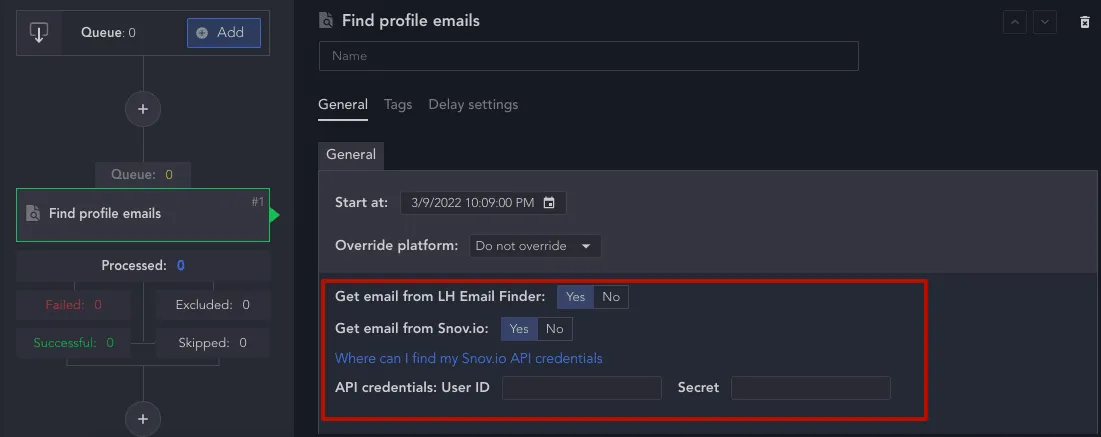
However, Linked Helper will perform smart crawling of emails in two ways – through an internal database and through the domain of the organization in which the person works. In the second case, crawling will be done through collaboration with the Snov.io email marketing service. Thus, your chances of getting a database of contacts with emails are two times higher this way, and you won’t have to manually copy the data and validate the emails.
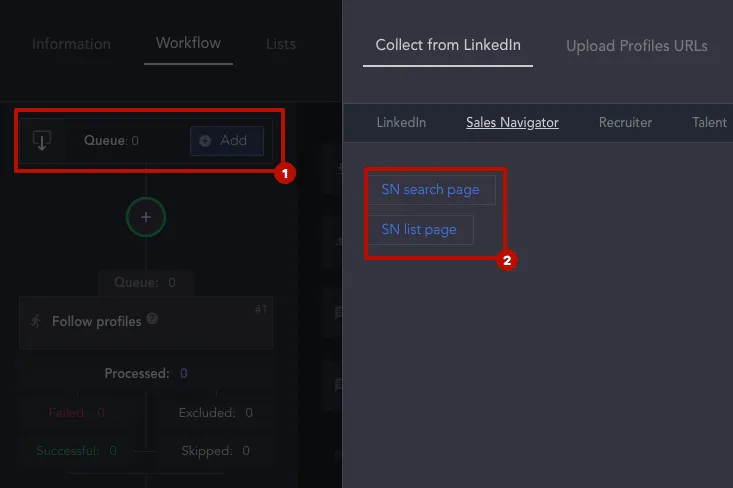
Also, you can get contacts not only from your professional network, but also from 2nd and 3rd-degree contacts and from search pages, LinkedIn groups, or event participants.
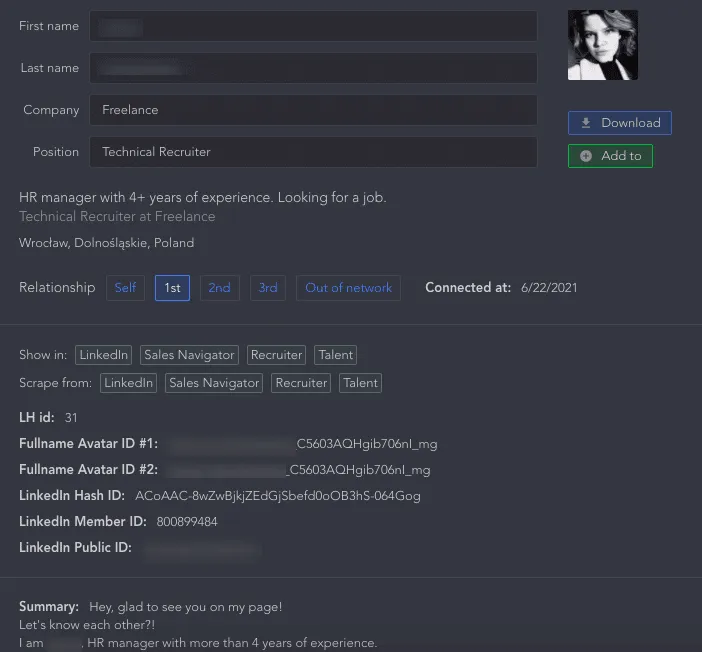
Here is an example of how each contact will look in the CRM – all data from the page will be available to you and can be downloaded for all contacts from the database.