How to Automate LinkedIn Outreach in 2026 (Step-by-Step)
How to Automate LinkedIn Outreach in 2026

Automating LinkedIn outreach requires defining a narrow ICP, creating a prospect list, building a reply-aware workflow with personalized messages, and applying conservative action limits. This article will help you learn how to do it effectively and safely.

In this guide, we will use Linked Helper as a practical example to show how to automate LinkedIn outreach in 2026. We’ll demonstrate how it can run repetitive tasks, allowing you to review targeting, copy, replies, and CRM handoffs.

Key takeaways

  • LinkedIn prohibits unauthorized automation, and no tool entirely removes the risk of restrictions.
  • Accurate targeting determines the campaign’s success.
  • Keep warm-ups, invitations, follow-ups, reply checks, and CRM handoffs in one controlled workflow.
  • Use gradual limits, variable timing, and one stable session environment.
  • Make each reply update the campaign and CRM.

What You’ll Be Able to Do After This Guide

By the end of this guide, you will know how to automate LinkedIn outreach, define a qualified audience, build exclusion rules, and manage replies through one workflow.

Manual LinkedIn outreach can generate customers, but it consumes too much time to remain practical and sustainable. Linked Helper has analyzed over 5,000 public Reddit discussions from 2025 and 2026 and found that about 38% of contributors described manual prospecting as difficult to scale.

For example, this founder on r/Entrepreneur confirms that they have been able to attract some users, but the outreach was too time-consuming:

Reddit
Entrepreneur
LinkedIn brought in some users but time-spent/users acquired is awful.

A controlled workflow can reduce that workload while keeping targeting, messaging, and replies under human review.

What Is LinkedIn Outreach Automation?

LinkedIn outreach automation uses software to perform repeatable prospecting tasks on the platform. These tasks usually include collecting profiles, visiting or following them, liking relevant posts, sending invitations, checking acceptance, delivering follow-ups, and updating lead records.

Good automation reduces repetitive clicks while preserving human decisions. You still get to choose the market, approve the offer, assess replies, and remove people who should not receive further contact.

Properly set up automation also supports indirect outreach, meaning you can invite first-degree connections to an event, ask them to follow a company page, endorse selected skills, or engage with recent content before sending a message. All of these are included within Linked Helper’s configurable workflows.

Before You Start: LinkedIn’s Rules on Automation

Is LinkedIn automation illegal? It’s not against criminal law, but tools and bots used to add or download contacts, send or redirect messages, or create and interact with posts are banned under the platform’s User Agreement.

LinkedIn's automation policy is strict; it states that using such tools may result in account restrictions. Its Automated Activity and Prohibited Software pages also warn that third-party automation can lead to temporary or permanent restrictions.

No LinkedIn outreach automation tools can guarantee that an account using them will remain unrestricted.

The risk you face depends on the activity patterns, including daily outreach volume, account age, invitation acceptance, pending requests, timing, IP consistency, and simultaneous activity across different tools or devices.

Linked Helper uses several controls designed to reduce repetitive technical and activity patterns. Here is how it works:

  • Linked Helper is a desktop app, not a browser extension, so no code is injected into the LinkedIn web page.
  • The app doesn’t use the LinkedIn API.
  • Each LinkedIn instance uses a randomized fingerprint and can be assigned a separate proxy IP address. The tool also offers a built-in IP quality checker.
  • Each LinkedIn account has a separate cache and cookie set.
  • The app uses in-page navigation, emulating mouse movements, clicks, and character typing, instead of a reverse-engineered API, where activities such as inviting and messaging are performed by triggering LinkedIn API endpoints. The tool also randomizes timeouts between different steps.
  • It allows you to randomize and personalize your messages using variations of the same message, spintax, IF-THEN-ELSE clauses, or AI personalization. This helps you avoid being spammy or using the same pattern across thousands of recipients.
  • The tool supports daily limits and randomized start times within the desired working hours.

These measures are not a silver bullet against LinkedIn’s detection methods. While they cover the technical aspects, LinkedIn may still restrict an account based on its activity patterns. To learn more, see our research on how LinkedIn catches automation.

Step 1: Define Your Ideal Customer Profile

Without a proper ICP, you may end up with up to 60% of the contacts you collect unusable for your campaign. This estimate comes from our analysis of B2B lead generation, but it applies to other models just as well. A well-researched ICP, on the other hand, can shorten the time needed to clean the prospects list.

Write an ICP that you can later turn into a set of filters. It should include the current role, location, seniority, company size, industry, and a practical buying signal. For example, a target for a payroll SaaS campaign might be an HR director for a US company with 50 to 500 employees who is actively hiring.

With Linked Helper, you can also use the following qualification signals during collection and later as filters:

  • Hiring and Open to Work badges: The tool can collect these statuses and use them as list filters. They help tailor specific offerings to more niche audiences.
  • Open Profile status: LinkedIn doesn’t offer a standard Open Profile search filter. Linked Helper helps identify Open Profile members so you can send them free InMail messages. Learn how.
  • ICP fit scores: The AI ICP Detection feature scores collected profiles against your written ICP using profile, experience, and company information. The Data Enrichment action can retrieve available data from Linked Helper’s database without opening every LinkedIn profile. Visit & Extract can serve as a fallback when the required data is unavailable.

Before you search and collect, you need to connect a LinkedIn account and create a campaign in Linked Helper. Start by adding a LinkedIn account in the account manager. Once you’ve signed in, click Create campaign and choose a template.

You can start with an empty campaign for completely custom setups or go for the complete “Warm-up, invite, and follow-up” program. Select the tasks you need to automate and enter the details required for the campaign.

Now you can start collecting the initial list of prospects using the criteria defined in the ICP research. Open regular LinkedIn, Sales Navigator, or Recruiter in Linked Helper’s built-in browser and apply the filters available. In the campaign side panel, click Collect, and select From current page.

Step 3: Build Your Prospect List

An effective prospect list combines several sources and removes risky contacts before the campaign begins. To build it, you need to go beyond the first basic search and list export. Here are three practical approaches to building a better prospect list:

  1. Collect people who already have shared context: With Linked Helper, you can collect profiles from regular search, Sales Navigator, groups, events, post reactions, comments, followers, company employee pages through Employees Extractor, alumni pages, your network page, profile views, and uploaded CSV files or profile URL lists. This allows you to find people who already have a shared context with you and are warmer than prospects from unrelated searches.
  2. Segment searches around result ceilings: Regular LinkedIn search reaches a ceiling of 1,000 profiles (2,500 for Sales Navigator). To access the full market, segment your search by title keywords or geography. This way, you receive a few narrow, high-value searches rather than a single broad one.
  3. Build a do-not-contact list: Add clients, employees, partners, active opportunities, opt-outs, and colleagues’ accounts to an exclusion list. Linked Helper can skip these profiles during collection or remove them before processing.

Start the search with second-degree connections where possible. They provide shared-network context and are easier to find through normal LinkedIn searches. This way, you avoid relying too much on direct profile URL navigation, which could create a mechanical browsing pattern and increase the risk of restrictions.

Pro tip: Linked Helper’s Auto-collect feature can also initiate profile collecting once every specified number of days. For best results, use it in combination with the Sales Navigator saved searches or for gathering commenters or comment likers.

After collection, you can use AI ICP Detection to score the profiles against your written ICP. Review the final list of prospects before launching. Post-search segmentation can help you avoid duplicates or missing exclusion rules.

Step 4: Set Up a Multi-Step Outreach Sequence

Warming prospects before an invitation is a tested way to improve acceptance. Linked Helper has found that warmed prospects show a 10-20% higher acceptance rate than cold ones.

A good warm-up includes several actions spaced over 1-2 days:

  1. Visit the profile.
  2. Follow.
  3. Like and comment on a recent post.

This way, the prospect sees your name in notifications before they get an invite.

After that, proceed to send an invite, wait for acceptance, and write a thank-you message (no pitch). Send 1-3 follow-ups with day-level delays. We recommend following up no more than three times.

The best way to automate LinkedIn outreach is to keep the full contact journey inside one workflow. With Linked Helper, you can configure the full process in the customizable Warm-up, invite, and follow-up template.

Enter your ICP description, LinkedIn account type, preferred actions, and message templates. Place Check for Replies between messages and keep the final action running when you want to detect later responses.

Result: Profiles continue only when Check for Replies finds no response that should stop the sequence. Replied profiles move to the Replied list instead of continuing through the remaining messages.

Reply protection doesn’t use IF-THEN-ELSE logic. Check for Replies searches for responses to earlier messages, and, if it finds no reply within the selected period, the profile moves to the next action (Follow-up). If it finds a reply, the profile moves to the Replied endpoint. The action checks every three hours by default.

Note: Check for Replies searches the platform where the earlier message was sent. It doesn’t search all LinkedIn inboxes at once.

You can also configure Linked Helper to ignore generic replies such as “Thanks for connecting” and send a follow-up anyway. However, be careful with this plugin since a short message may still indicate disinterest.

A long message can also be divided into several short bubbles to make it seem more natural. Keep the sequence readable, and don’t imitate casual conversation when the prospect needs a direct explanation.

Step 5: Personalize at Scale

Linked Helper offers two ways to personalize your messages: message templates with conditional logic, spintax, and built-in and custom variables; and AI-personalized messages.

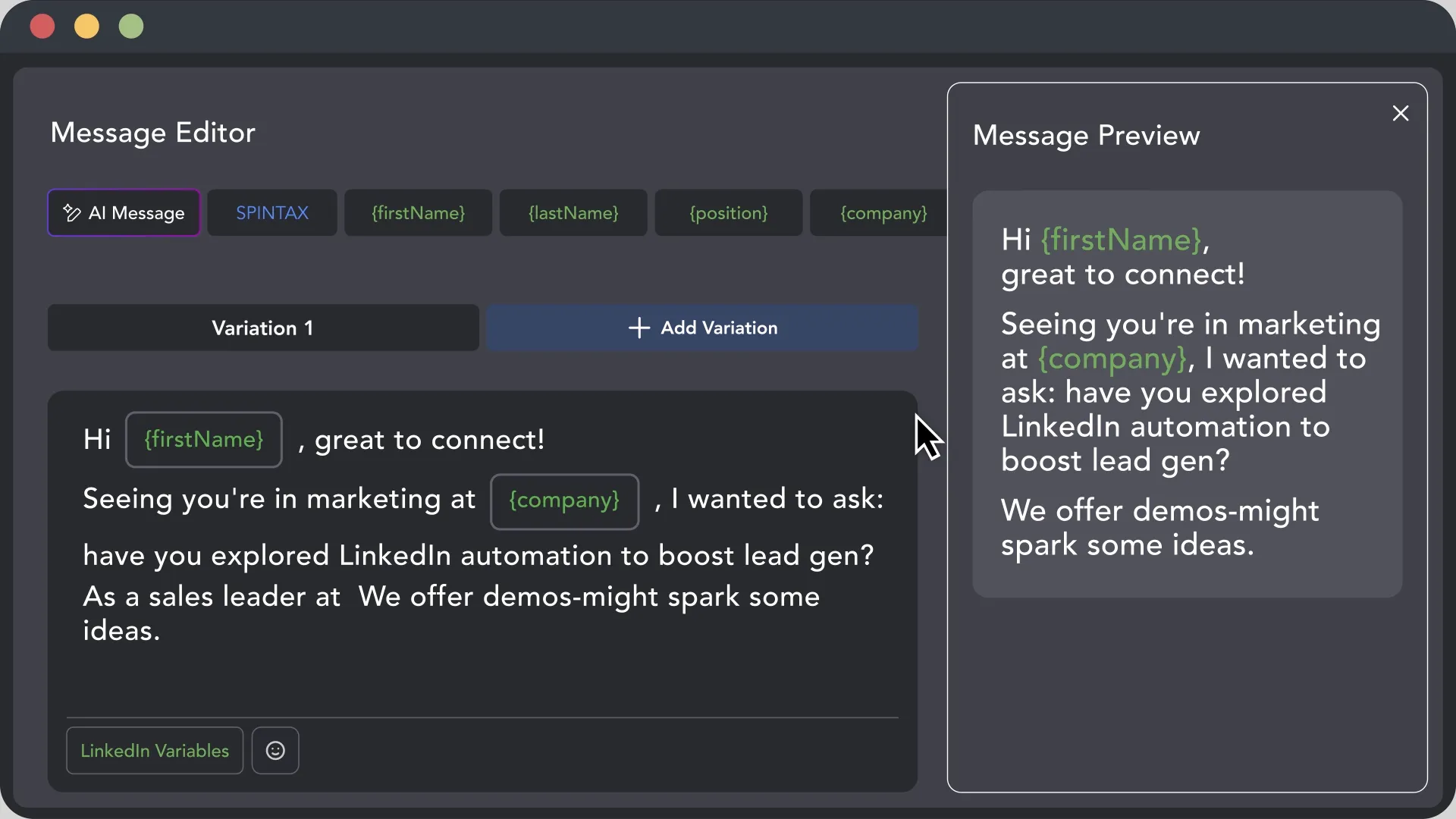
Let’s first walk through using message templates. This is the more familiar, traditional approach to outreach automation. You can create variations by selecting desired built-in and custom variables, configuring IF-THEN-ELSE logic, and using spintax.

Linked Helper message editor with personalization variables and message preview

Setting up a {firstName} variable is non-negotiable, but you can go beyond that. Upload your own variables and create multiple variations of your LinkedIn outreach message template. Before scaling, check how your setup handles missing data or inconsistent profile fields.

Install the Conditional IF-THEN-ELSE operator plugin that can mention a mutual connection when the field contains data and use a neutral opening when it doesn’t. This prevents incomplete lines or empty placeholders.

Now, AI-personalized messages can be even more tailored. Linked Helper’s AI generates individual messages for each profile based on your overall campaign goal, specific message goals in a sequence, and available profile information.

You can choose what profile fields to include in the message, review all AI drafts, tweak and edit the messages, and approve each one manually. Once you’re confident in the settings, you can turn on auto-approval for all AI messages.

Note: When replies start to arrive, Linked Helper offers several AI-assisted reply features: context-aware message generation, reply options, text polishing, and generation through prompts. Templates also remain available.

Regardless of the approach, review profile data before it reaches the message. Without normalization, scraped data can produce greetings such as “Hi JOHN” or company names that read like database records. Linked Helper corrects the capitalization and removes unnecessary company suffixes automatically. You can filter the profiles to show whose names were normalized for double-checking.

Lastly, keep a human approval step, and pair it with a data-freshness check. Stale scraped fields (an old job title, a role someone has already left) can make an AI draft congratulate a prospect on outdated news. Linked Helper has a Data Freshness threshold in Data Enrichment that can help ensure only recent data gets used. Confirm the prospect's current role during review before approving. Don’t enable auto-approval at first — test your setup to evaluate how it works.

Here is how you can configure AI messages in Linked Helper:

How to

Configure AI-personalized messages

Estimated time: 20 min

  1. Create a campaign from the Invite and follow-up template.
  2. Select AI-personalized messages and click Add.
  3. In Generation settings, enter the General goal of the campaign.
  4. Select the Language and Tone of voice.
  5. Set the Goal per message if you send several follow-up messages.
  6. Leave Auto-approve disabled.
  7. Click Edit to select the fields AI can use.
  8. Retrieve the data using one of the available methods:
    1. Data Enrichment: Works faster but retrieves less data.
    2. Visit and Extract: Takes more time and has daily limits but retrieves all available information.
  9. If you use Data Enrichment, set a Data Freshness threshold so only recent profile data gets used.
  10. Collect the profiles and start the campaign.
  11. Go to Campaign InboxAI Drafts.
  12. Open each draft, edit the text, and click Approve.

Outcome: Linked Helper creates personalized message drafts based on the campaign settings and keeps them for human review.

You can also use AI comments to warm prospects before an invitation or message. Linked Helper analyzes the target posts, the author’s profile, and your campaign goal before generating a comment that will meet the required tone and length.

Note: For campaigns where an image supports the message, Linked Helper integrates with Hyperise. It can use profile variables to personalize an image and send it as a native attachment instead of an ordinary URL.

Step 6: Set Safe Daily Limits & Warm Up a New Account

Although LinkedIn doesn’t publish universal daily limits, we recommend staying under 150 actions per rolling 24 hours. These LinkedIn automation limits were determined through feedback, experiments, and real case studies.

Here are the recommended LinkedIn connection request limits in 2026 and other important caps:

  • Overall activity: 150 actions per rolling 24 hours (e.g., visiting profiles, sending connection requests or messages, following pages, endorsing skills, extracting profile data).
  • Invitations from an established account: Up to 50 per rolling 24 hours.
  • New or dormant account invitations: Start at 10 to 15 per day.
  • Ramp-up: Increase the number of invitations sent by 5-10 over 10 days. Reach about 35 invitations after one month, then about 50 after another month.
  • Pending invitations: Keep fewer than ~1,000 and withdraw older requests every two to three weeks.
  • Direct profile URL loads: Limit to ~50 per rolling 24 hours.

The limits don’t reset at midnight. Each action returns to the available allowance exactly 24 hours after it occurred.

We do not recommend hitting the same totals every day. Linked Helper’s Smart Daily Limit Adjustment varies activity within a range, avoiding identical activity totals and schedules. You can also set schedules by action type. For example, invitations may run outside business hours because recipients don’t see the sending time. Follow-up messages should arrive during the prospect’s workday, since a message at 3 a.m. can look automated.

The campaign should also pause after repeated suspicious events. Linked Helper pauses an affected action when five consecutive profiles fail with the same error.

Step 7: Track Replies & Move Leads to a CRM

Reply detection should cover every active message chain that may contact the same person. Check for Replies can detect responses across active actions, but it doesn’t automatically prevent every overlapping campaign from contacting the same person. Use Lists Manager to identify profiles shared across campaigns, then add duplicates to the relevant campaign’s Exclude list before launch.

Install the Tagging System plugin to create tags such as invited, accepted, replied, qualified, and booked. Linked Helper can add or remove configured tags after successful actions.

When sending data to an external CRM, match records by stable identifiers. We recommend adding the LinkedIn member ID and public ID alongside email. Email may change or not be available, which can create duplicate CRM records.

Linked Helper can send replies and contact data to HubSpot, Pipedrive, Salesforce, other supported CRMs, or a custom webhook. A direct Google Sheets integration provides a simpler, free option without Zapier or Make.

Note: By default, the HubSpot integration sends new data to empty fields while preserving existing values. You can enable overwrite only for the fields that should be replaced. The integration can also send messaging history as LinkedIn activity.

Common Mistakes That Get Accounts Restricted

Linked Helper’s internal analysis of 5,000 public Reddit discussions found that ~18% of users were concerned about account restrictions or bot detections. That fear is justified; LinkedIn has repeatedly stated that outreach automation is prohibited.

Just using automation software doesn’t automatically mean your account will get restricted. However, certain pitfalls and suspicious patterns can increase your chances of getting a LinkedIn automation warning:

  1. Letting pending invites pile up: LinkedIn monitors unaccepted invitations. Keep their number under 1,500 and withdraw those that are older than 2-3 weeks. After withdrawal, avoid reinviting the person for another ~3 weeks.
  2. Ramping a new account like an old one: New accounts have lower invitation limits (10-15 per 24 hours). Stick to them and increase gradually, by about 5-10 invitations per 10 days if no warnings occur.
  3. Using a midnight reset: A fixed daily reset can result in suspiciously large activity batches within a short period. A rolling 24-hour window with proper action distribution prevents that artificial spike.
  4. Opening profiles as direct URL loads: Systematically opening profile URLs can trigger logouts or viewing restrictions. LinkedIn also states that unusually high page-view activity can lead to a restricted-action message.
  5. Sending identical messages to a large list: The same sentence repeated across hundreds of profiles creates a clear pattern. Use conditional fallbacks, controlled variations, and smaller segments. However, more variation doesn’t fix a weak offer, so review the message before increasing volume.
  6. Running one account from several sessions: Don’t let an account owner work in Chrome, for example, while automation runs elsewhere. Multiple sessions, changing countries, and conflicting IP addresses can create inconsistent account activity.

Avoiding these patterns can reduce preventable risk, but it cannot guarantee that an account will remain unrestricted.

Tools for Automating LinkedIn Outreach

LinkedIn automation tools differ in how they run and which tasks they support. Some function as browser extensions or cloud platforms, while others use desktop apps and operate on a local machine or a VPS. See the full roundup of LinkedIn automation tools for a deeper review.

In this guide, we use Linked Helper to demonstrate the LinkedIn outreach automation workflow because it combines prospect collection, campaign sequencing, reply checks, and CRM handoffs into a single system.

It runs as a desktop application with a built-in browser, not a browser extension. Linked Helper uses in-page navigation, separate cache and cookies, and a randomized fingerprint for each LinkedIn instance. Its cloud-storage version keeps campaign data online, while actions run on your computer. Remote start and VPS or dedicated-server setups can provide 24/7 operation while execution remains on a machine you control.

The Standard plan with local storage starts at $15 per month ($8.25 per month with annual billing). Cloud storage is available at extra cost. You can also get a 14-day trial with the full Pro feature set with no credit card required.

What users say about Linked Helper’s outreach automation

To learn how to automate LinkedIn outreach through Linked Helper, use our free trial and check the manuals in our support and help center.

The Standard plan starts at $15 per month, but you can begin with a 14-day free trial that includes access to Standard and Pro capabilities with no credit card required. See pricing for more details.

FAQ

You can automate outreach on LinkedIn by using software that handles profile collection, invitations, messages, follow-ups, reply checks, and CRM updates. Such tools can be used to automate repetitive tasks while leaving important decisions and workflows to human judgment.

Conclusion

A reliable LinkedIn outreach automation works best with a clear ICP, a clean prospect list, and a controlled workflow. Dedicated software, like Linked Helper, helps handle it and automate repetitive tasks while leaving important decisions to human judgment.

For an effective strategy, use personalization, reply checks, exclusion rules, conservative rolling limits, and CRM updates. Start small, review results, and increase scale gradually. No tool removes the risk of LinkedIn account restrictions entirely, but running locally and adhering to recommended limits helps minimize that risk.

Try Linked Helper free for 14 days

The most technically advanced platform for LinkedIn automation with a focus on security, a wide range of features, and exceptional customer support. Trusted by over 10,000 businesses worldwide.