
 Updated: October 3, 2026
 36 min read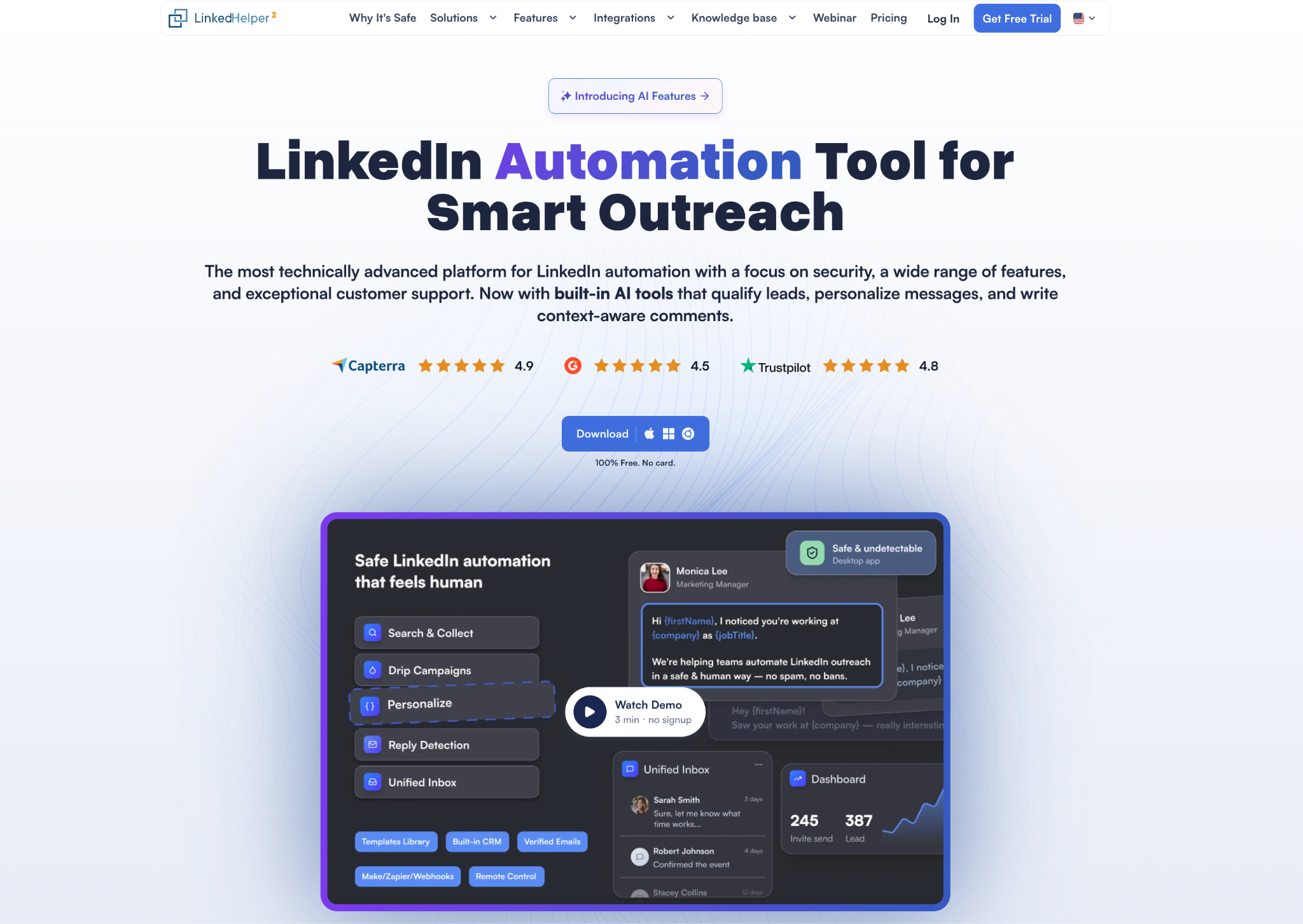
Linked Helper combines safety-focused LinkedIn automation with deep campaign customization, AI prospect qualification, personalized messages, comments and reply drafting, and data enrichment across 50+ supported fields. With 30+ campaign action types, you can collect prospects, enrich contact and company data, assess ICP fit, review AI drafts, and build follow-ups around reply checks.
A built-in CRM, shared Unified Inbox, team workspaces, native integrations and incoming/outgoing webhooks connect outreach to the rest of your sales process. Rolling activity limits, randomized pacing and per-account session and proxy controls make safety part of that workflow.
How Linked Helper works and solves outreach bottlenecks
Linked Helper connects prospect collection, LinkedIn actions, reply checks and CRM updates into configurable campaigns. It works with free LinkedIn, Premium, Sales Navigator and Recruiter; buying Linked Helper does not unlock features from those paid LinkedIn plans.
An illustrative campaign moves a prospect through the following stages; the exact actions, data availability and plan requirements are explained below.
-
Collect prospects from a LinkedIn search or supported source, import an existing list, or receive leads through the incoming webhook of a campaign in the Cloud-based storage version.
-
Enrich selected contact, profile and company fields, using the freshness requirement and available database coverage.
-
Use AI ICP Detection to assess fit against your criteria and route prospects according to the configured threshold.
-
Warm up relevant prospects with profile visits, follows, likes and reviewed AI comments.
-
Generate and review personalized messages, then send the connection request.
-
Follow up with non-responders, using reply checks, delays and relevant engagement such as likes or skill endorsements for existing connections.
-
Review results and conversations in the Inbox. Send responding prospects to your CRM, and use a separately configured email handoff for suitable non-responders with available email addresses.
Watch on YouTube: The Safe & Smart Way to Scale Your LinkedIn
How Linked Helper addresses common outreach bottlenecks
A sales funnel can lose prospects at several different steps. Linked Helper gives you targeting, engagement, personalization and handoff controls to address those bottlenecks. Start with the symptom, check the likely cause, and choose the relevant workflow; more invitations alone will not resolve an audience or offer mismatch.
| Funnel problem | What to diagnose | How to use Linked Helper | What to measure |
|---|---|---|---|
| Too few suitable leads in the current list | Relying on one source, exhausted search results or an overly narrow list. | Expand across searches, company employees, events, groups, post interactions, alumni and network lists. Add Sales Navigator/Recruiter sources where available, imports or incoming webhooks in the Cloud-based storage version; deduplicate and qualify new prospects. | Unique ICP-fit leads added per source; overlap and usable coverage. |
| Low connection acceptance | Wrong audience, an unclear reason to connect, or little prior familiarity. | Narrow the source list and use AI ICP Detection to qualify prospects against your criteria, then use relevant profile visits, follows or post engagement, including reviewed AI comments, before a personalized invitation. | Accepted / sent invitations, compared by source and segment. |
| Low reply rate after connecting | Generic wording, weak relevance, the offer or timing. | Use profile-based AI messages, custom variables, conditional templates and spintax to explain a specific reason for contacting this segment. Review drafts and compare message approaches. | People who replied / people messaged; positive replies separately. |
| Conversations never start after the first message | A single touch, inconsistent follow-up, or too little time to respond. | Build a spaced follow-up sequence with a distinct purpose for each message and configured Check for replies steps. | Additional replies by step; time between messages. |
| A prospect replies, then gets another generic follow-up the next day | The next step follows a timer without checking the answer, making the conversation look automated. | Configure reply checks before follow-ups and remove detected respondents from the remaining sequence. Review their answer in the Inbox and continue with a relevant, reviewed response. Test reply handling before scaling. | Follow-ups sent after a detected reply; complaints about ignored answers. |
| Replies rarely become meetings or another target action | Low-fit responders, weak differentiation, a vague CTA or an unhelpful next reply. | Qualify earlier, carry relevant custom context into messages, and use the AI Reply Assistant to draft a conversation-aware response. Review the offer and choose one clear next action. | Meetings or target actions / positive replies, logged in your CRM. |
| Personalization stalls because data is missing | Incomplete contact or company context, stale data or missing email addresses. | Select useful Data Enrichment fields and freshness requirements; use Find Profile Emails when the next step needs email. Review coverage before sending. | Field coverage, failed lookups and credits per usable lead. |
| Positive replies are lost during team handoff | Scattered inboxes, missing conversation context or unclear ownership. | Review replies in the Unified Inbox using the Cloud-based storage version, tag and annotate contacts, and send mapped lead data to your CRM. Pro supports message-history export. | Reply-to-human-follow-up time; conversations handed to an owner. |
| LinkedIn-only outreach leaves suitable prospects unreached | A relevant lead may be inactive on LinkedIn or better suited to email. | Find available emails, then use the native Instantly or Snov.io campaign handoff. Use outgoing webhooks for a custom external workflow. | Successful handoffs, email replies and meetings in the email tool/CRM. |
| Accounts receive warnings or prospects reject unwanted outreach | Irrelevant invitations, repetitive messages, excessive activity or poor timing. | Combine focused sourcing and ICP checks with relevant engagement and personalized copy. Set rolling limits, randomize daily action volumes and start times within your configured ranges, and use working hours and randomized delays; coordinate manual activity too. | Warnings, objections and acceptance trends alongside activity volume. |
| Several accounts contact the same prospects | Overlapping lists and weak coordination between campaigns or reps. | Use the List Manager in the Cloud-based storage version to compare lists and remove overlaps; shared CRM context and workspace/account permissions help coordinate responsibility. | Duplicate outreach and conflicting handoffs across accounts. |
Use campaign statistics for LinkedIn activity and your CRM/email tool for meetings, revenue and email outcomes. Treat the causes in the table as hypotheses to test against your audience and offer.
Feature references: AI ICP Detection, personalization tools, engagement controls and plan and storage comparison. Detailed enrichment, AI, Inbox and safety settings follow below.
A LinkedIn sequence can also feed an email campaign after sourcing and enrichment. The integration section explains the native handoffs and webhook workflows.
Lead sourcing and outreach sequences
Where you can collect leads
Lead sourcing is a particular strength: you can build lists around job and company criteria, shared interests, content engagement, existing relationships or your own external data. Choose a source that gives you a relevant reason to reach out.
| Source or import route | Useful scenario | Access and setup |
|---|---|---|
| LinkedIn people search | Find prospects by the search criteria available to your account. | Free or Premium LinkedIn; search visibility and commercial-use limits apply. |
| Sales Navigator search, saved searches and lead lists | Build focused prospect segments and reuse saved targeting. | Requires your own Sales Navigator subscription; its filters and results remain the source. |
| Recruiter search and projects | Collect candidates from a search or an existing recruiting project. | Requires the relevant Recruiter access. |
| Company employee pages in LinkedIn and Sales Navigator | Build account-based lists of people at a target company. | Collect from accessible company employee pages on LinkedIn or in Sales Navigator and apply available filters. |
| Event attendees | Follow up with people around an event topic or webinar. | Attend the same event and have access to its participant list. |
| Group members | Source a community with a shared professional interest. | Be a member of the group; its member list has fewer filters than search. |
| Post likers and commenters | Find people engaging with a relevant discussion or post. | Collect visible interactions; engagement indicates interest, not confirmed buying intent. |
| My Network, your connections, followers and following lists | Reactivate your network or work with an audience already linked to your profile. | My Network lets you collect your accessible 1st-degree network in one collection run; use the corresponding list for followers or following. |
| People who viewed your profile | Identify visitors who may already recognize your name. | Results depend on LinkedIn visibility and subscription; free accounts see fewer viewers. |
| School alumni pages | Build an alumni segment with a relevant shared background. | Collect from the school alumni page. |
| Company page followers | Work with people following a page you manage. | Company page administrator access is required. |
| Sent pending invitations | Review outstanding requests and manage that segment. | A network-management source; these people have not necessarily accepted or engaged. |
| Company search and Sales Navigator account lists | Collect organizations for company research and account planning. | Use the Organizations extractor plugin and an organization campaign; these are company records. |
| CSV, TXT, Linked Helper CSV and saved HTML | Load researched lists, LinkedIn profile URLs or data exported from Linked Helper. | Import supported files; Linked Helper CSV can carry existing profile data. |
| Unsupported pages via saved HTML or request text | Collect accessible profiles from pages without a supported automatic collector. | Save HTML containing profile links, or prepare exported chat-request text for import. Unsupported-page guide. |
| Incoming campaign webhook | Feed profile URLs and custom fields from your CRM or another configured workflow. | Cloud-based storage version only; the execution app must run to process received leads. |
Sources: collection guide and incoming webhook setup. Collection uses what the connected LinkedIn account can access; a Linked Helper license does not unlock paid LinkedIn subscriptions.
Auto-Collect revisits supported sources on a schedule, so recurring prospecting does not require a fresh manual collection each time. Sources: Auto-Collect instructions, recent feature overview.
Watch on YouTube: Build an EVERGREEN LinkedIn Funnel (New Auto-Collect)
Engage prospects before outreach
Profile visits, follows and relevant post likes/comments create touchpoints before an invitation. Boost Post can mention selected prospects in a comment under a relevant post to draw their attention to the discussion. Skill endorsements are available for existing connections. Choose engagement that fits the prospect and topic; the AI section explains comment generation and review. Sources: Feature and plan matrix. Boost Post.
Outreach sequences and reply handling
The campaign builder offers templates and more than 30 action types. Dashboards and downloadable campaign statistics help you inspect progress and report results to teammates or clients. A workflow can combine profile visits, connection requests, messages, delays, data collection and CRM transfers. Custom variables, conditional message templates and spintax let you adapt the text without rebuilding a campaign for every recipient.
Reply handling deserves attention during setup. A Check for replies step can move respondents out of the remaining sequence, helping prevent a scheduled follow-up after someone has answered. Include the check in the workflow; do not assume a reply immediately stops every running action. Outreach sequences.
This level of configuration is most useful when your campaign has several steps and a defined handoff. For a short list that needs a single personal message, the setup may offer less value than simply doing the outreach yourself.
Network maintenance and invitations
Invite contacts to an event, group or company page, cancel old pending invitations, or remove selected connections when maintaining your network. These are separate actions with their own settings and selected Standard limits. Feature and plan matrix.
Linked Helper architecture and safety
Local, cloud and browser control: what the labels mean
The market mixes up hosting, automation and data storage. “Local,” “browser-based” and “cloud” are often presented as competing product categories, but each label leaves important architectural questions unanswered. A Chrome extension running on your laptop and Linked Helper running on that same laptop have fundamentally different designs. A remotely hosted browser and a server making standalone requests are different designs too.
In Linked Helper, the Cloud-based storage version stores workspace data and enables shared CRM, Inbox and lead-management workflows. LinkedIn execution and its authenticated session stay in the application’s browser on your computer or a VPS you control. A VPS can keep running while your laptop is off. Sources: Cloud Storage, execution and session FAQ.
Linked Helper runs a standalone browser with campaign controls outside the LinkedIn page. You can watch pages open and actions run, inspect the account instance, and control the execution machine and its connection or assigned proxy. Sources: Architecture and session location.
The tradeoff is maintaining that execution machine. Assess technical traces, session control and operational settings as separate parts of the workflow.
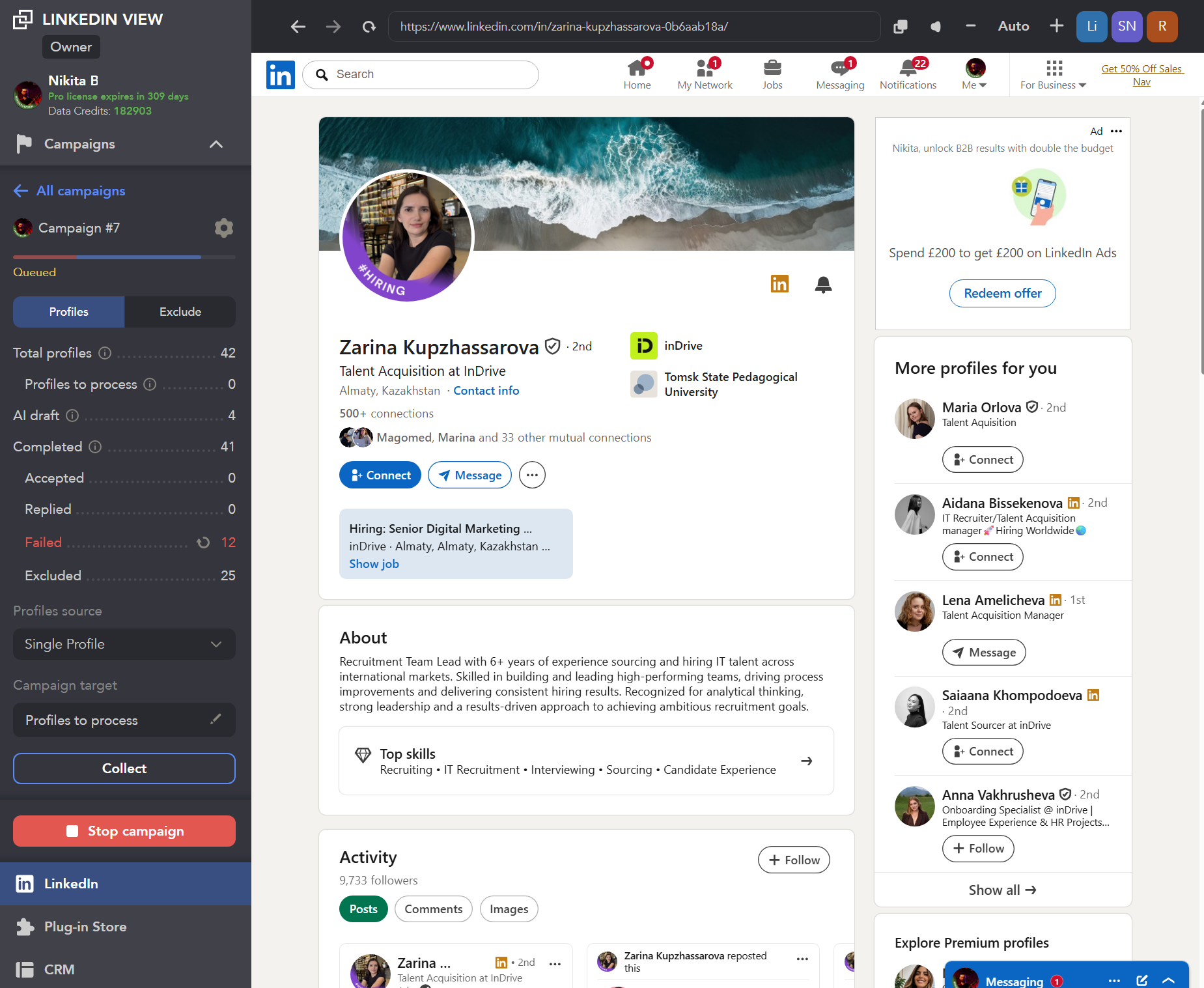
Application controls sit outside the LinkedIn page. Screenshot: Zendesk safety article.
Real pages and browser interaction versus standalone API requests
A browser-based workflow loads a LinkedIn page, finds the relevant interface and interacts with it. The page makes the requests needed to perform the action. For example, an invitation can be sent through the page’s connection controls. A standalone API replay mechanism can construct that request against reverse-engineered internal LinkedIn endpoints without navigating the corresponding page. Both can produce an invitation, but their surrounding page activity and network traffic can differ. Source: technical study.
Linked Helper performs actions through real LinkedIn pages rather than sending standalone LinkedIn API requests. The pages make their own requests as they do during manual use. This preserves the page-driven interaction flow. Webhooks, CRM integrations, enrichment and AI are separate data workflows.
How the design addresses technical detection
An extension may expose its package identity or inject controls and scripts into the page. Linked Helper’s standalone browser has no Linked Helper extension package to probe, and its controls sit outside LinkedIn. Castle’s research demonstrates extension-resource probing and page-change traces; Chrome’s resource documentation explains how declared extension resources may be accessible to websites. Sources: Castle research on LinkedIn, extension-resource documentation.
| Technical surface | Linked Helper's approach | Why it matters |
|---|---|---|
| Extension identity and exposed files | Standalone browser; no Linked Helper Chrome extension package or Web Store ID | Removes the Linked Helper extension-resource footprint from this browser |
| Added page elements or scripts | Controls remain outside the LinkedIn page | Avoids Linked Helper panels and extension content-script traces inside that page |
| Click and keyboard event properties | Customized browser handling of trusted input events | Addresses an event-level signal separately from pacing |
| Missing surrounding browser traffic | Loads real pages and allows their telemetry | Preserves page-generated context around actions |
| Device and environment consistency | Runs on the execution machine with its browser environment | Gives you control over the device, location and network used |
| Session transfer to vendor infrastructure | Session stays on your execution machine | Avoids a vendor-hosted copy being required for execution |
| Several accounts sharing browser storage | Separate cookies and cache for each instance | Keeps authenticated account contexts separate |
Browser architecture and safety controls: Zendesk architecture and safety explanation.
Linked Helper uses a customized browser that sets isTrusted to true for its input events. In standard browser semantics, that property distinguishes events generated by the browser from events dispatched through certain script methods. It is not proof that a human performed an action. MDN explains the distinction.
An AI agent controlling a browser is another implementation to examine. If it uses Playwright or a similar browser-control framework, visible clicks alone do not establish a human browser environment. Castle demonstrates detectable signals in Chrome-based Playwright setups, including automation flags, injected bindings and effects of the Chrome DevTools Protocol. Those signals depend on the setup; this is not evidence that every browser-control agent is detected. The browser, control layer and fingerprint need to be assessed together. Playwright detection research, the browser automation flag.
Castle’s fingerprint analysis describes LinkedIn checks for consistency across operating-system, platform, touch and language signals. An inspectable execution environment helps you review that setup; it does not establish that every desktop fingerprint is undetectable or every remote browser inconsistent. Sources: fingerprint analysis.
Sessions, IP addresses and multiple accounts
A session cookie represents an authenticated login. Copying that session to another execution environment differs from independently signing in on a laptop and a phone. A cookie-bridge design can reuse one session from different machines or IPs, creating mismatched fingerprints and concurrent activity. Our technical study documents session-export paths in extension code and distinguishes those observed paths from estimates about closed cloud-backend execution that could not be directly verified. Sources: Our architecture research, independent fingerprint-consistency research.
Linked Helper keeps each session in its account instance and lets you assign a proxy per instance. Separate cookies do not automatically provide separate IP addresses: accounts using the same internet connection can still share its public IP. If you run Linked Helper on your own VPS, LinkedIn sees that server's environment and network, not your laptop's. Choose and check the execution setup accordingly. Session and account separation, proxy validation.
Activity limits, schedules and account coordination
Useful controls include rolling 24-hour action limits, limits for individual action types, randomized daily volumes, working hours, randomized start times and configurable step delays. The account-setup guide explains which settings are automatic and which require configuration.
Our account-setup guidance recommends coordinating manual and automated activity, avoiding simultaneous use of the same account from different programs, checking time-zone/network consistency and considering longer delays for new or inactive accounts. Manual activity contributes to total account behavior; the app’s counter does not record everything done elsewhere.
Account restrictions remain possible even with conservative limits. Pay particular attention when a previously inactive account suddenly becomes active, or when its location or identity details change. Recommended activity levels depend on the account and are not universal LinkedIn-approved quotas. Buying Pro removes selected Linked Helper ceilings; it does not remove LinkedIn limits. Activity limits.
Proxies, shared access and data boundaries
You can use your own connection or assign a proxy. The built-in proxy validation uses IPQualityScore to display location, fraud score and abuse-related indicators. It helps inspect a proxy; it does not certify an account as safe. Proxy purchase is separate, and the setup guide stresses consistency when managing accounts from another location.
Workspace and account roles reduce the need to share credentials indiscriminately. Cloud-based storage, external integrations, enrichment and AI also involve data beyond the local execution session. Review which teammates and destinations receive profile or conversation data before enabling a shared workflow; “session stays local” does not mean all product data stays local.
LinkedIn policy and account-risk limits
Linked Helper’s browser design addresses specific technical detection signals, but cannot guarantee 100% account safety or override LinkedIn’s rules. LinkedIn’s automation policy says third-party software that scrapes or automates activity on its website violates its User Agreement.
If accepting LinkedIn’s platform-policy risk is incompatible with your job or business, manual outreach is a better fit. A hosted alternative does not, by itself, resolve that issue.
Data Enrichment and Email Finder
Data Enrichment retrieves information from Linked Helper’s database without opening each prospect’s LinkedIn profile. It matches profile IDs, looks for the data groups you selected and checks your freshness requirement before fetching the result. It can cover first-, second- and third-degree contacts and out-of-network profiles; an available match is required. “50+ data points” describes the range of supported fields, not a promise that every prospect has every field. How Data Enrichment works.
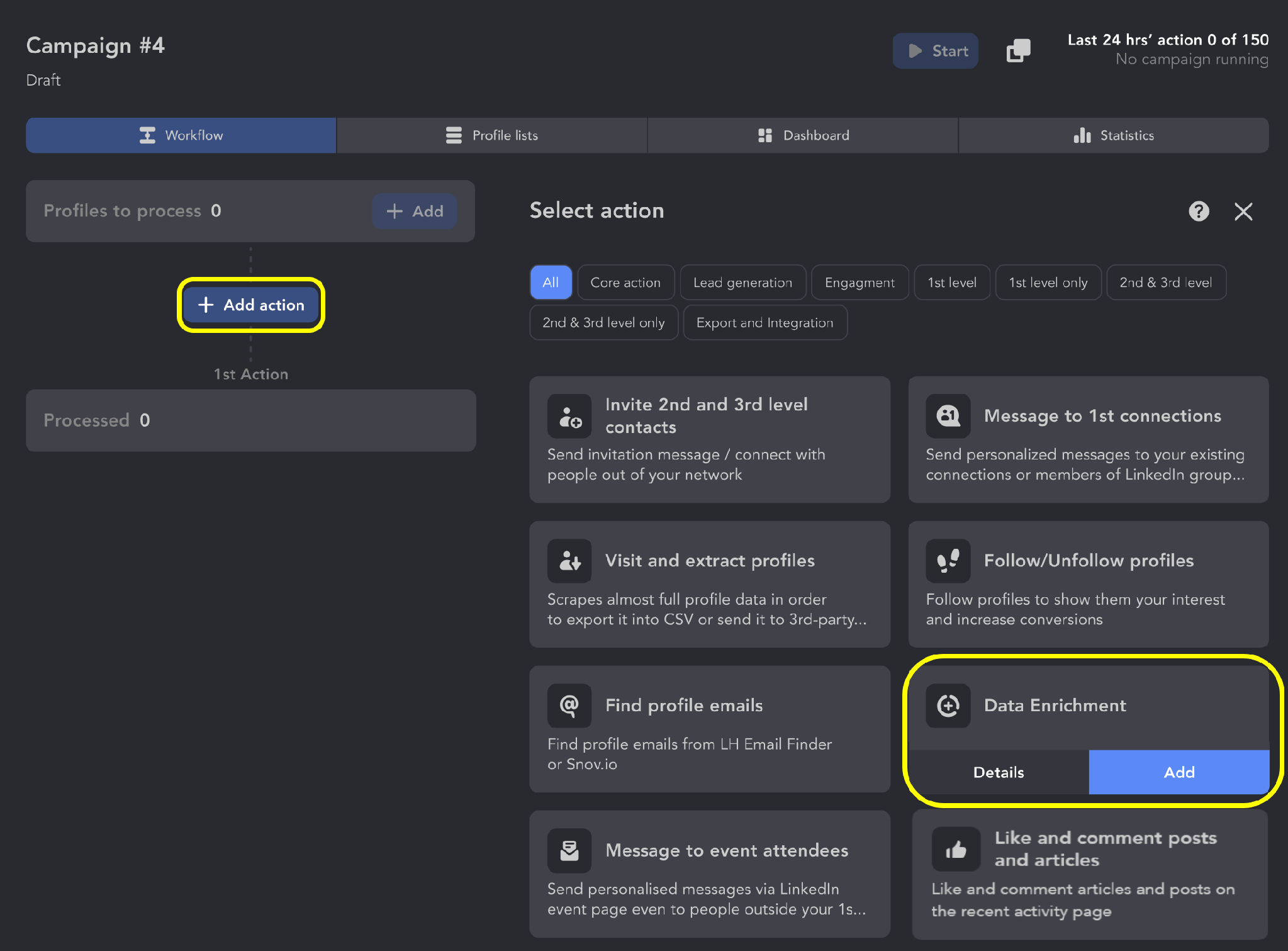
Data Enrichment interface. Data Enrichment guide.
Choose only the information the next step needs. Email, phone, profile information, social/messaging links, company information and badges are selectable groups. For example, a recruiter may prioritize personal email, while a B2B seller may select business email and company context. Setting a freshness cutoff helps avoid fetching older records; unavailable or insufficiently fresh data is not a successful lookup.
| Data group | Credit cost | Practical implication |
|---|---|---|
| 1 | Select the email type relevant to the handoff | |
| Phone | 10 | Phone-heavy enrichment consumes credits faster |
| Profile information | 1 | Adds context for segmentation and AI |
| Social and messaging links | 2 | Adds available alternative contact channels |
| Company information | 2 | Adds available organization context |
Sources: Data credit rules and pricing. Costs apply to successfully found data groups; availability varies.
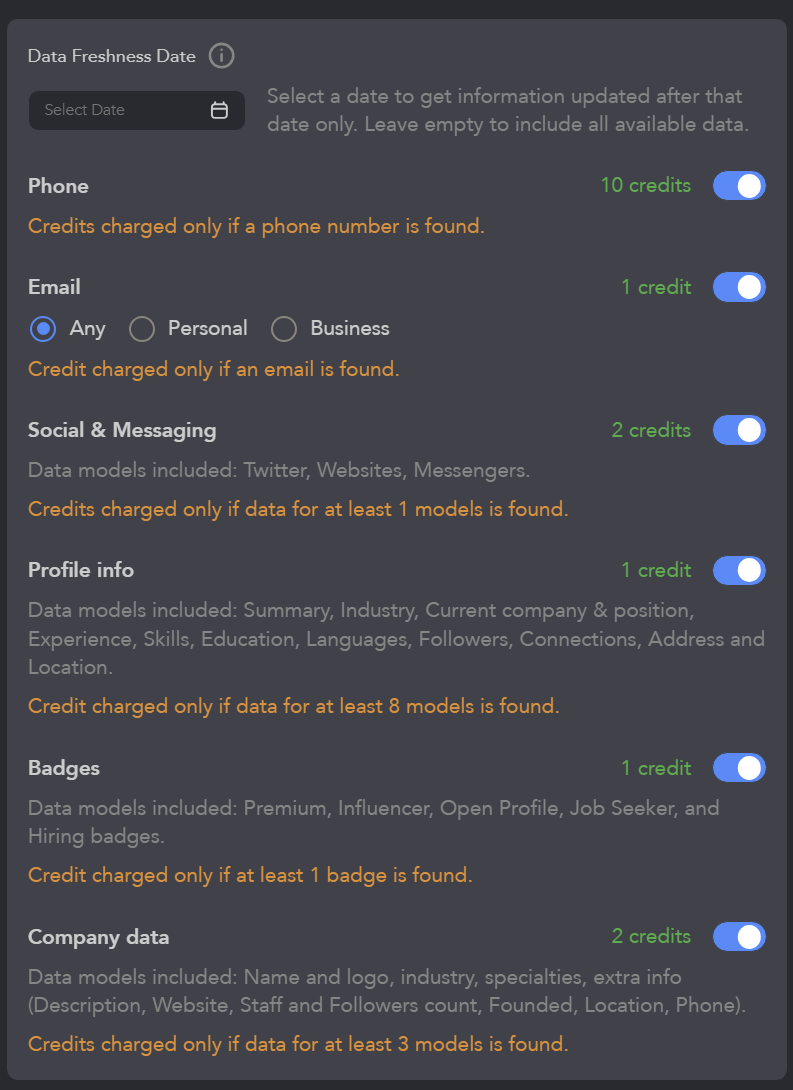
Data Enrichment settings include badge enrichment alongside contact, profile and company fields. Data Enrichment guide.
A successful repeated lookup can still cost credits. Data Enrichment charges for a successful request even if the profile already has data. Fetched information replaces existing information only when it is newer, so a paid lookup does not necessarily change the card. Remove unnecessary repeated enrichment steps and inspect the result on a small list first.
This differs from Visit & Extract, which opens LinkedIn pages, and from Find Profile Emails, which focuses on email discovery and can use Linked Helper’s database or your own Snov.io/Apollo.io account. Database enrichment can save profile visits. In AI ICP Detection and AI Personalized Messages, you can configure Visit & Extract as a fallback when database coverage is insufficient; the standalone Data Enrichment action does not include this fallback. The database is not a standalone public enrichment API; the workflow requires an active license. Data Enrichment, Data credits.
Watch on YouTube: Don't Waste Invites: Get Emails Without Visiting Profiles · Linked Helper
Linked Helper AI features
Both Standard and Pro include the AI tools; the credit allowance differs. The useful distinction is what each tool analyzes and where its output enters the workflow. AI features and allowances.
| AI feature | What it uses | What you control |
|---|---|---|
| AI ICP Detection | Selected profile and company information | ICP description, data requirements and match threshold |
| AI Personalized Messages | Selected profile fields and campaign/message goals | Language, tone, draft review and optional auto-approval |
| AI Commenter | Prospect and post context | Comment goal, tone and length |
| AI Reply Assistant | Conversation history and your instructions | The response you choose to send |
| AI Message Generator and editor | Your brief or existing text | Template wording, grammar, tone and length |
Sources: pricing, ICP setup guide, AI messaging guide and AI Comments.
AI ICP Detection: qualify before contacting
Describe the customer or candidate you want, select the fields AI should consider and set a minimum match score. The action can evaluate experience and company descriptions beyond a matching job title. Profiles above the threshold continue; lower-scoring profiles go to Failed. That score is the model’s assessment of fit, not a probability of winning a sale.
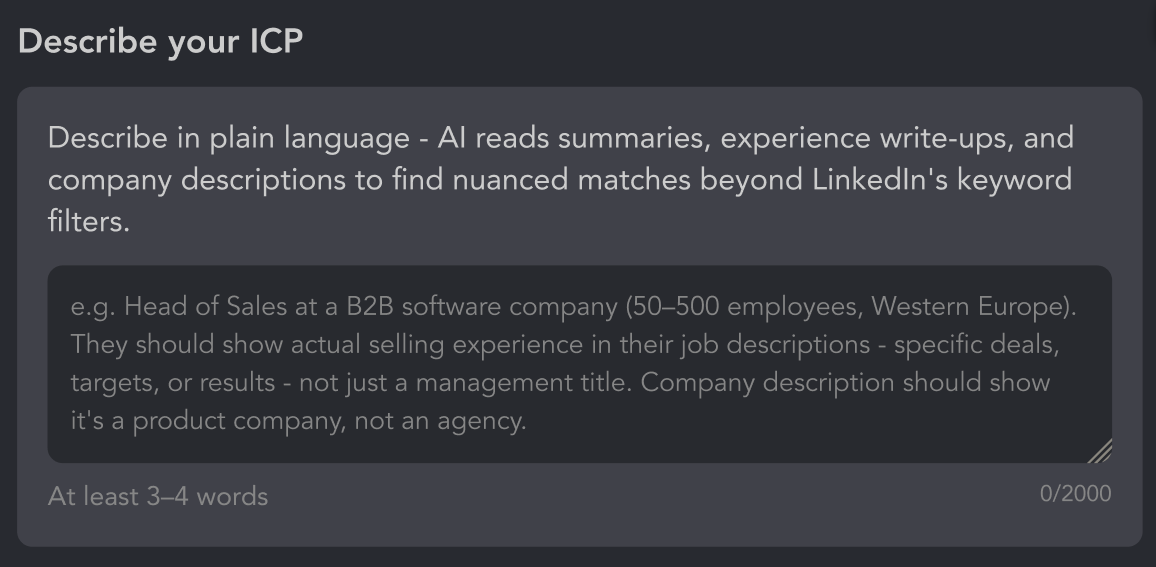
AI ICP Detection settings. AI ICP Detection guide.
Data can come from database enrichment, Visit & Extract or information already collected. A missing field marked Required can move a profile to Failed. Use If available for optional fields so their absence does not trigger that missing-required-field error. Check both accepted and rejected prospects against your own criteria before increasing the list size; otherwise the threshold may hide relevant contacts or admit poor matches.
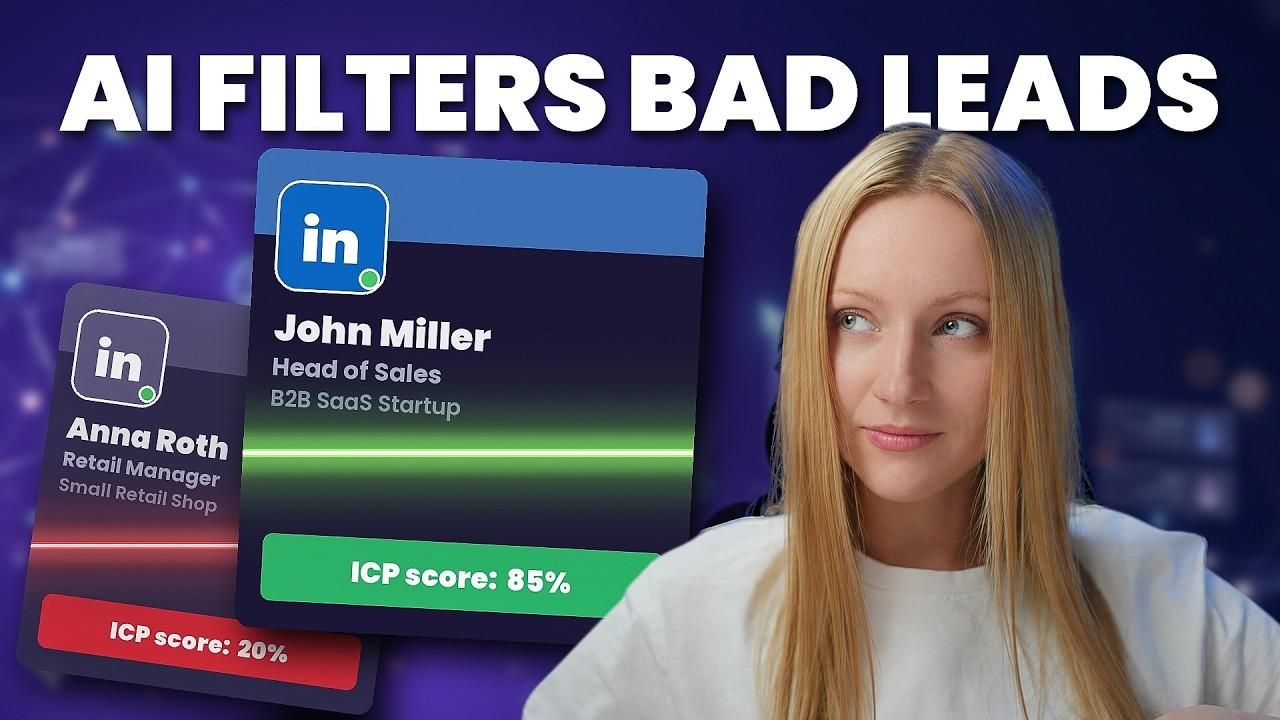
Watch on YouTube: LinkedIn Lead Gen: Stop Wasting Connection Limits on Bad Fits · Linked Helper
AI Personalized Messages: goals, drafts and setup limits
Set a general campaign goal and a goal for each message, then choose language, tone and profile fields. Message personalization uses profile information, not recent posts. Post context belongs to AI comments. When auto-approval is disabled, generated messages wait in the campaign Inbox’s AI Drafts tab for review and approval. Messaging setup, data scope.
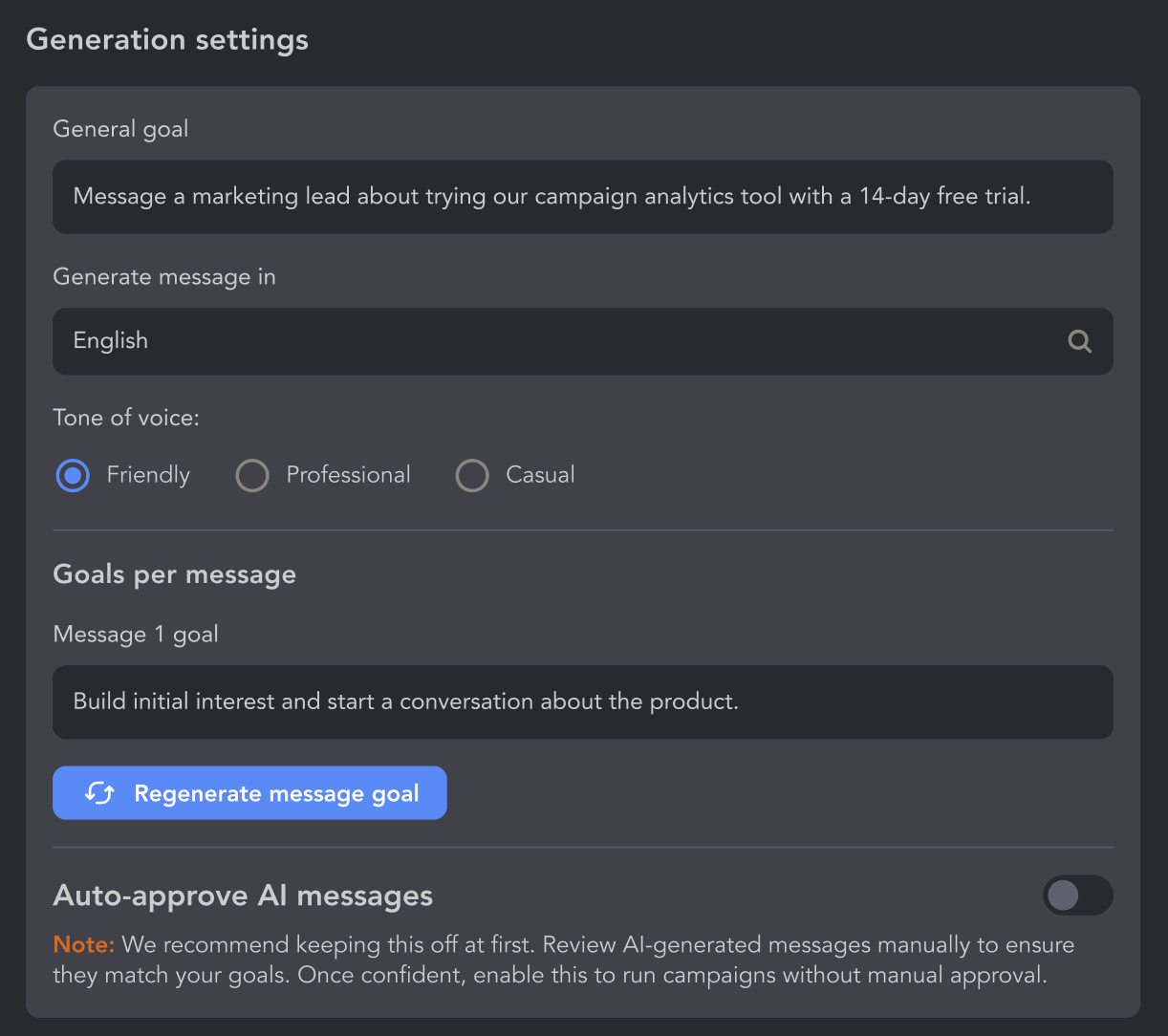
AI messaging settings. Auto-approval is optional. AI messaging guide.
Build this workflow deliberately. The AI personalized-message action is available through the Invite and follow-up template and cannot be added to an existing campaign. The number of AI messaging actions is set during creation, up to seven total; an AI invitation leaves up to six follow-ups. Additional ordinary-template follow-ups remain possible. Changing goals affects new profiles, rather than regenerating messages already produced. These limits matter if you intend to retrofit a running campaign.
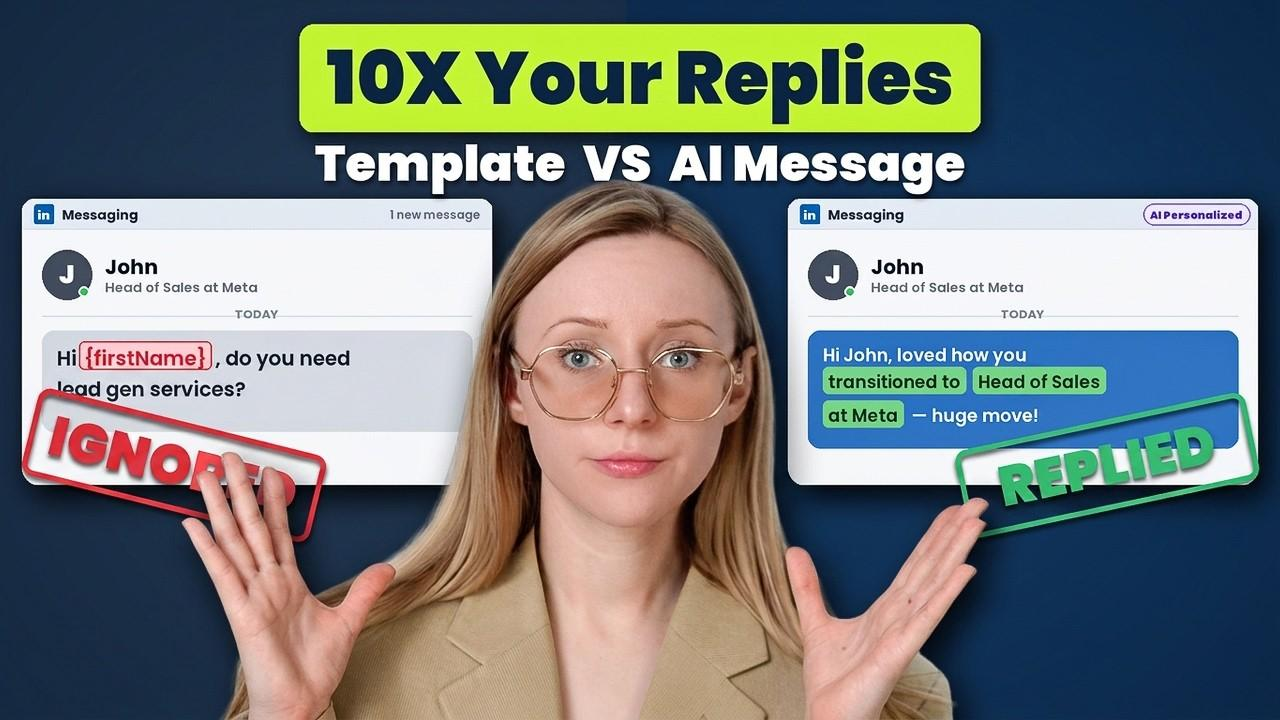
Watch on YouTube: Is Your LinkedIn Inbox Dead? Use This AI Strategy · Linked Helper
AI comments, replies and editing
AI Commenter generates post-related comments with configurable language, tone and length. Inspect whether a comment contributes something relevant before scaling it. The AI Reply Assistant drafts responses from conversation history inside the Inbox. The generator and editor produce reusable templates or revise grammar, tone and length. Sources: AI Comments, AI credit usage.
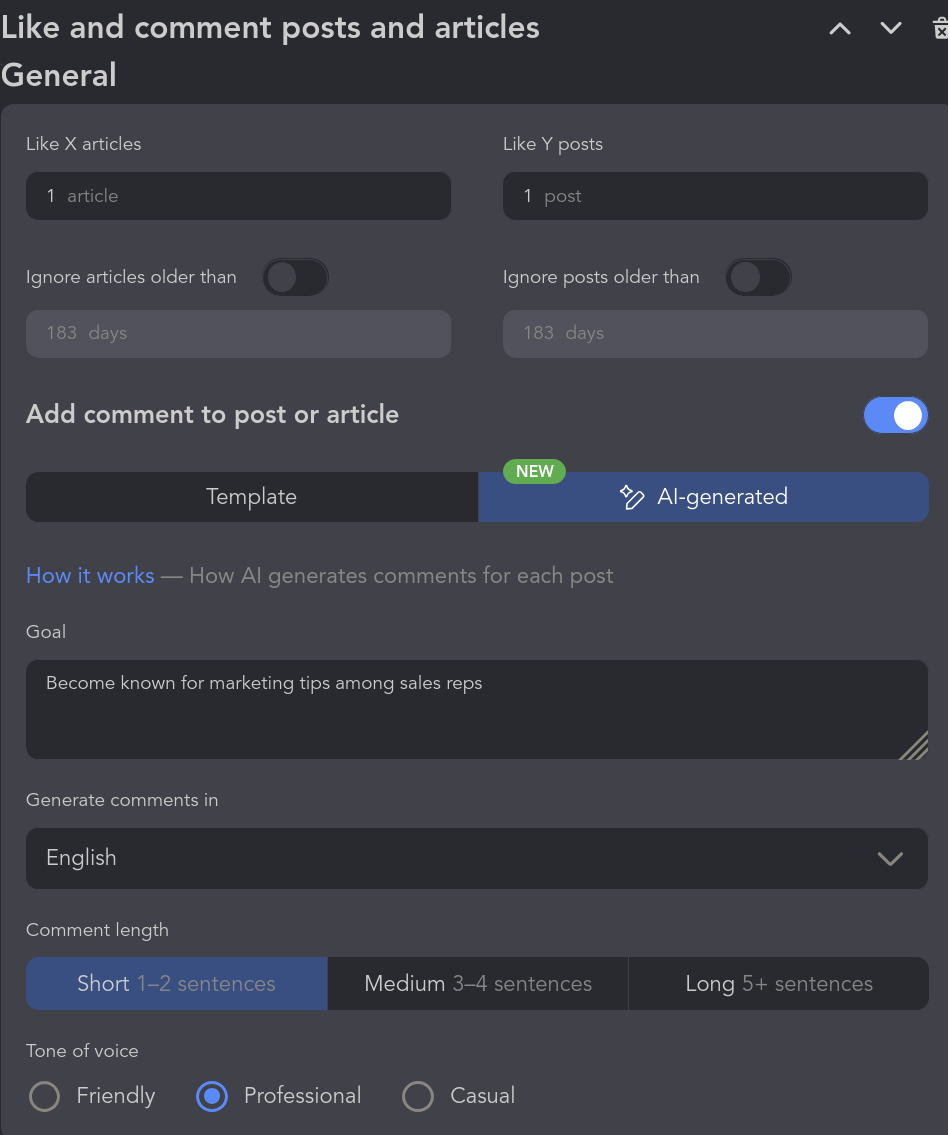
AI comment controls: interface illustration. Sources: AI Comments page.
AI credits cover qualification, generation, regeneration, replies and editing. ICP assessments consume credits even when a prospect scores too low to continue. Accounts share the workspace AI-credit balance and a per-account spending cap is not available. Assign responsibility for that shared budget before giving a team broad access. AI credit rules.
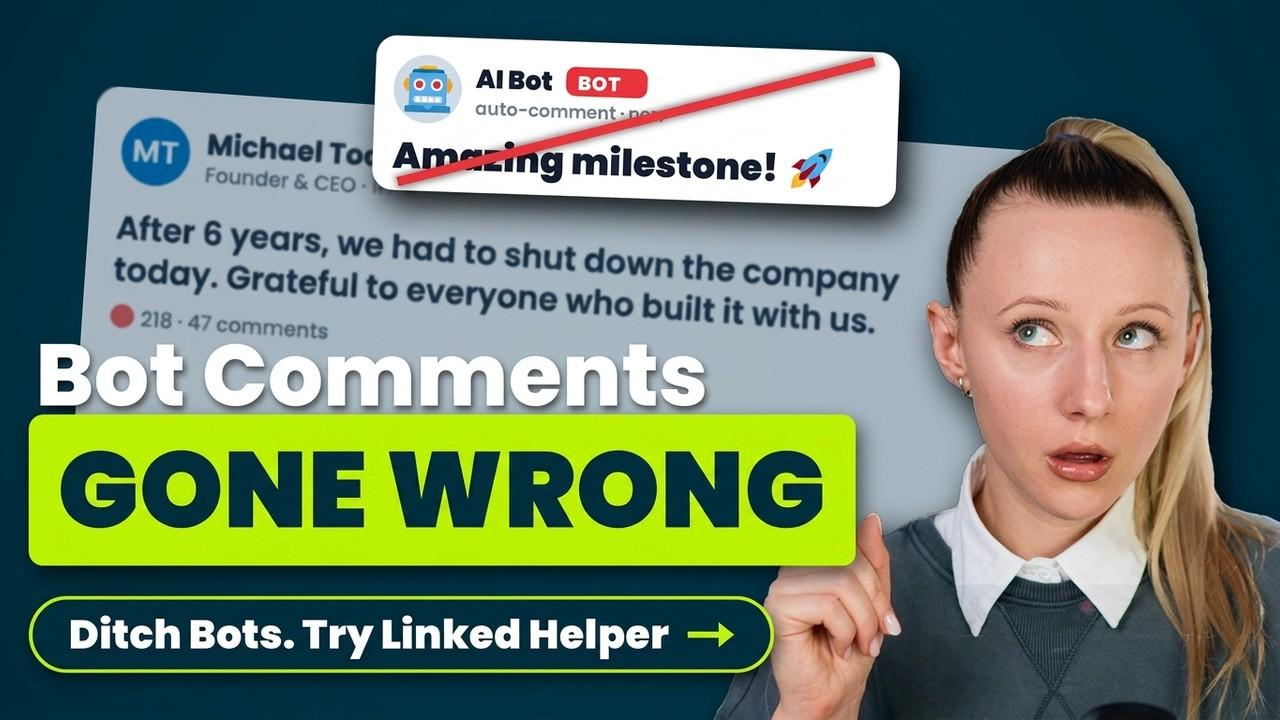
Watch on YouTube: Increase LinkedIn Reply Rates with Context-Aware AI Comments · Linked Helper
CRM, Workspaces and Unified Inbox
The built-in CRM provides tags, notes, an Inbox and profile exports. It holds the outreach context inside Linked Helper; external CRM transfers are covered separately below. CRM capabilities.
Workspaces separate administrative roles—Owner, Admin, Member and Guest—from per-account access—Owner, Manager, Editor and Viewer. A client can receive Guest access with a Viewer role on the relevant account. Access Lists help assign permissions to groups of teammates. Browser remote control lets an authorized colleague connect to an active account instance; the execution computer must still be running.
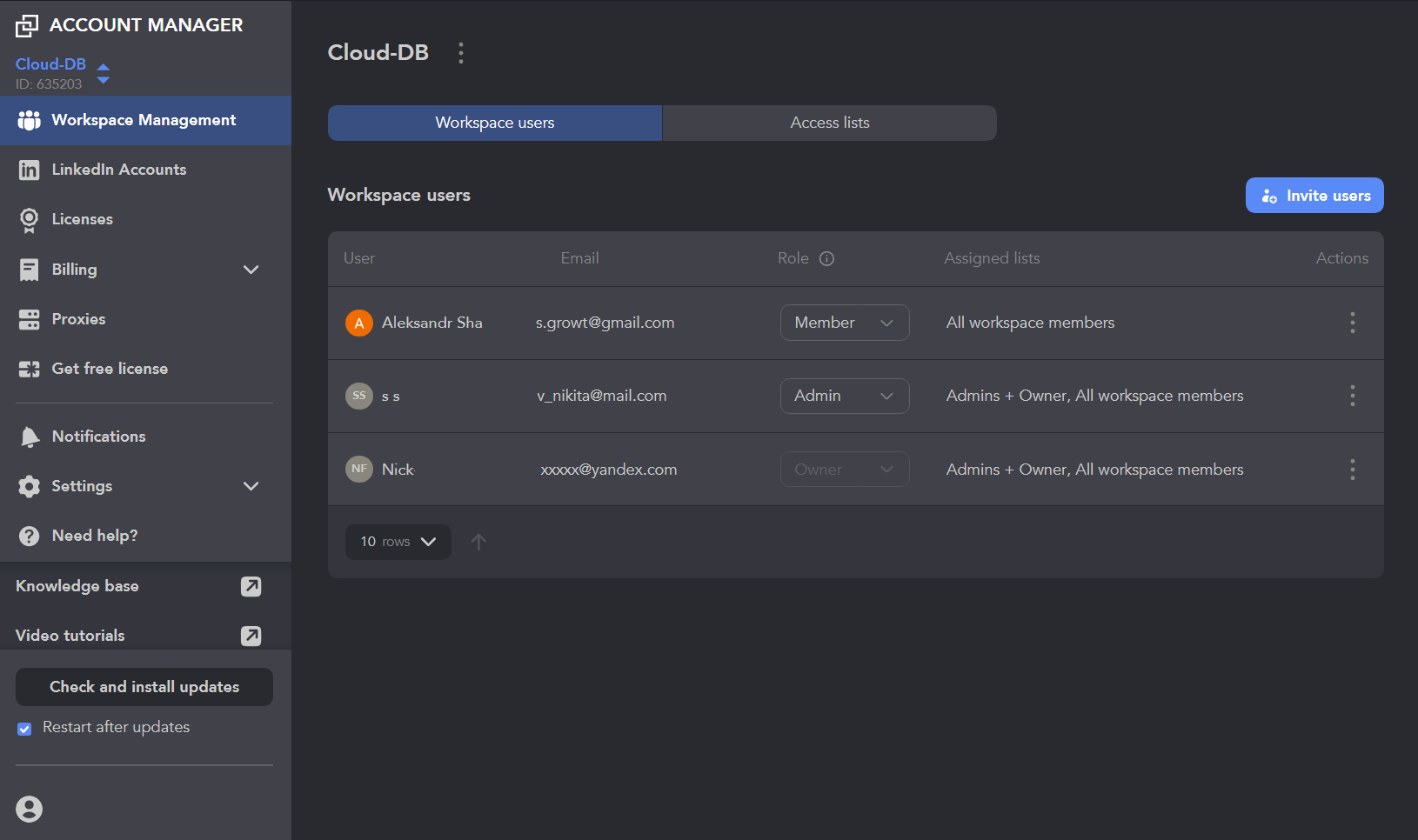
Workspaces interface illustration. Sources: Workspaces page.
In the Cloud-based storage version, accounts can share a Unified Inbox, letting a team review conversations across connected accounts and use the original sender’s context. CRM synchronization shares profile records, tags and notes. The List Manager supports moving lead records between accounts, cloning campaigns and comparing lists for overlapping prospects.
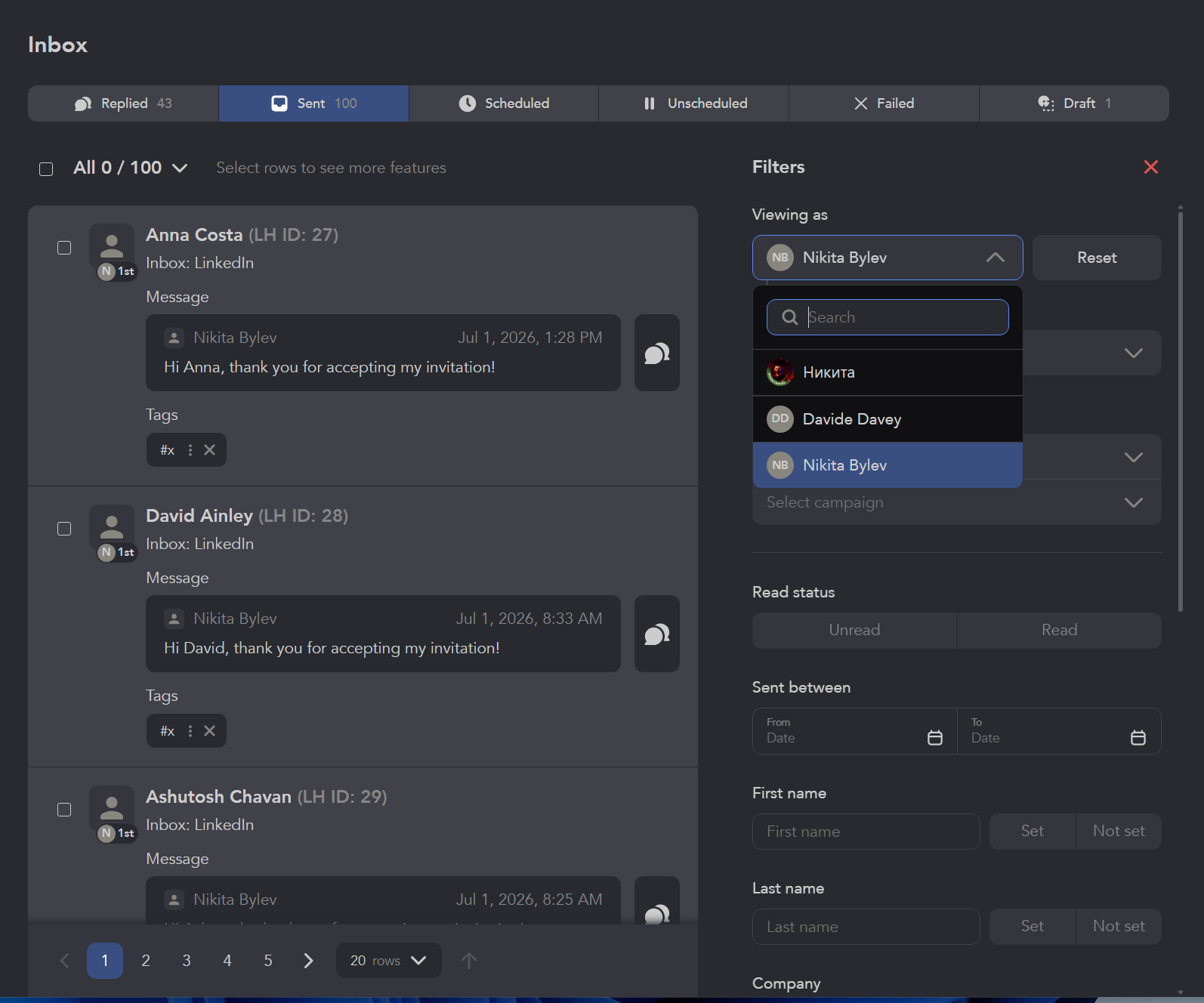
Interface illustration from the Unified Inbox page. Example conversations.
Agency branding can change the application name and logo. This does not grant a right to resell Linked Helper licenses. Branding and reporting features.
A handoff transfers a lead record; it does not make two LinkedIn profiles the same sender. Assign conversation ownership and check overlapping lists before coordinating several accounts. Sources: Cloud lead management.
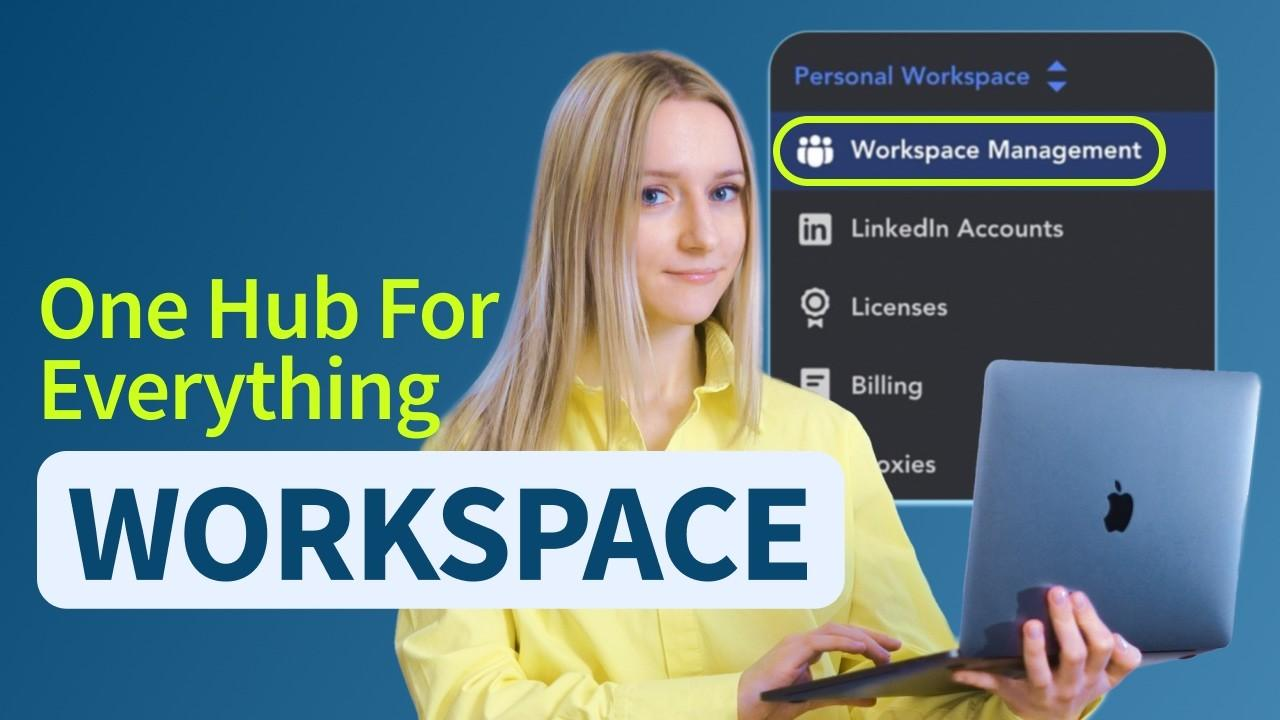
Watch on YouTube: The Best Workspaces Feature You Were Missing · Linked Helper
Integrations, webhooks and email workflows
Linked Helper can receive leads into a campaign and send processed data to other systems, but those are separate capabilities. Choose a native connector for a supported destination; use webhooks when your workflow needs another system or additional routing.
CRM, ATS, email and Google Sheets integrations
Native integrations include HubSpot, Salesforce, Pipedrive, Zoho CRM, Zoho Recruit, ActiveCampaign, Close, Capsule, Streak, HighLevel and Instantly. Apollo.io is an email-enrichment option; Snov.io also supports email discovery and a campaign handoff. Those jobs differ from exporting a contact to a CRM. Integration directory, plan matrix.
Field mapping and identity matching deserve more attention than the logo list. For example, HubSpot supports contact/company mapping and can log conversations as LinkedIn activities. Use Linked Helper member/public IDs as extra identifiers when email is unavailable. Owner IDs and constant values can help assign a salesperson or lead status. Check the specific connector’s update rules; native integration does not imply identical fields or unrestricted two-way synchronization across all systems. HubSpot integration.
Google Sheets receives data through an outgoing Linked Helper webhook. Deploy the supplied Google Apps Script in your spreadsheet to create the receiving URL, then paste it into the Send person to webhook action. Zapier or Make is not required for this setup. Contact transfers are capped on Standard, while including message history requires Pro. External CRM, email-tool and automation-platform access or billing remains separate. Google Sheets integration, plan limits.
Email handoffs: Instantly and Snov.io
Our customers use these native handoffs and webhook workflows alongside specialist email tools. For example, collect a focused audience, qualify it, find available email addresses, and add Send person to external CRM → Instantly at the chosen handoff point.
Connect your Instantly API key, select the campaign, and map names, company data and a prospect-specific custom variable to its personalization field. Instantly needs an email identifier; missing-email contacts fail the export. The email platform sends the emails. This direct integration does not require Make or Zapier. Instantly setup and field mapping.
The Send person to Snov.io campaign action transfers lead details to a Snov.io list or campaign using your Snov.io API credentials. It does not find an email address: finding or extraction comes earlier, and Snov.io sends the emails.
Snov.io’s access, pricing and required fields apply to the handoff. Validate the transfer with the fields your campaign needs. Sources: Snov.io campaign integration.
Outgoing webhooks: send profiles, organizations and replies
An outgoing webhook sends data from Linked Helper to a receiving URL. It can connect a campaign to Make, Zapier, n8n or a custom endpoint. The person and organization actions are distinct. Profile data can include contact information, identifiers and custom variables; select the fields your destination needs rather than assuming every field exists.
The Send replied to Webhook plugin can send responding prospects through supported messaging/reply-check settings. This is useful when a CRM should receive engaged contacts rather than every collected profile. Full messaging-history export has a separate Pro requirement. The webhook follows the configured action and reply detection; it is not a continuously listening, instantaneous trigger. Outgoing webhook setup, webhook overview.
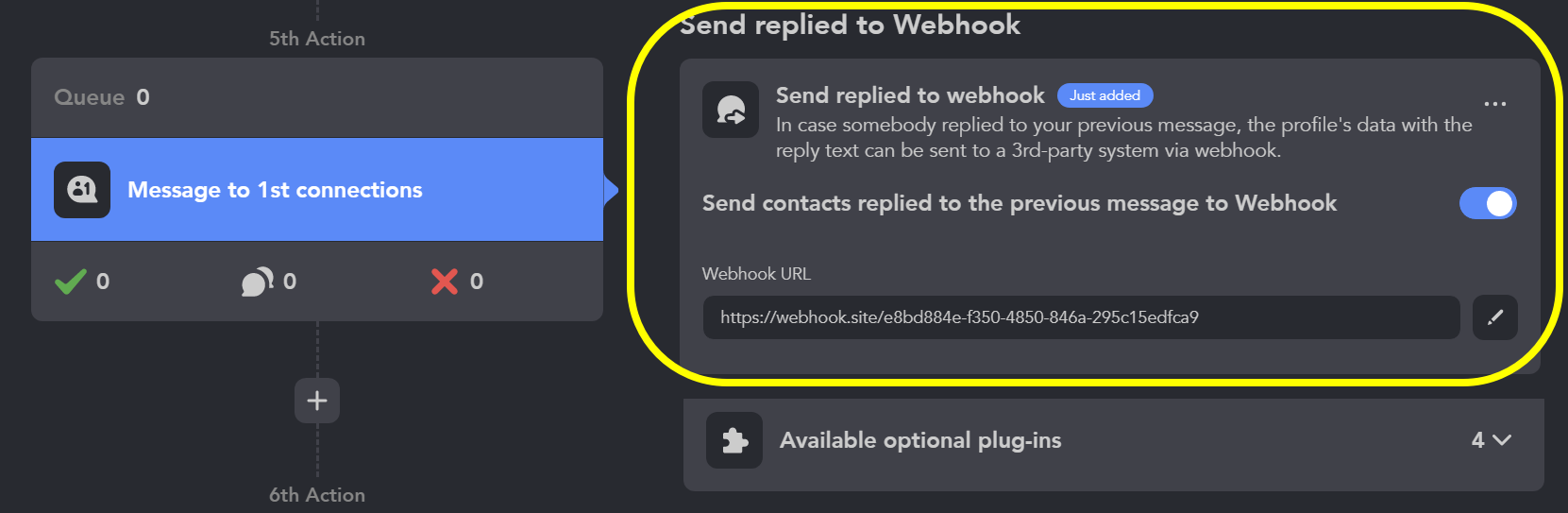
Outgoing webhook settings with an example destination. Outgoing webhook guide.
Incoming webhooks: add leads to a campaign
Incoming webhooks require the Cloud-based storage version. Create the webhook from a campaign’s Workflow tab and give its URL to the system that will send profiles. The request contains LinkedIn, Sales Navigator or Recruiter profile URLs and can include per-person custom fields; several profiles can be delivered in one request. It adds people to that campaign, rather than exposing a general-purpose API for every Linked Helper operation. Incoming webhook setup.
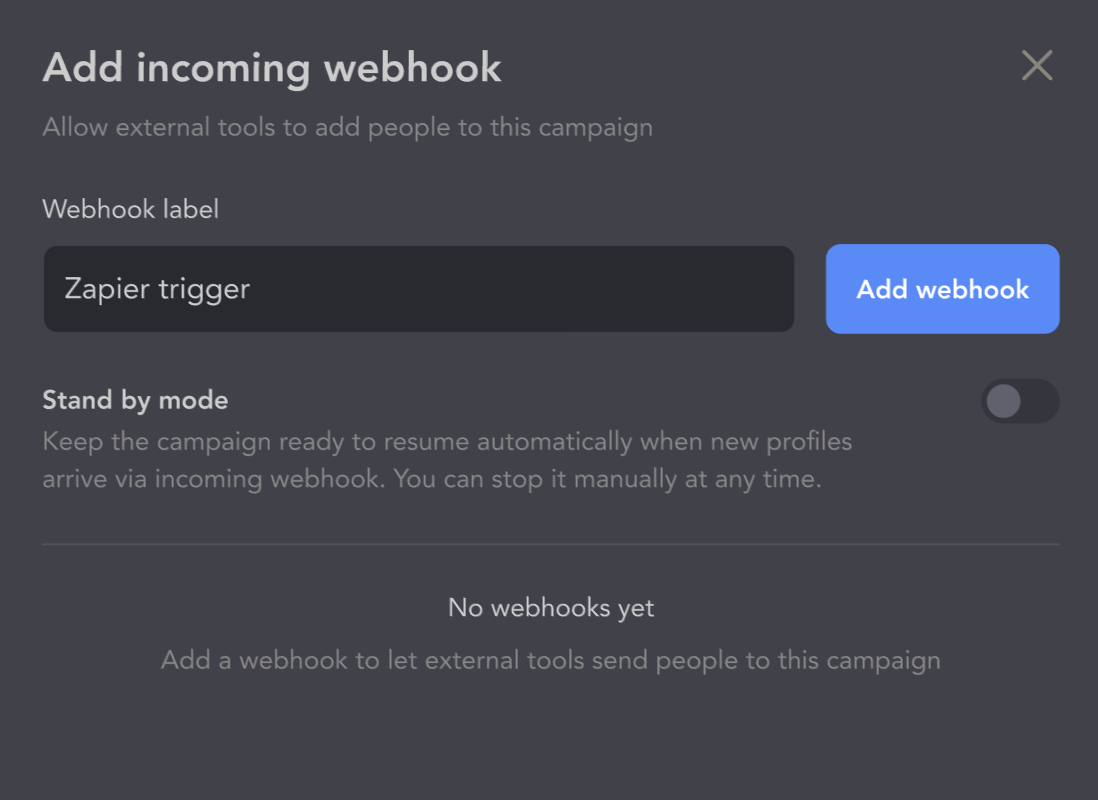
Incoming webhook settings. Incoming webhook guide.
Enable Stand by mode if the campaign should be ready to resume when new profiles arrive; otherwise processing needs a manual start. A Make workflow can forward outgoing data from an account using Local storage into the incoming webhook of an account using the Cloud-based storage version. Receiving data does not eliminate the requirement to run the execution app.
Use an external workflow to define cross-channel exclusions and handoff ownership. Incoming lead delivery adds profiles; it does not stop an existing sequence or synchronize every email reply. Sources: Webhook workflows, incoming lead format.
Which configuration supports your integration?
| Workflow requirement | Storage choice | Plan consideration |
|---|---|---|
| Send person/organization data out | Local storage or Cloud-based storage | Standard caps the relevant transfer at 20/day; Pro removes that vendor cap |
| Add people through an incoming webhook | Cloud-based storage | Listed for both plans; receiving leads does not bypass later action limits |
| Send full message history to CSV, webhook or CRM | Local storage or Cloud-based storage | Pro required |
| Share Inbox and CRM data across accounts | Cloud-based storage | Access permissions still apply |
An illustrative setup is: your CRM identifies an eligible lead with a LinkedIn URL; Make passes the URL and a segment field to a campaign in the Cloud-based storage version; Data Enrichment fills selected fields; AI ICP Detection filters fit; approved messages begin the sequence; a reply webhook sends responding contacts to the receiving system. Validate mapping, required fields, credit usage and reply routing with a test payload before connecting a larger flow.
Pricing, plans and storage
Linked Helper has two separate purchasing choices: Standard or Pro determines advanced-action limits and export capabilities; Local storage or Cloud-based storage determines where workspace data lives and how it is shared.
Monthly and annual prices
| Configuration | One-month license | Monthly equivalent, 12-month term | Paid upfront for 12 months |
|---|---|---|---|
| Standard, Local storage | $15 | $8.25 | $99 |
| Pro, Local storage | $45 | $24.75 | $297 |
| Standard, Cloud-based storage | $29.90 | $16.50 | $198 |
| Pro, Cloud-based storage | $59.90 | $33 | $396 |
USD per license; before applicable tax, bulk discounts and additional services. Sources: pricing and plan prices.
Longer terms lower the license cost. Twelve one-month Local Standard licenses cost $180, compared with $99 for a 12-month license. Local Pro costs $540 over twelve monthly purchases, compared with $297 upfront. That saving is useful only if the configuration fits for the whole term.
Standard vs Pro: which plan should you choose?
Standard includes unlimited core campaign features, AI tools with a credit allowance, and capped advanced functionality; Pro is justified by specific throughput, history-export or credit needs. Standard is not a blanket 20-actions-per-day version of Linked Helper.
| Capability | Standard | Pro |
|---|---|---|
| Connection requests, ordinary first-degree messages, campaign builder | Included; LinkedIn limits still apply | Included; LinkedIn limits still apply |
| Selected advanced actions, including group/event messages and attached-image messages | 20/day for the capped action | No corresponding Linked Helper daily cap |
| Native contact transfers to a CRM and outgoing profile webhooks | 20 profiles/day | No corresponding Linked Helper daily cap |
| Message-history export to CSV, webhooks or CRM | Not included | Included |
| Included Data credits | 620/month | 3,100/month |
Source: plan comparison. “No Linked Helper cap” does not remove LinkedIn’s own limits or restrictions.
Standard is a reasonable starting point for connection requests and ordinary follow-ups when its advanced-action ceilings will not constrain the workflow. Pro becomes more relevant when you need to transfer more than 20 contacts a day through a capped integration, export message history, or use a higher data allowance.
Local vs Cloud-based storage
Cloud-based storage adds shared data and collaboration. Choose by your backup, device and team-access requirements below; the architecture section explains the execution model.
| Requirement | Local storage | Cloud-based storage |
|---|---|---|
| Campaign execution | Your computer or VPS | Your computer or VPS |
| Workspace data | Stored on your device | Stored on Linked Helper servers |
| Backups and another device | Manual backups/transfers | Automatic backups and synchronized data |
| Cross-account conversations | Individual account Inbox | Unified Inbox for accounts using Cloud-based storage |
| Webhooks | Outgoing | Incoming and outgoing |
Local storage makes sense when one operator needs to manage an account and is comfortable maintaining its files. Cloud-based storage is more relevant when colleagues need the same lead records, conversations and campaign data, or when work regularly moves between devices.
Continuous operation requires your own powered-on execution machine or VPS. Budget for the VPS separately.
Choose storage before building the workspace. Migrating an existing workspace from Local storage to Cloud-based storage is not supported yet. Starting with Local and assuming a later one-click migration could create avoidable work.
Credits and additional costs
AI credits and Data credits are different budgets. AI allowances are granted upfront for the license term: Standard includes 250 credits for one month or 1,500 for twelve months; Pro includes 500 or 3,000 respectively. The annual allocation is not that many credits renewed every month. Extra AI credits can be purchased; no separate ChatGPT subscription is required.
Data credits pay for enrichment: an email costs one credit, while a phone number costs ten. They are added with a license purchase; for longer terms, confirm the actual allocation in your order rather than extrapolating the monthly headline. Allocation by term. Consequently, 620 credits do not mean 620 fully enriched prospects with every field. Purchased AI credits do not expire, but license-included AI credits expire with the license; Data credits do not expire. Credit units and expiration.
Data-credit packages have their own package sizes and bulk-order rules. Packages include 1,000 credits for $15, 5,000 for $49, 10,000 for $89 and 50,000 for $284, with additional volume tiers based on the number of packages ordered together. Those prices buy credits, not a guaranteed number of fully enriched leads. Data package pricing.
Budget separately for paid LinkedIn access, extra Data or AI credits, a server for continuous operation, a proxy if your setup uses one, and external email services. Cloud-based storage is not a server rental.
Bulk license discounts for teams
Buying licenses together can reduce the per-account cost further. The volume discount depends on how many qualifying licenses you purchase in one order/subscription, rather than the lifetime total of separate purchases.
| Licenses purchased together | Additional volume discount |
|---|---|
| 1–9 | None |
| 10–19 | 10% |
| 20–49 | 20% |
| 50–74 | 30% |
| 75–99 | 35% |
| 100–999 | 40% |
| 1,000+ | 50% |
Licenses must be the same type and duration, bought under one subscription or order. Discounts apply automatically when licenses are ordered on one invoice. Buying ten separate licenses does not qualify in the same way. Volume conditions, licensing help.
Term and volume discounts multiply; they are not added. For example, 20 Local Standard licenses for twelve months cost $99 × 20 × 0.80 = $1,584 upfront, equivalent to $6.60 per account per month. Buying those accounts as separate one-month licenses for a year would cost $3,600, so the combined reduction is 56%, rather than 45% + 20% = 65%.
The term-price table already includes the long-term reduction: apply the volume discount to that term price once. For the same 20-account, twelve-month example, Local Pro is $4,752, Standard with Cloud-based storage $3,168 and Pro with Cloud-based storage $6,336 before tax and extra services. Check the selected storage/plan and final invoice rather than using the Local example as a Cloud-based storage quote. Term prices and discount calculation.
Licensing, renewal and changes
One license runs one LinkedIn account at a time. It is not a charge for every teammate: workspace members receive access through roles. Additional workspaces require at least one license each. You can reassign a license, but cannot use it to run two accounts simultaneously.
Paid-license renewal is optional: a license expires by default unless you enable auto-renewal. Check your order’s renewal settings and refund terms before paying. Sources: Billing and license details.
You cannot upgrade Standard to Pro mid-term. The Standard license must expire first. Test the capped actions and history exports before committing to a long Standard term.
Customer reviews, strengths and tradeoffs
Linked Helper’s Trustpilot profile has a 4.8/5 TrustScore from 466 reviews as of September 30, 2026. Customer reviews include praise for support, time saved and affordability. A June 30 review by Evgeniya Kubryak described useful outreach functionality while criticizing the interface’s appearance.
| Strength | Practical benefit | Tradeoff or limit | Best fit |
|---|---|---|---|
| Configurable campaigns | Combine sourcing, engagement, messages, reply checks and handoffs. | Requires deliberate setup and testing of reply handling. | Teams with a defined multi-step process. |
| Broad sourcing and rich enrichment | Build lists from different sources and add relevant contact/company context. | LinkedIn access, database coverage. | Prospecting with clear audience criteria. |
| AI qualification and messaging | Assess ICP fit and draft messages, comments and replies from selected context. | AI credits still matter. | Personalization across distinct prospect segments. |
| Visible browser execution and session control | Inspect actions and control the execution machine, instance and network. | Maintain your computer or VPS | Operators who want control of execution. |
| Shared Inbox, CRM and workflow handoffs | Coordinate lead records, conversations, roles and external transfers. | Shared features and incoming webhooks require Cloud-based storage; message-history export requires Pro. | Teams handing conversations between people or systems. |
Verdict: who should choose Linked Helper?
Linked Helper fits teams that need to choose their own sourcing and outreach logic, review AI-assisted messaging, enrich lead context, and hand conversations to colleagues or a CRM. Start with Standard Local when one operator runs the app on their own computer and the relevant advanced-action caps fit. Choose Pro for higher capped-transfer throughput or message-history export, and Cloud-based storage for shared Inbox/CRM data or incoming webhooks.
Use the 14-day Pro trial to validate the workflow that will determine your purchase:
-
Observe a small workflow in the execution browser and confirm the machine, session and IP setup; then inspect the collected profile fields.
-
Build the intended sequence, including reply checks; review any AI drafts before sending.
-
For team use, validate access roles, shared conversations and the intended storage choice.
-
Test enrichment with the fields and freshness threshold you need; check both coverage and credit deductions.
-
Check the contact and history fields required by your CRM or email handoff. Send a test payload and inspect identifiers, custom fields, history and reply routing.
-
Compare the actions you need with Standard’s limits, and include infrastructure and extra services in the cost.
The trial ends without an automatic charge or card requirement. Its Pro access can conceal Standard’s limitations, so inspect the plan comparison before choosing a long license. If hosted execution or avoiding third-party automation is a firm requirement, make that decision before comparing headline prices.