

 16 min read

TL;DR
- Best free default: Google Calendar works across devices and is easy to share, but its Chrome offline mode is view-only.
- Best for Microsoft work calendars: Outlook keeps meetings beside the inbox and fits organizations already using Microsoft work accounts.
- Best for Apple households: Apple Calendar is free on Apple devices and can combine iCloud, Google, and Exchange accounts.
- Best for Notion users: Notion Calendar puts database deadlines beside calendar events but doesn’t turn Google events into Notion database records.
- Best cross-platform client: Fantastical adds a polished, configurable view over existing calendars; several useful collaboration and scheduling tools require Premium.
- Best calendar-plus-task client: Morgen brings provider calendars and task services into one desktop and mobile app, with an annual individual plan after its trial.
- Best free automatic planner: Reclaim Lite can schedule around existing commitments, with a short one-week planning range.
- Best all-in-one AI planner: Motion combines tasks, projects, and calendar planning, but its paid Pro AI plan is the most expensive planner here.
I compared vendor pricing and Help Center pages with dated App Store, Capterra, G2, and Trustpilot reviews, then used the gaps to choose specific workflow questions.
What is a calendar app?
Calendar apps store events, display calendars from Google, iCloud, or Outlook, or put movable tasks into free time. A single product may do one job or combine several: a client can rely on a host to store events, while a planner schedules tasks around them.
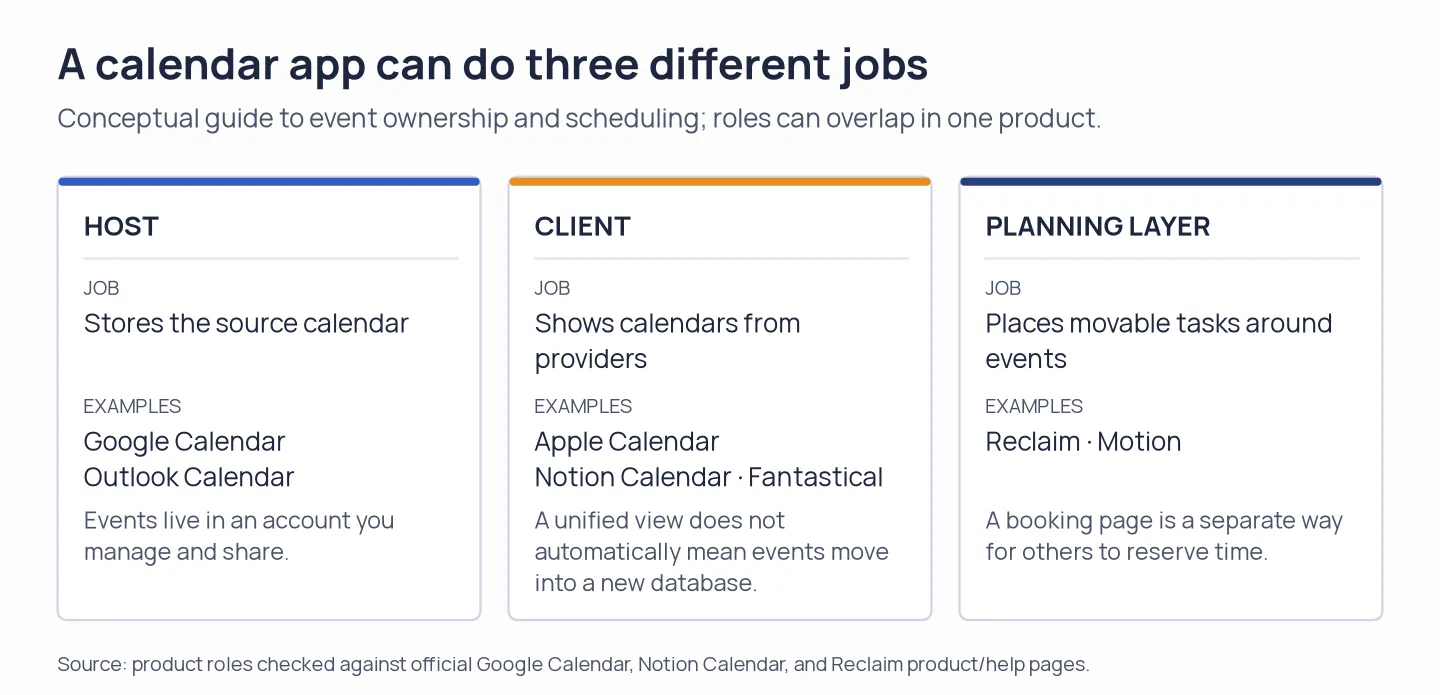
Check whether an app stores events, displays another provider, or schedules tasks before comparing features.
Calendar apps at a glance
Google Calendar is my free default, Outlook Calendar fits Microsoft-centered work, and Apple Calendar works best for Apple households. The table compares the main trade-off for all eight picks.
| App | Best for | Role | Free option | Main trade-off |
|---|---|---|---|---|
| Google Calendar | Most people who want a free default | Host and client | Yes | Web offline mode can’t create or edit events |
| Outlook Calendar | Microsoft-centered work and personal calendars | Host and client | Yes for personal use | Work features depend on the organization and Outlook version |
| Apple Calendar | Apple households and device owners | Client (with iCloud) | Yes | Apple-first setup is a poor fit for a Windows-led household |
| Notion Calendar | Notion databases beside meetings | Client | Yes | Outlook support on mobile is still listed as forthcoming |
| Fantastical | A configurable view across several providers | Client | Yes | Premium gates richer scheduling and collaboration |
| Morgen | One calendar view for calendars and task services | Client and planner | 14-day trial | Individual access is paid after the trial |
| Reclaim | Protecting focus time around a busy Google Calendar | Planning layer | Yes | Free Lite only schedules one week ahead |
| Motion | AI-assisted task planning in one workspace | Planning layer | Trial | Higher paid cost for team controls |
What makes the best calendar app?
The best calendar apps keep events accessible through the accounts and devices you already use, then add only the workflow you're missing. I judged each pick on six practical criteria:
- Event ownership: Does the app store events itself or use another provider as the source of truth?
- Provider fit: Can it connect the Google, iCloud, Outlook, or Exchange calendars you need?
- Device coverage: Do the same accounts and controls work on your phone, computer, and web browser?
- Availability privacy: Does an event simply appear in your view, or does its busy status block a coworker’s calendar without exposing private details?
- Planning behavior: Does the app only display deadlines, or can it place movable tasks around fixed meetings?
- Total cost: What does the required plan cost per person over a year, and what access ends when a trial or subscription stops?
How to choose
Start with the account that owns your events: choose Google Calendar or Outlook if your work already runs there, or Apple Calendar if everyone uses Apple devices. Notion Calendar makes sense when project dates already live in Notion; Fantastical is the more configurable client, while Morgen brings task services into its calendar view. If you want movable tasks scheduled around meetings, try Reclaim Lite first; choose Motion only if you also want tasks and projects in a paid workspace. A client earns its fee when its views or provider support fix a daily annoyance.
Before switching, check whether changes write back to your provider. Then review what coworkers can see when a personal event blocks availability. A personal meeting can hide its title while leaving a busy block visible, depending on the app and provider settings. Test with a private event before putting personal calendars on a work account.
Existing subscription check
If your company already pays for Microsoft 365 or Google Workspace, try Outlook or Google Calendar before buying another calendar subscription. A personal Google Calendar account is free; Workspace Business Starter is a separate suite. Notion Calendar is free, Apple Calendar comes with Apple devices, and a paid client or planner earns its place only when it solves a need your current setup misses.
1. Google Calendar: Best for a free, familiar default
Google Calendar is my free default when your everyday schedule already lives in Google. It stores events and shows them across devices, so you don't need a separate client just to see those meetings on your phone or computer.
Google Calendar pros
- A personal account costs $0, and multiple calendars, along with calendar sharing, cover typical work and household schedules.
- Following setup, Chrome's offline mode can display upcoming events, along with the previous four weeks.
Google Calendar cons
- Offline web mode can't access tasks, send guest email, or create and edit events.
- If your organization manages your Google account, an administrator might control sharing and third-party access.
I prefer that offline trade-off for a free host if you mostly need a schedule reference. If editing events without Wi-Fi is part of your routine, Google Calendar is an easy skip.
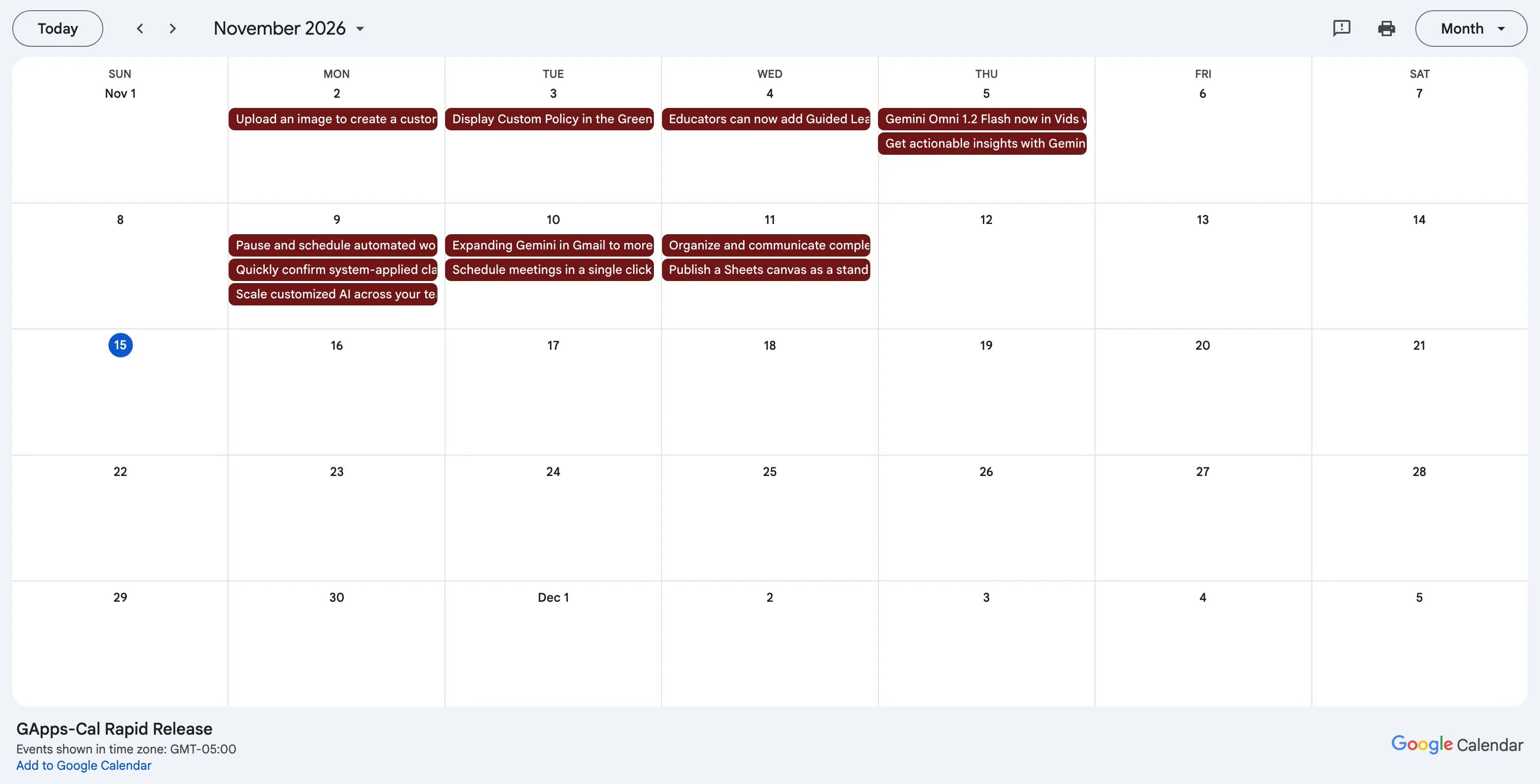
Inside Google Calendar, a shared month view lays out release events by date.
Product pricing — Google Calendar
Free for personal use. Google Workspace is optional. US Business Starter is $7 per user per month on the annual plan ($84 per user per year) or $8.40 per month on flexible billing, before tax.
2. Outlook Calendar: Best for Microsoft-centered work
Outlook keeps personal email and calendar together in a free app for Windows, mobile, and macOS. Its work calendar is a better fit when coworkers and meeting invitations already run through Microsoft; shared calendars and admin controls depend on the company's account setup.
Outlook Calendar pros
- Personal Outlook costs nothing, and within one application the calendar appears next to email.
- For groups already relying on Microsoft accounts plus meeting invitations, it's a good match.
Outlook Calendar cons
- Linking work calendars to a third-party app could be restricted by company controls.
Version sprawl makes Outlook less predictable than its name suggests: new Outlook, classic desktop, and web can behave differently with shared calendars. I wouldn't move a whole team to Outlook until its supported build was clear. Mark B.'s four-star Capterra review in August 2026 praised the organization-wide Scheduling Assistant. That gives Outlook a workplace edge when rooms and invitations matter more than custom views; for personal schedules, the extra build names add little.
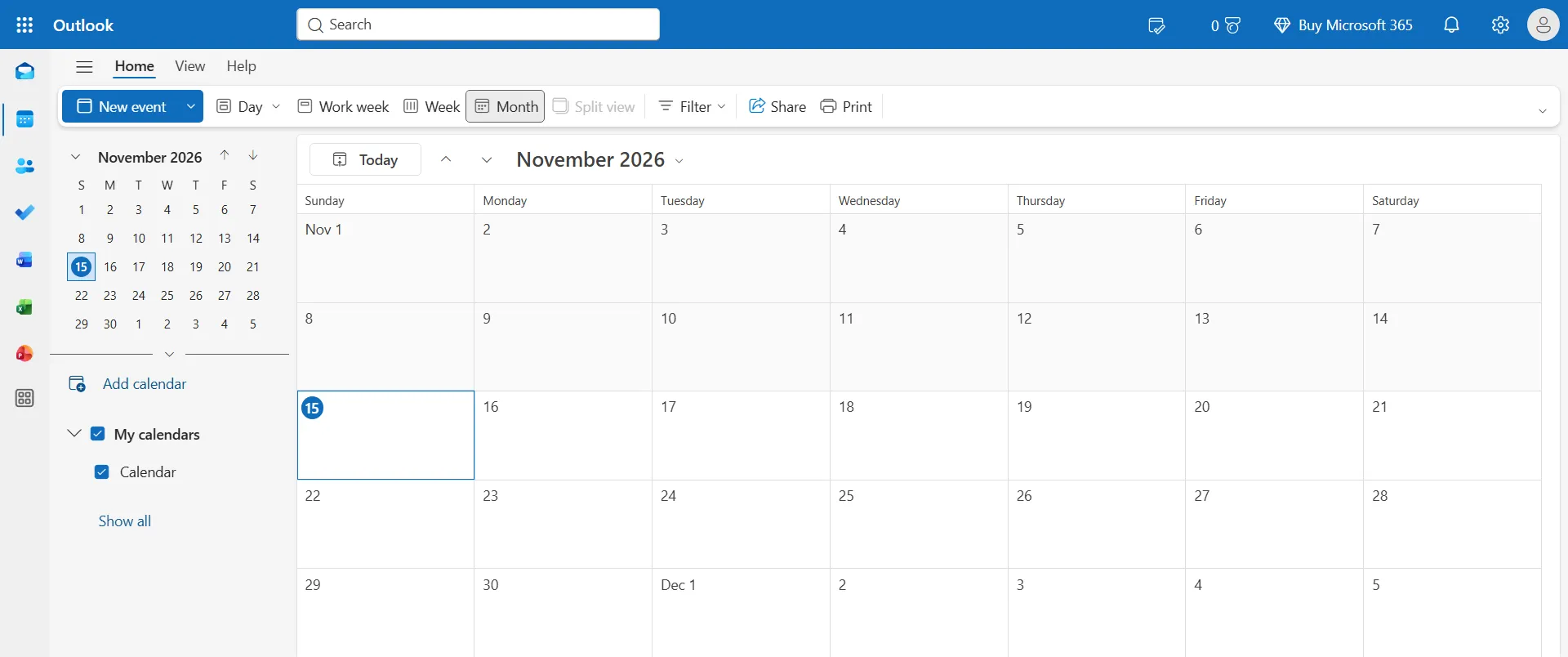
Inside Outlook Calendar, a month grid sits beside selectable calendars.
Product pricing — Outlook Calendar
Free for personal use. Organization features are typically part of the employer’s Exchange or Microsoft work-license arrangement, whose cost depends on the existing license.
3. Apple Calendar: Best for an Apple household
Apple Calendar works best as the built-in client for iPhone, iPad, Mac, and Apple Watch. It can show events from iCloud, Exchange, Google, and other accounts, so you don’t have to move every event to iCloud to use it.
Apple Calendar pros
- On Apple devices, a separate calendar subscription isn't needed.
- It can link multiple provider accounts, and it lets you invite people to events or share calendars.
Apple Calendar cons
- For households using Windows or Android, Apple Calendar can be awkward to share.
For a household with Apple devices already in use, no additional calendar subscription is needed. An October 2026 five-star App Store update objected to the changed layout. Fair enough: I wouldn't sell Apple Calendar as a set-and-forget interface. App Store feedback also raises questions about duplicate and recurring invitations; if your household depends on school or sports series, compare how one repeating event appears to every organizer before switching.
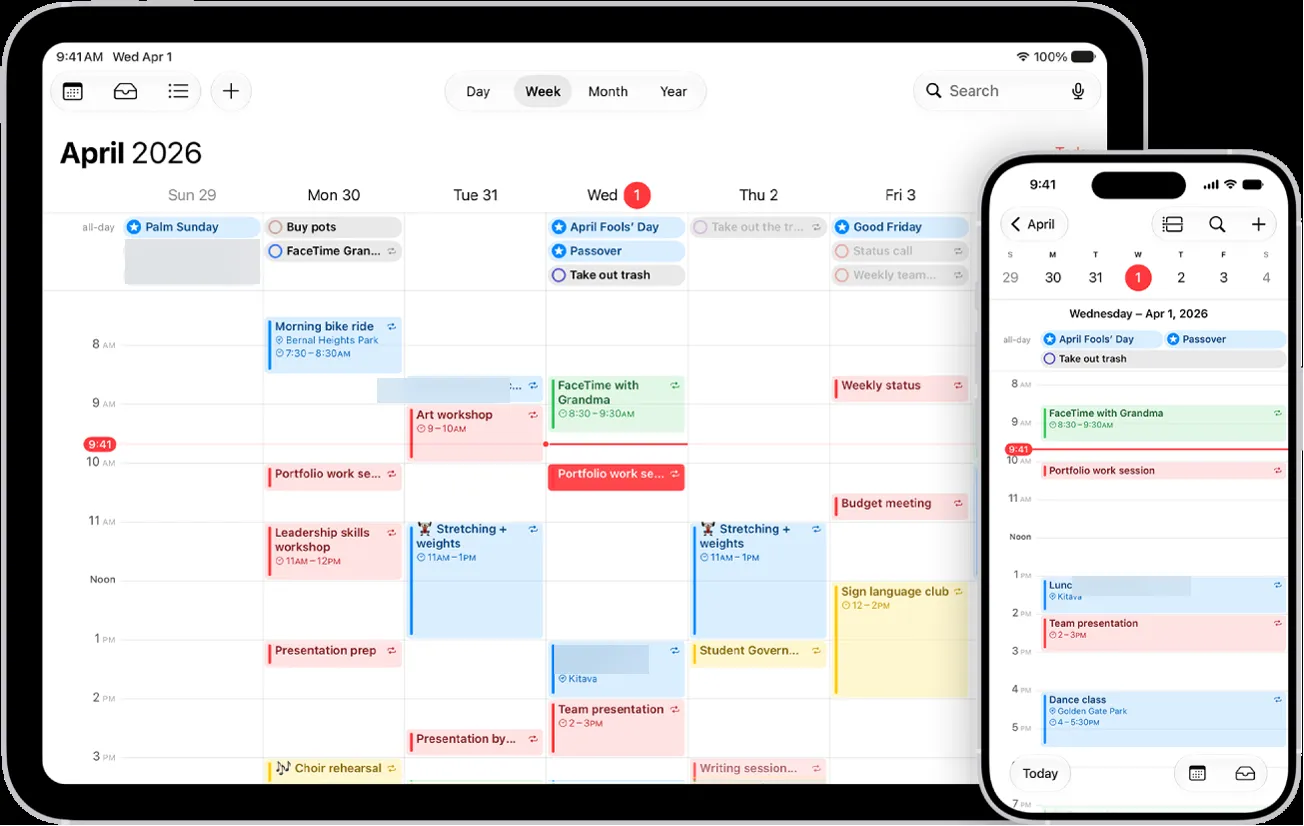
Inside Apple Calendar, iPad’s week and iPhone’s day show the same color-coded calendar.
Product pricing — Apple Calendar
Free with Apple devices. No standalone annual calendar plan is required.
4. Notion Calendar: Best for project dates beside meetings
Notion Calendar has one clear job: it places dated Notion database items beside Google, iCloud, and Outlook events. Google events don't become Notion database rows, and the sign-in page offers email, Google, Apple, Microsoft, passkey, and SSO options.
Notion Calendar pros
- In one view, Notion Calendar places Notion database dates alongside events from Google, iCloud, and Outlook, and it's free.
- It functions on the web, desktop, iOS, and Android.
Notion Calendar cons
- Importing Google Calendar events straight into a Notion database isn't currently possible.
- Per Notion's existing Help Center, support for Outlook mobile is forthcoming. Your organization may also require an administrator to approve the connection.
I like Notion Calendar for project teams that already think in Notion databases; its date overlay gives them a quick view of deadlines without changing which provider owns their meetings.
Notion Calendar looks like a desktop-first pick to me. A September 2026 five-star US App Store review still reported severe mobile slowdown, and an October reviewer preferred the desktop app to the phone version. That's enough uncertainty to keep it off my mixed-device default list.
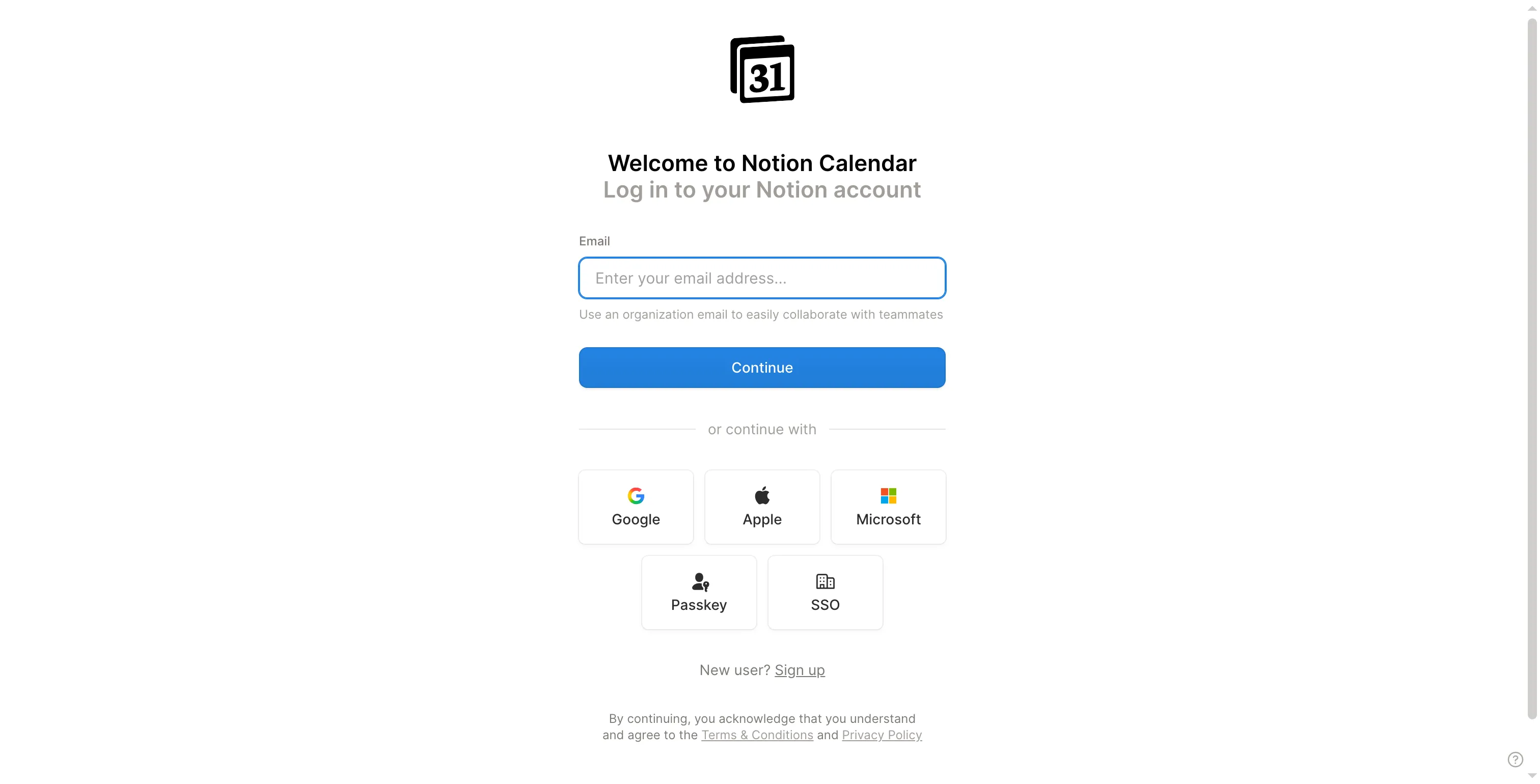
Inside Notion Calendar’s sign-in page, email and major identity-provider routes appear together.
Product pricing — Notion Calendar
Notion Calendar is free. Notion’s Free plan is $0 per member per month. A paid Notion plan is optional for the calendar itself.
5. Fantastical: Best for a more configurable multi-calendar view
Fantastical gives you more control over how existing calendars look and how you enter events, with support for iCloud, Google, Exchange, Microsoft accounts, and CalDAV. Natural-language entry, calendar sets, task views, and meeting tools are part of the package, though you may not need all of them.
Fantastical pros
- A free tier works with existing calendars and includes the basic calendar interface.
- Premium can add other collaboration features, expanded invitee visibility, Openings, and unlimited calendar sets.
Fantastical cons
- Flexibits Premium is required for priority support, expanded collaboration, and Openings.
Fantastical keeps your provider as the source of truth, and I like that separation. Premium makes sense when calendar sets or invitee details save you time every day. Fred Pelard's one-star Trustpilot review in July 2026 said he struggled to find Openings in a submenu. If booking links are your main reason to upgrade, I'd choose a dedicated booking app instead.
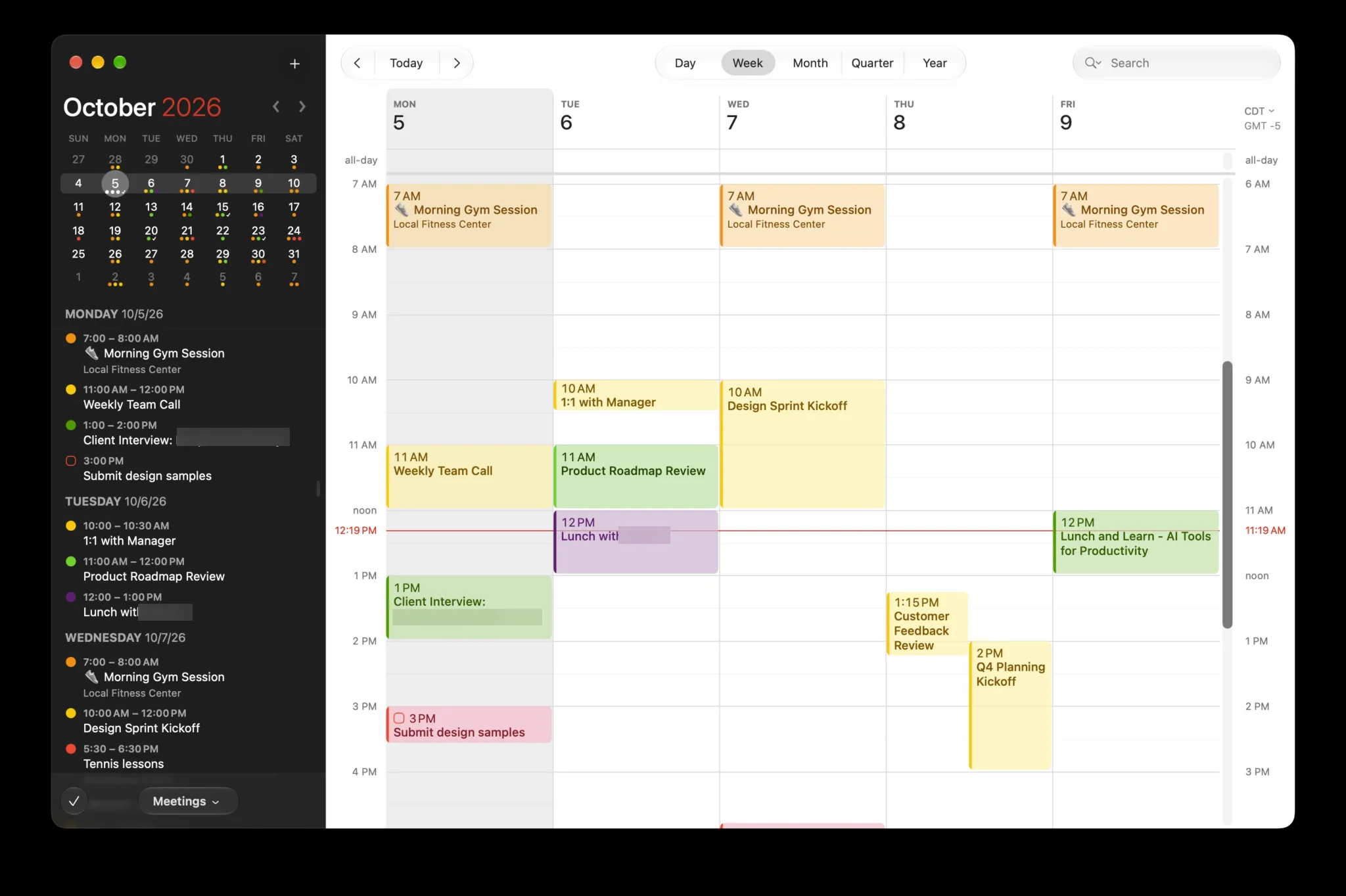
Inside Fantastical for Mac, a color-coded week sits beside its event list.
Product pricing — Fantastical
Free tier. US Flexibits Premium Individual is $56.99 per year or $6.99 per month before tax, with a 14-day trial. Family and Team plans are also available.
6. Morgen: Best for combining provider calendars and task tools
Morgen is the widest calendar-and-task bundle here: it puts Google, Outlook, or iCloud beside Notion, Todoist, Linear, ClickUp, and Microsoft To Do, with AI time-blocking. That breadth is attractive for a personal calendar, but it is a steep extra app if your task manager already schedules work.
Morgen pros
- Links Google, iCloud, Outlook, and multiple task tools. Browser, mobile, Linux, macOS, and Windows apps are provided.
- During the 14-day trial, you get complete access, and no credit card is required.
Morgen cons
- Monthly billing costs twice as much per month as the annual rate.
- Once the trial concludes, Morgen states that access to your account will end unless you sign up.
Morgen's login page offered Google and email-code options. Its no-card trial is useful only if cross-platform tasks save enough app switching to justify the yearly fee.
But check whether your task manager already schedules work before adding another app.
Employer accounts can spoil Morgen's tidy all-in-one pitch: Joseph M. wrote on G2 in August 2026 that some Outlook connections need administrator approval. I rate it as a better fit for personal calendars than for a locked-down work setup.
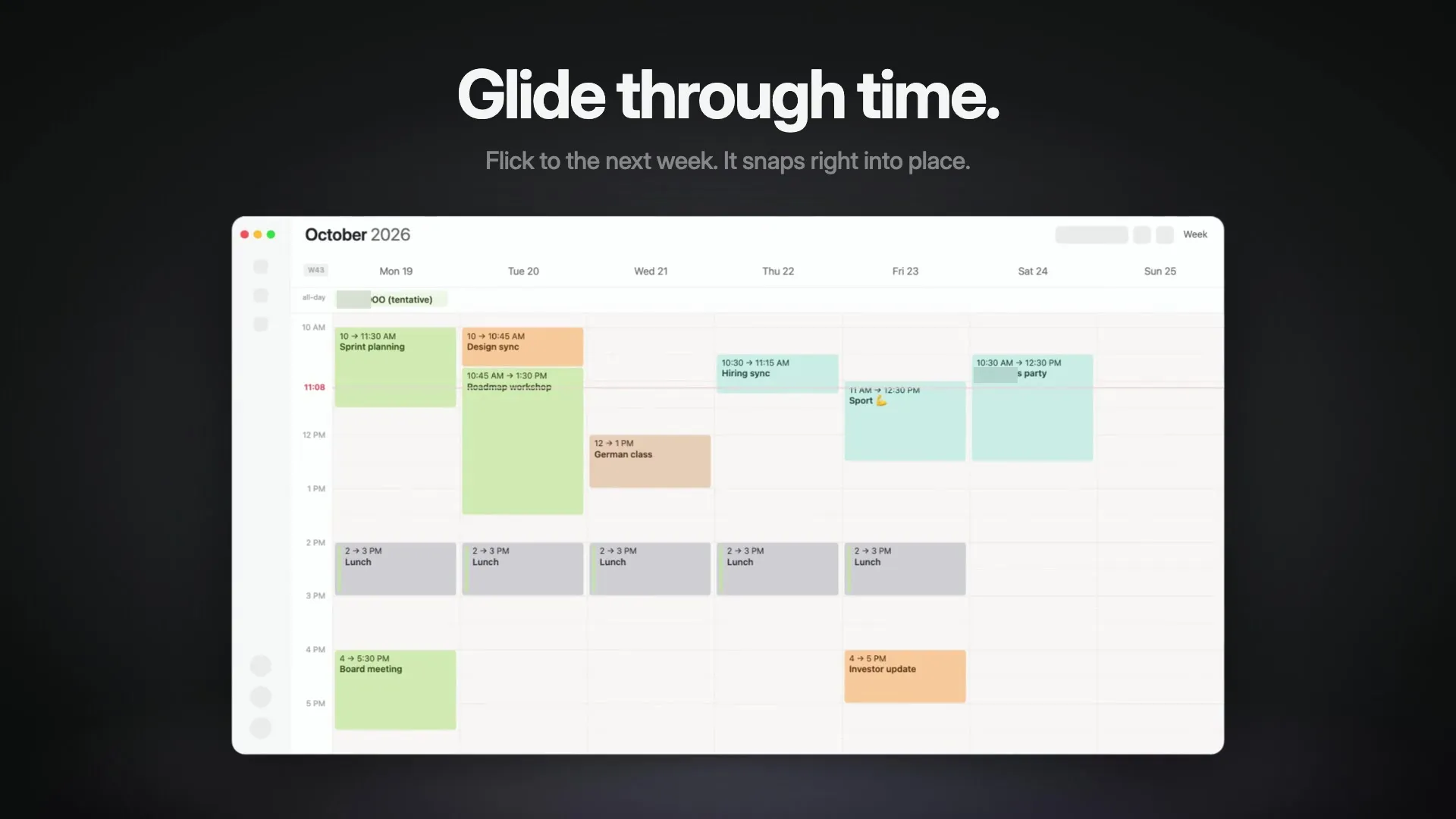
Inside Morgen, a color-coded week view places meetings across the work week.
Product pricing — Morgen
$30 per month, or $15 per month billed yearly, before tax. Team starts at $25 per seat per month, with a two-seat minimum.
7. Reclaim: Best for protecting focus time on a busy calendar
Reclaim is a scheduling layer for Google Calendar users who want software to place focus time, habits, and tasks around fixed commitments. Verify whether synced events truly block availability in the destination calendar.
Reclaim pros
- Lite is free for one user and includes core automatic scheduling.
- Paid plans add longer scheduling horizons and more control over focus-time and calendar-sync policies.
Reclaim cons
- Lite only schedules one week ahead and supports up to two connected calendars.
- Calendar sync copies events into another calendar, so visibility settings matter if personal event titles could be exposed at work.
Lite's one-week horizon is short for conference planning, and copied events can expose titles at work. Four one-star Trustpilot posts flagged rescheduling, event cleanup, or renewal notices; five-star G2 reviewers praised consolidation but still mentioned complex settings and imperfect focus blocks. I like Reclaim Lite for short weekly routines, but the one-week range and sync contradiction make it a poor fit for long projects.
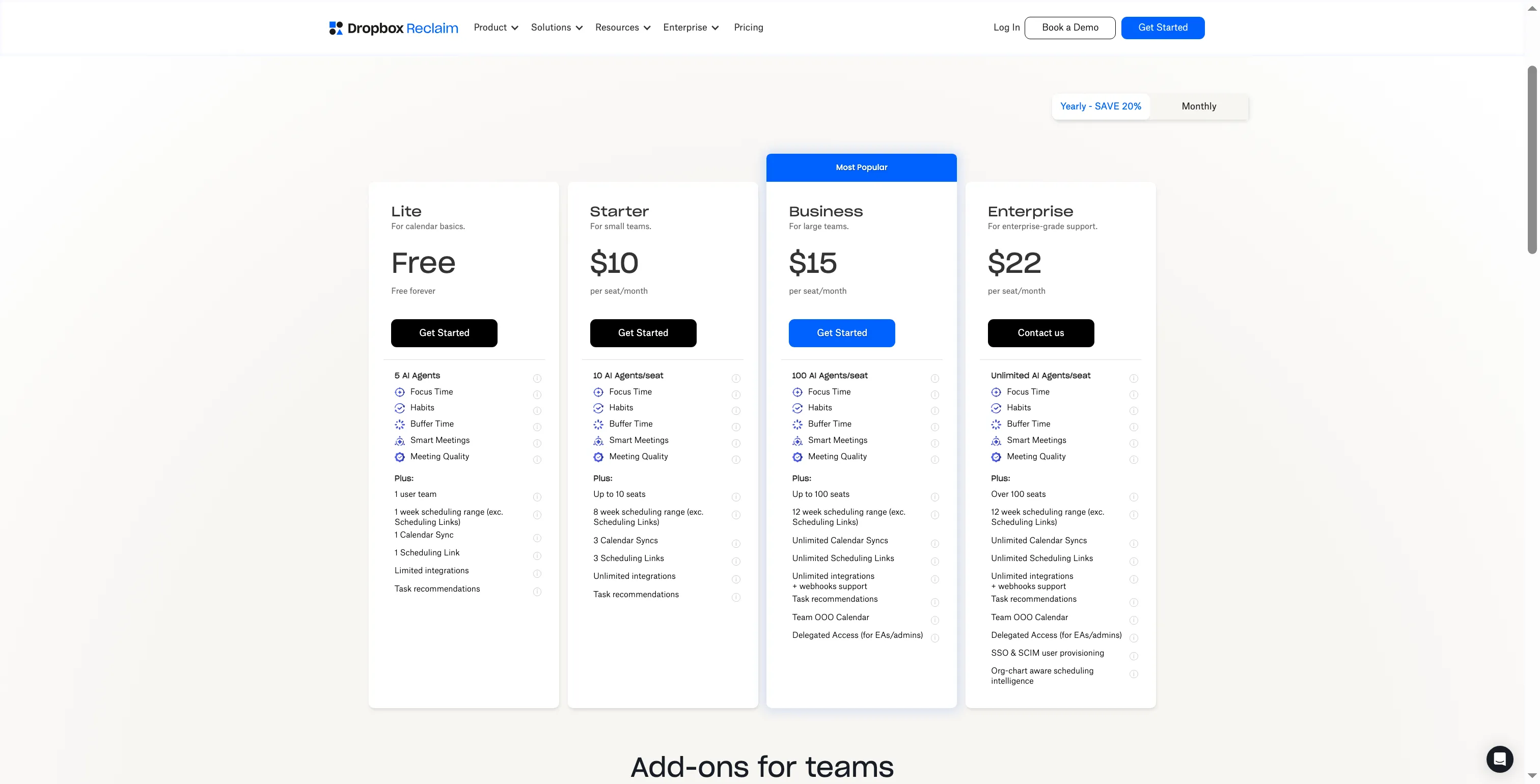
Inside Reclaim’s pricing page, the Starter card lists an eight-week scheduling range and three Calendar Syncs.
Product pricing — Reclaim
Lite is free for one user. The annual Starter rate appears in the workload comparison; monthly billing is $12 per seat. The plan card lists three Calendar Syncs, while the expanded feature table says unlimited. Treat that as a buying risk and verify the sync limit on the final order screen.
8. Motion: Best for AI planning across tasks and meetings
Motion asks for a larger commitment than a calendar change: tasks, projects, and planning all move into its paid workspace. Pro AI covers planning; Business AI adds permissions, central billing, and capacity planning, which only matter if a team needs those controls.
Motion pros
- Combines projects, tasks, notes, and calendar planning in one app.
- The public annual selector showed Pro AI and Business AI tiers with different team controls.
Motion cons
- Pro AI is billed per seat annually; five seats add up quickly before tax.
- Business AI includes the permissions and capacity features aimed at teams.
Motion's price only makes sense if it replaces another project workspace. Otherwise, the extra task machinery is overkill, and Reclaim costs less when all you need is time blocking. The public pricing page let me compare Motion's monthly and annual per-seat prices.
Motion's Trustpilot sample is a sharp warning about ownership after signup: eight clearly identified reviews raised billing, account-access, renewal, or export complaints. I excluded one post about Motionly. I wouldn't move a team's task history into Motion without knowing its export and cancellation path.
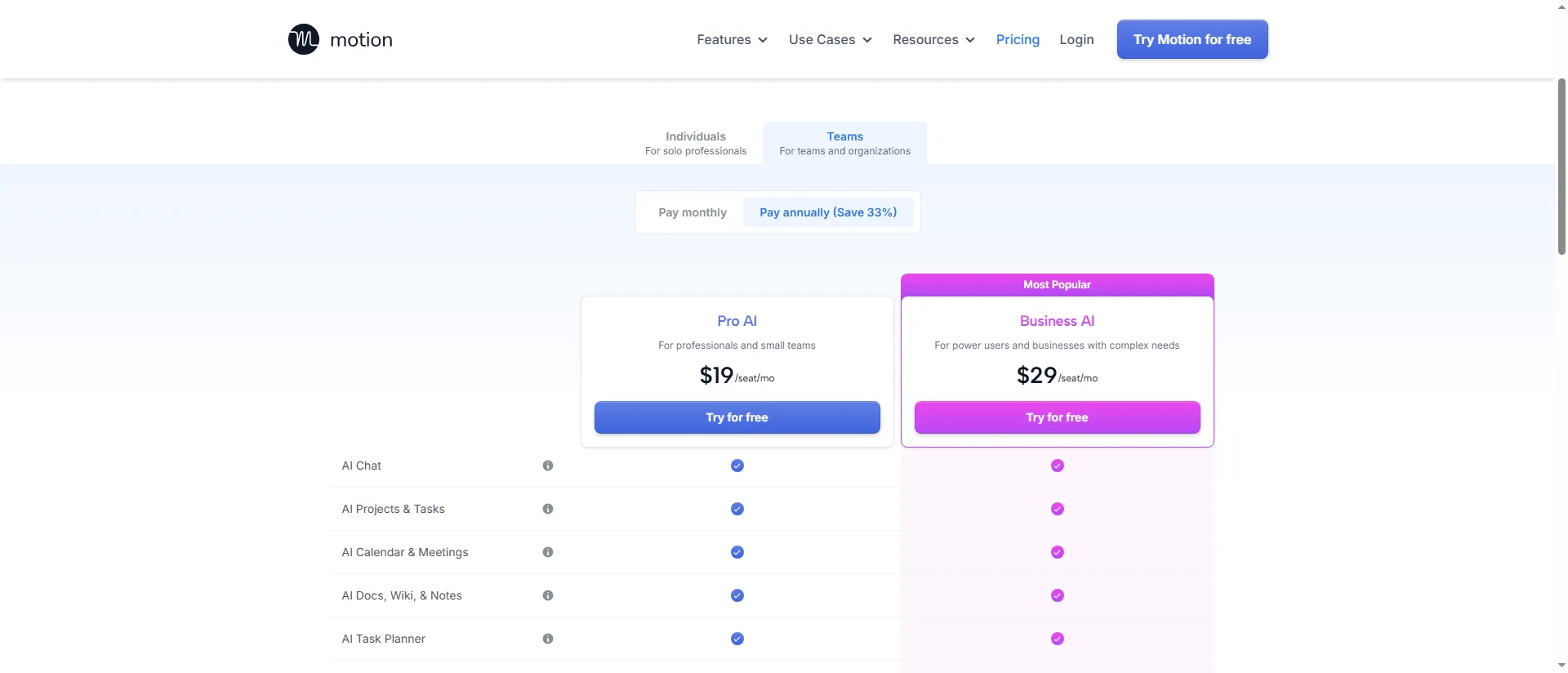
Inside Motion’s pricing page, the annual selector separates Pro AI from the team-focused Business AI plan.
Product pricing — Motion
Pro AI starts at $19 per seat per month billed annually. Business AI is $29 per seat per month billed annually ($348 per seat per year), before tax. Pro AI’s annual total appears in the workload comparison.
What does the same calendar workload cost?
A basic calendar on a compatible device can cost $0 a year with an existing free account. Calendar-app workload costs are in US dollars before tax; I checked vendor prices on November 15, 2026. The five-seat scenario covers personal task time-blocking, not business administration or full project management.
| Scenario | Minimum plan used | Annual cost | Required extras | Limits and assumptions |
|---|---|---|---|---|
| One person needs a basic calendar on a compatible device | Google Calendar Personal, Outlook Personal, or Apple Calendar | $0 | Existing account and device | A paid work suite or employer license is separate. |
| One person wants a cross-platform calendar client | Fantastical Individual Premium vs. Morgen Individual | Fantastical: $56.99; Morgen: $180 | None beyond an existing provider account | Both show calendars across providers; Morgen adds more task integrations and planning. Fantastical Premium adds advanced calendar views and scheduling. Morgen and Fantastical each offer a 14-day trial. |
| Five people want personal tasks automatically scheduled around their own calendars | Reclaim Starter annual vs. Motion Pro AI annual | Reclaim: $120/seat/year; Motion: $228/seat/year; five seats: $600 vs. $1,140 | Annual rates per seat | Reclaim’s plan card lists three syncs, but its expanded feature table conflicts. Motion Pro doesn’t include Business AI’s permissions and capacity tools. These prices cover individual task scheduling, not shared team allocation. |
Booking tools alongside calendar apps
Calendly and Cal.com are meeting schedulers: they let invitees choose a meeting time from openings based on your availability and connected calendar. Your personal or team calendar still owns the full schedule, so keep booking tools as add-ons to a host or client rather than treating them as a calendar replacement.