

 12 min read
Quick Answer
Even if you are a long-time user, you may ask the question does LinkedIn have read receipts?
It has a concise and simple answer — Yes, every LinkedIn account has the option to activate delivery indications on the settings page.
Even if you are a long-time user, you may ask the question does LinkedIn have read receipts?
It has a concise and simple answer — Yes, every LinkedIn account has the option to activate delivery indications on the settings page.
This feature, similar to email outreach read receipts, helps evaluate the effectiveness of LinkedIn messages.
In the messaging experience section on LinkedIn, you can send messages and check their status—if both users have the read receipts feature enabled.
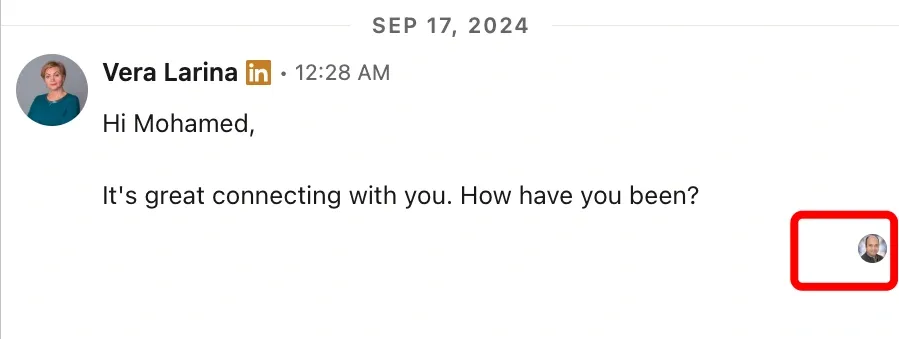
LinkedIn message with the recipient’s profile picture appearing below it, indicating the message has been read.
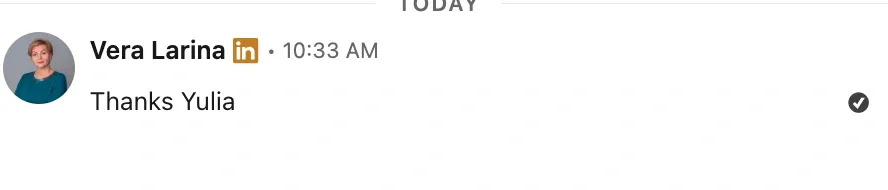
Does LinkedIn show read receipts? Example of an unread checkmark
While read receipts and typing indicators are different features, they are controlled by the same setting in LinkedIn’s profile settings. This means you cannot enable one without the other—they work together.
LinkedIn made this feature available on both the LinkedIn mobile app and website to help users understand the read status on LinkedIn and improve the quality of outreach. It was designed to support lead generation and to enhance interactions.
Why Is This a Valuable Feature?
This valuable feature helps users determine if a recipient is genuinely interested in their message.
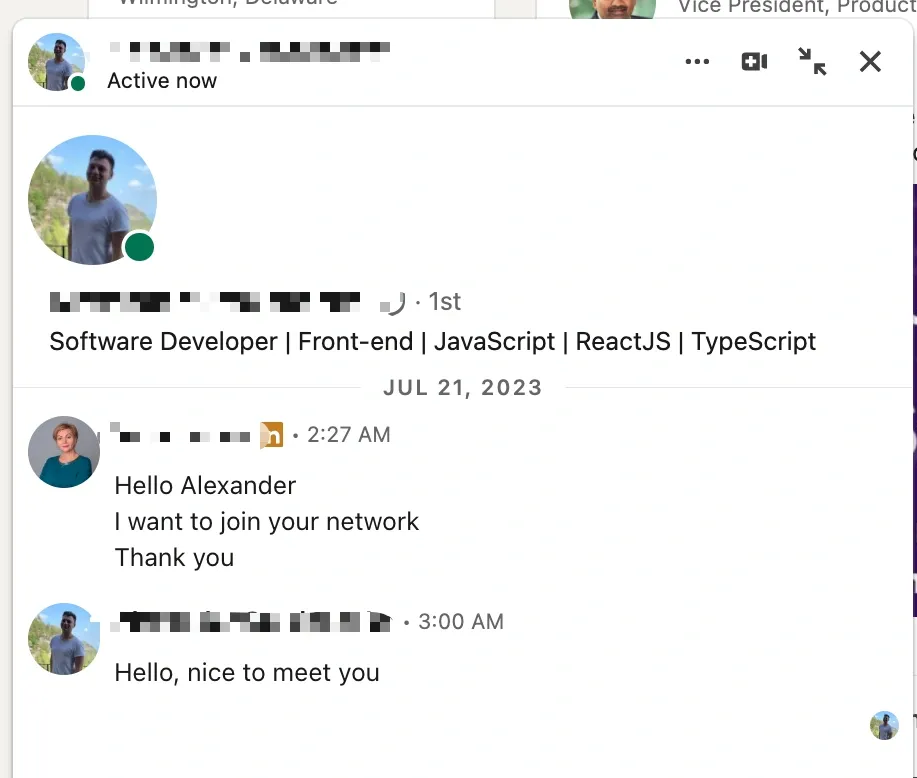
Example of the active status icon on desktop
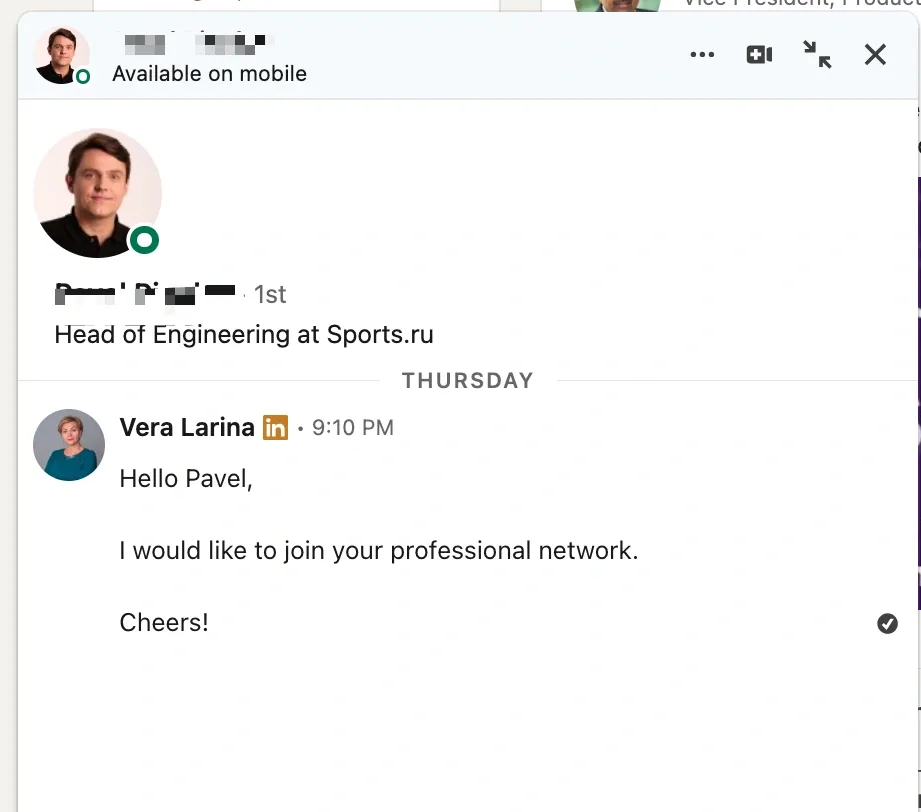
Example of the active status icon on mobile
Website vs. LinkedIn Mobile App: Key Difference
The LinkedIn inbox shows both “Active Now” and read receipts:
Currently, InMail read receipts are not available. The read receipts feature works only for free messages. InMail messages (paid messages) and group chat messages can be read without the sender knowing.
Yes this option is active by default. There are many suggestions that it’s best to keep the read receipts feature enabled. This way, you can track the success of your sent messages and make changes in your strategy:
At the same time, LinkedIn allows you to turn off the read receipts feature, which increases your privacy. Some users may feel pressured to respond immediately after seeing a message, so turning off read receipts allows more flexibility.
Learn what the allowed character limit is.
The enabling or disabling read receipts feature is found in one section of LinkedIn settings. Follow this step-by-step guide to manage it:
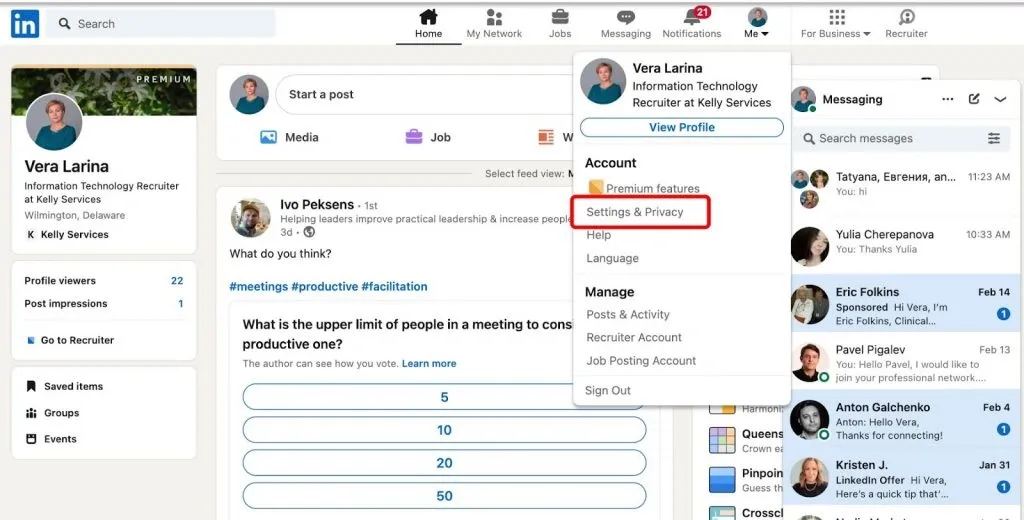
How to turn off read receipts on LinkedIn – privacy settings
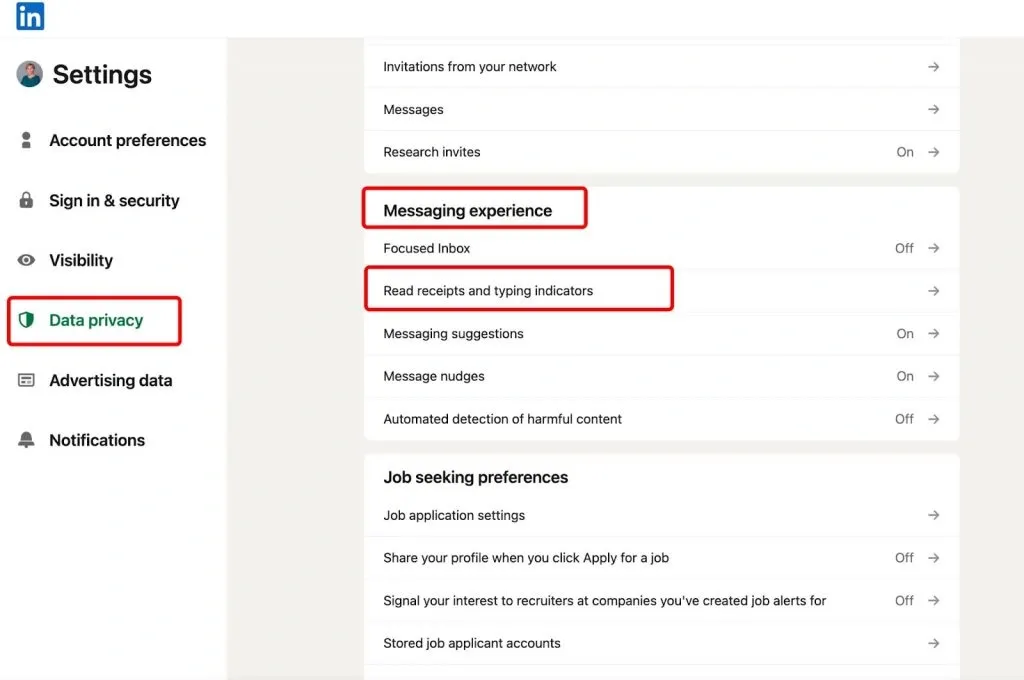
Turn off read receipts on LinkedIn – messaging settings section
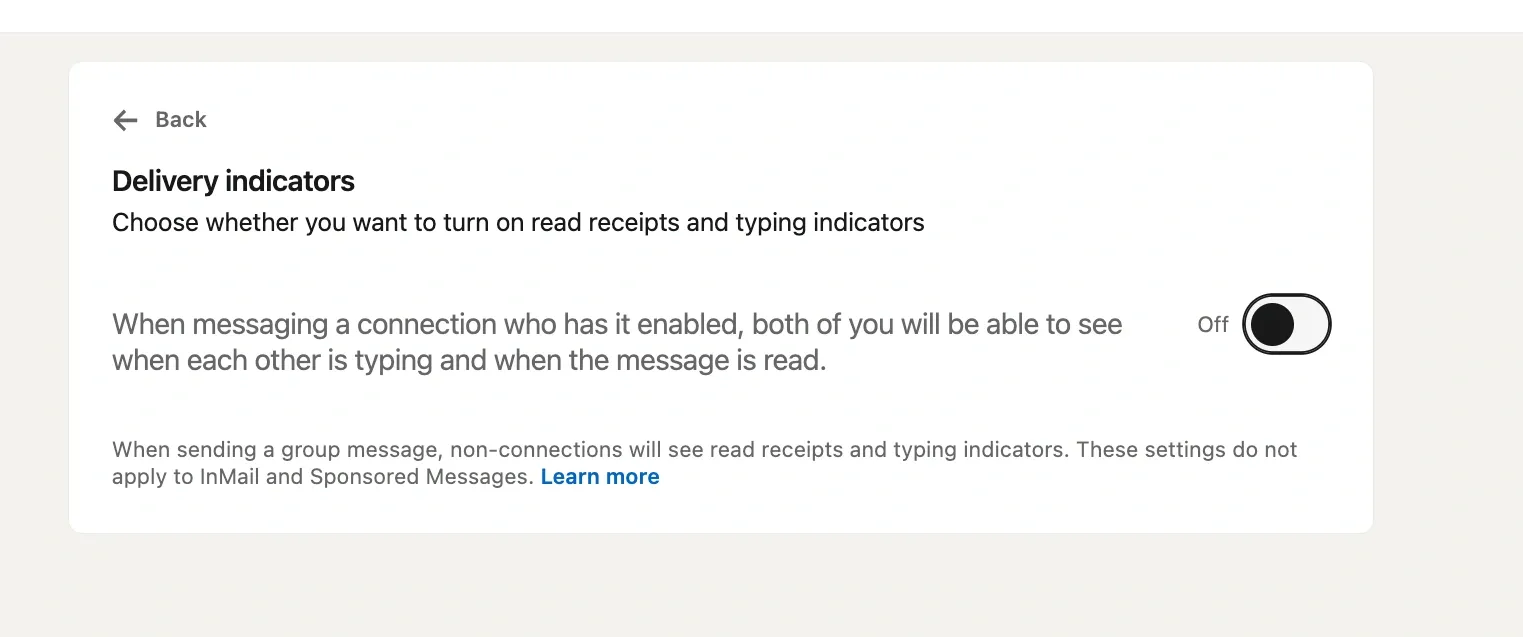
Screenshot of the LinkedIn settings page, highlighting the toggle switch for enabling or disabling read receipts.
What Happens When You Disable LinkedIn Message Read Receipts
Here’s how to turn off read receipts on LinkedIn from your phone.
In a similar way and order as on the desktop, you need to tap on the profile icon, select Settings.
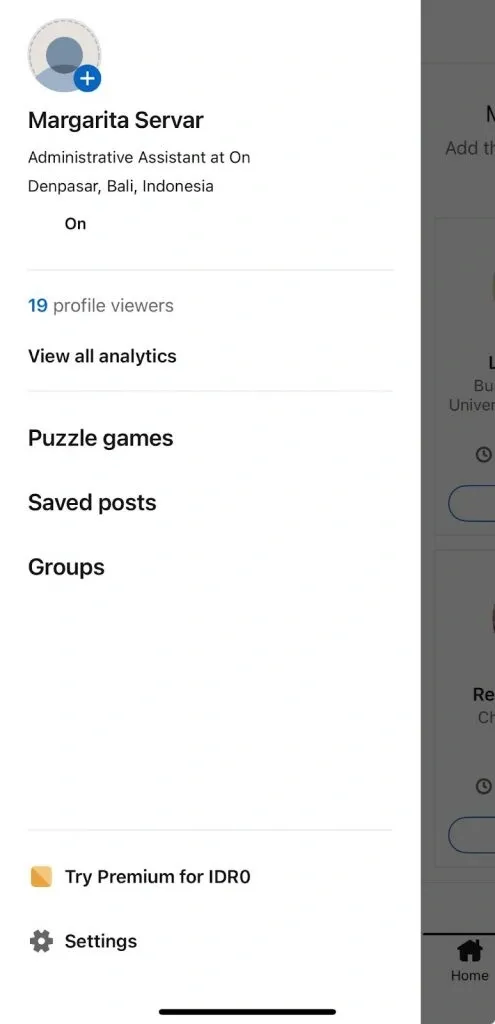
LinkedIn settings menu on a mobile device, with the read receipt toggle visible.
Tap on Data Privacy, and in the Message Experience section, select Read Receipts and Typing Indicators.
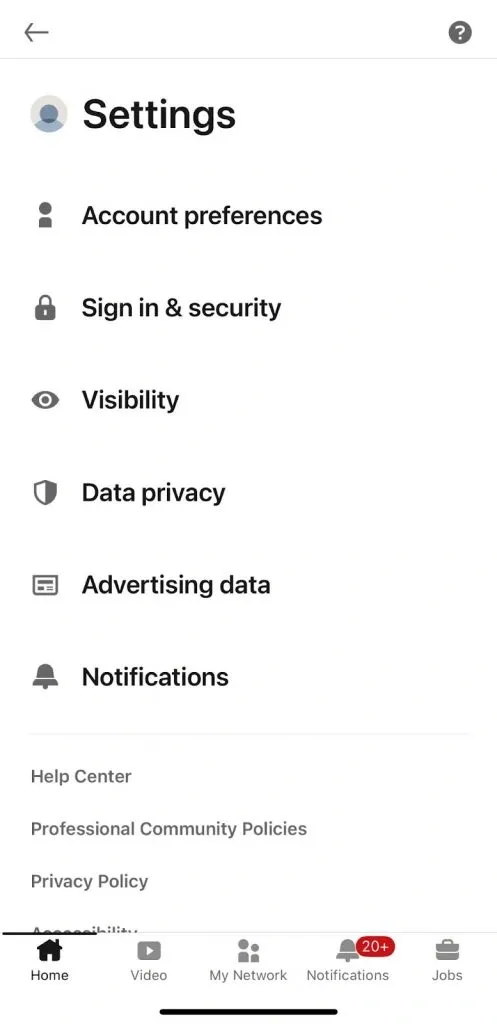
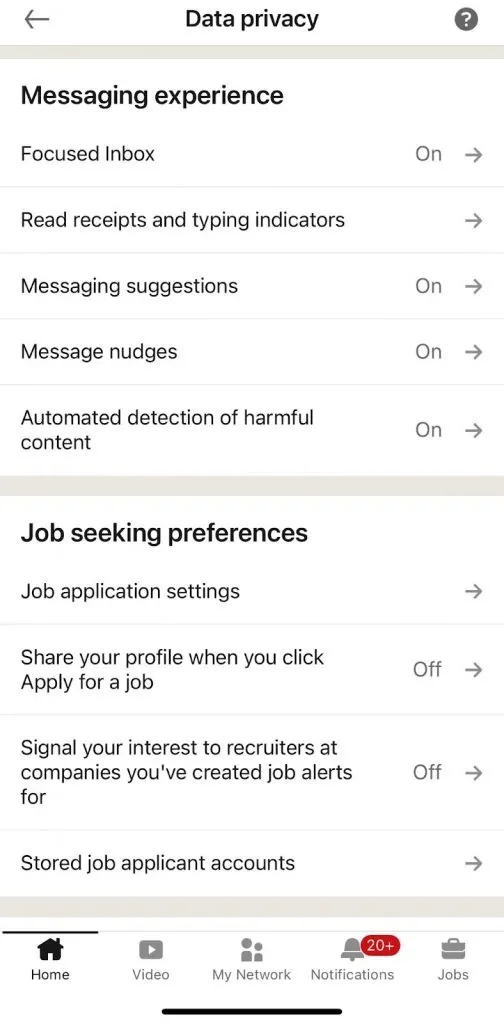
Screenshot of the LinkedIn mobile settings, focusing on the Data Privacy section where read receipts can be adjusted.
To deactivate the feature, toggle the switch to Off.
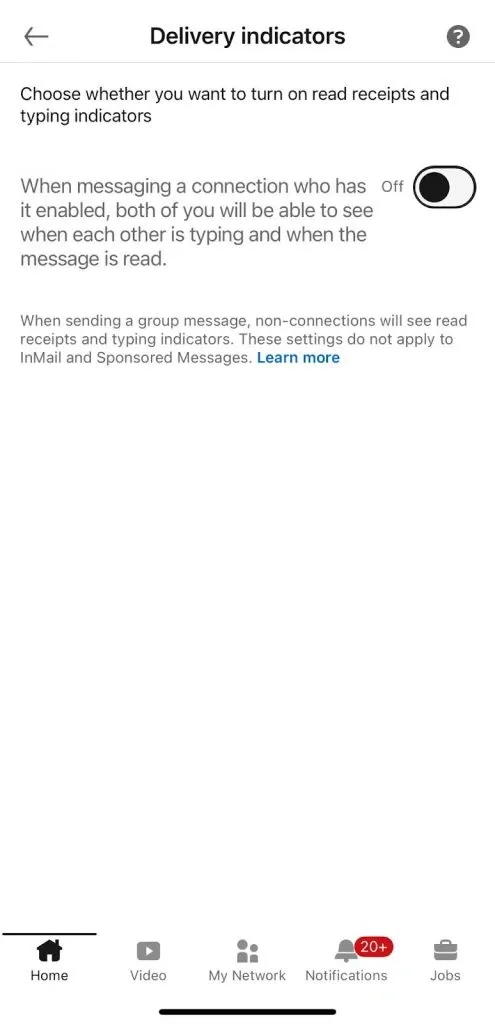
Read receipt on LinkedIn – how to disable the indicator in the menu
Well done LinkedIn allows to disable read receipts easily with any device.
You can enable read receipts feature and typing indicators in the same profile settings as when you disable them on LinkedIn. To turn them on, follow these steps:
1⃣ Click your profile icon and go to Settings and Privacy.
2⃣ In the left pane, select Data Privacy.
3⃣ Scroll down to the Messaging Experience Section.
4⃣Click on Read Receipts and Typing Indicators.
5⃣ Use the toggle to enable the feature.
You can enable read receipts feature on the LinkedIn mobile app by following the same steps as in the desktop menu bar:
1⃣ Tap your profile icon and go to Settings and Privacy from the menu bar.
2⃣ In the left pane, select Data Privacy.
3⃣ Scroll down to the Messaging Experience Section.
4⃣ Tap on Read Receipts and Typing Indicators.
5⃣Toggle the switch to enable the feature.
If the recipient has disabled the read receipts feature in their profile settings, you won’t be able to see if they read your message.
You may have turned off the default settings and switched the toggle to disable read receipts. If the feature is off, read receipts will not be visible to you.
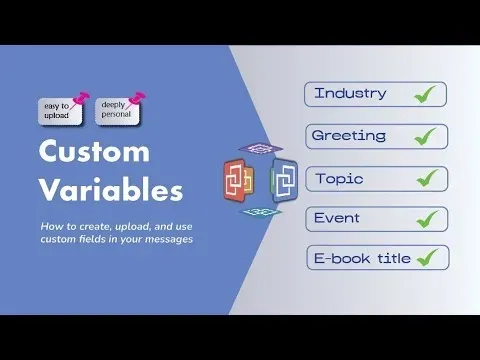
A key part of networking is showing that you’ve done your research about a person before reaching out. You can reflect this in every prospecting message by using relevant information, such as their recent experiences, company name or career updates.
To make personalization easier, you can use an automation tool with custom variables that pull data from each recipient’s LinkedIn profile. This allows you to send customized messages without manually entering details for each potential customer.
One of the best practices in LinkedIn outreach is keeping messages brief. As the saying goes, “brevity is the soul of wit.” Most people don’t want to read long text messages, so a concise request increases the chance of getting a reply and a read receipt feature confirmation.
Case studies show that a short, clear message is more likely to be read and answered quickly.
If you’re reaching out to a LinkedIn user who doesn’t know you, they will likely check your profile before responding. Their decision to reply may depend on how professional and engaging your profile looks.
When people see a notification, they might feel like they’ve read the text without actually opening the message, but that won’t work with voice messages. A great way to engage people is by sending messages without a preview, making them curious enough to open and read them.
This tactic increases the chance of starting an active conversation.
In such cases, you might receive a voice answer faster than a text message.
For better results, keep your message to three to four sentences and use a natural, conversational tone. This approach builds trust and rapport, leading to more client wins.
If your sent messages are read, but you haven’t received a reply, don’t assume the recipient isn’t interested. People often forget to respond or put messages aside for later. A well-timed follow-up increases your chances of getting a response without overwhelming your prospects.
When using an automation tool for lead generation, choose only top solutions with a strong reputation and safety guarantees for your LinkedIn account.
For example, Linked Helper is a trusted tool that outperforms competitors in terms of security, efficiency, and results.
Reaching out when your prospects are most active can significantly improve your reply rate. Pay attention to their time zone
LinkedIn separates the inbox into Focused and Other which you can activate here. You can also use the filter icon to sort your messages. This allows you to view unread messages, starred, InMails, and even check the Spam folder, where bulk messages might end up.
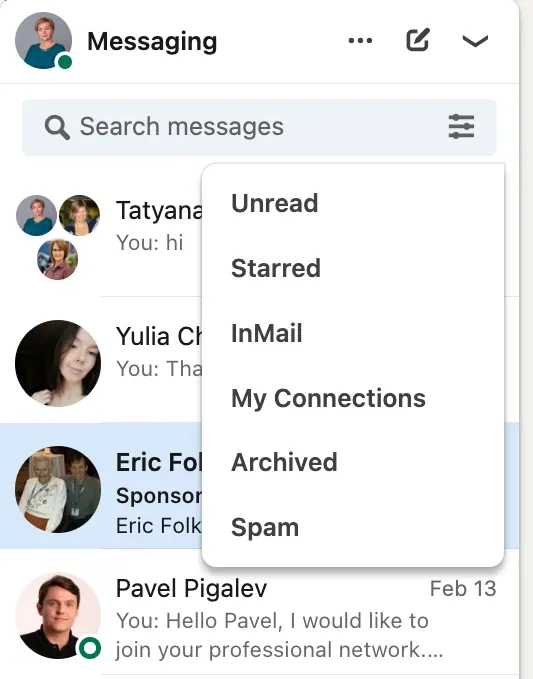
Filters in LinkedIn inbox – sorting messages
Message Nudges is a LinkedIn feature that reminds you about messages you haven’t responded to. You can enable or disable this function, and it helps ensure you don’t forget to reply to important messages. However, it only works for messages that haven’t been read.
Based on the content of incoming messages, LinkedIn generates Smart Reply buttons in your inbox. These allow you to send a quick, polite response with just one tap. Sometimes, this is the fastest and most courteous way to acknowledge a message without leaving it open and unanswered.
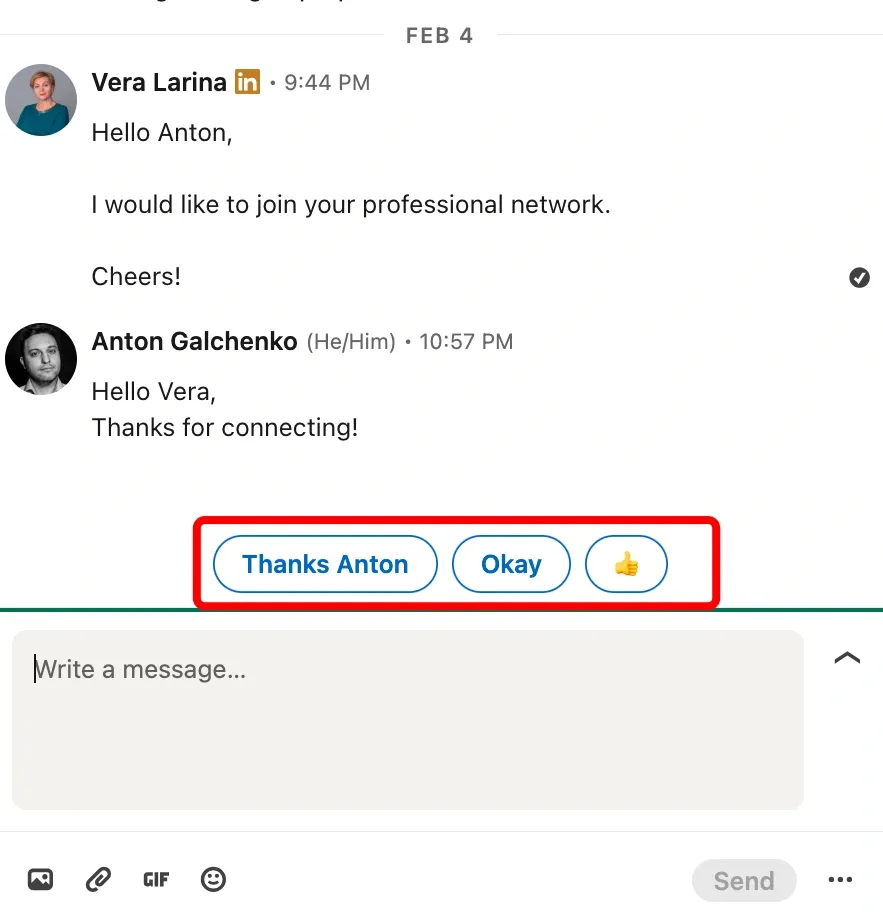
Example of inbox quick replies generated based on message content
To summarize, LinkedIn allows you to enable or disable read receipts, typing status, which are linked to the setting of your conversation partner. When activated, both participants in the chat can see these statuses; when disabled, neither party can view them.
Optimizing your messaging can significantly enhance productivity. One effective approach is smart automation, which enables you to personalize messages at a deep level using recipient profile data and custom variables.
Leveraging well-established automation tools like Linked Helper can make your messages more engaging and get more leads. Try integrating this into your conversations today!
The most technically advanced platform for LinkedIn automation with a focus on security, a wide range of features, and exceptional customer support. Trusted by over 10,000 businesses worldwide.