
 Updated: September 29, 2026
 16 min read
The best advice on how to scrape LinkedIn depends on your data needs and scale. For most sales and recruiting teams, Linked Helper is the most practical option, combining profile collection, enrichment, filtering, and CRM export in one workflow.
It runs locally on your computer or VPS, keeping the LinkedIn session in an environment you control. However, LinkedIn prohibits unauthorized scraping and automation, so account and contractual risks remain.
Key Takeaways
- LinkedIn scraping means systematically collecting structured data, such as names, job titles, emails, and company details, across multiple profiles.
- Linked Helper can collect leads from around 20 sources, including LinkedIn search, Sales Navigator, Recruiter, groups, events, company pages, and CSV files.
- It combines profile extraction, email enrichment, deduplication, AI ICP detection, and CRM export in one workflow.
- Data enrichment can retrieve available profile or contact data without having to open every LinkedIn profile.
- LinkedIn’s User Agreement prohibits unauthorized scraping and automation, and its wording may also cover high-volume manual copying.
- Practical account risk depends mainly on volume, speed, repeated activity patterns, and how closely the workflow resembles normal browsing.
What You’ll Be Able to Do After This Guide
LinkedIn now has 1.3 billion members, and over 70 million companies across 200+ countries. That is a massive pool of job titles, company details, career histories, and hiring data. That scale makes LinkedIn data valuable to sales, recruiting, and market research teams.
Anyone who has tried collecting LinkedIn data by hand knows the problem: it doesn’t scale. If you haven’t learned that the hard way yet, it makes sense to skip the detour and build an automated process from the start.
That’s what this walkthrough is for. It shows you how to scrape LinkedIn data, from the first search to a clean list in your CRM. If you’d rather compare your options before choosing a tool, start with our guide to the best LinkedIn automation tools.
Here, you’ll learn how to:
- Choose the right profile and company data
- Collect it with Linked Helper
- Remove bad and duplicate records
- Find work emails
- Export the finished list to your CRM
- Set sensible daily limits
- Avoid the mistakes that lead to restrictions.
What Counts as "Scraping" on LinkedIn?
LinkedIn scraping is the automated collection of profile, company, search, or contact data into a structured dataset. Software handles the process systematically and at a much larger scale than manual research.
The resulting data can then be enriched and exported to a CRM, sales engagement platform, or spreadsheet. Tools like Linked Helper turn that into a repeatable workflow.
Is Scraping LinkedIn Legal? And What Does LinkedIn’s User Agreement Prohibit
There is no universal yes-or-no answer. People often mix up three different questions:
- Does scraping violate LinkedIn's User Agreement?
- Can the platform restrict an account that breaks its rules?
- Is LinkedIn data scraping legal under applicable laws?
Those aren't the same issue.
Let's start with LinkedIn itself. The platform's User Agreement prohibits using software, scripts, bots, browser extensions, or similar technologies to scrape or copy profiles and other LinkedIn data. It also bans unauthorized automated access and attempts to bypass technical restrictions. If LinkedIn believes an account is breaking those rules, it may temporarily restrict or even shut down the account.
Still, that doesn't automatically answer the legal question.
In the United States, scraping disputes often come back to the Computer Fraud and Abuse Act (CFAA). In hiQ Labs v. LinkedIn, the Ninth Circuit found that collecting data from publicly accessible LinkedIn profiles was unlikely to qualify as access "without authorization," a key requirement for liability under the CFAA.
Although Van Buren v. United States was not a scraping case, the Supreme Court also interpreted the CFAA narrowly. The court held that a person does not “exceed authorized access” merely by using information for an improper purpose when they were otherwise permitted to access that part of the system.
Neither ruling created a general right to scrape. Contract, privacy, copyright, and other applicable laws may still apply, depending on how the data is accessed and used.
For the rest of this guide, we'll focus on what you can control: understanding LinkedIn's rules, collecting only the data you actually need, and handling it responsibly.
Step 1: Decide What Data You Actually Need
Before you scrape anything, decide what the data will do for your B2B lead generation. In this guide, we’re using Linked Helper, a desktop LinkedIn automation tool that can collect lead data and then use those same profiles in outreach campaigns. For a first outreach pass, you usually need far less than a full profile.
- Basic lead data. Linked Helper can collect leads from regular LinkedIn search, Sales Navigator, or Recruiter. At this stage, you can grab names, profile URLs, headlines, and whatever role or company data LinkedIn exposes in the search results. Sales Navigator and Recruiter usually provide those fields more consistently than regular LinkedIn searches. When collecting leads from regular LinkedIn search, Linked Helper can also detect Hiring and Open to Work badges without visiting individual profiles.
- Contact data. For 1st-degree connections, Visit & Extract can pull visible emails and occasional phone numbers. For 2nd- and 3rd-degree profiles, data enrichment is usually the better route. Visits cost no data credits but create more LinkedIn activity. Enrichment skips the visit and uses credits instead.
- Full profile data. Employment history and activity data require deeper scraping and usually add little value to a first outreach pass.
Note: Most Linked Helper actions leave contact details and deeper profile fields alone unless you explicitly add a visit or enrichment step.
Step 2: Choose a Scraping Method That Fits Your Risk Tolerance
When you’re trying to work out how to scrape LinkedIn, the method should depend on the scale of the job and how much account risk your team is prepared to carry.
We’ll keep it high-level here and give you a quick overview of each method. For a deeper breakdown, see our LinkedIn scraper guide.
| Method | Best for | What your team takes on |
|---|---|---|
| Manual copy-paste | Founders, consultants, or small teams researching a narrow account list | Almost no setup, but a lot of manual work. At meaningful volume, manual scraping still falls under LinkedIn’s restrictions on copying profile data. |
| Purpose-built desktop tools | Sales teams, agencies, and recruiters running the same process every week | Tool setup and sensible account limits. The Linked Helper approach uses a separate browser instance for each account and finds profiles through LinkedIn search instead of loading raw profile URLs. |
| Custom code/API scraping | Technical teams with unusual targeting or internal workflows | Your team handles development, maintenance, rate limiting, and account-risk controls. Raw scripts also need extra work to reproduce normal LinkedIn navigation patterns. |
| Database enrichment | Teams that already have LinkedIn profile URLs and need contact or profile data without opening every profile | Some scraping tools, such as Linked Helper with its Data Enrichment action, offer this as a separate option: you provide the lead URLs, and the tool looks for matching data in its existing database. This saves time, avoids extra profile visits, and reduces LinkedIn-visible activity. |
Manual export carries the least account risk because there is no automation layer and the volume is usually small. Dedicated tools add automation, which saves time, but risk depends on their architecture and how many profile visits, requests, or messages they generate.
Custom code is the least forgiving option. Your team controls the scraping logic, so it also has to manage rate limits, session handling, IP setup, maintenance, and compliance. Database enrichment carries very little LinkedIn account risk because the lookup happens against the provider’s own database. The main trade-off is coverage and data quality, not LinkedIn activity.
Step 3: Set Up Linked Helper to Extract Profile and Company Data
Now that you have completed the preparation, you know what you want to extract, and the scope and risks are clear. It's time to open Linked Helper.
Start by creating a new campaign.
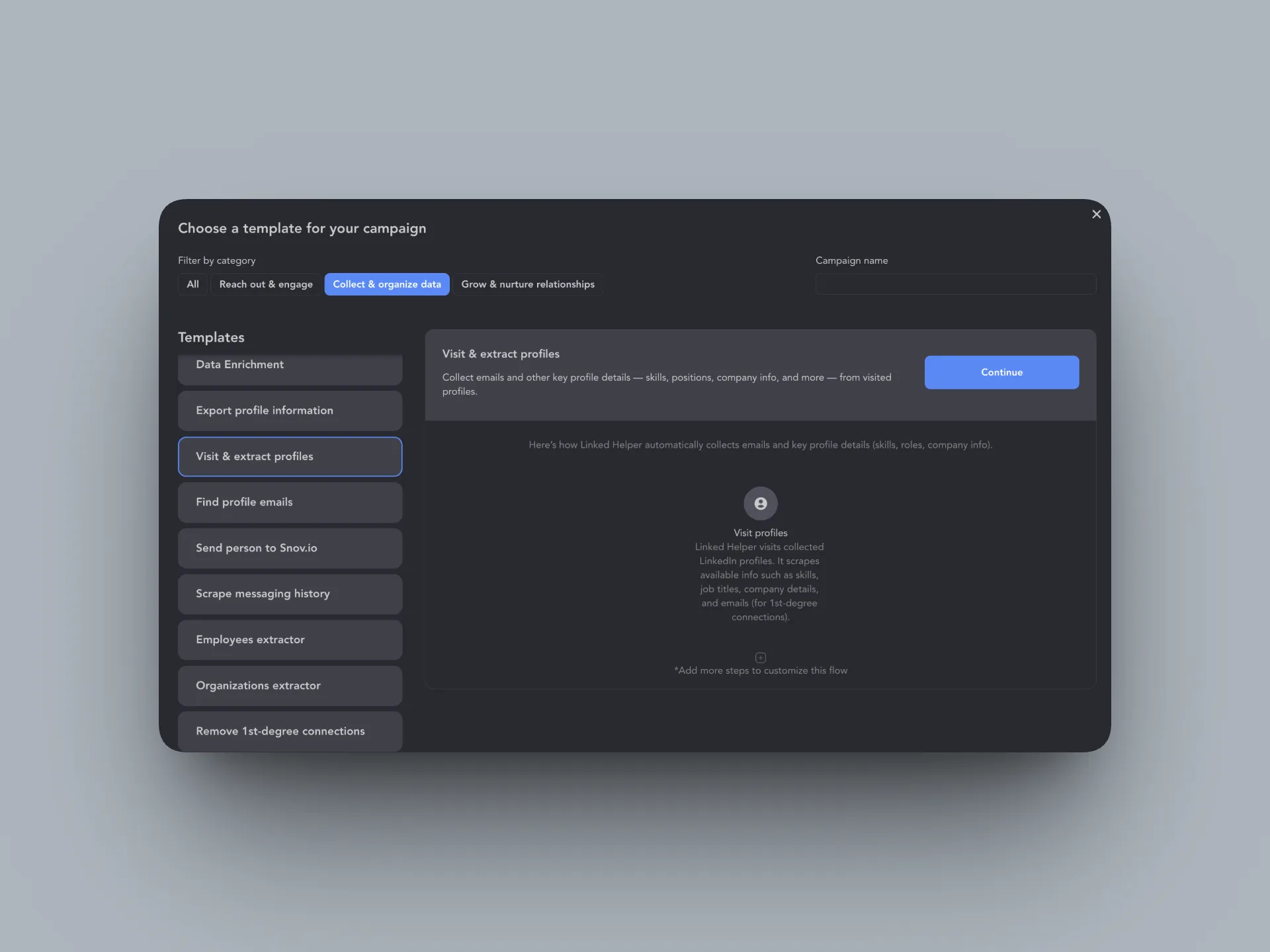
You can use the ready-made Visit & Extract Profiles template or create a campaign that includes at least one manually added action. Linked Helper does not allow you to collect leads in an empty campaign.
Next, build the audience you want to collect. Linked Helper can pull profiles from regular LinkedIn search or Sales Navigator, but you’re not limited to search pages. There are around 20 supported sources, including groups, events, company employee pages, alumni pages, and CSV files.
Go back to the campaign and click Collect.
The profiles move into the campaign queue and Linked Helper’s CRM. And this first step already captures more than a name and URL. Regular search can save on hiring and open-to-work badges. Sales Navigator and Recruiter may expose the position and company before any profile visit. The LinkedIn data scraper can also structure those fields when a headline follows a clear format like “Director at Microsoft.”
Now run Visit & Extract Profiles.
This is the deeper pass. Linked Helper opens profiles from the Queue and fills in the detailed profile fields available to your account. It also adds data such as Open Link, Premium, and Influencer status, plus connection and follower counts.
Need company data as well?
Visit & Extract Profiles can collect data on each lead’s current employer, so you don’t need a separate campaign when those are the companies you care about. Organizations Extractor is better suited to company pages that aren’t connected to the leads already in your Queue. The resulting organization records can then move to your CRM, CSV, or webhook.
Employees Extractor works the other way around. Start with a company, and it searches the People tab using multiple keywords in sequence. Boolean queries such as “founder NOT CEO” work too. This lets you move past LinkedIn’s 1,000-result cap and collect 1,000+ targeted employees from one company.
There’s also a no-visit route. Data Enrichment matches the profile ID against Linked Helper’s own database and pulls available contact or company data without spending LinkedIn actions on profile visits. It works across connection degrees, including out-of-network profiles. You can set a freshness date too, so the lookup doesn’t return data that was collected years ago and never updated.