
 Updated: August 11, 2026
 11 min read
Quick Takeaway
- LinkedIn’s built-in export (Settings & Privacy > Data privacy > Get a copy of your data > Connections) only gives you 1st-degree contacts in six fixed fields – First Name, Last Name, Email, Company, Position, Connected On – and email is included for only about 30-50% of them.
- To export 2nd and 3rd-degree connections to Excel/CSV – which LinkedIn itself never lets you do – you need an automation tool like Linked Helper that collects them from search, then enriches each with email, phone, company and role.
- Linked Helper’s Data Enrichment action can pull emails and phones for 1st, 2nd, 3rd-degree and even out-of-network profiles without visiting each profile, so you save your daily action budget.
- Choose your custom columns at export time and download a clean .csv/.xlsx, or push the same leads straight into HubSpot, Pipedrive, Close, Instantly or Snov.io for outreach.
- Start free for 14 days – no profile data is sent anywhere; everything runs locally in a browser-like window you can watch.
If you use LinkedIn to hire employees, build customer relations, and and drive market research, your profile stores more valuable data than you might think. LinkedIn now has over 1.3 billion registered users across more than 200 countries — making it the world’s largest professional network. And it delivers real business results: According to statistics, B2B marketers generate around 80% of leads on LinkedIn. The connections stored in your network are not just names — they are a ready-made audience for targeted campaigns, outreach sequences, and CRM pipelines. There are several ways to export connections from LinkedIn to Excel, and this guide covers all of them.
#1 – by using LinkedIn automation
A reliable and proven tool is Linked Helper. This export method has numerous advantages that won’t be available via the on-site method of exporting contacts.
You can build a richer, more complete database. LinkedIn’s native archive gives you basic fields only. With Linked Helper you get full control:
- Export 2nd and 3rd-degree contacts with bio, position, education, company, and more. LinkedIn itself doesn’t allow this — Linked Helper collects them directly from LinkedIn search or Sales Navigator.
- Enrich emails and phones without visiting profiles. The Data Enrichment action pulls verified work and personal emails (and phone numbers) for 1st, 2nd, 3rd-degree, and even out-of-network profiles — without visiting each profile page, so it never eats your daily action budget.
- Pull emails from multiple sources. The integrated Email Finder draws on the LH enrichment database, Apollo.io, and Snov.io — running them in sequence to maximize match rates. You get both personal and work emails, ready to download or push directly to your CRM.
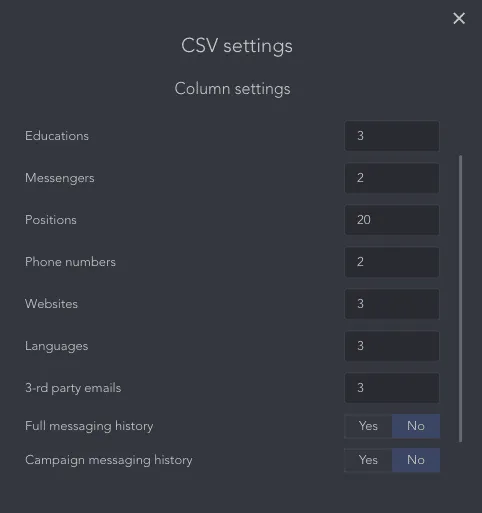
- Choose your export columns at download time. Pick exactly the fields you need, and the CSV or XLSX is ready to filter, sort, or import into any outreach tool.
#2 – by downloading the archive from LinkedIn
The advantage of this method is that no extra software is needed — you request the export directly from LinkedIn’s settings. Here is what you get and what to expect in 2026:
- What LinkedIn exports: 1st-degree connections only, in a CSV file with six fixed columns — First Name, Last Name, Email Address, Company, Position, and Connected On.
- Email coverage: Email addresses are included only for connections who have enabled that option in their own privacy settings. In practice, you can expect emails for roughly 30–50% of your list.
- How to request it: Go to Settings & Privacy → Data privacy → Download your data. LinkedIn will email you a download link — processing typically takes 10 to 24 minutes, though LinkedIn’s interface warns it can take up to 24 hours.
- Key limitation: This method only covers your direct (1st-degree) connections. If you need 2nd or 3rd-degree profiles, or richer data like phone numbers, bio, education, or verified work emails, you will need an automation tool like Linked Helper.
How to download your 1st, 2nd & 3rd degree LinkedIn connections via Linked Helper
When marketers or recruiters need to download an advanced database with contacts, we recommend utilizing Linked Helper. The advantage of this tool is that after collecting contact persons, you can continue communication with targeted interactions with them – send them a message, an invitation request, and many other activities. Learn all about LinkedIn Sales Navigator: Export leads to Excel in an easy way.
#1 – Download the free software
You can test all functions free for 14 days — no credit card required. Downloading the app and signing into your LinkedIn account typically takes around 15 minutes. Safety is built in: Linked Helper runs locally in a browser-like window that you can watch in real time — every visit, scroll, and click happens just as a real person would. On top of that, the tool applies smart daily limits and start-time randomization, so your activity stays within safe levels and never follows a robotic, fixed schedule. Your connection data is never sent to any third party.
For example, to copy data, it will visit each person, scroll through the page, click on the contacts tab and copy the data. Explore all features of our LinkedIn scraper in the article.
#2 – Select the desired audience
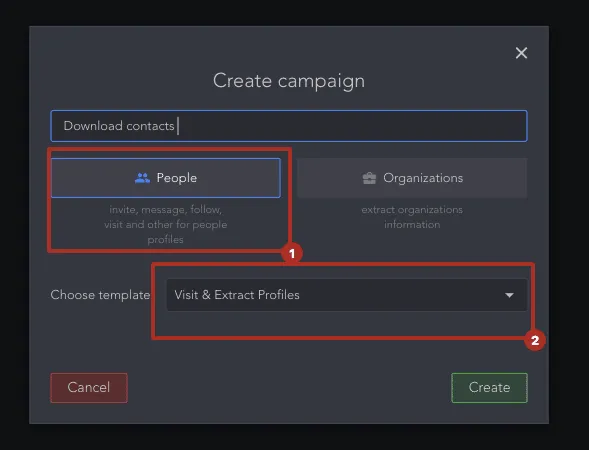
When the Linked Helper is launched, select the option Create a campaign. Pick the options to Visit & Extract Profiles by People.
This action is a clue on how to extract a database with connections from your LinkedIn network, as well as contacts of 2nd and 3rd degrees.
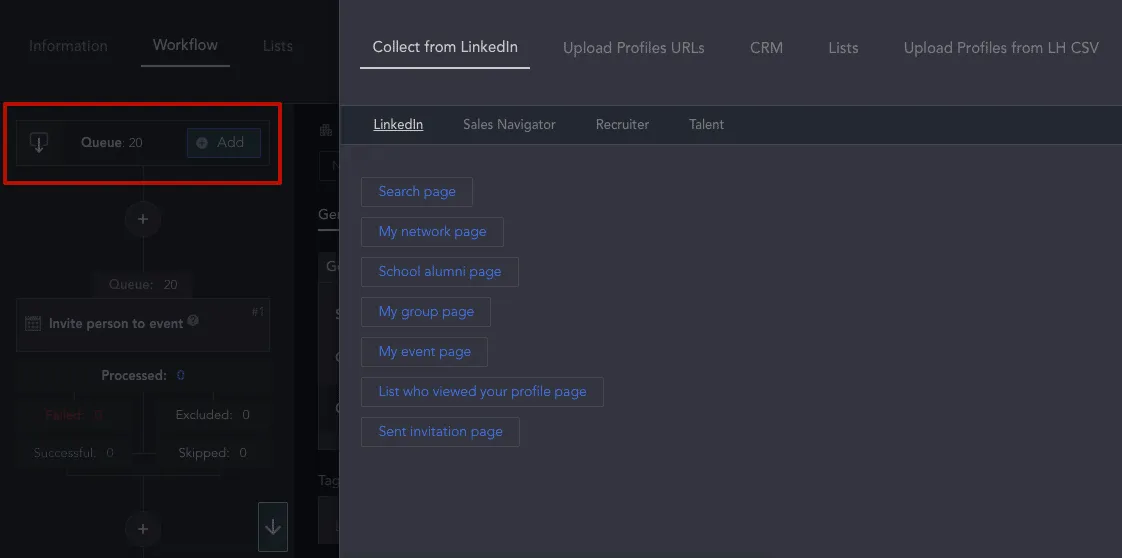
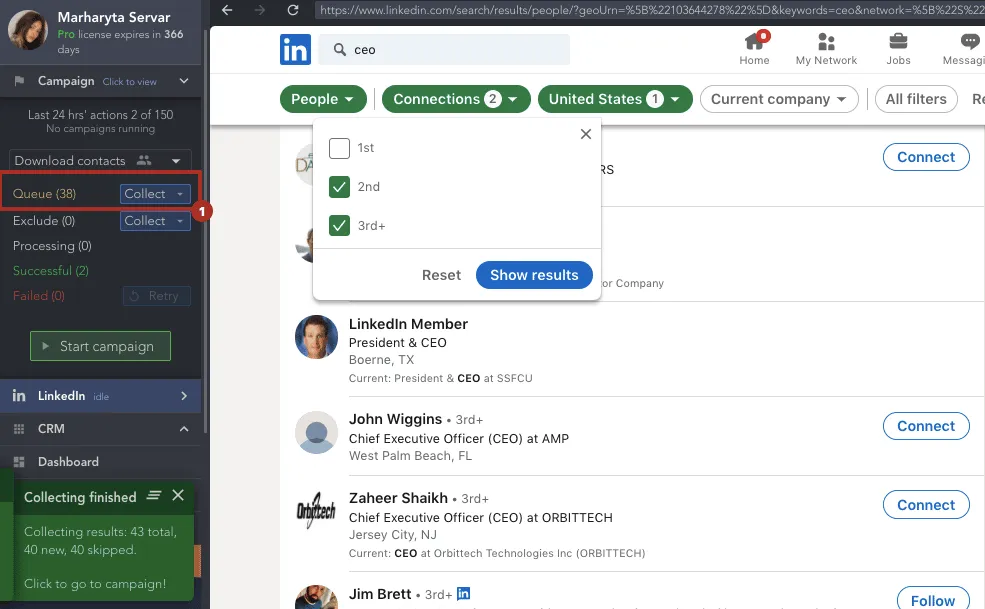
Now you need to add relevant users to the Queue section – these users will be the target for the service to perform the next actions.
To do this, select the menu item Queue → Choose the export data source. You will be offered several options from where you can scrape users.

You have 7 options – both your contacts page and other LinkedIn sources. For scraping data by 2nd and 3rd degree contacts, you can collect them from the search page.
Pro tip: If you need a large database of 2nd and 3rd-degree contacts with emails and phones, use the Data Enrichment action instead of relying solely on Visit & Extract. Data Enrichment pulls verified contact data for 1st, 2nd, 3rd-degree and even out-of-network profiles without visiting each profile — so it never counts against your daily action budget. See the full walkthrough in the section below.
Auto-collect tip: Need to keep your exported list up to date over time? Enable the Auto-collect action to automatically re-collect profiles from a supported LinkedIn page every X days — no manual re-runs required.

After that, from the left side of the screen, select the menu item Queue→ Collect from current page. It can be any of the LinkedIn pages listed above.
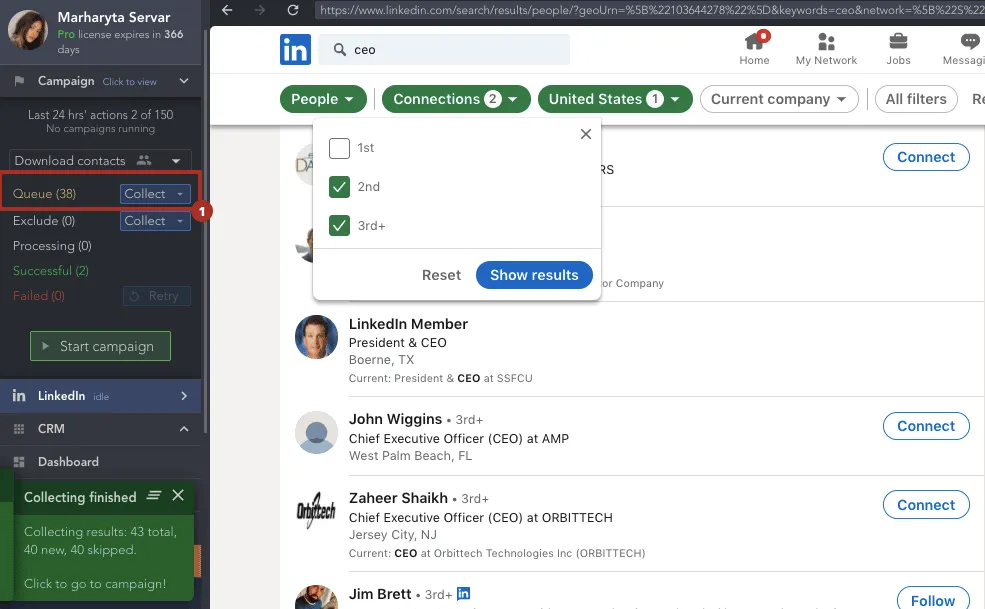
After a few seconds, you will see a green window on the left where the process of collecting profiles will be shown.
But at this step, the contact data will not yet be aggregated for downloading. To copy contact information, you need to start the action.
Click the green button Start campaign. After that, the campaign will be activated and you will see how it is processed user by user. It behaves absolutely like a human and copies the information you need.
When this operation is finished you will see an alert in the toolbar.
#3 – Download processed contacts
Now all processed connections will be transferred to the tab Successful. From there you can quickly export the list. To do this, click on the item Successful, select all contacts or just those that you need.
When you click on the Download button, the service will prompt you to select custom columns that you want to be present in the database.
Conveniently, you can use this list to continue working with these leads — assign follow-up messages, send invitations, or launch drip campaigns directly from Linked Helper. Or skip the spreadsheet entirely: Linked Helper connects directly to HubSpot, Pipedrive, and Close for CRM sync, and to Instantly.ai and Snov.io for email outreach — so the same leads you just collected flow straight into your sales pipeline without any manual import.
Note: By visiting and extracting profiles, your page will naturally increase traffic because people become interested in everyone who viewed their accounts – they may want to check on your profile in return. Then you can use this list to organize mass mailing campaigns, as well as constantly like and comment on the posts of these people – Linked Helper can do these things automatically. This will help to grow the conversion rate without much effort and without spending much time at the computer.
How to export emails of your 2nd and 3rd degree LinkedIn connections
The Linked Helper walkthrough above exports a rich contact database for 1st, 2nd, and 3rd-degree connections. But if you specifically need emails and phone numbers — including for contacts you have never visited — Linked Helper gives you two ways to get them:
- Data Enrichment (recommended for 2026): The Data Enrichment action pulls verified emails and phones for 1st, 2nd, 3rd-degree, and even out-of-network profiles without visiting each profile — so it never uses up your daily action budget. It draws on the LH enrichment database and Apollo.io. Use this when you need to enrich a large list quickly and efficiently.
- Find Profile Emails: The original method — the tool visits each profile if no email is found in the database on the first pass. Slower for large lists, but still useful for targeted, smaller searches. Integrates with LH Email Finder and Snov.io. The step-by-step walkthrough below covers the Find Profile Emails flow. For Data Enrichment, follow the same Queue setup, then add the Data Enrichment action in place of Find Profile Emails.
Read How to download your LinkedIn contacts to Excel with emails & advanced account data.
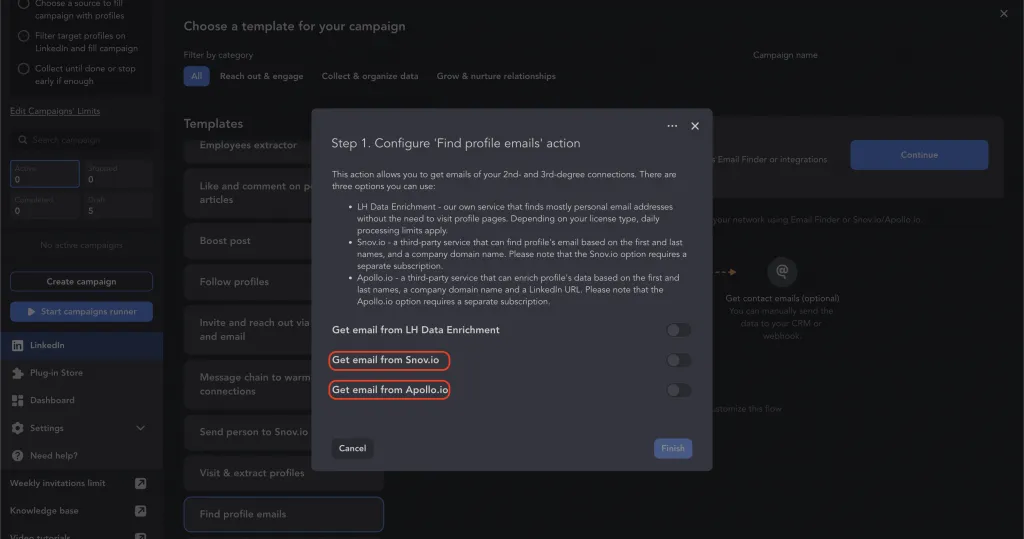
Linked Helper searches for emails across multiple sources in sequence. You can enable any combination of LH Email Finder, Apollo.io, and Snov.io:
- LH Email Finder searches first. If at least one email is found, the search stops — no credits are consumed from Apollo.io or Snov.io.
- Apollo.io is checked next if LH Email Finder returns no result. It adds verified work and personal emails for 2nd and 3rd-degree contacts you have never connected with directly.
- Snov.io searches last if neither source returned a result. It extracts email patterns from the company domain to generate and verify a match.
Enabling all three sources maximizes your match rate without wasting credits — each source is queried only when the previous one returns nothing.
Email Finder credits: Email enrichment is metered by prepaid credits assigned to your account balance at purchase. This replaces the older per-day limits. Credits are available in bundles — for example, a 1-month Standard plan includes 620 credits and a PRO plan includes 3,100.
#1 – Select profiles from a LinkedIn source
In order to search for the emails of certain 2nd and 3rd degree connections, you need to add them to the Queue. This can be done in the way described above – select the desired page as the source and set the filters.
#2 – Add action via +

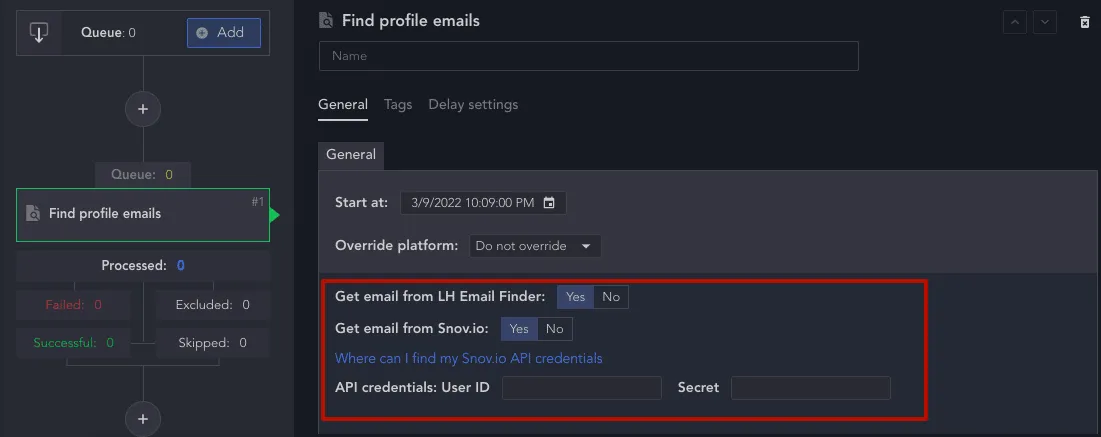
In the Find profile emails action functions, you can set a start date, assign tags, and set up integration with Snov.io and Apollo.io.
When you toggle the slider to ON, a clickable link will become available. Follow it to create a personal account and copy the Snov.io API.
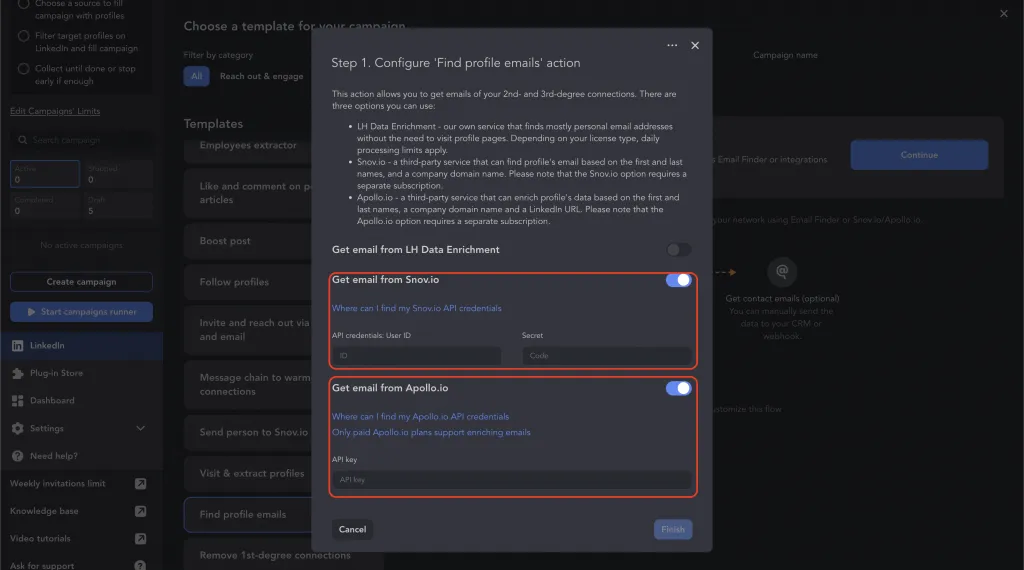
Click on Finish to start the campaign.
#3 – Download the database from the Successful list
After working with the assigned profiles and searching the emails, you can download them from the Successful section.
Set the parameters for downloading and opening the spreadsheet correctly using the instructions given in the pop-up window.
You have now learned how to export connections of all levels on LinkedIn, including their emails – even those emails that are not visible on the social network. You may also be curious about reading Using LinkedIn web scrapers to extract valuable data 2026: all you need to know. Try Linked Helper for free to download crucial business data and maximize your outreach.