
 Updated: September 8, 2026
 4 min read
LinkedIn Lookup was a mobile app launched in 2015 that helped employees find and connect with coworkers within their organization. The app has since been discontinued. Today, the term "LinkedIn Lookup" is sometimes used informally to refer to searching for people on LinkedIn, though the original feature served a different purpose.
Note: LinkedIn Lookup is no longer an active feature. For finding people on LinkedIn today, use the standard People Search functionality on linkedin.com or the LinkedIn mobile app. This article covers how to effectively search for profiles using LinkedIn's current search tools.
Why Search for People on LinkedIn?
- Recruiters can double-check employment dates and endorsements before sending an InMail.
- Marketers can build lists of influencers for partnerships or content swaps.
- Business development reps can spot mutual interests to warm up a cold call.
- Due-diligence teams can confirm an executive's past roles or a vendor's headcount claims.
LinkedIn says members with a photo receive up to 21× more profile views and 9× more connection requests. Finding the right profile quickly helps you make the most of those numbers.
How Does LinkedIn People Search Work?
- When you are logged in
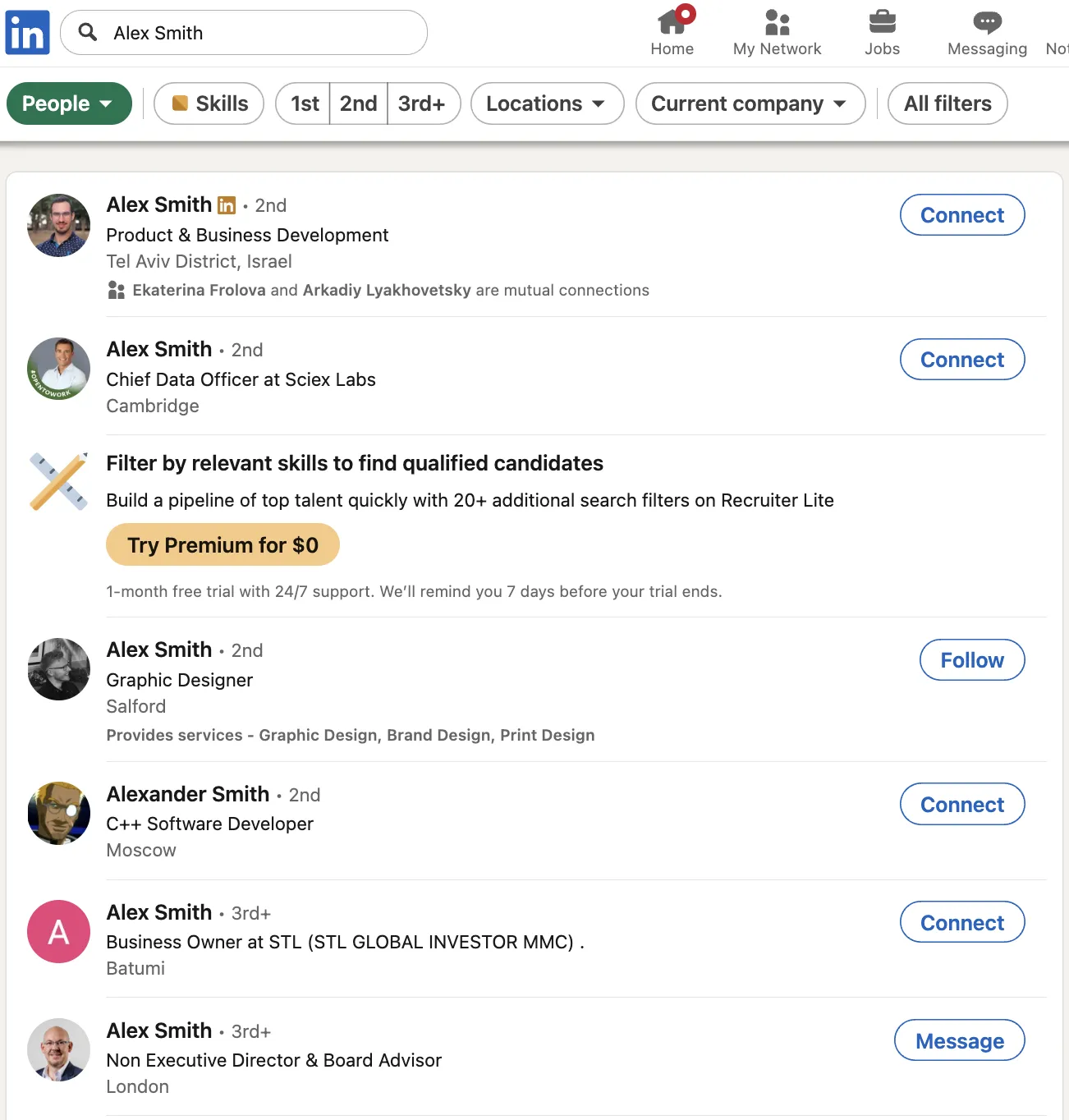
- Enter a name or keyword in the top search bar.
- Click People → All Filters. Narrow by location, current company, or school.
- Filter by Degree of connections or use "Connections of" to highlight warm paths first.
- When you are logged out
- Open an incognito window.
- Google
site:linkedin.com/in "First Last"or"Job Title" "Company" LinkedIn. - Click the public-profile preview.
- If content is masked, copy the profile's public URL for later CRM use.
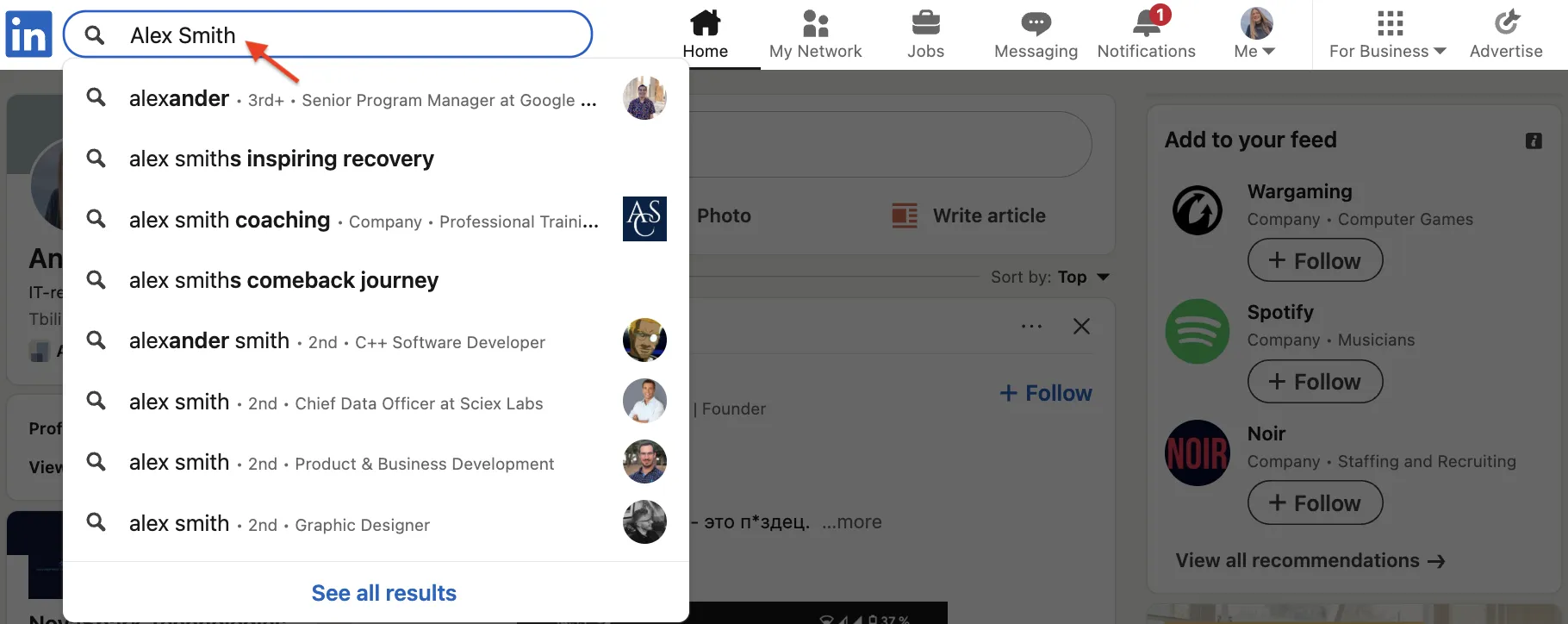
For more pro tips on finding hidden LinkedIn contacts and making your search more efficient, see 6 ways to use LinkedIn Search like a Pro: Full Guide.
Best Practices
- Combine first + last name with company to avoid namesakes.
- Use filters like "Current company" for precision. Note: The "Open to Work" filter is available only in LinkedIn Recruiter; for basic search, try Boolean keywords like "open to work" in quotes.
- Pace your profile viewing to avoid triggering LinkedIn's commercial-use limit, which is calculated monthly (exact thresholds are not published).
- Cross-reference dates with a resume or press release.
- Respect privacy—while the hiQ Labs v. LinkedIn ruling indicates that accessing publicly available profiles does not violate the CFAA, scraping or automated data collection may still violate LinkedIn's User Agreement and could result in account restrictions.
These habits save time. A recruiter can verify a candidate's timeline before scheduling a call. A marketer can check an influencer's actual reach before proposing a partnership.
The public-view approach also keeps your team on the same page. Whether you're updating a CRM record or fact-checking a pitch deck, anyone can repeat these steps and reach the same conclusions without paid tools.
If you want to avoid common pitfalls or risk account restrictions while researching, read these LinkedIn security tips & automation risks to stay compliant and safe.
Bonus Tips
- Boolean example:
"marketing manager" AND HubSpot NOT internshipnarrows results to relevant matches. - Check for a mutual connection before sending an invite; mentioning common ground tends to improve acceptance rates.
- Need deeper filters? Consider LinkedIn Premium or Sales Navigator for advanced search options. Note that trial eligibility and length vary, and LinkedIn does not offer native CSV export of search results.
LinkedIn's people search is free and gets you most of the way to what you need. The steps above should help you find the right profiles without paying for premium tools.